Customization Manager Overview
The Customization Manager is where you configure how your Aeon site behaves: the customization keys and tables that drive system behavior, the form, card, print, and queue designers, email templates, routing, billing defaults, reading rooms, roles and permissions, and the rest of your local settings. It's the staff-facing control panel for the whole site, and almost every "how do I change…" question ends up here.
Most of the time you arrive at the Customization Manager to change one specific thing — turn a key on, edit a queue, tweak a print template. So the everyday rhythm is: open the Customization Manager, find the section you need (by browsing the sidebar or by searching), make your change, and save. This page covers the parts that are the same no matter which section you're in: how the home screen is laid out, how to search, how navigation works, and how Aeon protects you from losing unsaved edits.
- You need to change a setting and you're not sure which section it lives in — start from the home screen and use search.
- You already know the section (Queues, Email Templates, a designer, etc.) — jump straight to it from the sidebar.
- You're hunting for a specific value — a key, an email-template subject, a reading-room name — use search or the Cmd/Ctrl+K palette, which look inside the data, not just the section names.
Getting to the Customization Manager
You open the Customization Manager from the staff workspace: click the more menu — the ⋮ button at the top-right of the header — and choose Customization Manager under the System heading. You can also jump to it from the command palette: press Ctrl+K / ⌘K and choose Customization Manager. Either way, the link only shows for staff whose role has configuration access. Once you're inside, the header changes to read Customization Manager so you always know which mode you're in.
Your role decides what you can configure. If it lets you configure at least one section, you can open the Customization Manager — and once inside, you see only the sections your role allows. If your role can't configure anything, opening it shows "You don't have access to any configuration sections." instead of the home screen. See Permissions below for how this is set.
The home screen
The home screen (the Customization Manager landing page) has two parts:
- A search box at the top — "Search customizations…"
- A grid of category cards, one card per area of configuration. Each card lists the sections inside that area as clickable links.
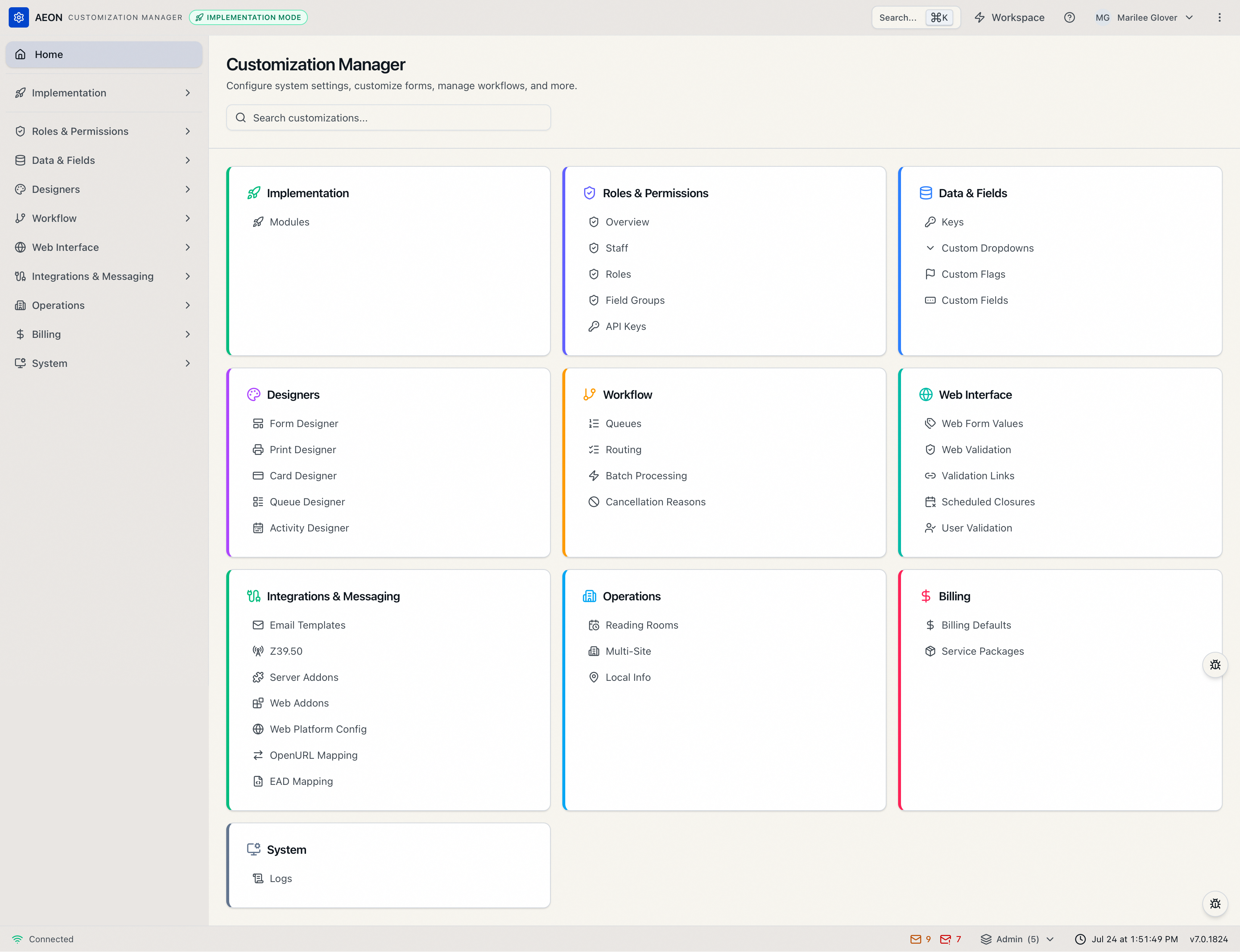
The categories you'll see (when your role has access to all of them) are:
| Category | What lives there |
|---|---|
| Implementation | Guided setup modules |
| Roles & Permissions | Overview, Staff, Roles, Field Groups, API Keys |
| Data & Fields | Keys, Custom Dropdowns, Custom Flags, Custom Fields |
| Designers | Form Designer, Print Designer, Card Designer, Queue Designer, Activity Designer |
| Workflow | Queues, Routing, Batch Processing, Cancellation Reasons |
| Web Interface | Web Form Values, Web Validation, Validation Links, Scheduled Closures, User Validation |
| Integrations & Messaging | Email Templates, Z39.50, Server Addons, Web Addons, Web Platform Config, OpenURL Mapping, EAD Mapping |
| Operations | Reading Rooms, Multi-Site, Local Info |
| Billing | Billing Defaults, Service Packages |
| System | Logs (the application log viewer) |
Click any section link on a card to open that section's editor.
The grid only shows categories and sections your role can configure. If a whole category is hidden, it's because your role has no access to any section inside it — that's expected, not an error. An admin can grant access through Roles & Permissions.
Navigating between sections
Once you're inside a section, navigation moves to the left sidebar (on smaller screens, tap the menu icon in the header to open it as a panel).
- The sidebar starts with a Home link that returns you to the landing page.
- Below it are the same categories as the home grid, shown as collapsible groups. Click a category to expand it and reveal its sections.
- The category containing your current section expands automatically, and the active section is highlighted, so you always know where you are.
- A few sections have sub-pages that appear nested underneath them. For example, Form Designer expands to Request Form, User Form, and Activity Form; Print Designer expands to Request, Callslip, User, Invoice, Invoice Statement, and Digitization Request; Card Designer expands to Request Card, Request Card (Wide), User Card, and Activity Card.
Searching the Customization Manager
Search is the fastest way to find a setting when you don't know — or don't want to hunt for — which section it lives in. It looks inside the data, not just at section names, so it will find a customization key by its value or description, an email template by its subject, a reading room by its name, and so on.
There are two ways to search, and they share the same results:
From the home screen
- Open the Customization Manager.
- Type into the Search customizations… box. Search begins once you've typed at least three characters.
- Results replace the category grid as you type.
With the command palette (Cmd/Ctrl+K)
From anywhere in the Customization Manager, press Cmd+K (Mac) or Ctrl+K (Windows) — or click the Search… button in the header — to open the command palette. It's the same search, in a pop-up dialog you can summon without leaving the section you're working in.
When the palette is open and empty, it also shows:
- Quick Actions relevant to where you are — shortcuts like New Queue, New Routing Rule, New Email Template, New Reading Room, and New Staff Member (you'll only see the ones that apply to the current section).
- A Return to Workspace shortcut to jump back to the main staff workspace.
Type a few characters, then click a result to jump straight to that section or item. Esc closes the palette.
Reading the results
Results are grouped to help you scan them:
- Sections appear first — these are direct links to a configuration section whose name matched your search (handy for jumping straight to, say, "Queues").
- Below that, item matches are grouped by the section they belong to. Each item shows which field matched (for example, Value or Description) with the matching text highlighted, so you can tell why it came up.
Click a result to go straight to that section or item.
To stay fast, search shows at most the first 100 results and tells you when it has done so: "Showing the first 100 results. Narrow your search to find what you're looking for." Add a few more characters to your search term to cut the list down.
Editing customization keys
The Keys section (under Data & Fields) is where most low-level system settings live, and it's also where Aeon shows you a setting's change history. It's a representative example of how an editor section works:
- Open Data & Fields → Keys.
- Find a key — scroll the navigation tree (organized by category and subcategory) or type into the Search keys or descriptions box (at least two characters).
- Click a key to open it. The detail panel shows its description, current value, and metadata.
- Edit the value — a toggle for Yes/No keys, or a text field for everything else.
- Click Save changes.
Each key's detail panel includes a Change history list showing who changed the value, when, and what it changed from and to. Each entry has a Revert button that restores the earlier value — except for secret keys, whose history values are redacted, so Revert is disabled for them (reverting would overwrite the real secret with the redacted placeholder). You can also create a brand-new key with the + button next to the key search box.
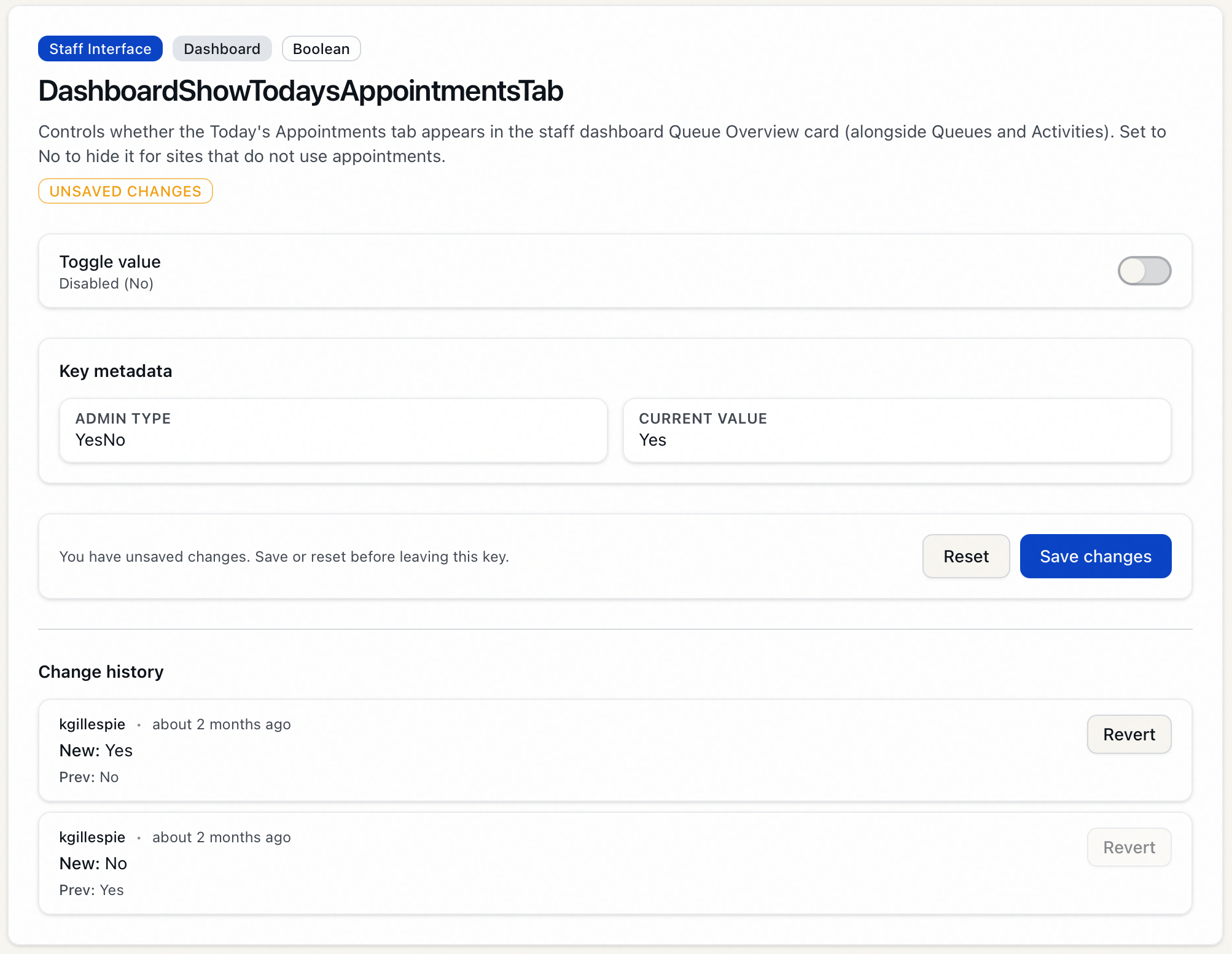
In Aeon 7, change history is shown per key, right on the key you're editing, rather than as a single Manager-wide history report. To review recent changes to a setting, open that key and read its history list.
Unsaved changes are protected
Every editor section tracks whether you have unsaved edits. A key's detail panel, for example, shows an Unsaved changes badge while you have pending edits and a Saved indicator once you save.
If you try to navigate away — to another section, to the home screen, or back to the main workspace — while edits are unsaved, Aeon stops you with a Discard unsaved changes? dialog:
- Stay here keeps you on the current screen so you can save.
- Discard & continue abandons your edits and proceeds.
Signing out while you have unsaved edits raises the same kind of guard, worded for that action: a Sign out and discard changes? dialog with Stay signed in and Discard & sign out.
The same protection fires if you try to close or reload the browser tab, and it applies whether you navigate by clicking the sidebar, choosing a result in search, or using the command palette.
The discard dialog is your last line of defense, but it's easy to dismiss in a hurry. Get in the habit of clicking Save changes before switching sections — once you choose Discard & continue, the edits are gone.
Permissions: what you can see
Access to the Customization Manager is controlled by configuration capabilities on your role:
- You must have at least one configuration area enabled to open the Manager at all.
- Within the Manager, each category maps to a configuration area (for example, Data & Fields, Designers, Workflow, Integrations & Messaging, Roles & Permissions). You only see — and can only open — the sections your role is allowed to configure.
- If you reach a section your role can't access (for instance, via a stale link), Aeon shows "You don't have permission to access this customization section." rather than the editor.
Roles and their configuration access are managed under Roles & Permissions.
ON HOLD — issue #273. The command-palette section documents behavior that is currently broken (verified in the live app + source): arrow-key/Enter navigation doesn't work from the search box (only after Tab or a mouse click into the results), and the Quick Actions are unwired no-ops. The visible prose has been trimmed to describe only what works (type → click a result → Esc; Return to Workspace), and the broken claims are parked in the HTML comment at the top of the command-palette section. When #273 is fixed, restore the keyboard-navigation and Quick-Actions description.
A couple of points for an SME to confirm on this page:
- Change-history divergence: V6 had a Manager-wide "Show Change History" report (7/30/365-day windows, export to Excel/HTML). V7 instead surfaces change history per key in the Keys editor, with a Revert button. Confirm there is no global change-history report in the V7 web client (I found none) so the "Where change history lives" note is accurate, and decide whether that's worth calling out more prominently as a behavior change for upgrading sites.
- Screenshots: (1) home screen with search box + category-card grid — DONE (embedded); (3) key detail panel with change-history list + Unsaved-changes badge — DONE (embedded). Still needed: (2) the command palette (Cmd/Ctrl+K) open with grouped results — held until #273 is fixed, since the likely cmdk rebuild may change the palette's appearance and a shot taken now would go stale.
The full generation metadata — sources, files read, and verifications — is in the HTML comment directly below this callout. When this page has been reviewed and approved, delete both this callout and that comment; a page with no Editor-review callout is one that's done.