Command Palette (Cmd+K / Ctrl+K)
The command palette is the fastest way to get anywhere in Aeon. Press Cmd+K (Mac) or Ctrl+K (Windows/Linux) from any screen and a search box opens over the page. Start typing and Aeon searches your requests, users, and activities at the same time; type a transaction number and press Enter to jump straight to that request; type a prefix character and the palette switches into a focused mode for one kind of thing.
Most staff reach for it dozens of times a day instead of clicking through menus. If you know what you want — request #12345, the user jdoe, the "Item Retrieval" queue, the "Check Out" action — the palette gets you there in a couple of keystrokes without leaving the page you're on.
- You know a transaction number and want to open that request now — type it and press Enter.
- You want to find a request, user, or activity but only have a name or keyword — just start typing.
- You're on a request and want to run a workflow step (Check Out, Place on Hold, Route) without hunting for the toolbar button.
- You want to jump to a destination — the dashboard, a queue, Custom Search, or the Customization Manager — by typing
/to browse the ones your permissions let you reach.
Opening and closing the palette
There are two ways to open it:
- Keyboard: press Cmd+K (Mac) or Ctrl+K (Windows/Linux). This works from anywhere in Aeon. Pressing it again closes the palette, so the same keystroke toggles it on and off.
- The Search button: in the top navigation bar, click the Search... button (it shows a
⌘Khint). On a narrow or mobile screen this collapses to a search icon.
To close the palette without doing anything, press Esc or click outside it.
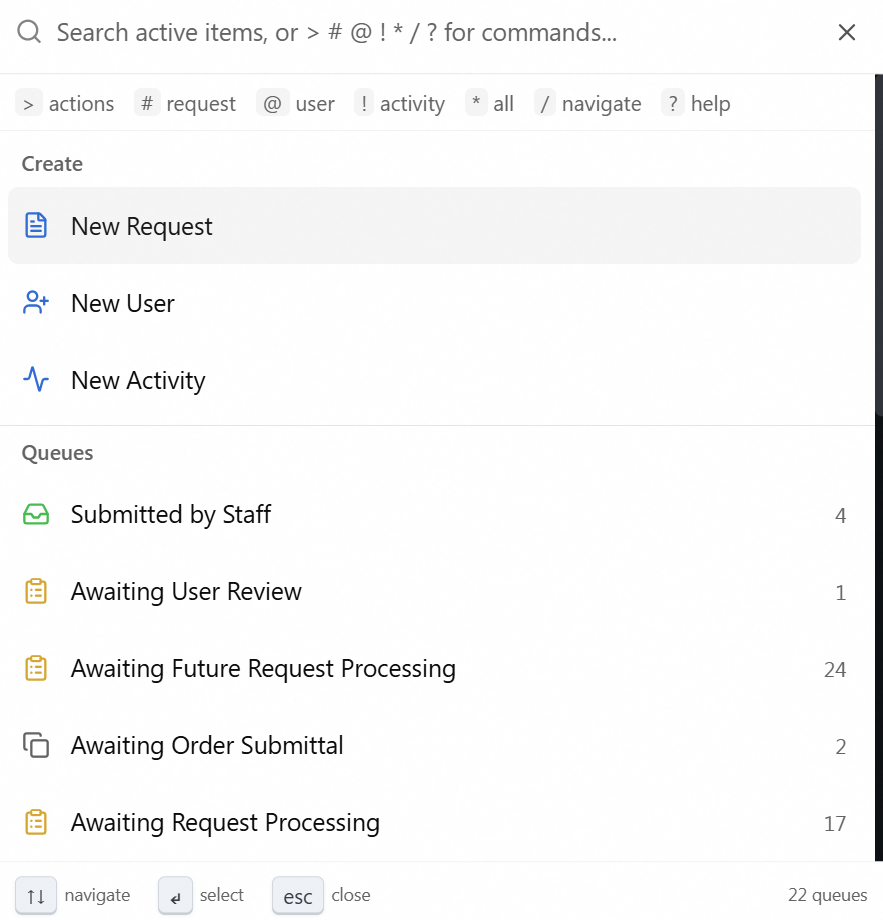
When it opens, the input is focused and ready. The placeholder reminds you of your options:
Search active items, or
>#@!*/?for commands...
Below the input, a hint row spells out what each prefix does. The footer shows the basic keys: ↑↓ to move through the list, ↵ (Enter) to select the highlighted item, Esc to close.
The fast path: just start typing
If you type without a prefix, the palette runs a unified search across requests, users, and activities at once and groups the results under Requests, Users, and Activities headings. Each result is tagged so you can tell them apart at a glance.
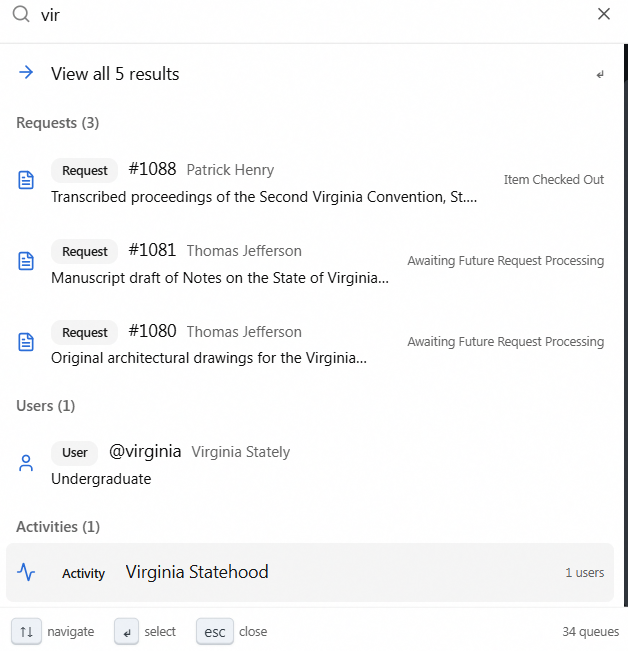
By default this searches active items only — the day-to-day common case. The results header reads "Search results — Active items only — type * to include closed" to remind you. (To include completed and cancelled records, use the * prefix described below.)
- Press Cmd+K.
- Type a few characters — for example, a researcher's last name or a word from an item title (minimum two characters).
- Pick a result with the arrow keys and press Enter, or click it. Aeon opens that request, user, or activity.
A View all … results row appears at the top of the results; selecting it opens the full search results page for the type with the most matches, carrying your search text with it.
Typing a transaction number
If you type only digits (for example, 12345), Aeon recognizes it as a possible transaction number. Once it confirms the request exists, an Open request #12345 row appears at the top with a ↵ hint. Press Enter to go straight there. If no request matches that number, Aeon tells you with a "Request #12345 not found" message.
Focused modes: the prefix characters
Typing a prefix character as the first character switches the palette into a focused mode. A small badge appears on the right (for example, REQUEST or USER) so you always know which mode you're in. Delete the prefix to return to the default search.
| Type this first | Mode | What it does |
|---|---|---|
> | ACTION | Search and run actions — create a new request/user/activity, or workflow steps for the open request. |
# | REQUEST | Search requests, or type a number to open that request directly. |
@ | USER | Search users, or type a username to open that user directly. |
! | ACTIVITY | Search activities by name. |
* | SEARCH ALL | Unified search that includes closed/completed/cancelled records. |
/ | NAVIGATE | Jump to a destination — Home Dashboard, Appointments, Custom Search, Customization Manager, or a queue. |
? | HELP | Opens the Aeon documentation in a new browser tab. |
A few examples:
#12345— opens request #12345 directly.#civil war— searches requests for the text "civil war".@jdoe— opens the user jdoe directly (Aeon shows "User @jdoe not found" if there's no match).!orientation— finds activities named "orientation".*smith— searches everything for "smith", including closed requests./dashboard— jumps to the home dashboard.
# and @ modesIn REQUEST mode, a plain number opens that request — press Enter to go straight there (Aeon shows "Request #12345 not found" if there's no match); any non-numeric text runs a request search instead. In USER mode, what you type is treated as a username, and an Open user @… row appears that you can select (or press Enter) to open it directly; Aeon also lists matching users as you type (two characters or more), so you can pick one from the list instead.
Search-field operators (title:, author:, and more)
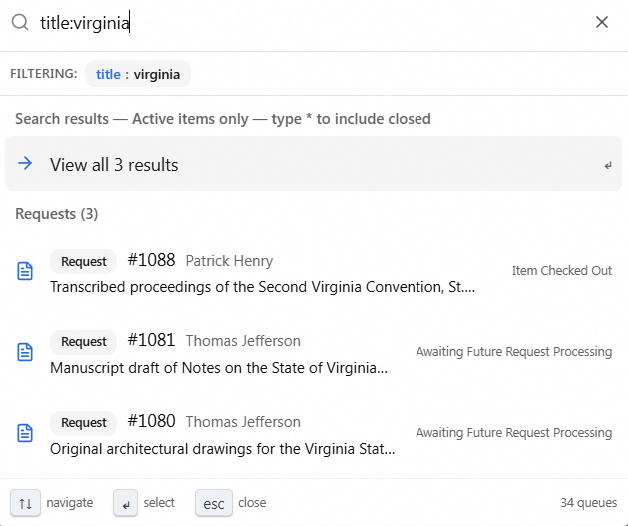
When you search requests or users, you can target a specific field by prefixing your term with an operator and a colon — for example title:diaries or author:lincoln. As soon as Aeon recognizes an operator it shows a Filtering: row of chips beneath the input confirming what was understood. Recognized operators include title, subtitle, author, call, ref, ead, isbn, issn, itemnumber, email, username, firstname, lastname, plus the bundles name and id. Anything Aeon doesn't recognize is searched as plain text (no chip appears). Combine operators with spaces, and wrap multi-word values in quotes — for example author:"mark twain" title:letters.
Running actions on the open request
When you have a request open, the palette becomes context-aware. With no text typed, it shows a Next Steps for #12345 group listing only the workflow actions that are valid for that request's current status — for example Check Out, Place on Hold, Reshelve Item, or Route to Queue — alongside always-available actions like Cancel Request. Selecting one runs it just as if you'd clicked the matching toolbar button.
You can also type > to browse the full ACTION list (Print Callslip, Send Email, Clone Request, and so on) and the Create actions (New Request, New User, New Activity). Actions that need an open request are disabled with a "Select a request first" note when you're not on one.
In the default view with no text typed, the palette also lists your Recent items (requests, users, and queues you opened) and Recent Commands (workflow actions you ran), so you can jump back to recent work in one keystroke. These are remembered per browser.
Working with selected requests
If you've checkbox-selected several requests in a queue or search results, opening the palette surfaces a group at the top — for example 3 Selected — with bulk actions: Route selected requests…, Add flag to selected…, Remove flag from selected…, and Clear selection. Choosing one drills into a queue or flag picker so you can apply it to the whole selection at once. (See Bulk Selection and Bulk Actions for the full workflow.)
The palette only shows what your role allows, and the prefix hints adjust to match:
- The
#(requests),@(users), and!(activities) modes require View access to that area. Without it, that prefix is ignored and its hint is hidden. - Running workflow actions on a request requires Edit access to Requests; Route to Queue and Cancel Request require Full access. Send Email requires Edit access to Email. Actions you can't perform are filtered out or disabled.
- New User, New Request, and New Activity require Edit access to the matching area.
- The
/Navigate list only shows Customization Manager if your role has some configuration access, and Appointments only if you can view appointments.