Logging In and Changing Your Password
The Aeon staff web client runs in your browser — there's nothing to install. You open Aeon at the address your administrator gave you (for example, https://aeon.your-library.edu/staff), sign in with your staff username and password, and you land on the dashboard ready to work. There are no separate "desktop client" and "web interface" to keep straight anymore: this one sign-in covers everything you do as a staff member.
Most days, signing in is two fields and a button. The extra steps on this page — picking a site, resetting an expired password — only appear when they apply to you.
- Every shift: sign in with your username and password.
- If your library runs more than one site (multi-site): pick which site or site group you're working in when you sign in.
- When your password has expired: set a new one on the spot before you can continue.
- Any time you want to change your password: do it yourself from the user menu — you don't need an administrator.
Signing in
- Open the staff client URL in your browser. If you're not already signed in, Aeon shows the Sign in screen with the heading Welcome back.
- Enter your Username.
- Enter your Password.
- Click Sign in.
When your credentials check out and your account is tied to a single site (or your library only has one site), Aeon signs you straight in and takes you to the dashboard.
Aeon keeps your session alive in the background and quietly refreshes it while you work, so you won't be kicked out mid-task during a normal shift. If you leave Aeon idle for about an hour, though, the session lapses and you'll sign in again next time. Signing out (or changing your password) ends the session and returns you to this screen.
Choosing a site or site group (multi-site libraries)
If your account has access to more than one site, Aeon needs to know which one you're working in before it finishes signing you in. After you click Sign in, a Site / Site Group selector appears on the same screen:
- Open the Site / Site Group dropdown.
- Pick an entry. Choices are grouped into:
- Site Groups — a named bundle of sites (the entry shows how many sites it covers, e.g. "Main Campus (3 sites)"). Choose a group to work across all of its sites at once.
- Individual Sites — a single site, shown by its code and description.
- Click Sign in again to finish.
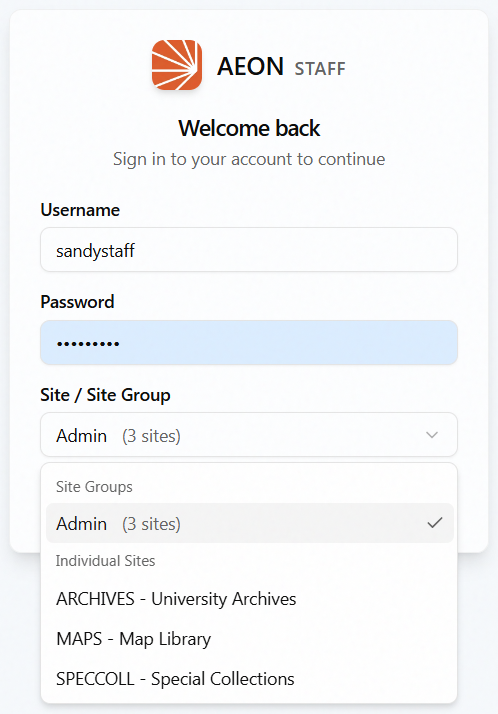
Aeon remembers your last choice and pre-selects it the next time you sign in, so most days this is a single click. If your previous selection is no longer available to you, Aeon falls back to the first site group (or first site) in the list.
Picking a site group scopes your whole session to the sites in that group — requests, queues, reading rooms, and appointments are filtered to that scope. Your selection rides along in your sign-in token and is applied to every request, so the scope follows you everywhere in the app. Note that user (patron) records aren't restricted by site — searching for and opening users works the same no matter which site or group you picked. You can switch to a different site or group later without signing out: open the user menu (your name, top-right) and choose Sites, and Aeon re-scopes your session on the spot. The Sites option only appears when Aeon is set up with more than one site (a multi-site installation).
If sign-in fails
- Wrong username or password: Aeon shows an error and leaves you on the sign-in screen to try again.
- No site assignment: if your account isn't assigned to any site, Aeon shows an amber warning rather than a hard error — but you can't sign in until a site is assigned. Contact an administrator to get one assigned.
- Locked account: if your account has been locked, you'll need an administrator to unlock it.
- Expired password: Aeon sends you to the Password Expired screen — see the next section.
Resetting an expired password
Your library can set passwords to expire on a schedule. When yours has expired, signing in doesn't drop you on the dashboard — instead Aeon opens the Password Expired screen so you can set a new password right away. This is the one case where you change your password before you're fully signed in.
- The screen opens with your Username already filled in (you can't edit it here).
- In Current Password, enter the password you've been using (the expired one).
- In New Password, enter a new password.
- In Confirm New Password, type the new password again. Aeon shows "Passwords match" in green when the two agree, or "Passwords do not match" in red when they don't.
- Click Change Password.
On success you'll see Password Changed, and Aeon returns you to the sign-in screen after a moment so you can sign in with your new password.
Each password box has an eye icon you can click to reveal what you've typed, in case you want to double-check it. If you'd rather not reset right now, Cancel takes you back to the sign-in screen — but note you can't get past sign-in until the expired password is changed.
If your administrator has configured password complexity rules, Aeon shows them at the top of the screen so you know what's required before you submit. The exact rules (length, character types, and so on) vary by library.
- Current password is incorrect — the current password you entered doesn't match; re-enter the password you were signing in with.
- New password does not meet requirements — your new password fails the library's complexity rules. Adjust it to match the requirements shown on screen.
- New password cannot match a previous password — pick a password you haven't used before.
- Account locked — contact an administrator; an expired-password reset can't unlock a locked account.
Changing your password any time
You don't need to wait for your password to expire, and you don't need an administrator. You can change your own password whenever you like from inside the app.
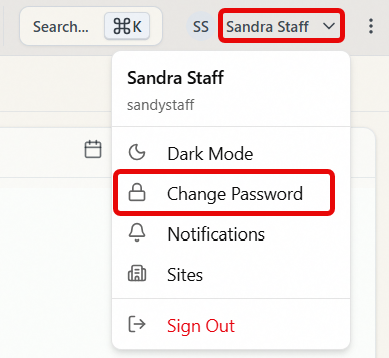
- In the top-right corner, click the user menu — your name (or initials) with a dropdown arrow.
- Choose Change Password.
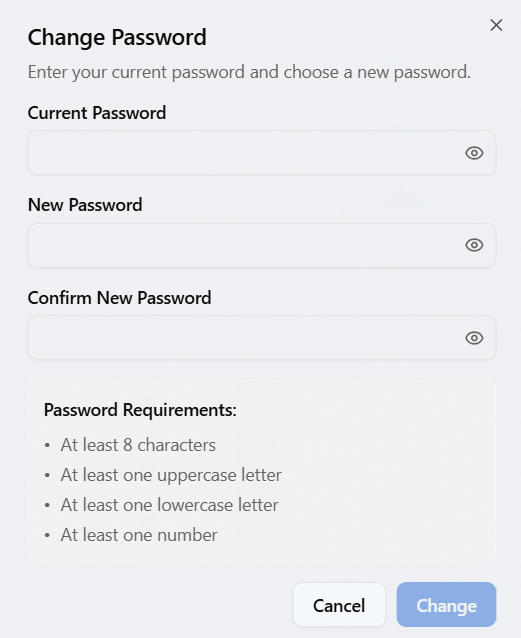
- The Change Password dialog opens. Fill in:
- Current Password — your password as it is right now.
- New Password — the password you want to switch to.
- Confirm New Password — the new password again. The dialog flags "Passwords do not match" until the two agree.
- Click Change.
The dialog lists the active Password Requirements so you can match them as you type, and each box has an eye icon to reveal what you've entered.
For security, changing your password ends your current session everywhere. As soon as the change succeeds you'll see "Password changed successfully. Please sign in with your new password," and Aeon returns you to the sign-in screen. Sign back in with your new password to keep working. (This is expected — it isn't an error.)
The Change Password item in your user menu only affects your own staff sign-in. Changing a patron's password, or resetting another staff member's password, are separate workflows handled elsewhere (in the user record and in staff administration, respectively).
Signing in and changing your own password don't require any special role or capability — every staff member can do both. The Sites switcher in the user menu appears only when Aeon is set up with more than one site (a multi-site installation). Resetting another staff member's password is an administrator action covered separately.