Navigating the Workspace: Dashboard, Queues, Search, and the Command Palette
Once you sign in, Aeon 7 drops you into a single browser workspace. There's no menu tree to learn and nothing to install — almost everything you do starts from one of three places: the dashboard (your daily overview), the top navigation bar (the main areas of the app), and search (jumping straight to a specific request, user, or activity).
The fastest way to get anywhere is the command palette — a search-and-do box you open with Cmd+K (Mac) or Ctrl+K (Windows). It finds records, runs actions, and navigates the app, all from the keyboard. Most experienced staff live in it. The rest of this page walks through each piece and how they fit together.
- Starting your shift — the dashboard shows you what's waiting across your queues and reading rooms at a glance.
- Looking something up — you have a transaction number, a patron name, or an activity in mind and just want to open it. Press Cmd/Ctrl+K and type.
- Moving between areas — switching from requests to appointments, or jumping to the Customization Manager.
The dashboard (Command Center)
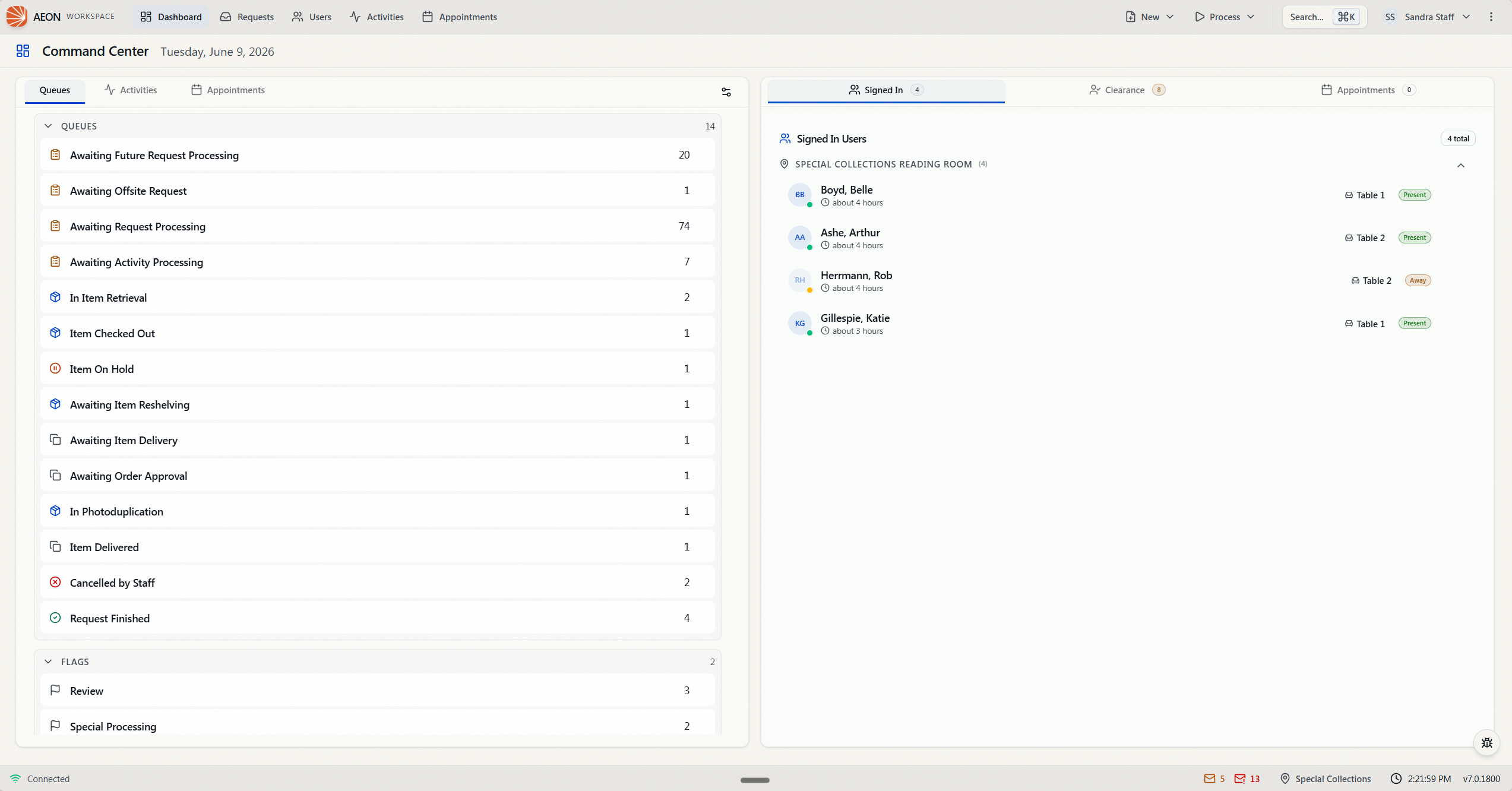
The dashboard is your landing page after sign-in, and you can return to it any time by clicking Dashboard in the top bar or pressing D. Its header reads Command Center with today's date.
It's organized into two areas, and what you see depends on your role's permissions:
- Queue Overview (left) — a tabbed card. The Queues tab lists your active request queues and flags with live counts, so you can see what needs attention without opening each one (queues with nothing waiting are hidden). A separate Activities tab lists active activities, and — if your site enables it — an Appointments tab shows the agenda for a chosen day, filtered by one or more reading rooms you pick from a multi-select dropdown. Use the Customize button in the card's top-right corner (hover shows a Customize tooltip; it becomes Done while you're editing) to group items into categories and reorder them. Which tabs appear depends on your role's permissions and your site's settings.
- Status panels (right) — a tabbed panel showing Signed In (patrons currently signed in to the reading room), Clearance (users waiting to be cleared), and Appointments (appointments awaiting confirmation), each with a live count. Which tabs appear depends on your role's permissions and your site's settings.
Most things on the dashboard are clickable: open a queue, flag, or activity from the Queue Overview, or a signed-in user from the status panel, with a single click. In the Appointments tab, clicking an appointment opens it on the Appointments calendar.
The dashboard only shows panels your role has permission to view. If your role can't view requests or activities, the Queue Overview won't appear; if it can't view reading rooms, users, or appointments, the status panels won't either. A role with none of these sees the message "No dashboard panels available for your role." This is expected — it's not an error.
The top navigation bar
The bar across the top of the workspace is your primary way to move between the main areas of Aeon. Each link also has a single-key shortcut (shown in its tooltip) that works anywhere you're not typing in a field:
| Destination | Shortcut | What it opens |
|---|---|---|
| Dashboard | D | The Command Center overview |
| Requests | R | Your queues and request lists |
| Users | U | The patron/user list |
| Activities | C | The activities list |
| Appointments | A | The reading-room appointment calendar |

To the right of the bar you'll find a few more controls:
- New — a dropdown for creating a Request, a Request for Activity, Requests from File, a User, an Activity, or an Appointment.
- Process — a dropdown of batch-processing actions (Check Out, Place On Hold, Reshelve, Item Reshelved, Item Delivered, and any custom processes your site has configured).
- Search… — opens the command palette (it shows the ⌘K hint).
- Your user menu and a More (three-dot) menu for account and app options.

Links and create options only appear if your role can use them — for example, Users is hidden if your role can't view users, and the New dropdown only lists the record types you're allowed to create. On a narrow screen or phone, the bar collapses into a hamburger (☰) menu with the same links, plus a search button.
The command palette (Cmd/Ctrl+K)
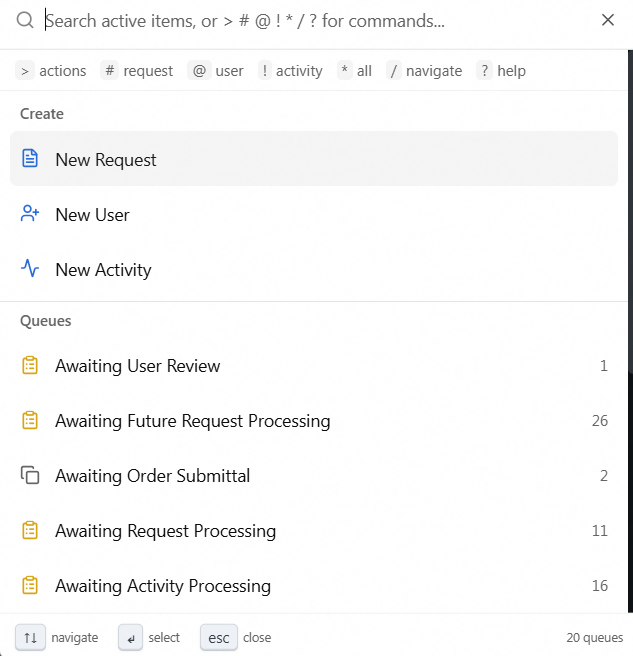
The command palette is the heart of navigation in Aeon 7. Open it from anywhere with Cmd+K (Mac) or Ctrl+K (Windows) — or click Search… in the top bar. Pressing the shortcut again closes it.
When it opens, just start typing. With no special prefix, the palette runs a unified search across requests, users, and activities at the same time and groups the matches by type. By default it searches active items only (closed and cancelled records are hidden) — the fast, everyday case.
Use the arrow keys to move through results, Enter to open the highlighted item, and Esc to close. These hints are always shown along the bottom of the palette.
Mode prefixes — narrowing what you're searching
Typing a single character at the very start of the box switches the palette into a focused mode. A small badge appears on the right (for example, REQUEST or USER) so you always know which mode you're in:
| Type this first | Mode | What it does |
|---|---|---|
> | Actions | Run a command — create a record, or act on the open request (route, check out, send email, etc.) |
# | Request | Find a request. Type a number to open it directly, or text to search requests |
@ | User | Find a patron by username, name, or ID |
! | Activity | Find an activity by name or linked user |
* | Search all | Same unified search as the default, but includes closed and cancelled records |
/ | Navigate | Jump to a destination (Dashboard, Appointments, Custom Search, Customization Manager) |
? | Help | Opens the Atlas documentation site in a new browser tab |
The prefixes you can use depend on your permissions — for example, @ (user search) only works if your role can view users. The hint row at the top of the palette lists the prefixes available to you.
Examples
Open a specific request:
- Press Cmd/Ctrl+K.
- Type
#12345. - The palette confirms the request exists and offers Open request #12345 — press Enter. (If no request by that number exists, you'll see "Request #12345 not found".)
Find a patron:
- Press Cmd/Ctrl+K and type
@smith(or justsmithfor the unified search). - Pick the matching user from the list, or choose View all results to open the full search page.
Run an action on the request you're viewing:
- With request #12345 open, press Cmd/Ctrl+K.
- Type
>to enter Actions mode, then the action name — for examplecheck out. - Select it to run it on the current request.
When you open the palette while viewing a request, it shows actions specific to that request right at the top — including a Next Steps group with only the workflow moves that are valid for the request's current status. You don't have to remember what comes next; the palette only offers the steps that apply.
Recent items and command history
Open the palette with nothing typed and it shows your Recent records and Recent Commands, so getting back to something you just touched is a click away. It also lists quick links to Custom Search, the Home Dashboard, and All Queues.
Search operators
Whether you're in the command palette or on the full search page, you can target a specific field by prefixing your text with an operator and a colon. As you type a recognized operator, a chip appears (labeled Filtering:) confirming it was understood. Recognized operators include:
- Items / requests:
title:,subtitle:,author:,call:(call number),ref:,ead:,isbn:,issn:,itemnumber: - Users:
email:,username:,firstname:,lastname:, plusname:andid:(which search across several related fields)
For example, author:twain title:huckleberry searches for those words in the author and title fields specifically. You can combine several operators in one query, and wrap a multi-word value in quotes (title:"river journeys"). Anything you type without a recognized operator is matched as ordinary text.
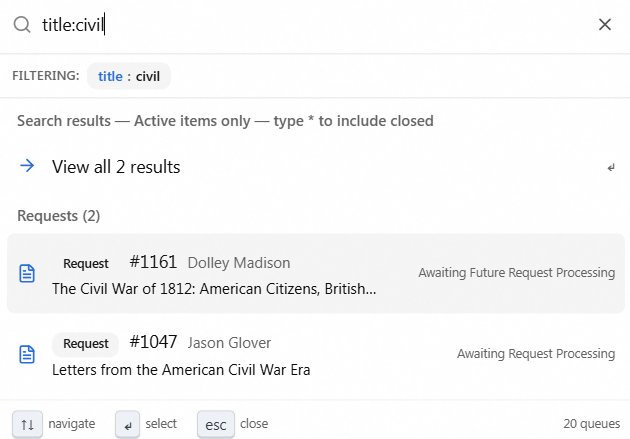
If you type a prefix Aeon doesn't recognize (say, color:blue), no chip appears and the whole thing is searched literally. The presence or absence of the Filtering: chip tells you whether your operator took effect.
The full search page
When a quick palette lookup isn't enough — you want to browse, filter, sort, or work through a list of results — choose View all results in the palette (or run a search and press Enter). That opens the dedicated Search page.
The search page gives you:
- A type selector to switch between Requests, Users, and Activities, each showing its result count.
- A search box, plus a filter and sort bar for building more precise queries.
- An Active toggle to include or exclude closed/cancelled records.
- A split list/detail view: pick a result on the left and its full detail opens on the right, so you can work without losing your place in the list.
Aeon keeps the current view in the page URL — for example /requests/12345, /users/jsmith, or a search like /search?q=twain&type=requests. You can copy the address from your browser and send it to a colleague to point them at the exact same request, user, or result set.
Search and navigation are filtered by your permissions throughout. The type selector on the search page only offers Requests, Users, or Activities that your role can view, and command-palette prefixes for record types you can't view are disabled. If a coworker can reach something you can't, that's a difference in your assigned roles, not a malfunction.