What is Aeon 7 (Web Staff Client)
Aeon is request and workflow management software for special collections libraries and archives: patrons place requests, those requests flow through queues, and staff process them — retrieving items, scheduling reading-room visits, sending notifications, and tracking everything along the way. That hasn't changed.
What's changed in Aeon 7 is how staff do that work. The Aeon 7 web staff client is a browser-based application that replaces the Windows desktop client. You sign in from any standard web browser — Chrome, Edge, Safari, Firefox, on a desktop, laptop, or tablet — and the full workspace loads: no install, no per-machine setup, nothing to keep updated on each workstation. Everything staff did in the desktop client — processing requests, managing users, running the reading room, scheduling appointments, sending email, and configuring the system — now happens here.
The Aeon 7 web staff client works with any modern web browser. The web addon system — which replaces the client addons used in earlier versions of Aeon — is currently supported only in Google Chrome. To use web addons, open the Aeon 7 client in Chrome.
If you've used the Aeon desktop client, this page maps the old paradigm onto the new one: where the dashboard lives, how you get to queues and users, and how the workspace is laid out. If you're brand new, it's a guided tour of what you'll see the first time you log in. Either way, the rest of the Getting Started section drills into each piece.
What you'll see when you log in
After you sign in (see Logging In and Changing Your Password), Aeon opens to the Command Center — the dashboard. The whole client is organized around three things you'll use constantly:
- The top navigation bar — your way to move between the major areas of Aeon.
- The Command Center dashboard — your at-a-glance home base, showing what needs attention right now.
- Global search (the command palette) — the fastest way to jump straight to a specific request, user, or activity.
Each is covered below, and in more detail on its own page.
The top navigation bar
Across the top of every screen is the AEON navigation bar (labeled Workspace). The primary navigation buttons are:

| Button | Goes to | Keyboard shortcut |
|---|---|---|
| Dashboard | The Command Center home view | D |
| Requests | Queues and the request lists | R |
| Users | The user (patron) directory | U |
| Activities | Activities (classes, group visits, exhibits, events) | C |
| Appointments | The reading-room appointment calendar | A |
Press the single-letter shortcut from anywhere that isn't a text field to jump straight there — for example, tap U to open Users. Hovering a button also shows its shortcut.
On the right side of the bar you'll find:

- New — a dropdown to create a new Request, Request for Activity, Requests from File, User, Activity, or Appointment.
- Process — a dropdown of batch-processing actions (Check Out, Place On Hold, Reshelve, Item Reshelved, Item Delivered, and any custom processes your site has configured).
- Search... — opens the global search palette. The button shortcut is
Ctrl+Kon Windows or⌘Kon a Mac. - Your user menu — shows your name and username, and includes a Dark Mode / Light Mode toggle, Change Password, Notifications, Sites (when your installation has more than one site) — switch among the sites and site groups you're authorized for — and Sign Out.
- The more menu — the three-dot button just to the right of your user menu, holding additional tools grouped by area. Each section and item appears only if your role has access:
- Search — Custom Search.
- Manage — Web Alerts, Billing Accounts, Bundles, Pending Emails, and Failed Emails.
- System — Customization Manager.
- Release Notes, Keyboard Shortcuts, Help & Documentation, and About Aeon.
The navigation bar only shows the areas your role can access. If your role can't view Requests, the Requests button — and its R shortcut — simply won't appear; the same is true for Users, Activities, Appointments, the New options, and Process. This is normal: Aeon hides what you can't use rather than showing disabled buttons. See User Permissions and Role-Based Access for how this works.
On a phone or narrow screen, the navigation collapses into a menu (hamburger) button that opens the same links as a slide-out panel, so the workspace stays usable on a tablet at the reading-room desk.
The Command Center (dashboard)
The Command Center is the dashboard you land on, with today's date displayed at the top. It's built to answer "what needs my attention right now?" at a glance. It's divided into two areas:
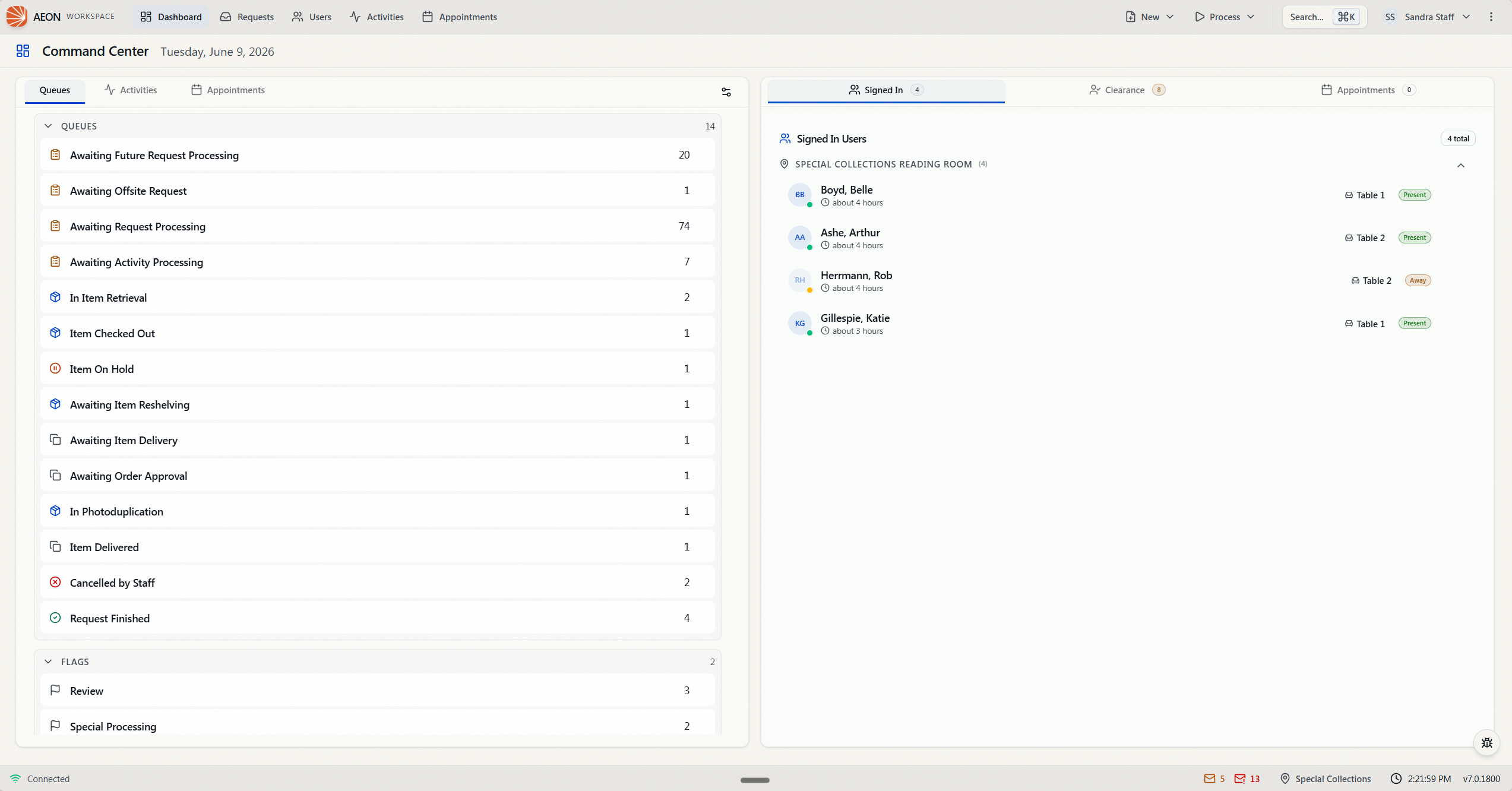
Queue Overview (left). A live list of your active request queues with their current request counts, so you can see where work is piling up. Tabs at the top of this card switch between:
- Queues — active queues and request flags, with counts.
- Activities — your active activities (shown when your role can view activities).
- Appointments — today's appointments (shown when enabled for your site).
Click any queue to open it; click an activity or appointment to open that record. You can also reorganize the queue list into your own collapsible categories: click the Customize icon (a small settings icon at the top-right of the card; its tooltip reads Customize), drag queues and flags into groups, then click Done. Your layout is saved for you.
Status panels (right). A tabbed card covering the reading-room front desk — signed-in users, users waiting to be cleared, and appointments to confirm — so front-desk staff can work the day from one place. These panels also respect your role; you'll only see the ones you have permission to view.
Because each panel is permission-gated, two staff members can see different dashboards. A processing-only role might see just the queue overview; a front-desk role sees the reading-room status panels. If your role has access to none of them, the Command Center shows "No dashboard panels available for your role." rather than an empty page.
For a deeper walkthrough of every panel, see Dashboard Overview in the Daily Work section.
Global search and the command palette
Anywhere in Aeon, press Ctrl+K (Windows) or ⌘K (Mac) — or click Search... in the top bar — to open the command palette. It's the quickest way to get to a specific record: start typing a transaction number, a patron name, or an activity name and pick the result. You can also use it to run actions and navigate without touching the mouse.
For example, to open request #12345 you don't need to find the right queue first — open the palette, type 12345, and press Enter. The command palette is a genuinely new capability in Aeon 7; it has its own page, Command Palette (Cmd+K / Ctrl+K), and the broader search experience is covered in Searching Requests, Users & Activities, both in the Daily Work section.
Built for more than one person at a time
Because everyone works in the same browser-based system against the same live data, Aeon 7 keeps staff in sync in real time. When a coworker changes a record, your open lists and counts update on their own — you don't have to refresh. And when you start editing a request or user, Aeon places a short-lived lock on it so two people can't overwrite each other's work. You'll rarely think about the lock — it happens automatically as you edit — but it's the mechanism that makes a shared, multi-user web client safe. See Opening & Locking a Request for the details.
Sharing what you're looking at
Every view in Aeon 7 has its own web address. Looking at queue 5, request #12345, or the user jdoe puts that exact view in your browser's address bar, so you can copy the link and send it to a colleague — they'll land on the same record (provided their role can see it). This URL-first behavior is covered in URL-First Navigation and Shareable Links in the Daily Work section.
Where to go next
- Logging In and Changing Your Password — sign in, choose your site, and manage your password.
- Navigating the Workspace — the dashboard, queues, search, and command palette in one place.
- User Permissions and Role-Based Access — why you see what you see.