Composing and Sending Email to a User
Sometimes you need to email a researcher about them, not about one particular request — confirming their account is cleared, letting them know they've been disavowed, welcoming a new registration, or just answering a question. Aeon handles this from the user record, so the message is tied to the person and recorded in their email history alongside every other email they've received.
You start the email from the Email button on the user record's toolbar. From there you can either pick a template — which pre-fills the recipient, subject, and body with the user's details already merged in — or send a blank message you write from scratch. Either way the message opens in a dialog where you can edit everything before it goes out.
- You're clearing, disavowing, or otherwise changing a researcher's account and want to notify them — pick the matching template (for example, ClearUser or DisavowUser).
- A new researcher registers and you want to send the welcome message — pick NewUserRegistration.
- You need to send a general, one-off message to the researcher — send a blank email and write it yourself.
This page covers email tied to a person (the user record). To email a researcher about a specific request — so the message is recorded on that transaction and can change the request's status when it sends — start from the request instead. See Composing and Sending Email from a Request. The two share the same idea (template or blank, edit, send) but use slightly different dialogs and offer different templates.
Starting an email from a user record
-
Open the user record for the researcher you want to email — search for them and open their record, or click through from anywhere their username appears.
-
In the toolbar across the top, click the Email button (the one with the envelope icon).
-
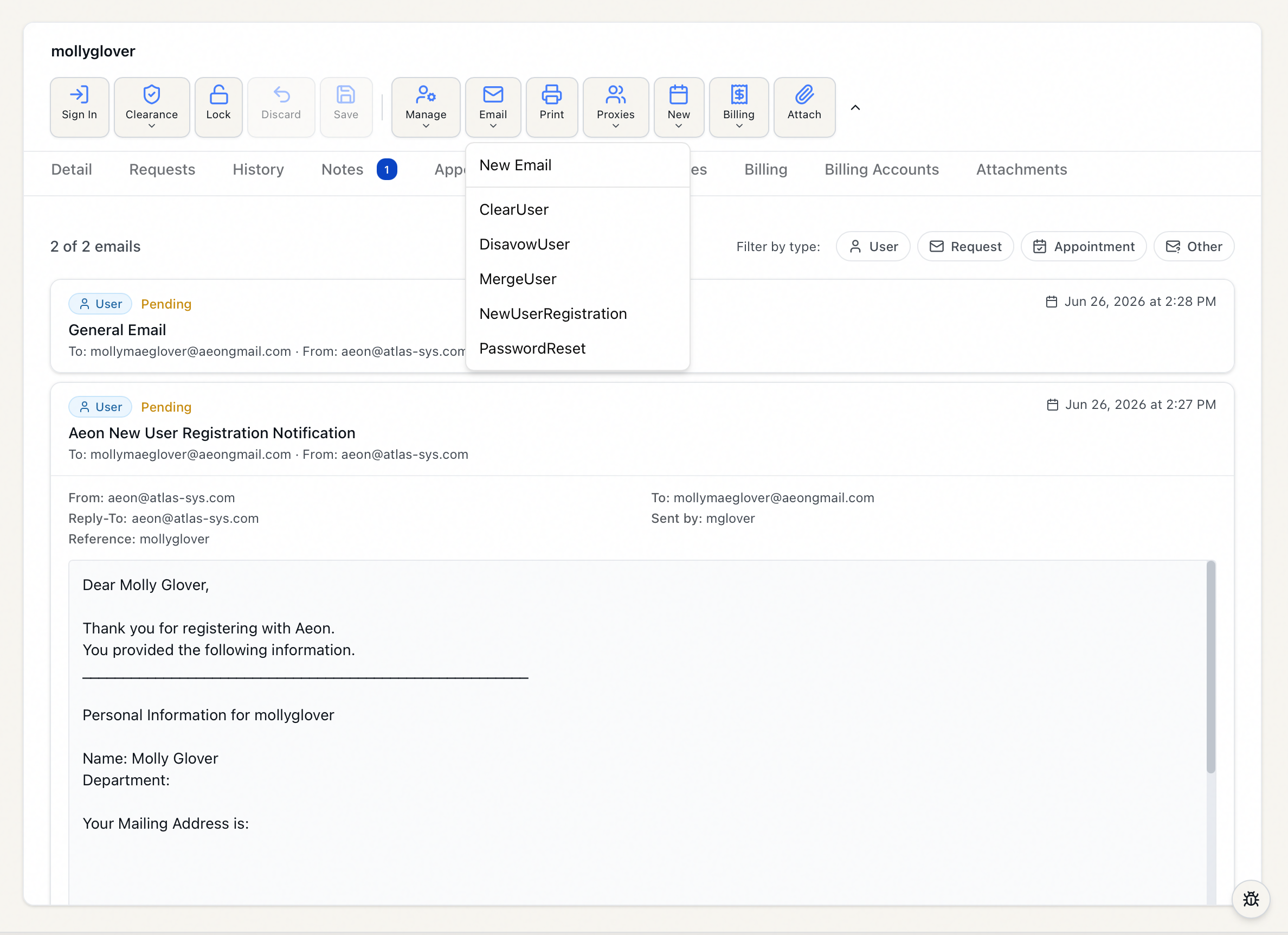
The Email menu opens and lists:
- New Email — opens an empty message addressed to the researcher.
- A list of email templates below it, each named for what it does — for example ClearUser, DisavowUser, NewUserRegistration.
-
Click New Email or click the template you want.
The email dialog opens, titled Email [username] (or Email [username] - [template name] when you picked a template).
Aeon addresses the email to the researcher's email address automatically, so the Email button is greyed out if the user record has no email address on file — add an address to the user record first, then try again. The button is also disabled when you lack the Email permission (see below) or when another staff member currently holds the record's edit lock.
Using a template
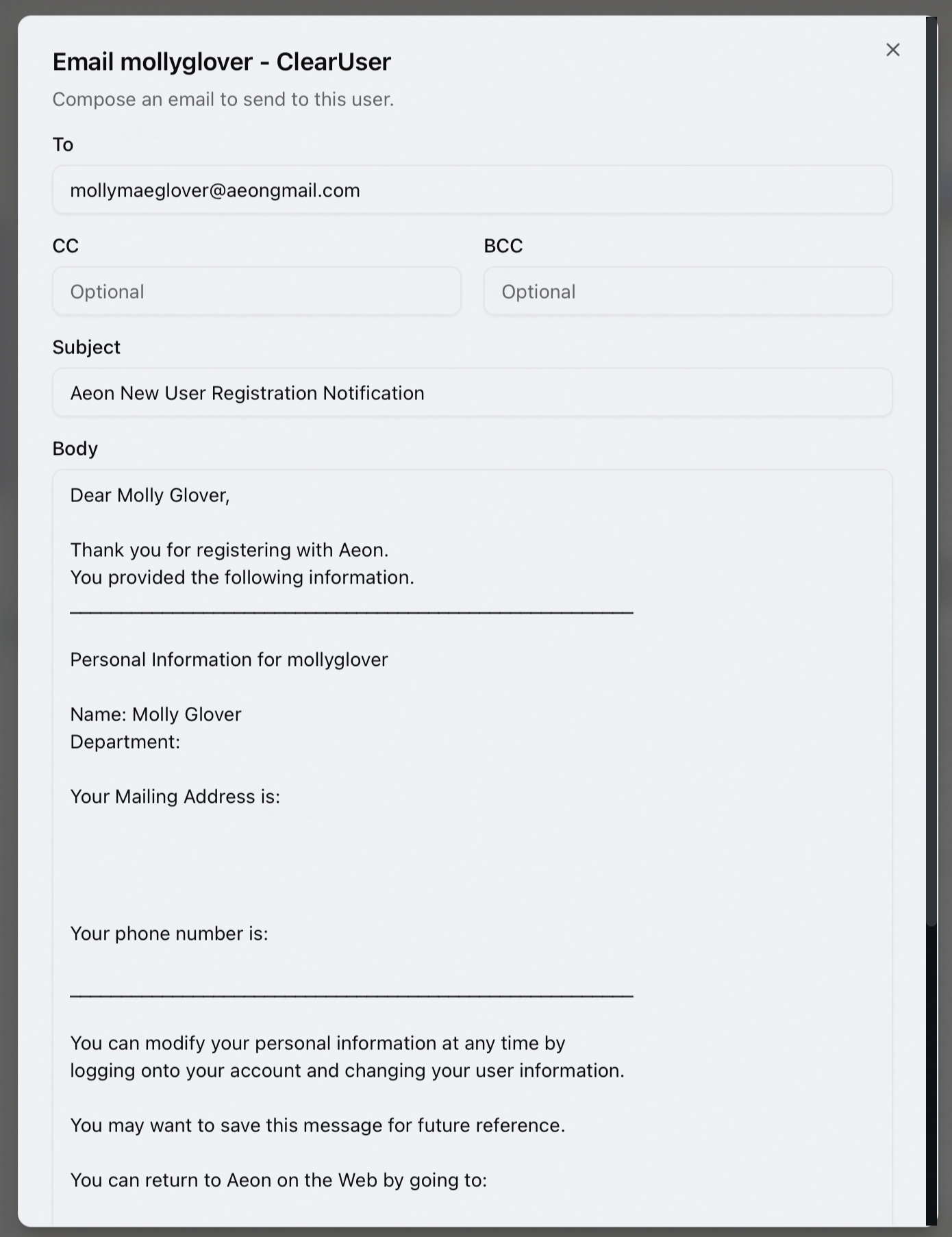
When you pick a template, Aeon loads it and pulls the user's data into the template's tags, filling in the message for you. While it's working you'll see "Loading email template..."; then the dialog populates with:
- To — the researcher's email address.
- Subject — the template subject with the user's details merged in.
- Body — the full template text, with tags like the user's name already replaced by this user's values.
- CC and BCC, if the template sets any.
- From — the sending address the template uses, shown as a line beneath the body (From: …).
Everything except the From line is editable. Adjust the wording, fix the subject, add a CC — whatever the message needs before it goes out.
The list shows only User-type email templates. Templates built for requests, appointments, or other contexts don't appear in this menu. Templates are created and maintained in the Customization Manager — see Email Templates: Overview and Types.
Writing a blank email
Choose New Email when you just need to send a quick, custom message. The dialog opens addressed to the researcher, with the From address pre-filled from your site's default sending address. Fill in the Subject and Body, and add a CC or BCC if you need to.
The email dialog at a glance
| Field / control | What it's for |
|---|---|
| To | Recipient address. Pre-filled with the researcher's email; editable. |
| CC | Optional carbon-copy recipients. |
| BCC | Optional blind carbon-copy recipients. |
| Subject | The email subject line. |
| Body | The email text. |
| From: … | The sending address (shown as a read-only line below the body). Set by the template, or by your site default for a blank email. |
| Cancel | Closes the dialog without sending. |
| Send Email | Queues the email for delivery. |
Sending
- Confirm To and Subject are filled in — both are required, and so is a From address (supplied automatically by the template or your site default). If any is missing, Aeon blocks the send and tells you which one — for example, "Subject is required" or "From address is required."
- Click Send Email.
- On success a confirmation toast appears — "Email queued for delivery" — the dialog closes, and the email is recorded in the user's email history.
To back out at any point, click Cancel — nothing is sent and your draft is discarded.
Outgoing email is placed on Aeon's email queue and delivered by the system shortly after — that's why the confirmation says queued. If a message later fails to send, it lands in the Failed tab of the outgoing email queue, where you can review and resend it. See The Outgoing Emails Queue: Pending and Failed.
Reviewing a user's email history
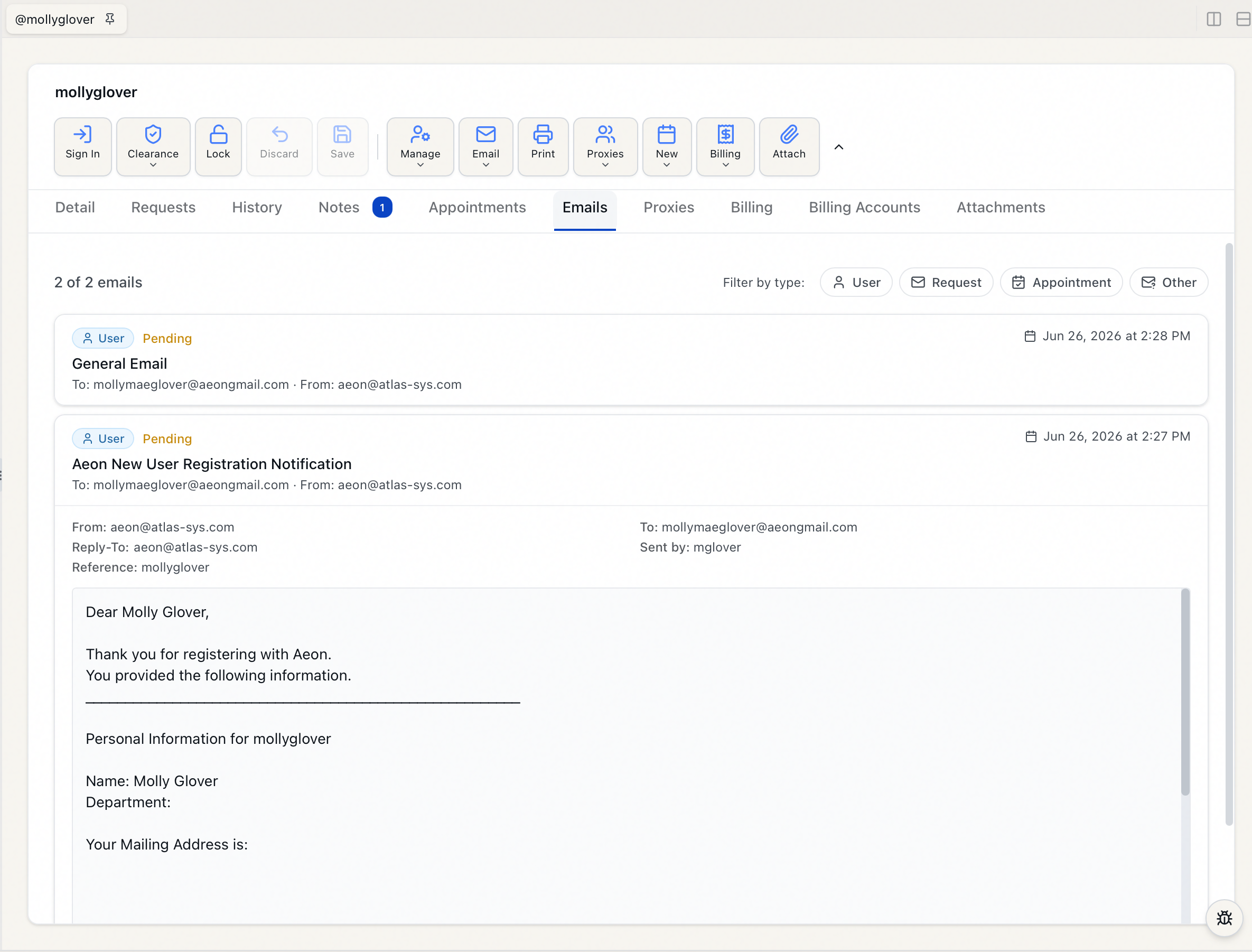
Every email sent to a researcher — the ones you send by hand and the automated notifications the system sends — is collected on the Emails tab of their user record.
- Open the user record and select the Emails tab.
- Each entry shows its type, status, subject, recipient, sender, and date. Click an entry to expand it and see the full From / To / CC / BCC / Reply-To, who sent it (Sent by), any reference or note, and the complete message body.
- To narrow the list, use the Filter by type pills at the top — User, Request, Appointment, Other — to show only certain kinds of email. Click Clear filters to show everything again.
- Long histories load in pages; click Load more at the bottom to fetch older emails.
If the researcher has no emails yet, the tab reads "No emails have been sent to this user."
Some entries are tagged Address match. These are emails that went to the same email address but aren't directly linked to this user record — Aeon surfaces them so you get the full picture of what reached that address. Hovering the tag explains the distinction.
For a deeper walkthrough of the Emails tab, see Email History for a User.
- Sending email requires the Edit level of the Email permission. Without it, the Email menu is disabled and the underlying preview and send actions are refused by the server.
- Viewing a user's Emails tab and history needs the View level of the Users permission — the same access required to open the user record at all.