Email History for a User
Every email Aeon sends about a researcher — account notices, request status updates, appointment confirmations, cancellations — is logged on their record. The Emails tab on a user record is where you go to see that whole history in one place: what was sent, when, to which address, and whether it actually went out.
The usual reason to open this tab is a question from (or about) a patron: "Did my confirmation ever arrive?", "What address did the overdue notice go to?", "Why didn't they get the cancellation email?" Instead of digging through individual requests or appointments, the Emails tab pulls together everything tied to that person — emails sent directly to their account, emails about their requests, emails about their appointments, and any message that simply went to their email address — and shows it as one reverse-chronological feed.
- A researcher says they never received an email, and you need to confirm whether Aeon sent it and to which address.
- You're reviewing a user's account and want the full record of correspondence — account, request, and appointment emails together.
- You need to read the exact wording or recipients (To / CC / BCC) of a message that already went out.
This tab is the record of what has already been sent. To compose and send a new email to the researcher, use the Email action in the user record toolbar (covered in Composing and Sending Email to a User). When you send from there, the new message appears in this tab once it's processed.
Opening the Emails tab
- Open the user record — search for the researcher and open their account, or follow any link that carries their username.
- In the user record's tab strip, select Emails.
- The tab loads the most recent emails first, newest at the top.
The header shows a running count, for example "25 of 138 emails," so you can tell how much history exists versus how much is currently loaded.
What each email shows
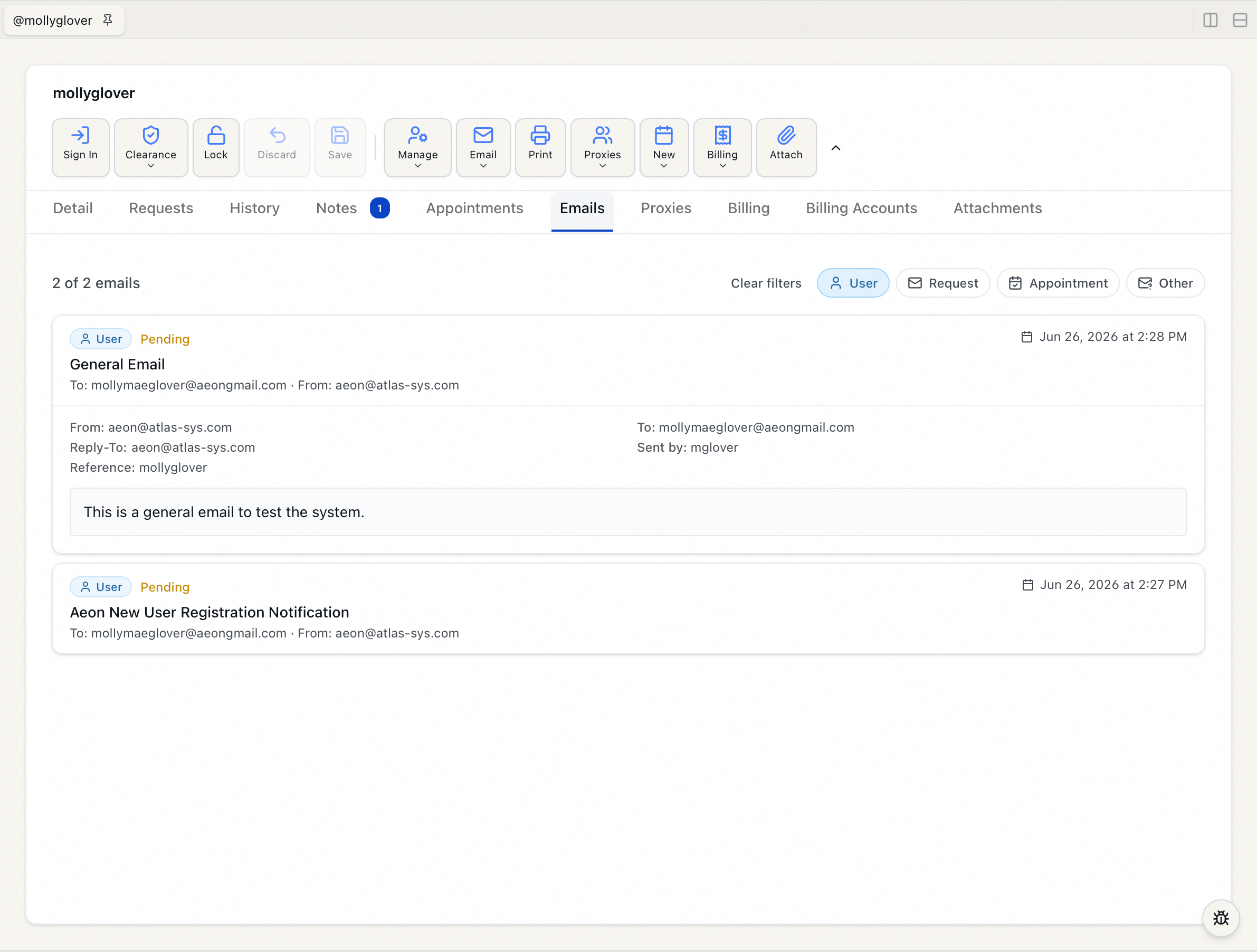
Emails appear as a list of cards. Each card shows, at a glance:
- A type badge — User, Request, Appointment, or Other (see below).
- The subject line (or "(No subject)" if none was recorded).
- The recipient, shown as To: …, plus the sender (From: …) when available.
- The date and time the email was sent.
- A status word when one is recorded — Sent (green), Pending (yellow), or Failed (red).
Aeon links most emails to the user precisely — by account, by one of their requests, or by one of their appointments. Some cards also carry a dashed Address match badge. That means the message wasn't directly tied to this account; it was matched only because it was sent to this user's email address. It's a looser link — useful for catching correspondence that would otherwise be missed, but worth noting when you're tracing exactly what Aeon sent about this specific person.
Email types and filtering
The four type badges correspond to where the email originated:
| Badge | Meaning |
|---|---|
| User | Sent about the user's account directly (for example, account or clearance notices). |
| Request | Sent about one of the user's requests (status updates, cancellations, and so on). |
| Appointment | Sent about one of the user's appointments (confirmations, reminders, cancellations). |
| Other | An email Aeon recorded under its general "Other" type rather than account, request, or appointment. These appear here because the message went to the user's email address. |
To narrow the list, use the Filter by type: pills at the top right of the tab. Click a type — say Request — to show only those emails; click additional types to include them too. The pills are toggles, so clicking an active pill turns it back off. When at least one filter is on, a Clear filters link appears to reset back to showing everything.
If a filter combination has no matches, the tab shows "No emails match the selected filters." If the user has no email history at all, it shows "No emails have been sent to this user."
Reading a full email
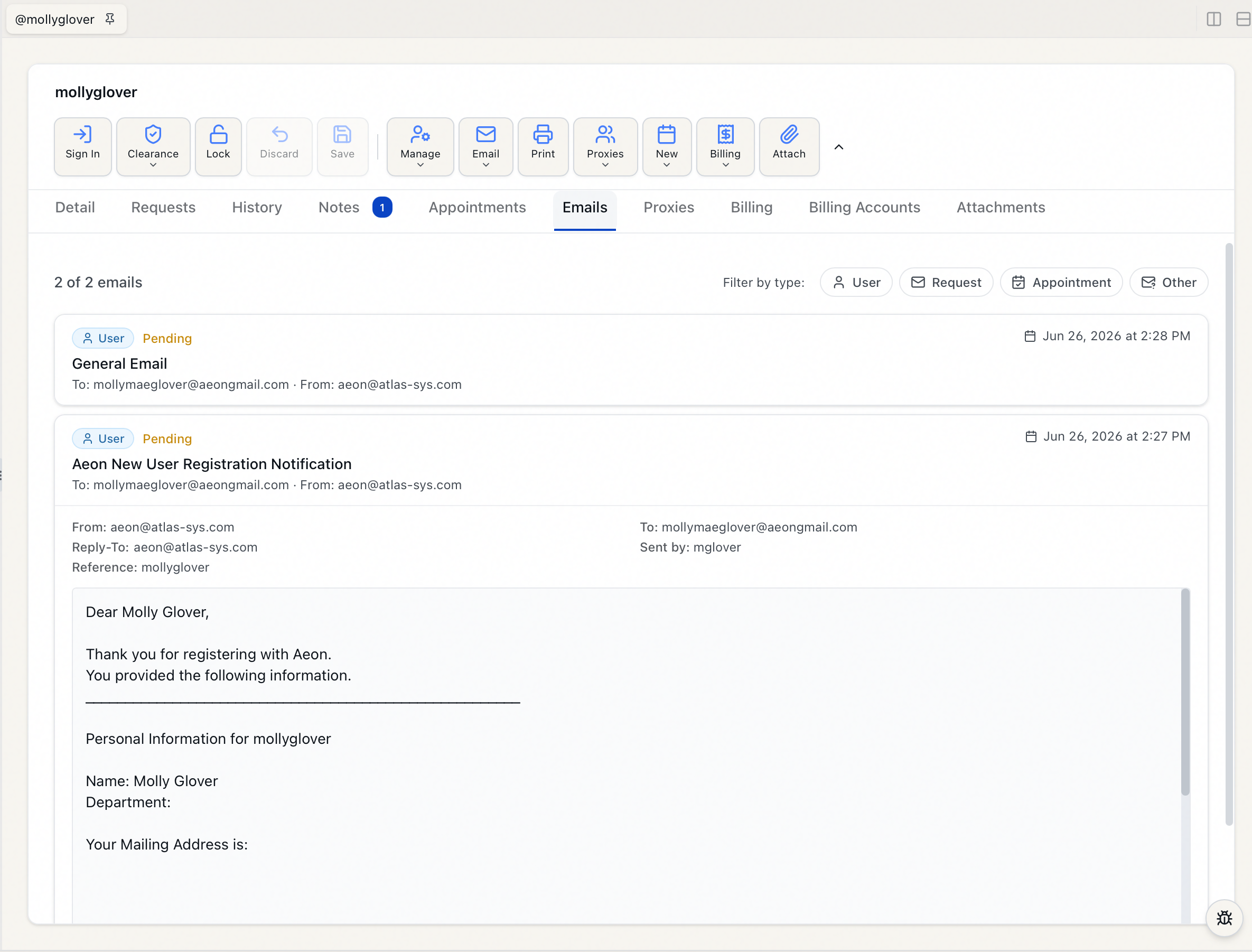
The list deliberately leaves out the message body to stay fast. To read the full message:
- Click anywhere on the email card.
- The card expands to show the complete header detail — From, To, and (when present) CC, BCC, Reply-To, Sent by (the staff member who sent it, if any), a Reference, and any internal Note.
- Below the headers, the full email body loads and displays.
Click the card again to collapse it. Only one email is expanded at a time — opening a second card closes the first.
Loading older emails
The tab loads emails in pages, newest first. When more history exists than is currently shown, a Load more button appears at the bottom of the list; click it to pull in the next batch. The header count updates as you go (for example, "50 of 138 emails"), so you always know how far back you've loaded.
- The Emails tab is part of the user record, which requires the View level (or higher) of the Users permission. If you can open a user's record, you can read their email history.
- Access to this tab is governed by that single Users permission. The role-based field restrictions that hide individual columns elsewhere on the user record do not apply to the Emails tab — if you can see the tab, you see each email's headers and body in full.