Searching Requests, Users & Activities
Most of the time you don't need a search form in Aeon — you need the one record you're thinking of. A researcher calls about request #12345, or you need to pull up "jdoe," or find that exhibit you set up last month. Aeon is built around getting you there fast: start typing and it searches requests, users, and activities all at once, then hands you the match.
There are two ways to search, and they're the same search underneath:
- The command palette (press Cmd+K / Ctrl+K) — the quickest way to jump to a known record. Type a few characters, see live results grouped by type, press Enter. This is what you'll use dozens of times a day.
- The Search page — the full results view at
/search, reached by expanding a palette search with View all results. It's where you browse a set of matches: filter and sort them, work through them in a split list/detail layout, select several for a bulk action, or share the result URL with a coworker.
- You know roughly what you're looking for (a name, a title, part of a transaction number) and want to open it — use the command palette.
- You want to see all the matches and work through them, filter them down, or run a bulk action — run your search, then choose View all results to open the full Search page.
- You're searching by a specific field (just titles, just authors, just one user's username) — use a field operator like
title:orauthor:in either place.
This page covers Aeon's basic search — fast, fuzzy matching across the common fields. For building a precise query with AND/OR/NOT logic across many fields, saving it as a reusable view, and exporting the results, see Custom Search and Saved Views.
Quick search from the command palette
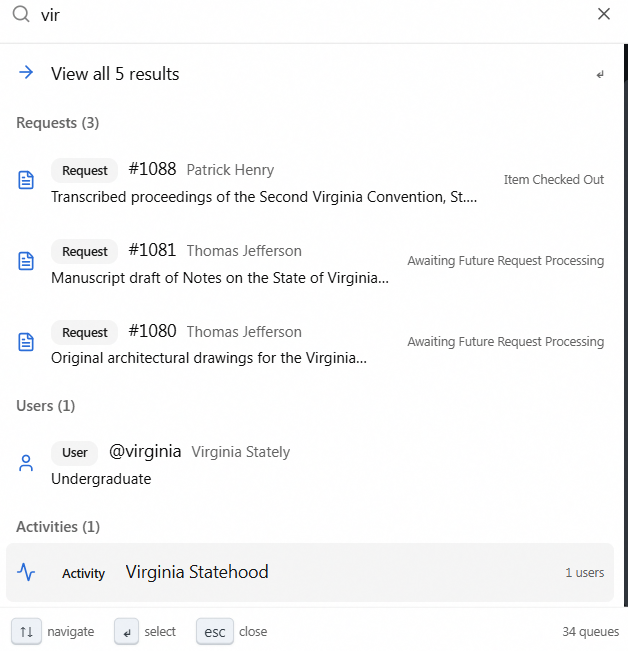
The command palette is the fastest path to any record. It searches requests, users, and activities at the same time and shows the top matches in one list.
- Press Cmd+K (Mac) or Ctrl+K (Windows) from anywhere in Aeon. The placeholder reads "Search active items, or > # @ ! * / ? for commands…"
- Start typing your search term — a name, a word from an item title, a username. After about two characters Aeon runs the search and shows a brief "Searching…" indicator.
- Results appear grouped under Requests, Users, and Activities, each labeled with a count (for example, Users (3)). Each row carries a small type badge (Request, User, or Activity) and a type icon so you can tell them apart at a glance.
- Click a result — or use the arrow keys and press Enter — to open that record.
To see every match instead of just the top few, choose View all results at the top of the list (or press Enter). That hands off to the full Search page, pre-loaded with your query.
A plain command-palette search returns active items only — it hides requests in a finished (terminal) state so the common case stays fast and uncluttered. The results header reminds you: "Active items only — type * to include closed." To search everything, including completed and cancelled requests, use the * prefix described below.
Opening a record directly by number or username
When you know the exact identifier, the palette skips straight to the record:
- A transaction number. Type a number (for example,
12345). If a request with that number exists, an Open Request row appears — press Enter to go straight to request #12345. If no such request exists, you'll see "Request #12345 not found." - A username. Type
@followed by the username (for example,@jdoe) and choose Open user @jdoe, or press Enter. If the username doesn't exist you'll see "User @jdoe not found."
Searching one type at a time (prefixes)
A plain search looks across all three record types. To narrow to just one type, start your query with a prefix. A mode badge (for example, REQUEST or USER) appears on the right of the input to confirm the mode you're in.
| Prefix | Searches | Mode badge |
|---|---|---|
# | Requests | REQUEST |
@ | Users | USER |
! | Activities | ACTIVITY |
* | Everything, including closed/completed records | SEARCH ALL |
> | Actions (e.g. New Request, Check Out) | ACTION |
/ | Navigation (e.g. Home Dashboard, Custom Search) | NAVIGATE |
? | Opens the documentation in a new tab | HELP |
So #salem searches requests for "salem," @smith searches users for "smith," and *lincoln searches all three types and includes finished requests.
In # (request), @ (user), and ! (activity) modes, a row of scope chips appears so you can focus the match:
- Requests: All · User · Citation — search across everything, just the requester's details, or just the item/citation fields.
- Users: All · Username · Name · ID.
- Activities: All · Name · User.
The default is always All.
Searching by a specific field (operators)
Operators let you target a single field from anywhere you type a query — in the command palette or in the Search page input. Write the field name, a colon, and the value: title:diary, author:lincoln, call:MS-204.
As soon as Aeon recognizes an operator it shows a Filtering: chip below the input (for example, a chip reading author : lincoln). That chip is your confirmation the operator was understood. If you type a field name Aeon doesn't recognize, no chip appears and the whole thing — colon included — is searched as ordinary text instead.
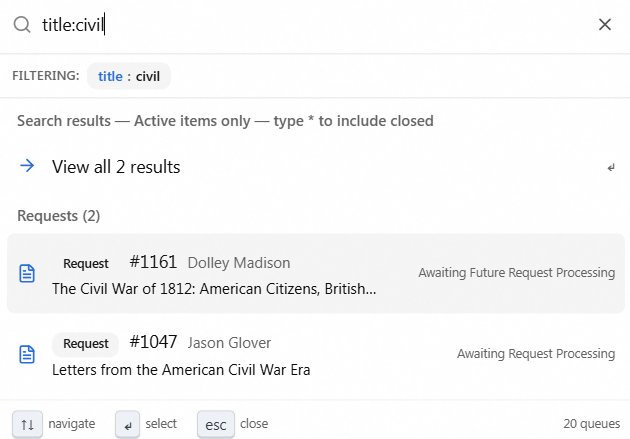
Recognized operators:
| Operator | Matches |
|---|---|
title: | Item title |
subtitle: | Item subtitle |
author: | Item author |
call: | Call number |
ref: | Reference number |
ead: | EAD number |
isbn: / issn: | ISBN / ISSN |
itemnumber: | Item number |
email: | Email address |
username: | Username |
firstname: / lastname: | First / last name |
name: | First, last, or preferred name |
id: | ID or Alt ID |
A few rules worth knowing:
- Phrases need quotes. To search a value that contains spaces, wrap it in double quotes:
title:"civil war diary". The quotes are stripped from the value you actually search. - Multiple terms are combined (AND).
author:lincoln title:speechesreturns only records matching both. You can mix operators with plain words, too:author:lincoln 1863. - Operators are field-specific. An operator only matches record types where that field is reachable. In an all-types search,
title:diarymatches Requests by their item title — and Activities whose associated requests carry that title — but returns nothing for Users, which have no item title.
The Search page
The Search page (/search) is the full results view. You land here by choosing View all results in the command palette, by clicking through from a record (such as a user's View All in Search), or by opening a shared search URL directly.
There's no standalone Search screen to open from the menu — the top-bar search icon (and Cmd+K / Ctrl+K) opens the command palette, not this page. You always reach the Search page by expanding a query you've already started, so it opens with results in hand rather than as a blank form.
It's a split layout: the matching records list on the left, and the selected record's full detail on the right — so you can work straight through a result set without leaving the page.
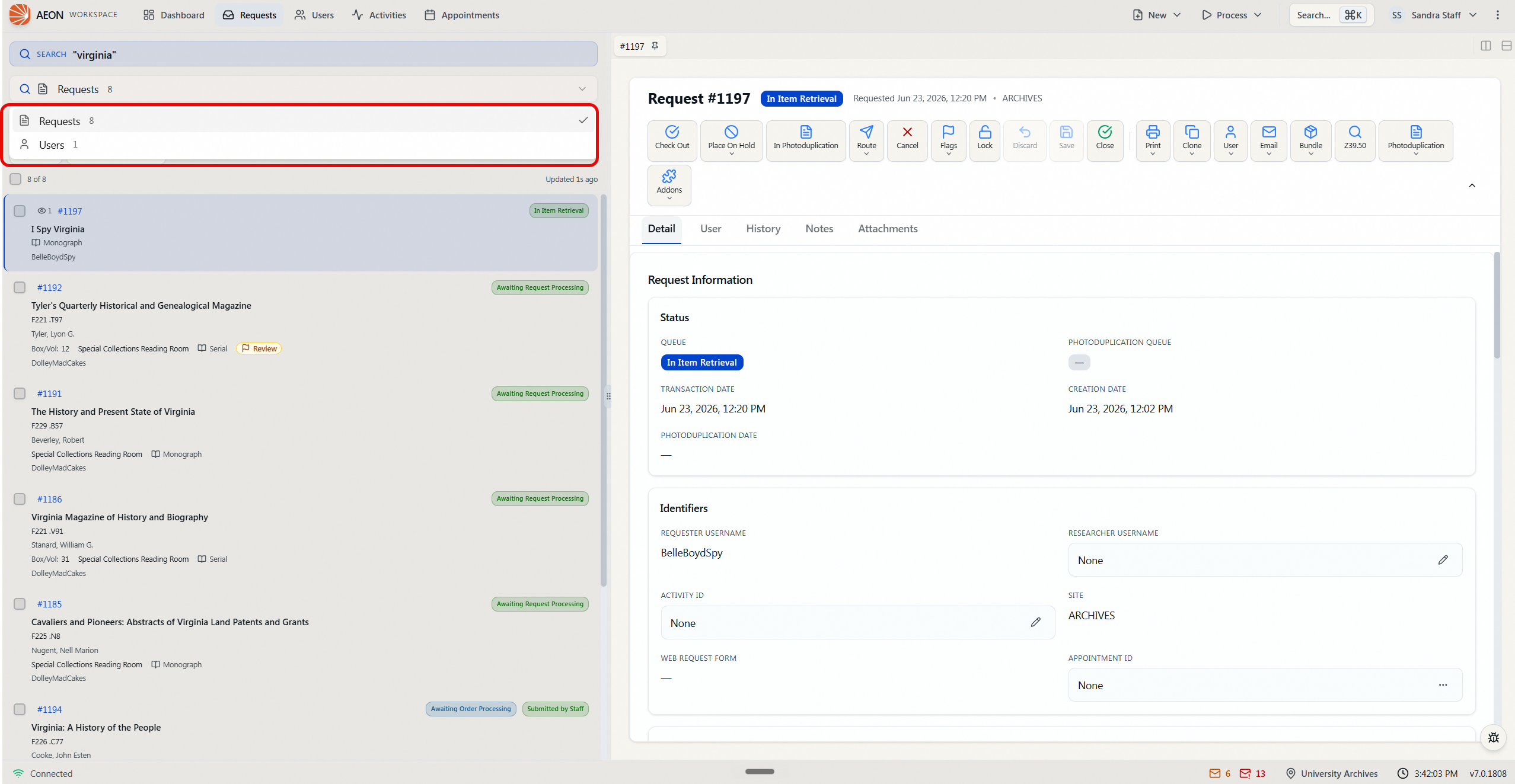
- Pick the result type. A dropdown at the top switches between Requests, Users, and Activities, each showing how many matches it found. Only types you have permission to see appear.
- Refine the query. The search box at the top updates results as you type; your query lives in the page URL (
/search?q=…), so the back button and a copied link both reproduce exactly what you see. - Filter and sort. Each tab has a filter-and-sort bar for narrowing and ordering the list — for example, sort requests by creation date or filter users by status.
- Toggle Active. Requests and Activities each have an Active switch to show only active records or include finished ones.
- Open a record. Click any row to load it in the detail pane on the right. The first result is selected automatically.
On the Requests tab you can select several records with their checkboxes (or the Select all checkbox in the stats bar) and act on them together from the bulk-action bar — route, flag, clone, and more. You can also pin requests and users as tabs and open two side by side in a split view. See Bulk Selection and Bulk Actions and Multi-Tab Workflow and Pinned Items for the details.
Because the query, result type, filters, sort, and selected record all live in the URL, you can copy the address bar and send a coworker the exact search — same matches, same filters, same record open. See URL-First Navigation and Shareable Links.
What you can search, and what you'll see
Aeon's basic search matches across the fields people actually search by, so partial values work:
- Requests match on the transaction number, the requester (username, first/last/preferred name, ID, Alt ID, email), and the item (title, subtitle, author, ISBN/ISSN, item number, reference number, EAD number, call number).
- Users match on username, first/last/preferred name, ID, Alt ID, and email.
- Activities match on the activity name and ID, on the people linked to the activity (their username, name, ID, and email), and on the item details of the requests associated with the activity.
Result rows show the most useful identifying details at a glance — a request shows its number, the requester, the item title, and its current status; a user shows the username, display name, and organization or status; an activity shows its name and how many users are linked.
Search is governed by your role's permissions:
- The
#,@, and!prefixes only work for record types you can view. If your role can't view users, the@prefix is ignored and falls back to a normal search. - On the Search page, only the result-type tabs you have permission for appear, and their counts reflect only records you're allowed to see.
If a type you expect is missing, your role likely doesn't include view access for it. See User Permissions and Role-Based Access.