Opening & Locking a Request
Opening a request just means looking at it: click a request in a queue, search result, or anywhere its transaction number appears, and its detail view opens. Anyone can open a request to read it — opening alone changes nothing and never blocks a coworker.
Locking is what happens when you start working on a request. Aeon uses a real-time record lock so that only one staff member edits a given request at a time. The lock is what stops two people from overwriting each other's changes on request #12345. Most of the time you never think about it: as soon as you start editing, Aeon locks the request for you automatically. The Lock button and the warnings on this page are there for the cases where you want to claim a request deliberately, or where someone else already has it.
- You start editing a request — Aeon locks it for you automatically; you don't have to do anything.
- You want to claim a request before editing it (so coworkers see it's taken), or hold it while you step through workflow actions — click Lock.
- You open a request and see Locked by someone — that tells you to coordinate rather than overwrite.
Opening a request
- Find the request — open a queue and click its row, run a search, or use any link that carries a transaction number.
- The request detail view opens, showing its fields, tabs (History, Billing, Attachments, and so on), and the action toolbar across the top.
- Read or review freely. While you're only viewing, the request is not locked and stays available to everyone.
The browser URL updates to the request (for example, /requests/12345), so you can copy the address to share the exact request with a colleague.
How locking works
The lock is shown by a single control in the toolbar that changes depending on the current state:
| Toolbar control | What it means |
|---|---|
| Lock (open-padlock icon) | The request is free. Click to claim it for editing. |
| Unlock (padlock icon, amber) | You hold the lock. Click to release it. |
| Locked (padlock icon, red, disabled) | Someone else is editing it right now — you can't edit until they release it. The status bar names who holds it. |
Hovering the control shows a tooltip — "Lock this request for exclusive editing," "Release your lock on this request," or "This request is being processed by name."
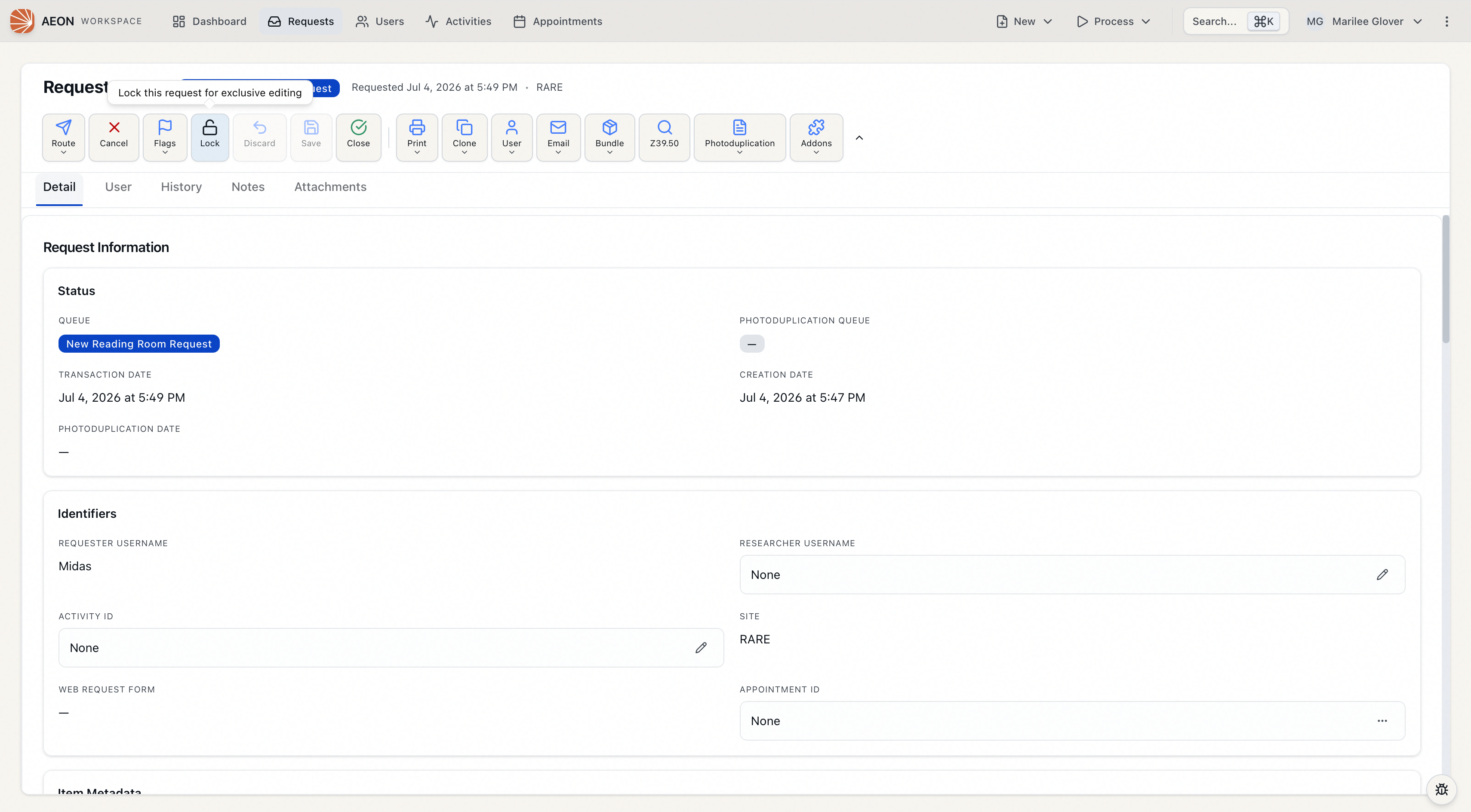
Locking happens automatically when you edit
You rarely click Lock yourself. The moment you change any field on a request, Aeon acquires the lock for you in the background. From that point the request is yours until you save, discard, release it, or open a different record.
Locking manually
To claim a request before you start typing — useful when you want coworkers to see it's taken, or you're about to run several toolbar actions:
-
Open request #12345.
-
In the toolbar, click Lock.
-
The control switches to Unlock (amber), and a brief status message confirms "Processing request #12345." (Internally this action is called "Process," but the button you click reads Lock.)
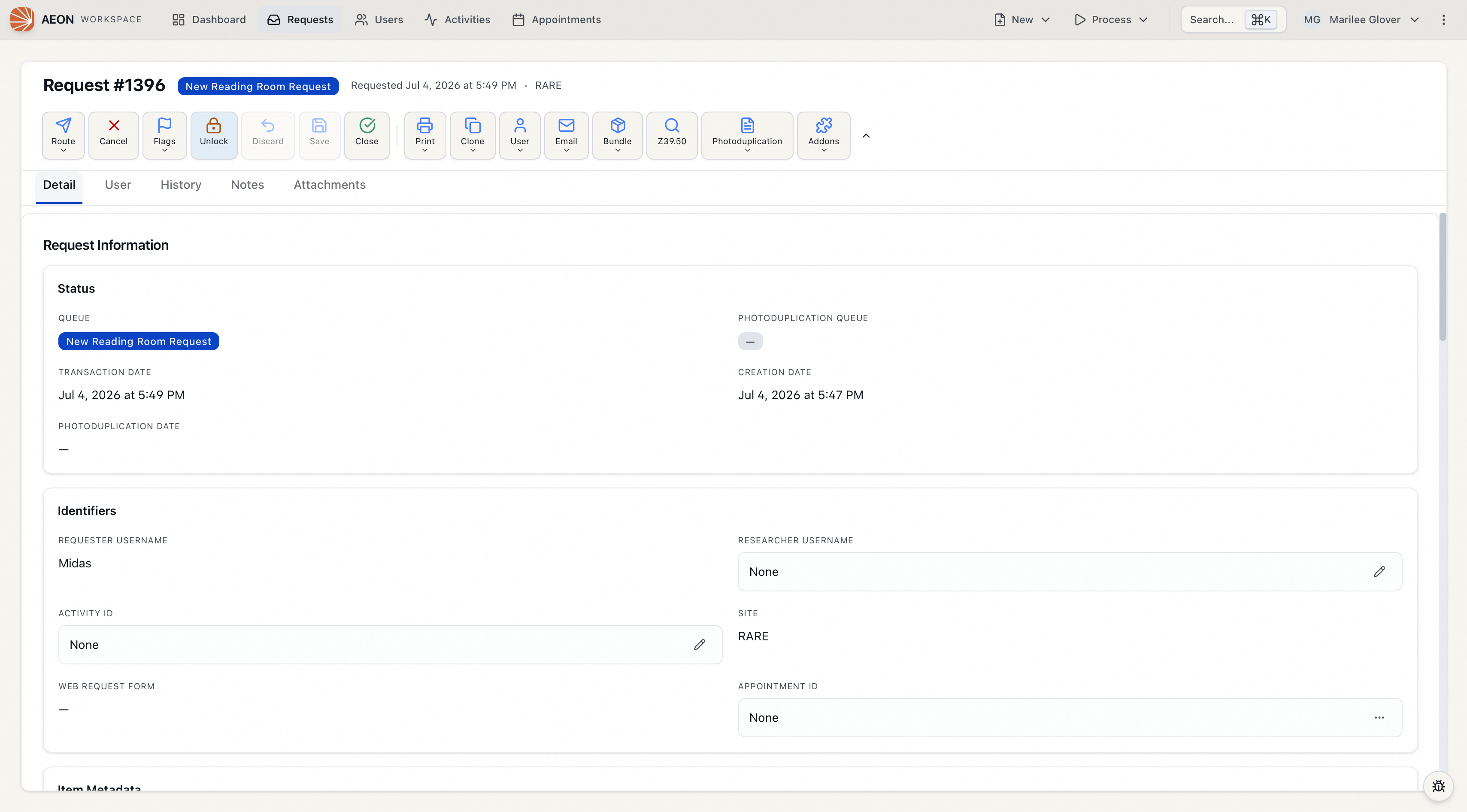
Releasing the lock
Your lock is released when you:
- click Unlock (you'll see "Stopped processing request #12345"),
- Save your changes, or Discard them,
- open and lock a different record — you can only hold one lock at a time, so locking another request automatically releases this one, or
- let it time out from inactivity (see below).
Simply viewing another request, user, or activity does not release your lock — you can look something up and come back. The lock only moves when you actually lock a different record. This lets you reference other records mid-edit without losing your place.
When someone else holds the lock
If you open a request that a coworker is processing, the lock button shows Locked (red, disabled) and the form is read-only. The bottom status bar names who has it — "Request #12345 locked by name" — and a "name viewing" indicator appears next to the request title. (In a narrower toolbar the button itself reads Locked by name.) You can still read every field and tab; you just can't edit or save until they're done.
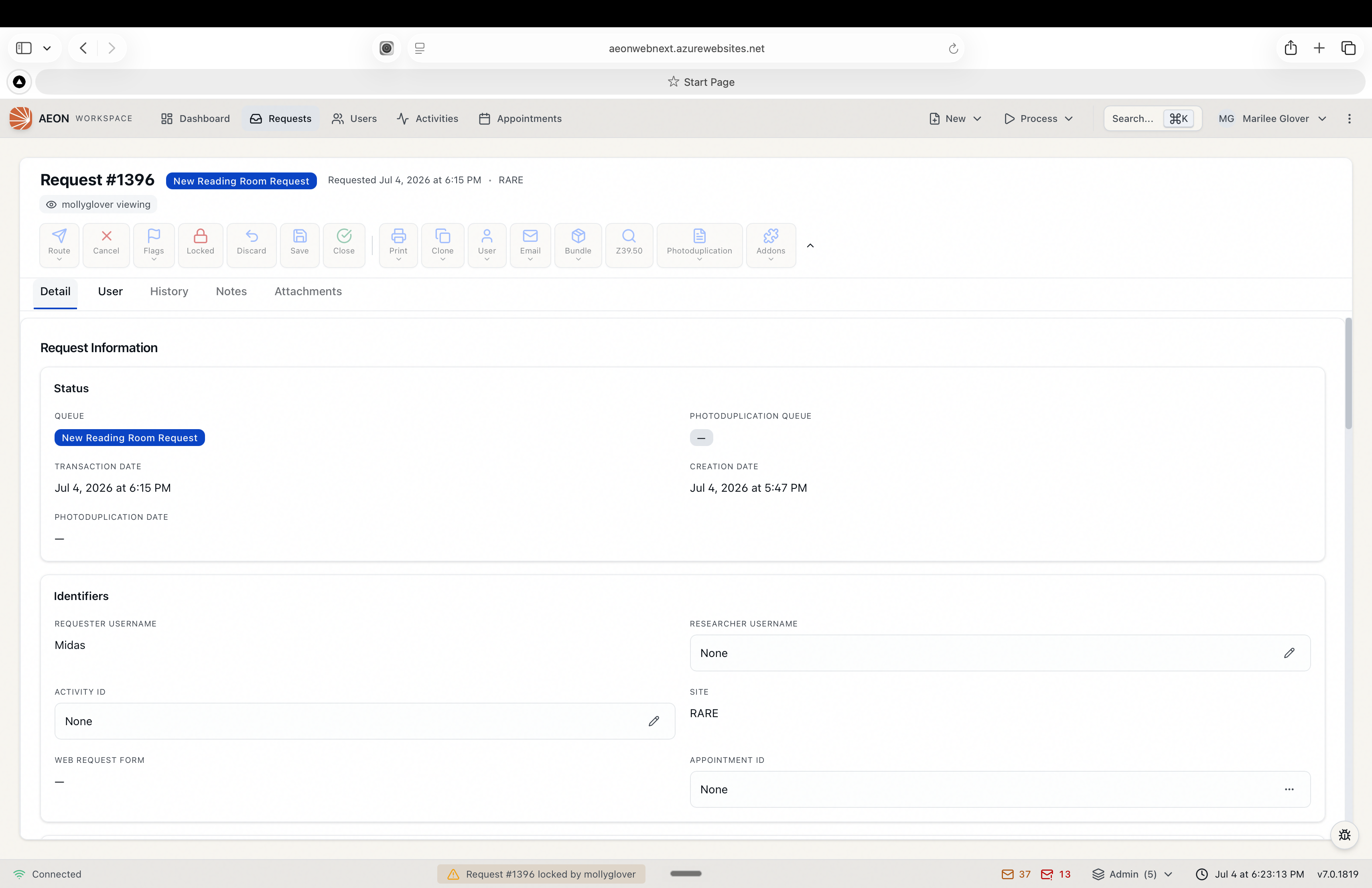
While a request is Locked by another user, editing is disabled. If you try to save anyway, Aeon refuses with "Cannot save - this request is locked by another user." Reach out to the person named on the lock instead of forcing the change. The moment they release it, the control returns to Lock and the request is yours to claim.
If someone takes a lock on a request you're viewing, Aeon tells you in the moment with a "Request #12345 locked by name" notification, so you know to stop before making edits.
Lock timeout — what happens if you walk away
A lock is meant for active work, so Aeon won't let an idle lock block a request forever. If there's no activity on your locked request for 5 minutes, Aeon warns you; if you still don't respond within about 1 more minute, it releases the lock automatically.
When the warning fires you'll see a Lock Expiring Soon dialog with a live countdown, plus a "Lock expiring in … s" toast reminding you that activity is required to keep it. You have two choices:
- Keep Lock — extends the lock so you can keep working.
- Release Lock — gives it up immediately so a coworker can take it.
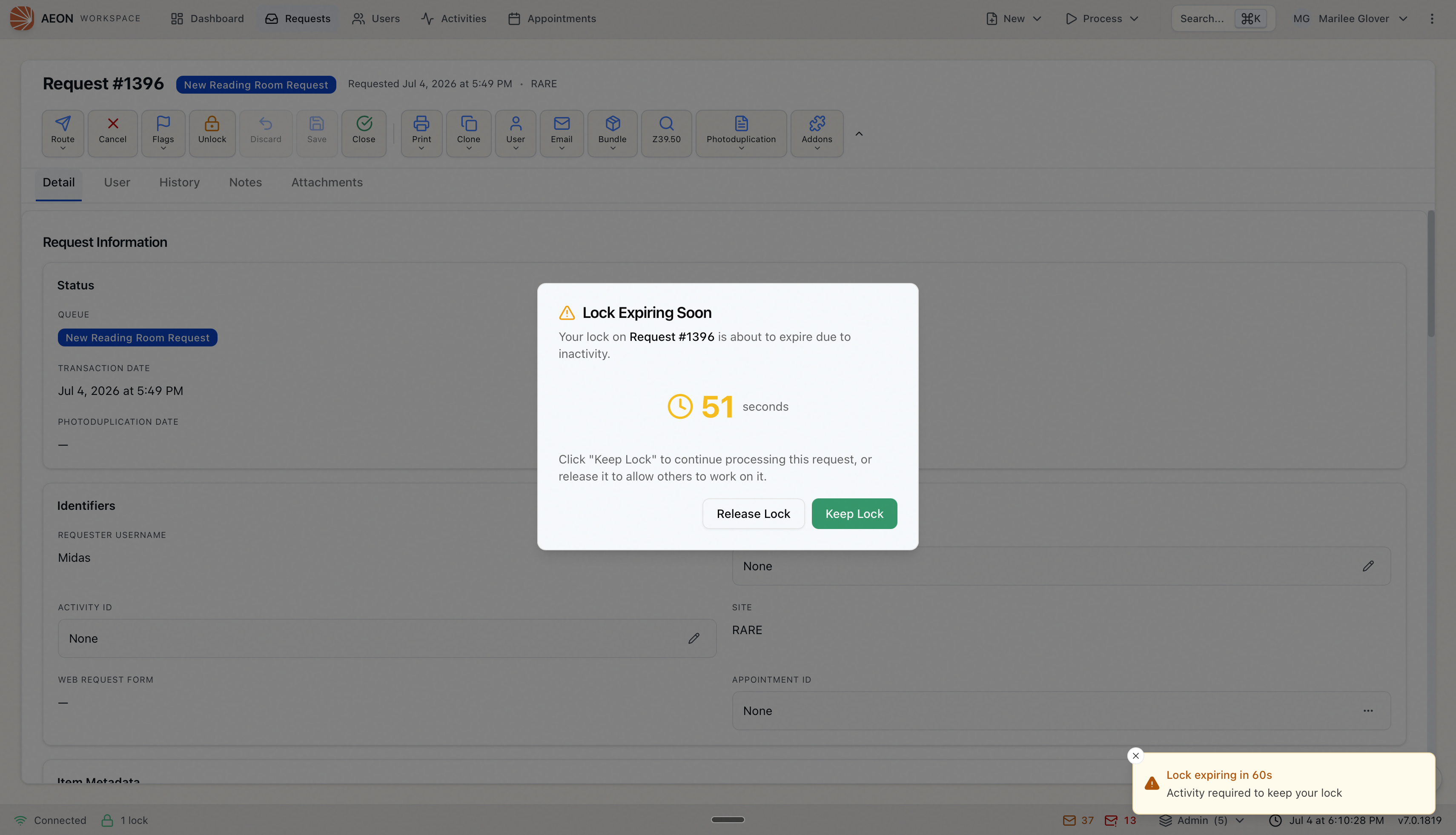
If the lock does expire, the dialog clears and Aeon shows "Lock expired — Request #12345 lock expired due to inactivity." Reopen the request and click Lock to claim it again. As long as you're actively editing, the lock refreshes on its own and you'll never see the warning.
Separately, if your browser loses its connection entirely (you close the tab, your laptop sleeps, or the network drops), Aeon releases your locks automatically after a brief grace period — about 30 seconds — so a dropped session doesn't leave a request stuck. This is independent of the 5-minute inactivity timeout above.
- The Lock/Unlock control is available to anyone with the Edit level of the Requests permission — the same level needed to edit a request. If your role is view-only for requests, the control is disabled.
- Locking relies on Aeon's real-time connection. If your session has lost that connection (for example, after a network drop), the Lock control is temporarily disabled until it reconnects.