Custom Dropdowns
Many fields in Aeon are dropdowns rather than free-text boxes: a user's Status, their Department, the ID Type recorded at registration, the Country and State on an address, an activity's Type, and so on. Custom Dropdowns is where you control what choices those lists offer. Every value is stored in a single table (CustomDropDown) and organized into groups — one group per field. The Status group feeds the user-status dropdown, the Country group feeds the country dropdown, and so on.
Most of the time you never touch this. Aeon includes defaults — a full country list, all U.S. states, common ID types, a starter set of user statuses. You come here when one of those built-in lists doesn't match how your institution works: you want to add a research-status of your own, list the academic departments at your institution, or add an ID type your front desk accepts.
- A dropdown is missing a choice your staff need — for example, you want Visiting Scholar to appear in the user Status list.
- A choice is worded wrong, or stores the wrong underlying value, and you want to correct it.
- You're standing up a new dropdown for a custom field and need to create the list of values it offers.
- You want to retire a choice that's no longer used.
Custom Dropdowns lives in the Customization Manager, under the Data & Fields group. Open the Customization Manager, go to Data & Fields, and choose Custom Dropdowns — or jump straight to it with the Customization Manager's search. The page is laid out as two panes: a Groups list on the left, and the entries for the selected group on the right.
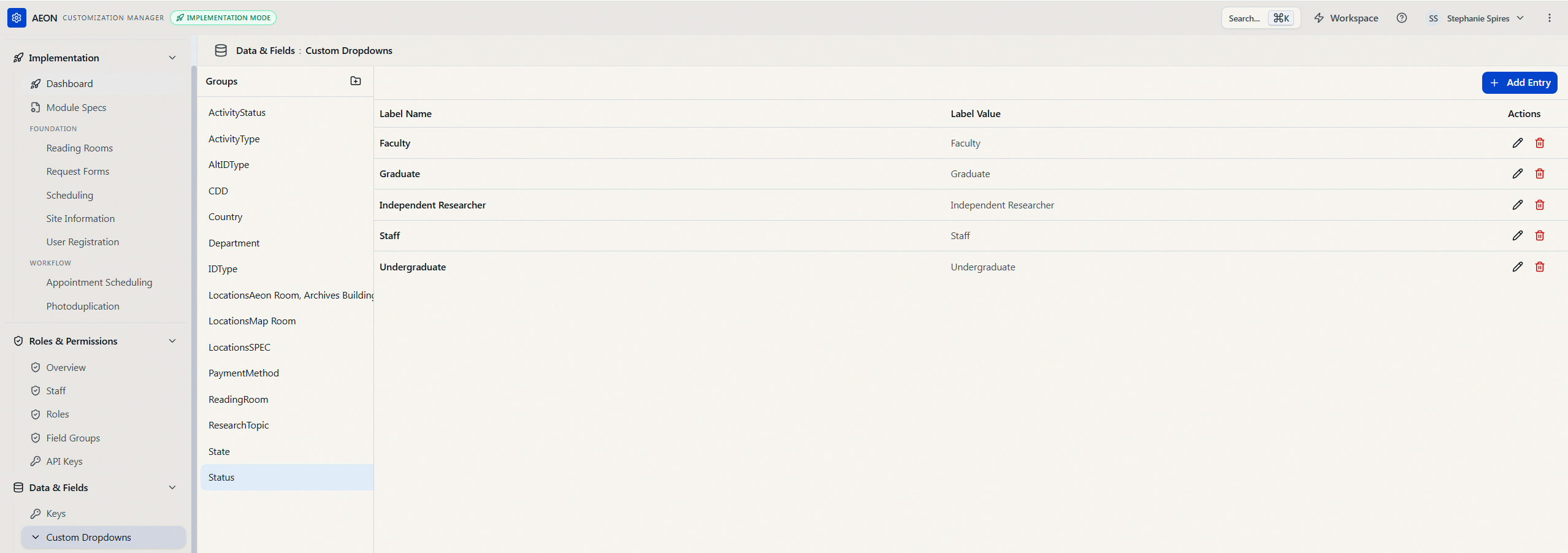
How groups and entries fit together
Each row in the table has three parts:
| Field | What it's for | Example |
|---|---|---|
| Group Name | Which dropdown the value belongs to. All rows sharing a group make up one list. | Status |
| Label Name | The text staff and patrons see in the dropdown. | Visiting Scholar |
| Label Value | The value Aeon stores when that choice is picked. Often identical to the label; for Country and State it's the short code. | Visiting Scholar, or NY for the state New York |
For most lists the Label Name and Label Value are the same — what you see is what gets saved. The two diverge where Aeon needs a code: in the Country group the label is United States but the stored value is US; in the State group New York stores NY.
Aeon comes pre-loaded with groups such as Status (user status — Faculty, Graduate, Undergraduate, Staff, Independent Researcher…), Department, IDType and AltIDType, Country, State, ActivityType, ActivityStatus, and PaymentMethod. You can edit the entries in any of these, or add brand-new groups of your own for custom fields. (Reading rooms and their sign-in locations are also stored in this table — the ReadingRoom group and per-room Locations… groups — but those are written and kept in sync by reading-room configuration, which fully rewrites them on save. Manage them there, not here; edits made directly in this table can be overwritten.)
Editing the values in an existing dropdown
Say a new patron category, Visiting Scholar, should be selectable as a user status.
- In the Customization Manager, go to Data & Fields → Custom Dropdowns.
- In the Groups list on the left, click Status. The right pane fills with that group's current entries (Faculty, Graduate, Staff, and so on). The number beside each group name tells you how many entries it has.
- Click Add Entry at the top right of the entries pane.
- In the Add Entry dialog, fill in:
- Label Name —
Visiting Scholar(what staff will see in the dropdown). - Label Value —
Visiting Scholar(what gets stored). Leave it matching the label unless you specifically need a different stored value.
- Label Name —
- Click Add. A "Entry added" confirmation appears and the new value shows up in the entries table immediately.
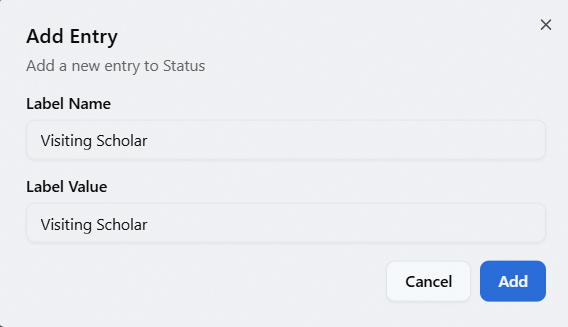
The next time anyone opens the user-status dropdown, Visiting Scholar will be among the choices.
Changing or correcting an entry
- Find the entry in the group's table.
- Click the pencil icon in its Actions column.
- In the Edit Entry dialog, adjust the Label Name and/or Label Value, then click Update. You'll see "Entry updated."
The Label Value is what Aeon stores on each request or user when the choice is selected. If you change a label value, requests and users saved under the old value keep that old value — they aren't rewritten. Renaming the Label Name is safe; changing the Label Value of a list that's already in use can leave existing records pointing at a value that's no longer in the dropdown. Prefer adding a new entry over re-pointing an established one.
Removing an entry
- Click the trash icon in the entry's Actions column.
- Aeon asks you to confirm in a Delete Entry dialog: "Are you sure you want to delete "Visiting Scholar" from Status? This action cannot be undone." (with the entry's label and group filled in).
- Click Delete. You'll see "Entry deleted."
Deleting a choice only removes it from the dropdown going forward — records that were already saved with that value keep it; they just won't have it offered as an option if re-edited.
Creating a brand-new dropdown group
When you build a custom field that needs its own list of choices, create a new group for it. A group is created together with its first entry.
- In the Groups pane header, click the folder-plus icon (its tooltip reads Create new group).
- In the Create New Group dialog, fill in:
- Group Name — the internal name that ties the list to its field (for example,
ResearchTopic). This must match the group name the field is configured to read. - Label Name — the first choice in the list (for example,
Genealogy). - Label Value — what that first choice stores (for example,
Genealogy).
- Group Name — the internal name that ties the list to its field (for example,
- Click Create Group. The new group appears in the Groups list and is selected automatically, ready for you to Add Entry for the rest of its values.
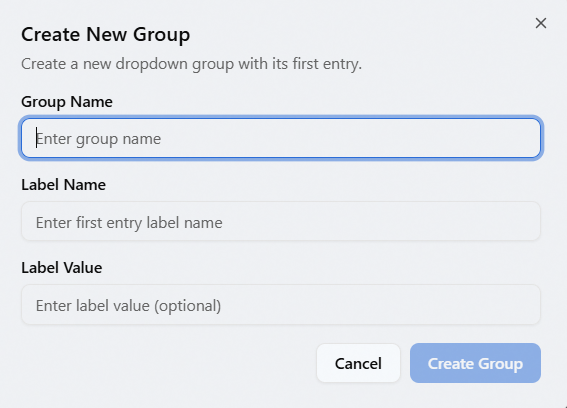
A dropdown only knows which values to show because its field is configured to point at a particular Group Name. When you create a group for a custom field, the group name here must exactly match the group the field expects. If a new dropdown shows up empty, a mismatched group name is the usual cause.
Field limits
When you add or edit entries, Aeon enforces these maximum lengths:
- Group Name — up to 100 characters.
- Label Name — up to 200 characters.
- Label Value — up to 255 characters, and optional. It's here for when a choice should store something different from what it displays (like
USfor United States). When the value and label are the same, you can leave it blank — but because a blank value resolves differently in different parts of Aeon (some use the label, some store nothing), the dependable habit is to fill it in, matching the Label Name when they're identical. A blank value shows as italic empty in the entries table.
Finding a value quickly
Rather than scrolling the Groups list, use the Customization Manager search to jump to a section. Searching also lets you land directly on a specific group — selecting a result opens Custom Dropdowns with that group already highlighted.
Custom Dropdowns is gated by the Data & Fields configuration capability — for both reading and editing the lists:
- Without Data & Fields, the entries won't load (the page reports "Failed to load custom dropdowns. Please try again."), and the Add Entry, edit, and delete actions are all refused.
- Opening the Customization Manager at all requires at least one configuration area. A staff member with none sees "You don't have access to any configuration sections."