Email Templates: Field Tags and Preview
When you write an email template, most of it is a fixed message — a greeting, some explanation, a sign-off. The parts that change from one recipient to the next are filled in by field tags: small placeholders like <#User.FirstName> or <#Request.ItemTitle> that Aeon swaps out for real database values at the moment the email is sent. Write a tag once in the template, and every email built from that template carries the right name, title, call number, or balance for its own recipient.
You add and edit tags while building a template in Customization Manager → Integrations & Messaging → Email Templates. The Template Variables panel on the right lists every tag available for the template you're editing; you drop them into the message by clicking or dragging. This page covers what the tags are, how to insert them, which ones are available for each template type, and where to confirm the finished result before it reaches a researcher.
- You're writing or editing an email template and want it to address each recipient by name, reference their specific request, or quote their balance due.
- You added a custom field and want it to appear in an automated email.
- You want to double-check that a template's tags resolve to sensible values before relying on it.
Creating, naming, and saving templates — and the editor layout, routing, and copy/delete actions — are covered in Email Templates: Creating and Editing. This page focuses on the tags inside a template and on previewing the substituted output.
What a field tag looks like
Every tag follows the same shape:
<#Category.FieldName>
The category says which record the value comes from, and the field name is the column within it. A few realistic examples:
| Tag | Resolves to |
|---|---|
<#User.FirstName> | The recipient's first name. |
<#User.FirstOrPreferredName> | The recipient's preferred name if they set one, otherwise their first name. |
<#Request.ItemTitle> | The title on request #12345. |
<#Request.CallNumber> | The call number on that request. |
<#Billing.BalanceDue> | The outstanding balance on a photoduplication request. |
<#System.LibraryName> | Your library name, from the Local Info table. |
When Aeon sends an email built from the template, it replaces each tag in place. So a body line like:
Dear
<#User.FirstName>, your request<#Request.ItemTitle>is ready.
becomes, for a real email:
Dear Jordan, your request Letters of Eleanor Roosevelt, 1936 is ready.
Aeon builds the tag list by reading the actual columns of your Users, Transactions, Activities, Appointments, Queues, and LocalInfo tables at the moment you open the editor. That means the list always matches your installation — including any custom fields you've defined (see below). It also means a tag is only valid if the underlying column exists.
The Template Variables panel
When you open a template for editing, the Template Variables panel appears on the right side of the editor. It lists the available tags grouped into collapsible categories (System, User, Request, and so on). The first few categories are expanded by default; click any category heading to expand or collapse it.
At the bottom of the panel is the reminder: "Drag or click a tag to insert it into the focused field."
One more control is worth knowing:
- Refresh (circular-arrow icon, top-right of the panel) — re-reads the tag list from the database. Use it if you just added a custom field and want it to show up without reloading the page.
The categories shown depend on the Type selected for the template you're editing (Transaction, User, Activity, or Appointment). Change the Type and the panel updates to show only the tags that make sense for that type. See Which tags are available below.
Inserting a tag
You add tags into the Body, the Subject, or any address field (Recipient Name, Recipient Address, CC, BCC, From Address, Reply-To). How you insert one depends on the field:
Into the Body — click or drag. Click into the body where the tag should go (for example, right after "Dear "), then click a tag chip in the Template Variables panel — the tag, e.g. <#User.FirstName>, drops in at the cursor. In the body, tags render in bold blue so they stand out. You can also drag a chip into the body.
Into the Subject or an address field — drag. Drag the tag chip from the panel onto the field and release where you want it. (Clicking a tag currently inserts into the Body regardless of which field is focused, so use drag for these fields.)
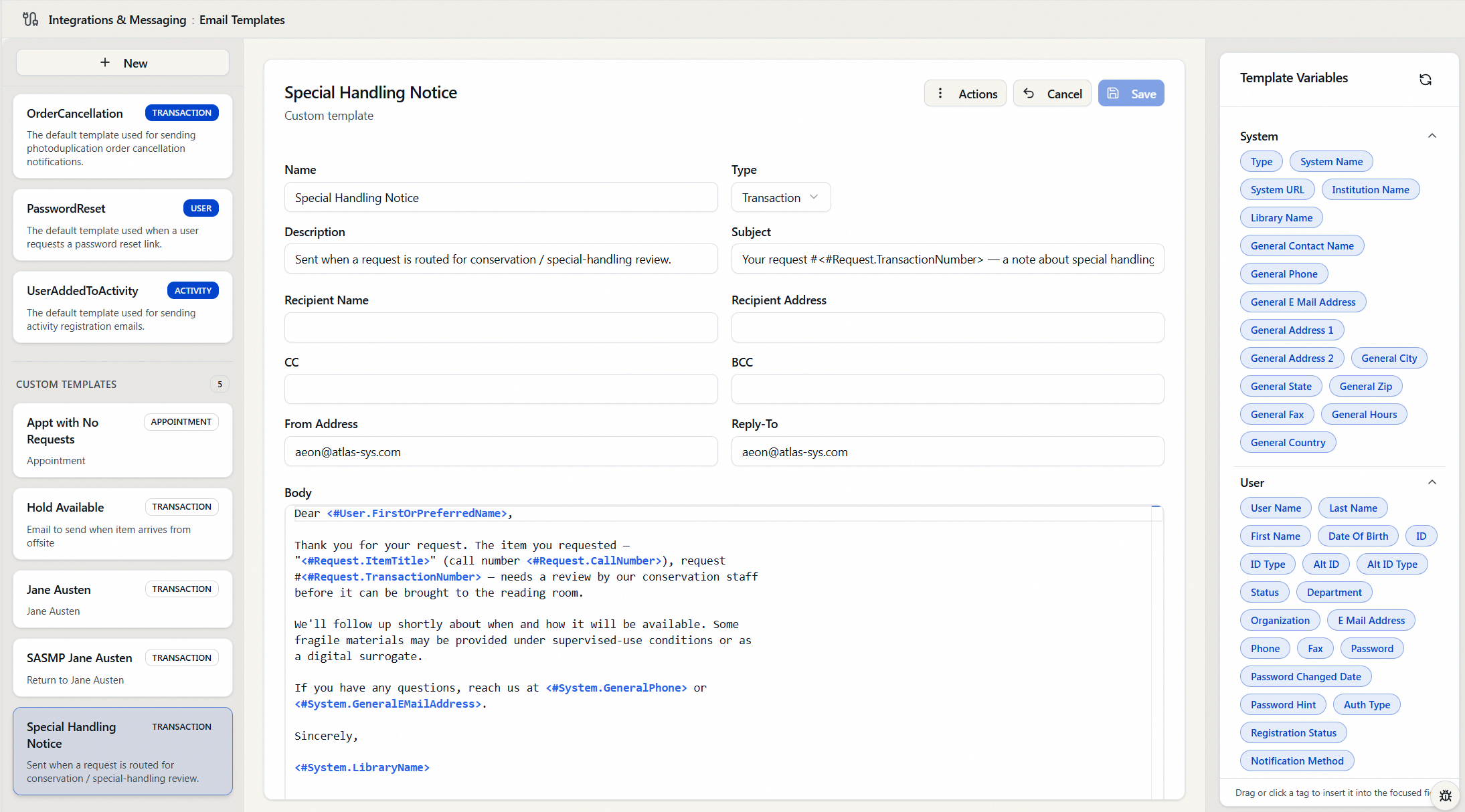
The address and subject fields have character limits (for example, Subject is capped at 255 characters). Inserting a tag won't push a field past its limit — Aeon trims to fit. The Body has no such cap.
After inserting tags, click Save to keep your changes. While it has unsaved edits, the Body is highlighted in amber.
Which tags are available, by template type
The tag categories you see are determined by the template Type. This mirrors the records each kind of email has access to when it's sent.
| Category | Transaction | User | Activity | Appointment |
|---|---|---|---|---|
| System (your Local Info — institution name, address, contacts) | ● | ● | ● | ● |
User (the recipient's record, plus FirstOrPreferredName) | ● | ● | ● | ● |
| User Custom Fields | ● | ● | ● | ● |
| Activity | ● | |||
| Activity Custom Fields | ● | |||
| Researcher (the requester's user record) | ● | |||
| Researcher Custom Fields | ● | |||
| Request (the transaction) | ● | |||
| Request Custom Fields | ● | |||
| Queue | ● | |||
| Photoduplication Queue | ● | |||
Billing (InvoiceTotal, Payments, BalanceDue) | ● | |||
| Appointment (incl. reading-room details) | ● | ● |
A few category notes:
- System is always available — it pulls from the Local Info table, so
<#System.LibraryName>,<#System.GeneralPhone>,<#System.GeneralAddress1>, and similar resolve to your institution's contact details. (Tag names match the Local Info columns exactly, which is why they carry theGeneral…prefix.) For multi-site setups these follow the same site fallback rules as the rest of Local Info. - User vs. Researcher: on a Transaction template, User tags come from the request's own account (
Username) — normally the researcher, and what the email is addressed to. Researcher tags come from the request'sResearcherUsername, which Aeon fills in only when a proxy placed the request on someone else's behalf — it names the researcher the request is for. On an ordinary request there's no separate researcher, so<#Researcher.*>tags resolve to blank. On User, Activity, and Appointment templates there's only User. - The Appointment category also carries a few fields from the appointment's reading room —
<#Appointment.ReadingRoomName>,<#Appointment.ReadingRoomDescription>,<#Appointment.MinAppointmentLength>, and<#Appointment.MaxAppointmentLength>— even though those live on the reading-room record rather than on the appointment itself. - A handful of Request tags are computed rather than raw columns:
<#Request.ScheduledDateWithoutTime>(the scheduled date with the time stripped off),<#Request.BillingAccountID>,<#Request.BillingAccountDescription>, and<#Request.LastNote>(the most recent note on the request).
Any custom field you've defined in Custom Field Definitions shows up in the matching custom-field category — User Custom Fields, Request Custom Fields, or Activity Custom Fields — labeled with the field's display name. You don't configure anything extra here; defining the custom field is enough for its tag to become insertable.
Seeing the substituted result (preview)
The template editor shows the template with tags still in it — that's by design, because a template has no single recipient to fill them in for. To see tags resolved to real values, you preview the email at the point where it's actually used:
- From a request — open request #12345, start an email, and choose the template. The composer fills in the recipient, subject, and body with this request's data substituted into the tags, so you see exactly what the researcher will receive. You can edit that preview before sending. See Composing and Sending Email from a Request and Email Preview Before Sending.
- From a user record — open the user, start an email, and pick the template to see it resolved against that user.
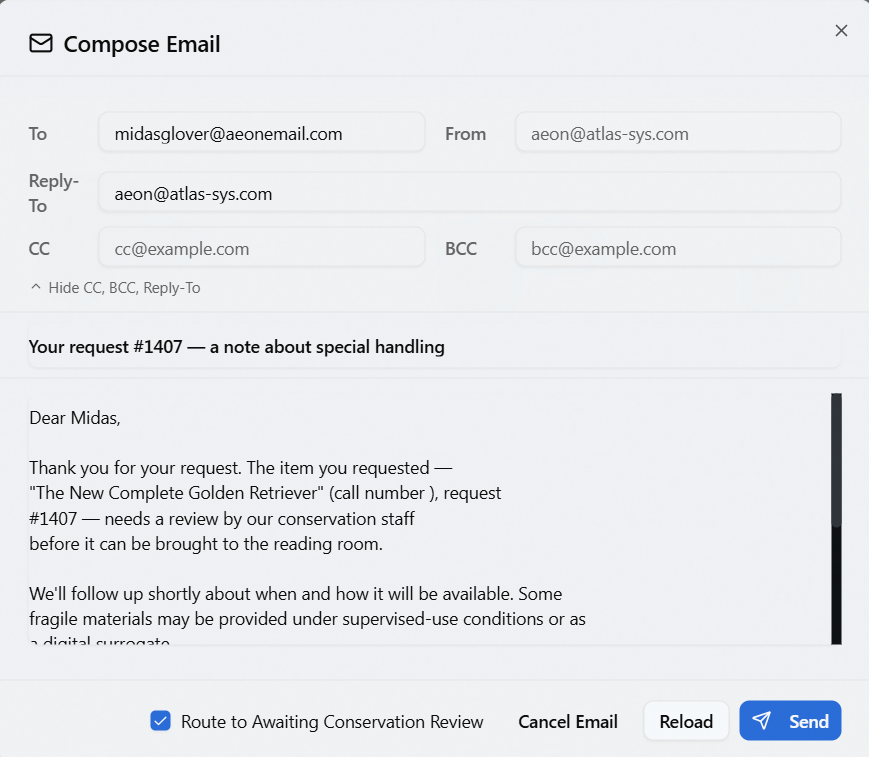
This is the reliable way to confirm a tag is spelled correctly and points at the field you intended: if a tag is wrong or its column is empty, you'll see the gap in the preview rather than discovering it after the email goes out.
Because substitution depends on the record, preview against a request or user that actually has the fields populated — an item with a call number, a user with a preferred name, a photoduplication request with a balance. A tag that looks broken may simply be reading an empty column on the record you tested with.
Permissions
Email Templates lives under the Integrations & Messaging group, and the whole section is gated by the Integrations configuration capability. Without it, Email Templates doesn't appear in the Customization Manager and opening it directly is refused — you can't view or edit templates (or their tags) here. Creating, editing, and deleting are additionally enforced on this capability at the API.
See Editing a Role: Configuration Capabilities for how this is granted.
Aeon's built-in (system) templates can be edited but not renamed or deleted, and their routing is read-only. To make a heavily customized version, use Copy to create an editable custom template and adjust its tags there. (Covered in Email Templates: Creating and Editing.)