Z39.50 Configuration
Z39.50 is how Aeon talks to your library catalog (OPAC). Once it's configured, a staff member working request #12345 can search your catalog without leaving Aeon — type a title or call number, get back bibliographic records with holdings, and pull the call number, location, and availability straight onto the request.
Configuration has two parts, and the distinction matters:
- A server describes one catalog connection: its address and port, how to phrase each kind of search (title, author, ISBN, and so on), and how to read the records that come back. Most sites have one server (your own catalog). Consortia may have several.
- A search is a named group of servers that staff pick from when they search. A search can point at a single server or fan out across many. The default search pointing at your catalog is the one staff use day to day.
You'll spend the most time here once, during setup, and rarely after — Z39.50 settings are stable. Aeon includes built-in profiles (templates) for the common catalog systems, so for a standard OPAC you usually start from a profile, fill in your server's address, and you're done.
- First-time setup — create the server entry for your catalog and the search staff will use to query it.
- A search returns nothing, or returns records with blank call numbers / availability — the query syntax or the record-field mappings need adjusting for your specific server.
- Adding a consortium catalog — create an additional server and add it to a multi-server search.
- Routine staff work needs no trip here — once it's set, catalog searching just works from the request screen.
Where it lives
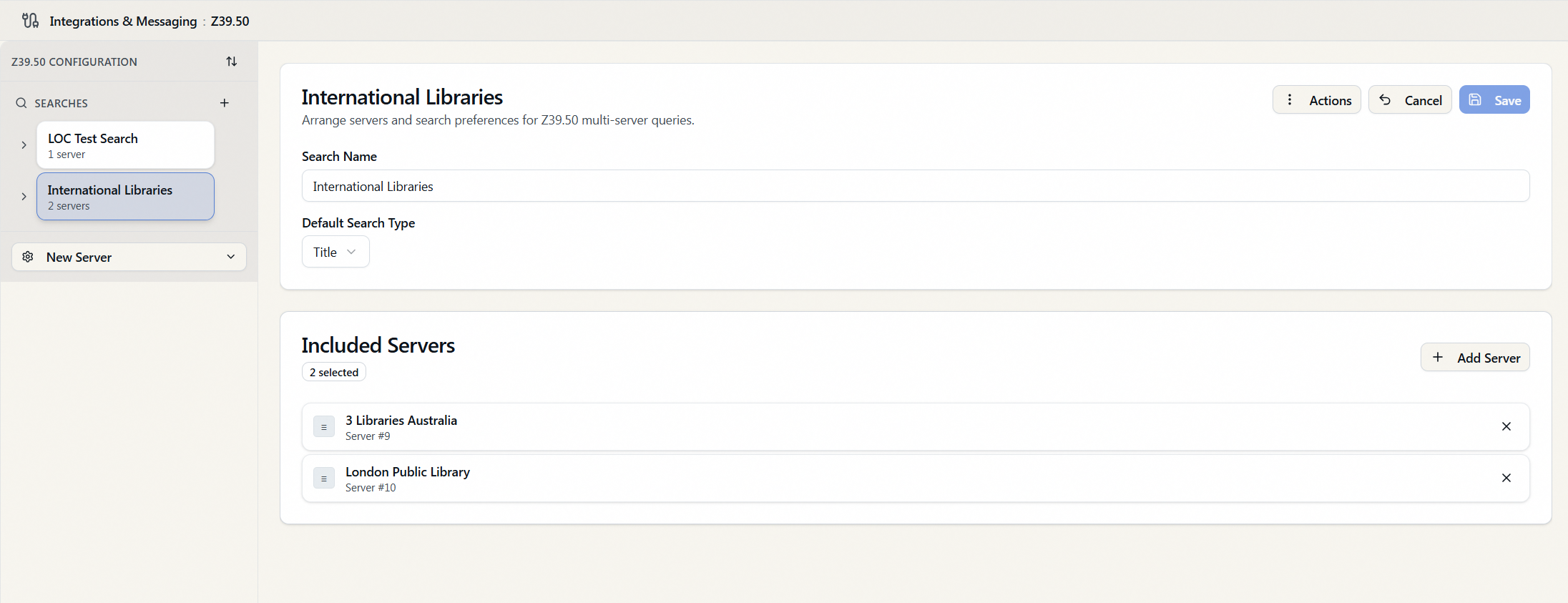
Open the Customization Manager and go to Integrations & Messaging → Z39.50. The page is a two-pane editor: a sidebar listing your searches (with their servers nested underneath) on the left, and the detail form for whatever you've selected on the right.
Editing Z39.50 configuration requires the Integrations configuration permission. Staff without it don't see this section of the Customization Manager. Creating, editing, deleting, and reordering servers and searches all require that permission.
How the sidebar is organized
The sidebar groups everything by search:
- Each search appears as a collapsible row showing its name and how many servers it contains (for example, "Main Catalog — 1 server"). Expand it to see the servers nested inside; click a server to edit that server's connection settings.
- Servers that aren't part of any search are collected at the bottom under Unassigned Servers — a server you've created but haven't added to a search yet lives here.
- The New Server button sits at the bottom of the sidebar; the + next to the Searches header creates a new search.
Right-click (or use the ⋮ menu) on any search or server to delete it.
Creating a server
A server is the connection to one catalog. Start from the profile that matches your catalog system — it pre-fills the search syntax and record mappings that usually work for that system, so you only have to supply your own address.
- In the sidebar, click New Server and choose the profile for your catalog system from the list (for example, Voyager, Sirsi, or Aleph). If your system isn't listed, pick any profile as a starting template and adjust the values afterward.
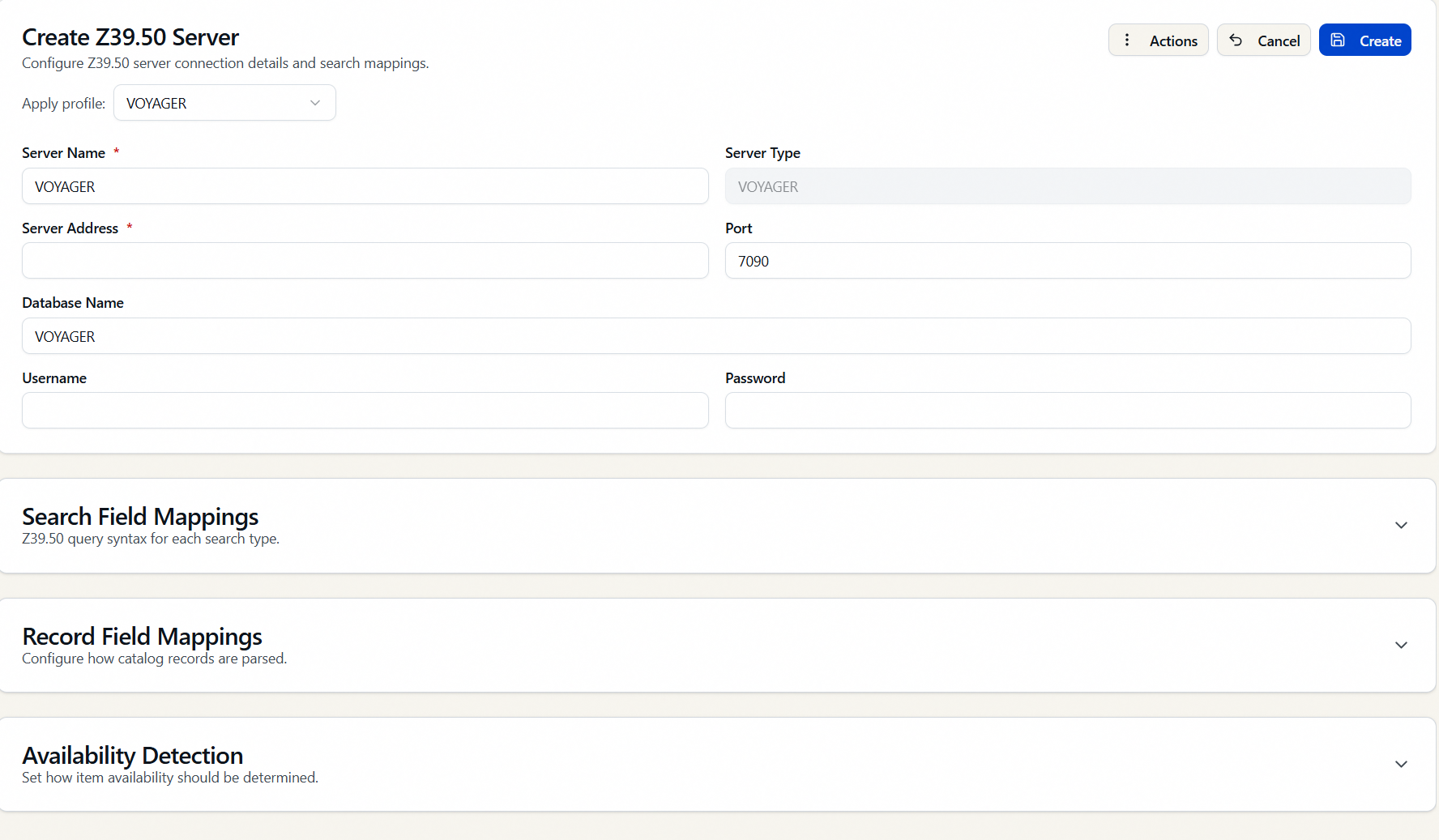
- The detail pane opens with the Create Z39.50 Server form, pre-populated from the profile. Fill in the Connection section:
- Server Name (required) — a label you'll recognize, e.g. Main Catalog.
- Server Type — set from the profile you chose and shown read-only.
- Server Address (required) — the hostname or IP of your Z39.50 server.
- Port (required) — the port it listens on (Z39.50 commonly uses 210).
- Database Name, Username, Password — supply these if your server requires them.
- Review the collapsed sections below (see Tuning how a server searches and reads records). For a standard OPAC the profile defaults are usually fine to leave as-is.
- Click Create. Aeon saves the server and switches to edit mode for it.
A profile fills in the typical settings for that catalog system, but the address, credentials, and sometimes the search syntax differ from one institution to the next. If searches error or come back empty, the search syntax or record mappings — not just the address — may need to match what your catalog actually expects. Your Z39.50 server administrator is the authority on those values.
While creating a server, an Apply profile dropdown appears in the form's header. Choosing a different profile re-fills the syntax and mapping fields from that template while keeping the name and address you've already typed — handy if you picked the wrong template to start. This dropdown is only available when creating; it isn't shown when editing an existing server.
Tuning how a server searches and reads records
Below the Connection section the server form has three collapsible sections. Open them only when you need to change how a server phrases its searches or reads results. Any field you change is highlighted so you can see your edits at a glance.
Search Field Mappings
This section holds the Z39.50 query syntax Aeon sends for each kind of search. Each box is the template for one search type:
- System Number Search
- Call Number Search
- Title Search
- Author Search
- ISBN Search
- ISSN Search
- Date Search
- Keyword Title Search
- Keyword Author Search
The profile fills these in with syntax that's standard for that catalog system. Leave them alone unless a particular search type returns errors, in which case your Z39.50 administrator can tell you the correct syntax for that server.
Record Field Mappings
This section tells Aeon how to find call number, location, and availability inside the records the catalog returns. The fields below are plain text boxes — identical whether you pick MARC or XML. Mapping Type only tells Aeon how to interpret what you enter; switching it doesn't change the boxes or fill anything in, so for a MARC server you type the field references in yourself.
- Mapping Type — choose MARC or XML, matching how your catalog returns holdings.
- Identifier Field — the field that contains the holdings block. What you type depends on the type: for MARC, the numeric field number (for example,
930); for XML, the holdings tag name (for example,holdingsAndCirc, case-sensitive). - Call Number Field, Location Field, Availability Field — the subfields/tags within the identifier that hold each value. For a MARC
930field with the call number in$hand the location in$a, you'd type$hand$a.
| and +The Call Number, Location, and Availability fields accept two special characters so you can pull a value from more than one place:
- A pipe
|means try this, and if it's empty fall back to that.localLocation|shelvingLocationreturnslocalLocation, orshelvingLocationif the first is empty. - A plus
+means combine both, separated by a space.localLocation+shelvingLocationreturns the two values joined together.
You can mix them, and there's no limit beyond the database field length: localLocation+shelvingLocation|someOtherValue concatenates the first two, falling back to the third if the combined result is empty.
Availability Detection
This section controls how the raw value from the availability field becomes the availability text staff see.
- Detection Method — Value uses the field's text as-is; Regular Expression matches the field against a pattern.
- Regular Expression — the pattern to match when the method is Regular Expression.
- Available Text / Not Available Text — the wording to show staff when the item is (or isn't) available (for example, Available / Checked out).
- Available Action / Not Available Action — whether that wording replaces the raw value from the record. These are free-text boxes, but the only value Aeon acts on is the word
Replace: typeReplaceto substitute the text above, and leave the box empty to pass the record's own value through unchanged. (This is a holdover from the desktop client's Replace/Value dropdown — anything other thanReplace, including a blank, is treated as "don't replace.")
A common setup: a catalog returns 1 for available and 0 for not. Set Detection Method to Regular Expression with a pattern of 1, put Replace in both Available Action and Not Available Action, and set Available Text = Available and Not Available Text = Checked out. Aeon then swaps the raw 1/0 for the readable status. (Leave the Action boxes empty and staff would see the raw 1/0 instead.)
Editing or deleting a server
To edit, select the server in the sidebar (expand its search, or find it under Unassigned Servers), change any fields, and click Save. The Save button stays disabled until you've actually changed something.
To delete, open the server's Actions menu (the ⋮ in the detail toolbar, or right-click it in the sidebar), choose Delete, and confirm in the Confirm Delete dialog — "Are you sure you want to delete …? This action cannot be undone."
When you delete a server, Aeon automatically removes it from every search that includes it. A multi-server search simply loses that one server; the rest stay. Deleting a server doesn't break your searches, but a search left pointing at nothing won't return results, so review your searches after removing a server.
Creating a search
A search is what staff actually pick when they search the catalog — a named group of one or more servers, queried together. Most sites need exactly one, pointing at the home catalog.
- Click the + next to Searches in the sidebar. The Create Search Configuration form opens.
- Enter a Search Name — this is the label staff see, e.g. Main Catalog or Consortium.
- Choose a Default Search Type — the search type pre-selected when staff open this search. Options are System Number, ISBN/ISSN, Title, Author, Call Number, Date, Keyword, or leave it [Not Specified].
- Under Included Servers, click Add Server and pick the servers this search should query. You must add at least one. The badge shows how many are selected.
- Click Create.
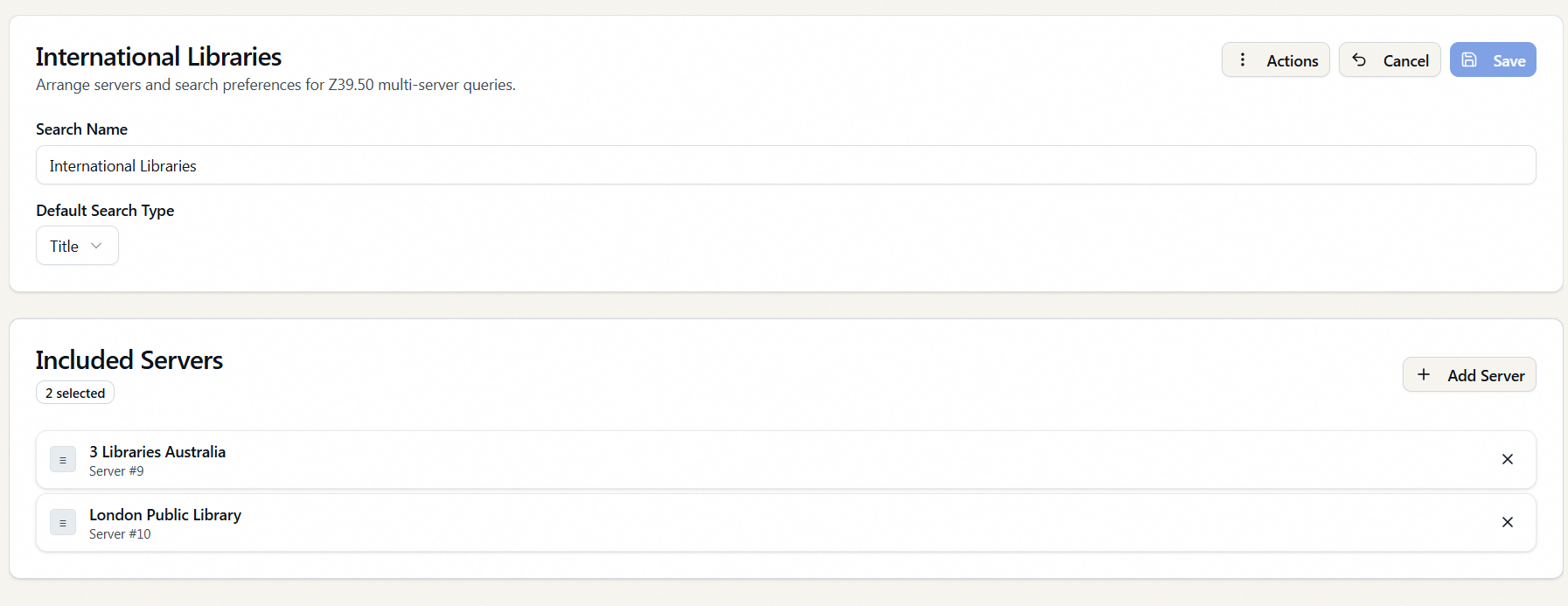
When a search includes several servers, you can drag the rows under Included Servers to set their order using the grip handle on each row. Remove a server from the search with the ✕ on its row (this only removes it from this search — it doesn't delete the server). When staff run the search, every included server is queried and the combined results come back together.
Editing, deleting, and reordering searches
- Edit — select the search in the sidebar, change the name, default type, or included servers, and click Save.
- Delete — use the search's Actions / ⋮ menu (or right-click), choose Delete, and confirm.
- Reorder — the order of searches controls the order staff see them in. Click the reorder button (the up/down-arrows icon) at the top of the sidebar to enter reorder mode, drag the searches into the order you want, then click Save Order. The reorder button is disabled until you have at least two searches.
If you switch to another server or search — or start a new one — while you have unsaved edits, Aeon stops you with an Unsaved Changes prompt: Keep Editing returns you to the form, Discard abandons the edits and continues. Save before navigating away if you want to keep your work.