The OpenURL Mapping Table
OpenURL is an industry-standard way of packing an item's metadata — title, author, edition, genre, and so on — into a link. When a researcher follows an OpenURL link from a catalog or database into your Aeon web pages, Aeon needs to know which OpenURL field belongs in which Aeon field, and what kind of request to build. The OpenURL Mapping table is that translation layer.
For most sites this works out of the box: the table comes pre-seeded with mappings that cover common OpenURL sources, and OpenURL is live the moment your Aeon web pages are. You typically open this editor only when a particular source sends a field Aeon isn't picking up, or you want to steer a genre to a different request type or web form. The normal path is leave it alone; this page is for the exceptions.
- A catalog or discovery layer (Alma, Primo, FirstSearch, ArchivesSpace, and the like) sends an OpenURL field that isn't landing in the Aeon request — add or adjust a Replace mapping.
- You want incoming items of a certain genre treated as a specific request type and document type, or routed to a specific web request form — add or adjust a Substitute mapping.
- You want one source to map a genre differently than another (for example, treat a genre as a Monograph from one system but a Manuscript from another) — create source-specific entries.
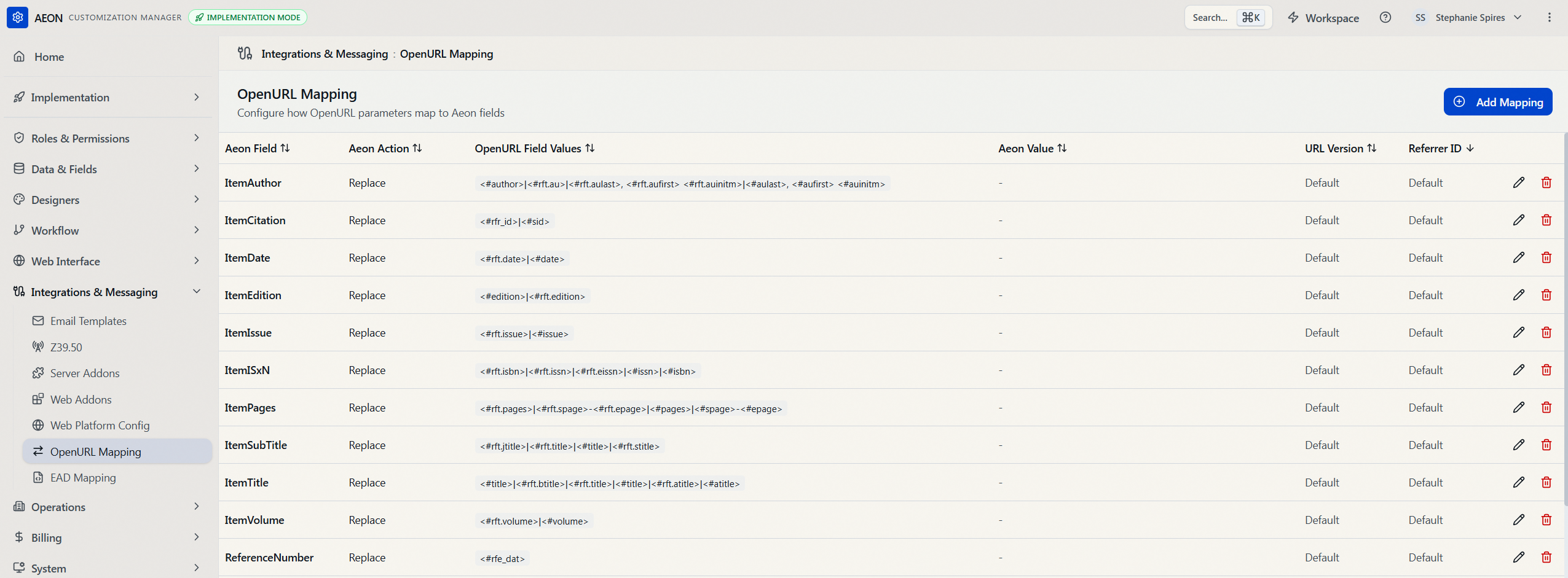
Open the Customization Manager, then go to Integrations & Messaging → OpenURL Mapping. The editor is headed OpenURL Mapping with the subtitle "Configure how OpenURL parameters map to Aeon fields." Each row is one mapping; the toolbar has an Add Mapping button.
How a mapping is read
Every row pairs an OpenURL field with an Aeon field and an action that says what to do with it. When a request comes in over OpenURL, Aeon walks the table and applies the rows whose scope (URL version and referrer) matches the incoming link. The columns you'll see in the table are:
| Column | What it holds |
|---|---|
| Aeon Field | The Aeon field the mapping targets (for example, ItemTitle, ItemAuthor, ItemEdition, or RequestType). |
| Aeon Action | What the mapping does — Replace to fill an Aeon field, or Substitute:genre / Substitute:rft.genre to set the request type from the item's genre. |
| OpenURL Field Values | The OpenURL field(s) to read, wrapped in <#...> (for example, <#rft.edition>). For genre rows, this is the genre name instead. |
| Aeon Value | Used only by the Substitute actions — the request type, document type, and web form to apply. Blank for Replace rows. |
| URL Version | Which OpenURL version this row applies to. Usually Default. |
| Referrer ID | Which source this row applies to. Usually Default. |
Click any column header to sort by it (the header shows an up/down arrow). The table is read-only at a glance — you make changes through the Add and Edit dialogs described below.
There's no search box on this screen. To jump to a particular mapping, use the Customization Manager's search (or the command palette, Cmd/Ctrl+K) and pick the result — Aeon opens this table with that mapping already open for editing.
The two kinds of mapping
Replace — put an OpenURL value into an Aeon field
A Replace row copies data from an OpenURL field into an Aeon field. Create one Replace row per Aeon field you want populated.
- Aeon Field Name — the Aeon field to fill, for example
ItemEdition. - OpenURL Field Values — the OpenURL field to read, formatted as
<#rft.edition>. - Aeon Value — leave blank; Replace rows don't use it.
So a row with Aeon Field Name ItemEdition and OpenURL Field Values <#rft.edition> puts whatever the link carried in rft.edition into the request's edition field.
You can also fall through several OpenURL fields for the same Aeon field by separating them with a pipe (|). Aeon takes the first one that has a value and ignores the rest. The seeded author mapping is a good example:
<#author>|<#rft.au>|<#rft.aulast>, <#rft.aufirst> <#rft.auinitm>|<#aulast>, <#aufirst> <#auinitm>
Aeon tries <#author> first; if that's empty it tries <#rft.au>, then the constructed last-name/first-name form, and so on. If none of them have a value, the field is left empty. You can also combine fields with literal text — for instance, <#rft.aulast>, <#rft.aufirst> to format an author as "Last, First."
Substitute — set the request type from the item's genre
The Substitute actions look at the incoming item's genre and decide what kind of request Aeon builds — the request type (Loan or Copy), the document type (Monograph, Serial, Manuscript, and so on), and which web request form the researcher lands on.
- Aeon Action —
Substitute:genre(used for older OpenURL links) orSubstitute:rft.genre(used for OpenURL version 1.0). - Aeon Field Name — must be
RequestType. - OpenURL Field Values — the genre to match, such as
monograph,serial, ormanuscript. Usedefaultto catch any genre not handled by another row. - Aeon Value — the result, in the form
RequestType:DocumentType:HTMLRequestPageToUse, for exampleLoan:Monograph:GenericRequestMonograph.html.
The two Substitute actions work together to cover both OpenURL versions. When you add a genre, create one row with Substitute:genre and a second, identical row with Substitute:rft.genre so requests are handled no matter which OpenURL version the source uses. Genre rows and Replace rows are separate entries — don't try to combine them in one row.
Adding a mapping
Using request #12345's edition field as a worked example — say a database sends edition data in rft.edition and you want it to land in Aeon's ItemEdition field:
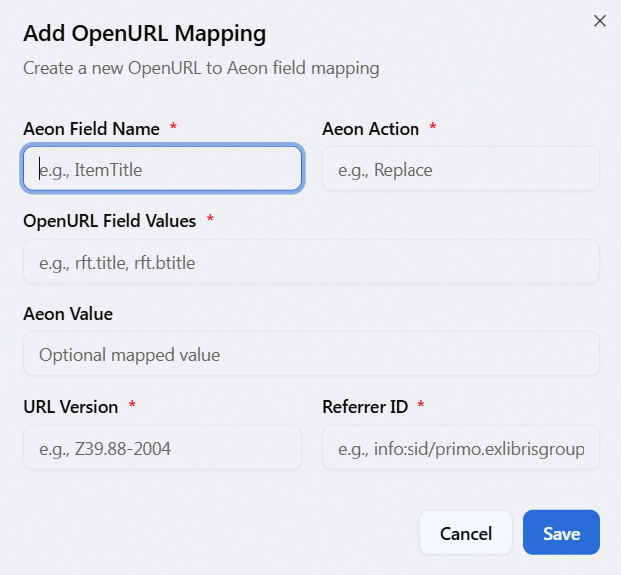
- Click Add Mapping in the toolbar. The Add OpenURL Mapping dialog opens ("Create a new OpenURL to Aeon field mapping").
- Fill in the fields:
- Aeon Field Name —
ItemEdition - Aeon Action —
Replace - OpenURL Field Values —
<#rft.edition> - Aeon Value — leave blank (Replace doesn't use it)
- URL Version —
Default - Referrer ID —
Default
- Aeon Field Name —
- Click Save. Aeon confirms with "Mapping added" and the new row appears in the table.
From now on, any OpenURL request that carries rft.edition fills in the edition field on the resulting Aeon request.
Aeon Field Name, Aeon Action, OpenURL Field Values, URL Version, and Referrer ID are required — each is marked with a red asterisk and the dialog won't save until they're filled. Aeon Value is optional (and stays blank for Replace rows). The dialog suggests realistic examples in each box, for instance Z39.88-2004 for URL Version and info:sid/primo.exlibrisgroup.com for Referrer ID.
Editing a mapping
- In the row you want to change, click the pencil icon at the right.
- The Edit OpenURL Mapping dialog opens ("Update the OpenURL mapping") with the current values filled in.
- Make your changes and click Save. Aeon confirms with "Mapping updated."
Deleting a mapping
- In the row you want to remove, click the trash icon at the right.
- A confirmation dialog appears: "Delete OpenURL Mapping?" — it names the field and action being removed and warns that the action cannot be undone.
- Click Delete to confirm, or Cancel to back out. On success Aeon shows "Mapping deleted."
There's no undo. Removing a Replace row means that OpenURL field stops populating its Aeon field; removing a genre row means incoming items of that genre fall back to whatever default mapping exists (or to Aeon's built-in defaults if none does). If you're unsure, edit the row instead of deleting it.
Targeting a specific source or OpenURL version
Most rows use Default for both URL Version and Referrer ID, which means they apply to every request. You only change these when you want different behavior for a specific source or version:
- Referrer ID (
rfr_id) identifies the system the link came from. Set it to a source's identifier (for example,info:sid/primo.exlibrisgroup.com) to make a row apply only to requests from that source. This is how you make the same genre map to a Monograph from one discovery layer and a Manuscript from another — create one set of rows per source. - URL Version (
URL_Ver) scopes a row to a particular OpenURL version. There's really only one value you'd ever set here —Z39.88-2004, the standard identifier for OpenURL 1.0 (you'll see it as theurl_verof an incoming 1.0 link). Leave itDefaultin almost all cases:Defaultapplies to every version, and the 0.1-vs-1.0 difference is already handled by the pairedSubstitute:genre/Substitute:rft.genreactions and the pipe fall-through in field values.
The rfr_id is chosen by the sending system, not by Aeon, so enter it exactly as that source emits it — the surest way to find the value is to capture a real OpenURL link from that system and read its rfr_id. The info:sid/… form (for example, info:sid/primo.exlibrisgroup.com) is the OpenURL 1.0 convention for naming a source; a given installation may append an institution or view suffix, so confirm your own value rather than copying the example.
When you create source- or version-specific rows for genres, remember to provide all the relevant actions (Substitute:genre and Substitute:rft.genre) for that source so every OpenURL version is covered.
OpenURL Mapping lives under the Integrations & Messaging group, and the whole section — viewing as well as editing — is gated by the Integrations configuration capability. Without it, OpenURL Mapping doesn't appear in the Customization Manager, and opening it directly shows "You don't have permission to access this customization section." The API enforces the same capability on both sides: the rows won't load, and the add, edit, and delete actions are all refused.
See Editing a Role: Configuration Capabilities for how this is granted.
If you're wiring up a specific integration — for example, the ArchivesSpace Request Fulfillment plugin — that product's own setup guide will tell you exactly which OpenURL Mapping rows it expects. Use this page to understand the mechanics; use the integration's guide for the specific values.