The Local Info Table
The Local Info table is where Aeon keeps your institution's contact details — system name, library name, the address and phone number researchers should write to, and so on. You don't enter these values onto individual requests; instead, email and print templates pull them in automatically wherever a Local Info tag appears. Set them once here, and every callslip, invoice, and notification email that references them stays correct.
Most sites touch this table exactly twice: once during setup, to replace the placeholder values that ship with Aeon, and again only when something changes — a new phone number, a move to a new building, a renamed department. The one moment it becomes a regular task is at a multi-site institution, where each site can have its own contact block so a researcher at the Music Library doesn't get the Main Library's address on their invoice.
- During initial setup, to replace the shipped sample values (System Name "Aeon", phone "555-555-5555", and the rest) with your real institution's details.
- When a contact detail changes — phone, fax, hours, email, or a physical-address move.
- At a multi-site institution, to give one or more sites their own contact block that overrides the shared default.
Where to find it
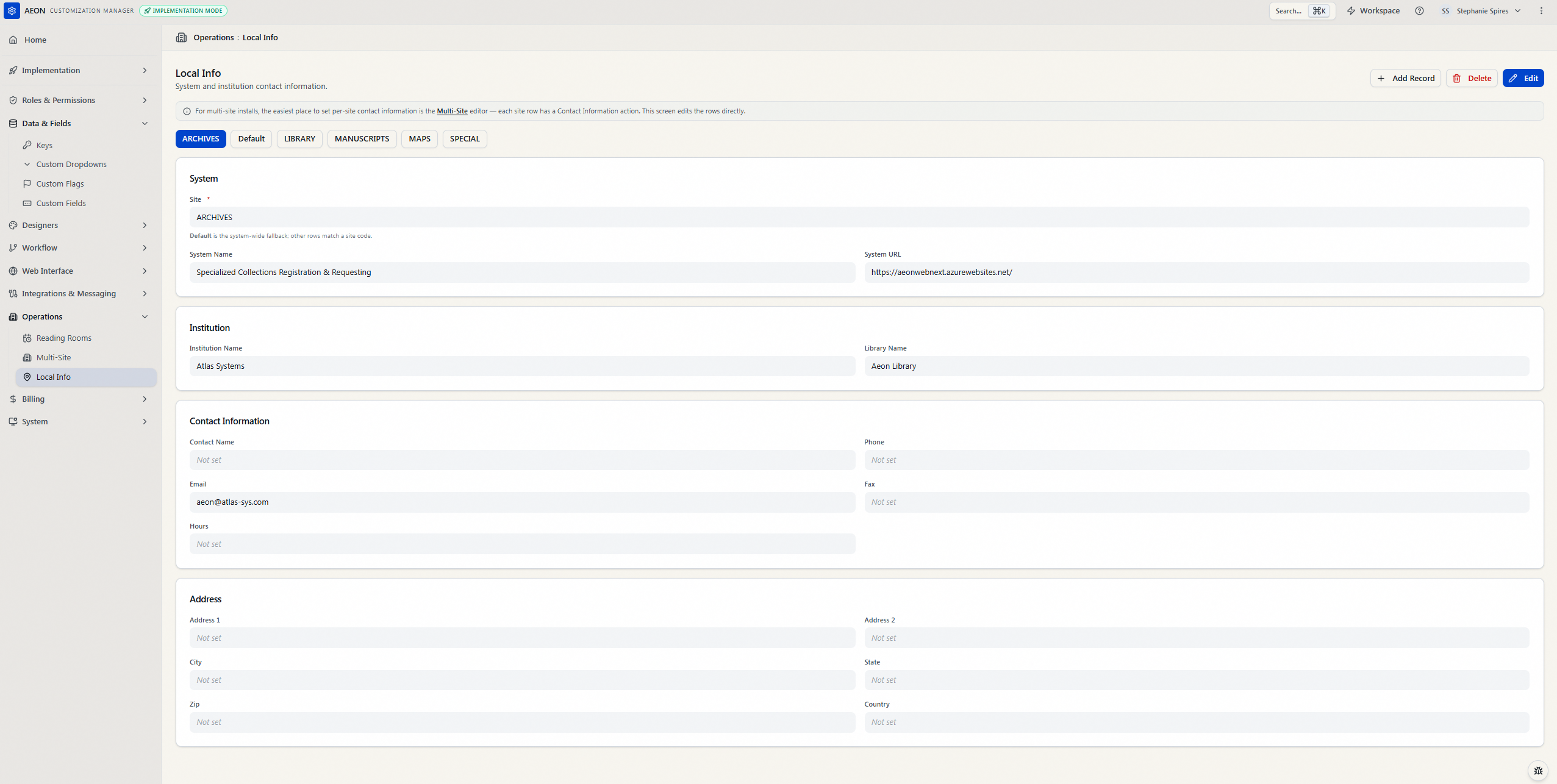
The Local Info table lives in the Customization Manager, in the left-hand navigation under Operations → Local Info (look for the location-pin icon). The editor opens with a heading of Local Info and the subtitle "System and institution contact information."
How the values are organized
The editor groups the contact fields into four cards:
| Card | Fields |
|---|---|
| System | Site, System Name, System URL |
| Institution | Institution Name, Library Name |
| Contact Information | Contact Name, Phone, Email, Fax, Hours |
| Address | Address 1, Address 2, City, State, Zip, Country |
The first field, Site, is the only required one (marked with a red asterisk) — it identifies which site the block applies to. For your main contact block the Site is Default, the record Aeon falls back to whenever no site-specific block applies. Every other field is optional; anything you leave blank simply shows as Not set and is omitted from templates.
The record whose Site is Default is what Aeon uses for templates unless a more specific site block exists. Keep it filled in and keep it around — see the warning further down about deleting it.
Editing your contact details
- Open Customization Manager → Operations → Local Info.
- If you have more than one record, a row of buttons appears at the top (one per site — for example Default, Music Library). Click the one you want; its values load into the four cards. With a single record there's no selector — it's shown directly.
- Click Edit. The contact fields become editable. (The Site field stays locked — it identifies the record and can't be changed here; to point a block at a different site, delete it and add a new one.)
- Update the values — for example, change Phone to your real number and fill in Address 1, City, State, and Zip.
- Click Save. A "Settings saved" confirmation appears and the editor returns to read-only view.
To back out without keeping your changes, click Cancel instead of Save. If you've made edits and try to leave the section before saving, the Customization Manager prompts you about the unsaved changes.
Local Info values are read by templates at the moment a template runs — when you print a callslip or an email goes out. Updating the table changes what future templates produce; it doesn't rewrite requests or re-send anything already processed.
Per-site contact blocks (multi-site)
If your institution runs more than one site, each site can have its own contact details. Aeon decides which block to use by the Site value: a record whose Site matches the site a request belongs to is used for that request's templates instead of Default. A site with no block of its own falls back to its parent site's block (if your site hierarchy defines one), and finally to Default.
When you have more than one record, a selector row of buttons appears at the top of the editor — one per record, labeled by its Site — so you can switch between Default and each site's block:

This override applies to:
- All Transaction-category email templates, default and custom.
- Printed callslips, for one request or a batch.
- Printed request slips, for one request or a batch.
- Printed digitization requests.
- Printed invoices and their billing details.
To add a site-specific block:
- In the Local Info editor, click Add Record.
- In the new form, choose the site from the Site dropdown — it lists Default (system-wide fallback) and each of your configured sites, so you normally just pick the one you want. (If you need a code that isn't in the list, click Enter a code manually and type it; a manually entered code must match the site code exactly to take effect.)
- Fill in the contact fields that should differ from the default (you can fill in all of them or only the ones that change).
- Click Save. You'll see a "Record created" confirmation, and a new button labeled with that site appears in the selector row.
For multi-site installs, the easier place to set per-site contact details is the Multi-Site editor: go to Customization Manager → Operations → Multi-Site, open the Sites tab, and click the Contact information action on a site's row. The dialog that opens fills any field you leave blank from the site's parent site (then the system Default), showing inherited values as grey placeholders — so you enter only what differs for that site. Use this screen (the Local Info table) to edit the Default block or make a quick, direct change to a record.
Deleting a record
To remove a site-specific block you no longer need:
- Select its button in the selector row so its values are showing.
- Click Delete.
- A Delete Record confirmation asks "Are you sure you want to delete this local info record? This action cannot be undone." Click Delete to confirm. A "Record deleted" message appears and the editor returns to the first record.
The record whose Site is Default is the fallback Aeon uses whenever a site has no block of its own. Deleting it leaves templates with no contact information to fall back on for those sites, which can break email and print output. Delete only the extra site-specific records you created — leave Default in place.
Local Info is gated by the Operations configuration capability — for both viewing and editing the table. Without it, the Local Info section doesn't appear in the Customization Manager, and opening it directly is refused. (The values themselves are applied automatically when email and print templates run; that isn't governed by this capability.)