Editing a Role: Configuration Capabilities
A role's configuration capabilities decide which parts of the Customization Manager the people in that role can open. They're separate from operational capabilities (what staff can do with requests, users, activities, and so on, covered on its own page). Configuration capabilities are about administering Aeon itself — editing custom fields, designing forms and print templates, managing queues and routing, configuring billing, adding staff, and so on.
Each capability is a simple on/off switch. There's no View-vs-Edit gradation here: a role either has access to a configuration area or it doesn't. If a role doesn't have a given capability, that section of the Customization Manager simply isn't reachable for anyone assigned to that role.
Most of the time you'll be in this tab to do one of two things: grant a new "power user" role access to a slice of configuration (for example, letting a billing supervisor manage billing defaults without giving them everything), or lock a general-staff role out of configuration entirely. The two seeded roles already sit at the extremes — Administrator has every configuration capability turned on, and Staff has them all turned off — so a common starting point is to clone one of those and adjust from there.
- You're building a custom role and need to give it access to specific Customization Manager sections (designers, billing, workflow, etc.).
- You want to remove a configuration area from an existing role — for example, taking Staff management away from a role that shouldn't be adding accounts.
- You're tightening things up and want a role to have day-to-day operational access but no configuration access at all.
The entire Roles & Permissions area is gated by the Roles & Permissions configuration capability. If you can see and edit roles, your own role already has it. That's exactly why the "one admin minimum" safeguards described below exist — Aeon won't let you turn that capability off in a way that would lock everyone out.
Opening the Configuration tab
- Open the Customization Manager and go to Roles & Permissions, then Roles.
- In the role list on the left, click the role you want to edit — for example, Reading Room Staff. The role opens in the editor on the right.
- Click the Configuration tab.
You'll see the heading Configuration Capabilities with the note "Control which sections of the Customization Manager this role can access," followed by a checklist of all ten configuration groups.
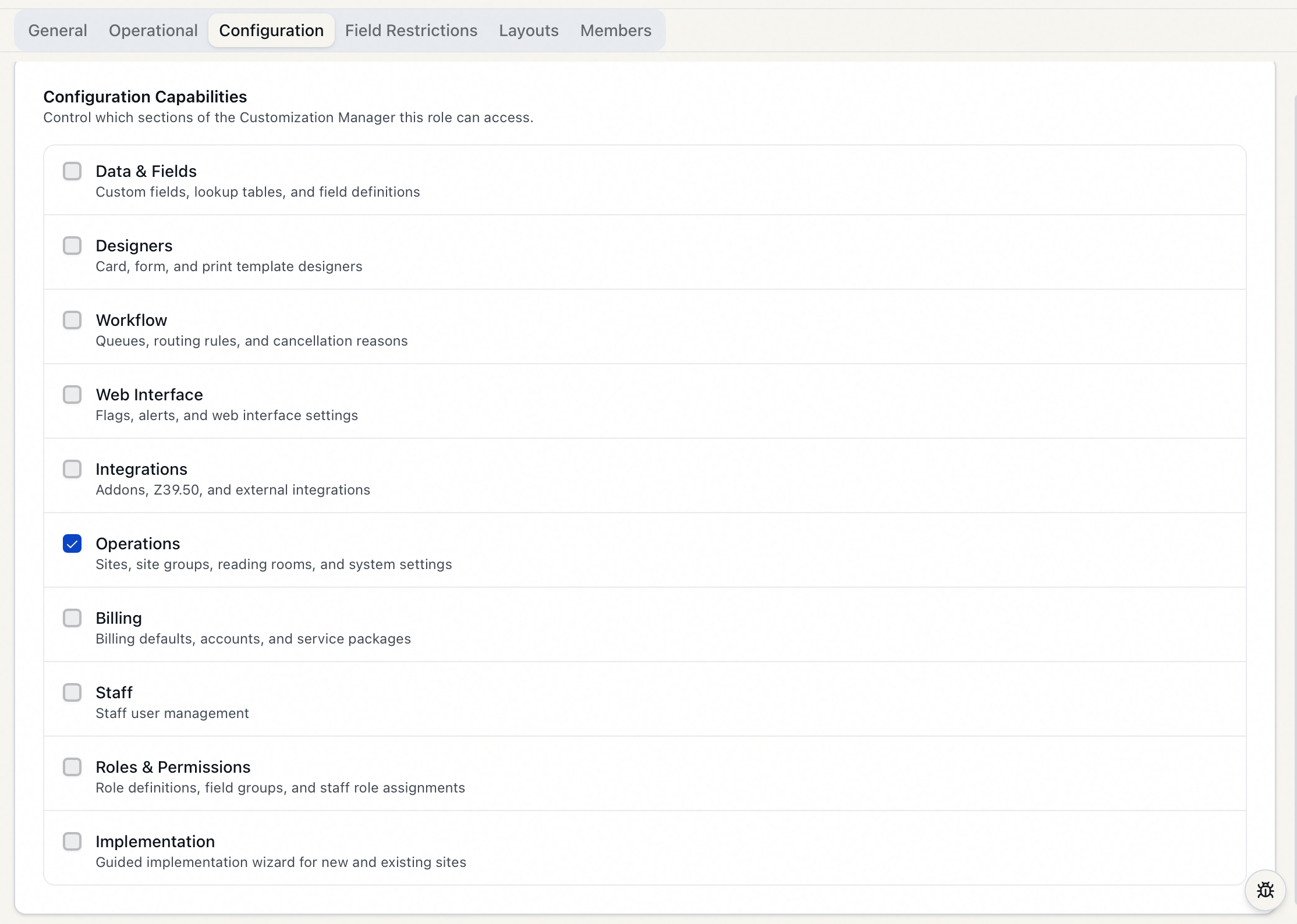
The two seeded roles — Administrator and Staff — show a lock icon in the role list. You can open them and review their configuration capabilities, but treat them as the reference points they're meant to be: Administrator = everything on, Staff = everything off. If you need a variation, clone the closest one and edit the copy rather than reworking the defaults.
The ten configuration groups
Each row is a checkbox with a short description. Check a box to grant the role access to that area; uncheck it to remove access. The groups are:
| Capability | What it controls |
|---|---|
| Data & Fields | Custom fields, lookup tables, and field definitions |
| Designers | Card, form, and print template designers |
| Workflow | Queues, routing rules, and cancellation reasons |
| Web Interface | Flags, alerts, and web interface settings |
| Integrations | Addons, Z39.50, and external integrations |
| Operations | Sites, site groups, reading rooms, and system settings |
| Billing | Billing defaults, accounts, and service packages |
| Staff | Staff user management |
| Roles & Permissions | Role definitions, field groups, and staff role assignments |
| Implementation | Guided implementation wizard for new and existing sites |
Billing here is the configuration side — billing defaults, billing accounts, and service packages in the Customization Manager. It is distinct from the operational Billing capability that governs whether staff can add charges and payments on an individual request. A role can have one without the other.
Granting or removing a capability — worked example
Say you want a Billing Supervisor role that can manage billing configuration but nothing else in the Customization Manager:
- Open the Billing Supervisor role and go to the Configuration tab.
- Check Billing.
- Leave every other box unchecked.
- Click Save in the header (top right of the editor). A confirmation appears: "Role "Billing Supervisor" saved."
To later remove an area — for example, deciding that role should no longer touch billing config — reopen the role, uncheck Billing, and Save again.
The header also has a Discard button. If you've made changes you don't want to keep, click Discard to revert the tab back to the last saved state. Save and Discard both stay disabled until you've actually changed something.
When you save a role, Aeon immediately refreshes the permissions of everyone assigned to it — their current sessions are invalidated so the new capabilities take effect right away. In practice that means a staff member whose access you changed will be prompted to sign in again, and will pick up the new permissions on their next request. Plan capability changes accordingly rather than mid-task for a busy desk.
Protecting against lockout (the one-admin minimum)
The Roles & Permissions capability is special, because it's the key to this entire area. Aeon actively prevents you from turning it off in a way that would lock everyone out. Two safeguards apply specifically to that checkbox.
You can't remove it from your own role
If you're editing the role you yourself are assigned to and you uncheck Roles & Permissions, a warning appears right in the tab before you even save:
You are removing Roles & Permissions access from your own role. If saved, you will be locked out of this settings page.
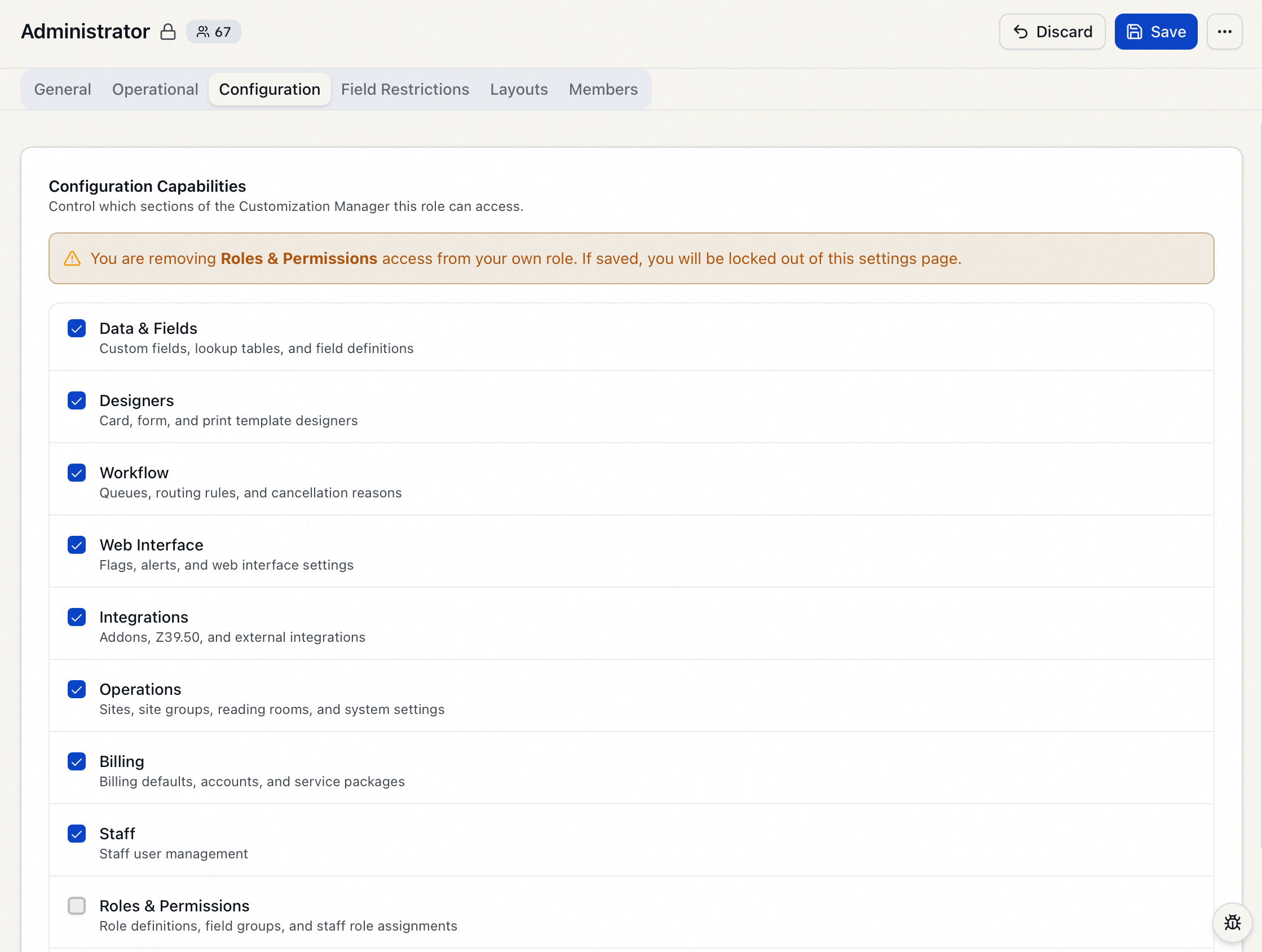
If you try to save anyway, Aeon refuses the change with the message:
Cannot remove Roles & Permissions access from your own role. This would lock you out of the admin UI.
The fix is to make the change from a different admin account, or to keep the capability on your own role.
You can't remove the last admin
Even on a role that isn't yours, Aeon won't let you strip Roles & Permissions from the only role that has it (or the only one with staff actually assigned). If you try, you'll see one of:
Cannot remove Roles & Permissions access from this role. It is the only role with admin access. Grant another role Roles & Permissions access first.
Cannot remove Roles & Permissions access from this role. No other role with admin access has any staff assigned. Assign staff to another admin role first.
In both cases the workaround is the same: make sure at least one other role has Roles & Permissions access and has at least one staff member assigned to it, then come back and remove it from this role.
- Editing role configuration requires the Roles & Permissions configuration capability. Without it, the Permissions area of the Customization Manager isn't available to you at all.
- The safeguards above are enforced by Aeon on save — they aren't just UI hints — so you can't bypass them by editing quickly or from a different screen.