Disavowing and Blocking Users
Most users move through Aeon without ever needing either of these actions — they register, get cleared, and place requests. Blocking and disavowing are the two ways you restrict a user when something is wrong: an account that shouldn't be placing requests, or a patron who no longer belongs in the system at all. Both are clearance statuses you set from the user's record, and both can be reversed.
The two differ in how far they go:
- Block stops a user from submitting new requests. They can still log in to the patron web interface and do everything else — view delivered items, check request history, pay invoices. Use it when you want to pause a user's requesting without locking them out.
- Disavow removes web access entirely. It also cancels the user's open requests and removes their appointments. Use it for accounts that should no longer be in the system — for example, someone who isn't a registered patron at your institution.
Both actions live in the same place: the Clearance menu on the user record.
- A user is placing requests they shouldn't be — Block them, and they keep their account but can't submit anything new.
- An account doesn't belong in Aeon at all — Disavow it to cut off login, cancel open requests, and clear appointments.
- A blocked or disavowed user has been sorted out — reinstate them with Clear or Unclear from the same menu.
Where these actions live
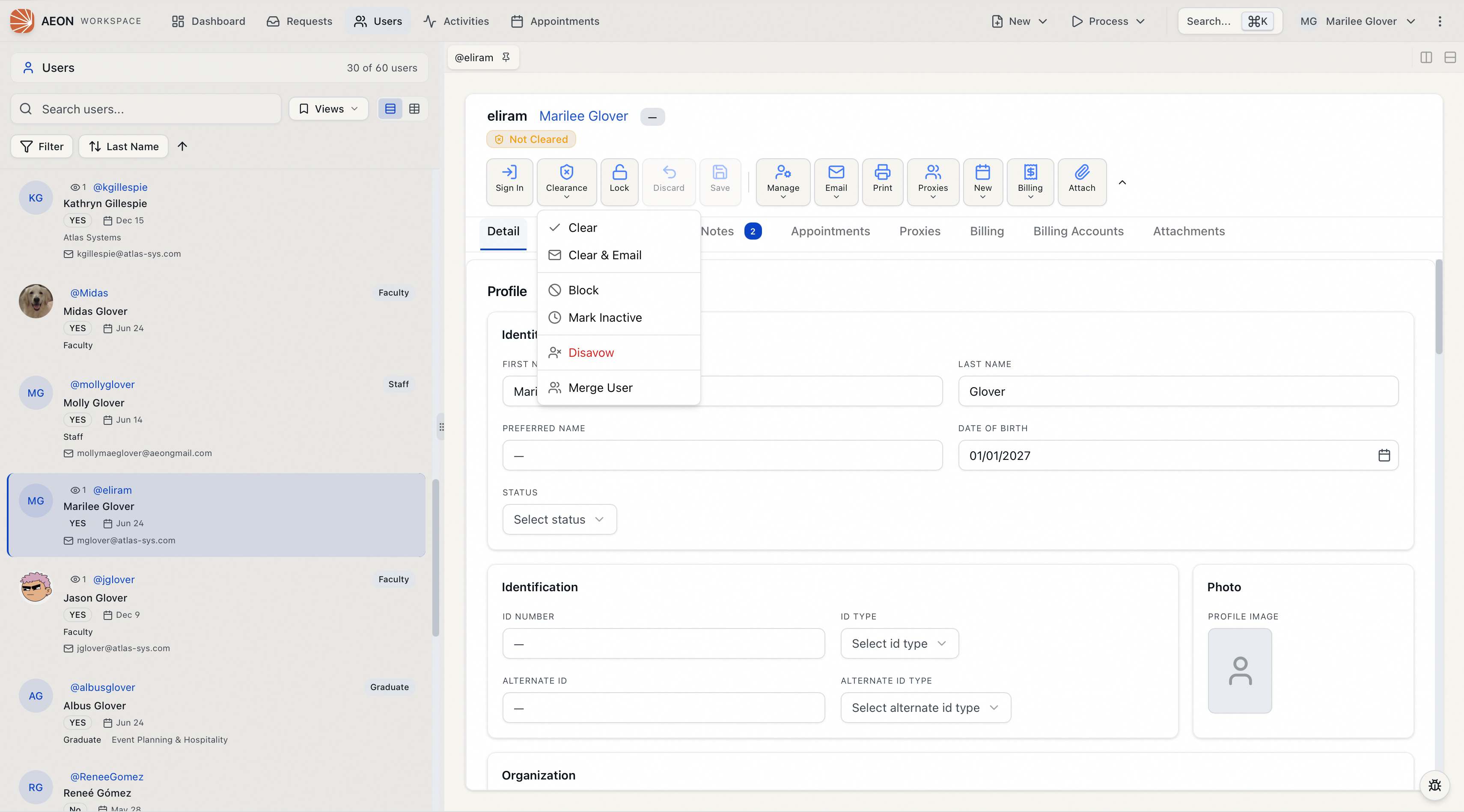
Open the user's record (search for the user, then open it from the results), and look at the toolbar across the top of the user detail view. One of the controls is Clearance, with a small chevron. Click it to open a menu of clearance actions:
| Menu item | What it does |
|---|---|
| Clear | Marks the user Cleared — the normal "good to go" status. |
| Clear & Email | Clears the user and sends the ClearUser notification email. (Disabled if the user has no email address on file.) |
| Block | Sets the status to Blocked — no new requests. |
| Unclear | Returns the user to Not Cleared (a neutral, un-decided state). |
| Mark Inactive | Sets the status to Inactive. |
| Disavow | Cuts off web access, cancels open requests, removes appointments. Shown in red. |
The exact items you see depend on the user's current status — Aeon hides the action that matches where the user already is (for example, a user who is already Blocked won't show Block). Whenever a user is in any status other than Cleared, a status badge (Blocked, Disavowed, Not Cleared, Inactive, and so on) shows on the record so you can see at a glance where they stand; a fully cleared user shows no badge.
If a user has been anonymized, the Clearance menu does not appear — there is nothing to clear, block, or disavow on an anonymized record.
Blocking a user
Blocking is a single click — there's no confirmation step, because nothing is cancelled or deleted.
- Open the user's record (for example, patron jdoe).
- In the toolbar, click Clearance.
- Click Block.
- A User blocked confirmation appears, and the status badge changes to Blocked.
From that point, if the user tries to submit a request through the patron web interface, they're told they've been blocked. Everything else about their account keeps working.
A blocked user can still log in to the patron web interface; they just can't place new requests. If you need to stop the user from logging in at all, use Disavow instead.
Unblocking a user
To let a blocked user place requests again, give them any non-blocked clearance status from the same menu:
- Open the user's record.
- Click Clearance.
- Click Clear (or Clear & Email) to mark them Cleared, or Unclear to return them to Not Cleared.
The status badge updates to reflect your choice, and the user can submit requests again.
Disavowing a user
Disavowing is the heavier action, so Aeon walks you through a confirmation that spells out exactly what will happen before you commit.
-
Open the user's record (for example, patron jdoe).
-
In the toolbar, click Clearance.
-
Click Disavow (the red item at the bottom of the menu).
-
The Disavow User dialog opens. Aeon checks the account and lists the concrete impact for this user:
- Cancel active requests — with a count of how many open requests will be cancelled.
- Remove appointments — with a count of how many appointments will be removed.
- End active web session — if the user is currently logged in to the patron web interface.
If nothing will be affected, the dialog says so ("No active requests, appointments, or web sessions will be affected").
-
Choose how to finish:
- Disavow User — disavows immediately, no email sent.
- Disavow & Email — disavows and opens the email editor pre-filled from the
DisavowUsertemplate so you can review or edit it before sending. (This option appears only if the user has an email address on file.) - Cancel — backs out without changing anything.
-
After you confirm, a User disavowed notification appears (noting how many requests were cancelled and appointments removed), and the status badge changes to Disavowed.
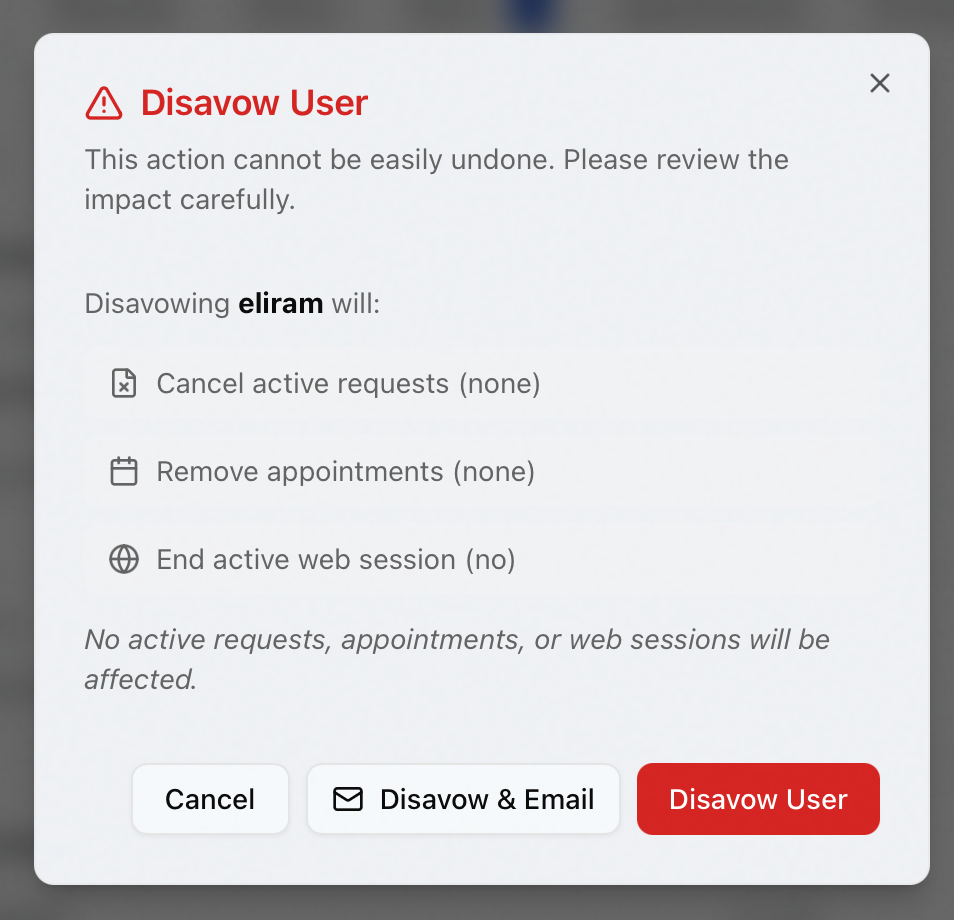
Disavowing cancels the user's open requests and removes their appointments — this is the point of the action, but it's hard to undo. The confirmation dialog shows you the exact counts before you commit; read them. Requests that are already finished or otherwise closed are not affected: items that are checked out, requests already finished, requests already cancelled, and merged requests stay as they are. Only currently-active requests are cancelled, and they move to Cancelled by Staff.
If you choose Disavow & Email, the disavow itself still happens — even if you then close the email editor without sending. Cancelling the email does not cancel the disavow. If you want to disavow silently, use Disavow User rather than Disavow & Email.
Reinstating a disavowed user
Disavowing is reversible as a status, but the requests it cancelled are not automatically restored.
- Open the disavowed user's record.
- Click Clearance.
- Click Clear (or Clear & Email) to mark them Cleared, or Unclear to return them to Not Cleared.
This restores the user's web access. Any requests that were cancelled when you disavowed them stay cancelled — the user can resubmit them, or you can reopen them by re-routing from their cancelled status.
- Changing a user's clearance status — including Block and Disavow — requires the Full level of the Users permission. (The toolbar Clearance menu becomes available at the Edit level, but the action itself is rejected by the server unless your role has Users: Full; if you don't, you'll see an error rather than a status change.)
- The Merge User option that can also appear on this menu requires Users: Full as well.
- The Clearance menu is disabled while the record is locked by another staff member — coordinate with whoever holds the lock before changing status.