Emails and Email History
Every email Aeon sends about a researcher — clearance notices, request updates, appointment confirmations, anything you send by hand — is logged on their record. The user record gives you both halves of that picture in one place: the Emails tab shows the full history of what's already gone out, and the Email action in the toolbar lets you send a new one.
Most of the time you open a user's Emails tab to answer a question: Did the researcher actually get their clearance email? What did we tell them about request #12345? Why did that message bounce? And occasionally you'll send a one-off email — a quick note, or a templated message that doesn't fit any automatic trigger — without leaving the user record.
- A researcher says they never received a notice — open their Emails tab to confirm whether it sent, failed, or is still pending.
- You need to reread exactly what Aeon told someone, word for word — expand the email to see its full body.
- You want to send a researcher a message yourself — use the Email action in the toolbar, with a template or from scratch.
Opening the Emails tab
- Open the user record (search for the researcher, or click their name anywhere it appears).
- Switch to the Emails tab.
- The tab lists emails newest first, with a count at the top — for example, "25 of 312 emails." The first number is how many are currently loaded; the second is the total that match your filter.
Each row in the list is a card showing, at a glance:
- a type badge — User, Request, Appointment, or Other;
- the status — Sent (green), Pending (yellow), or Failed (red);
- the subject line;
- the To address and, where available, the From address;
- the date and time the email was sent.
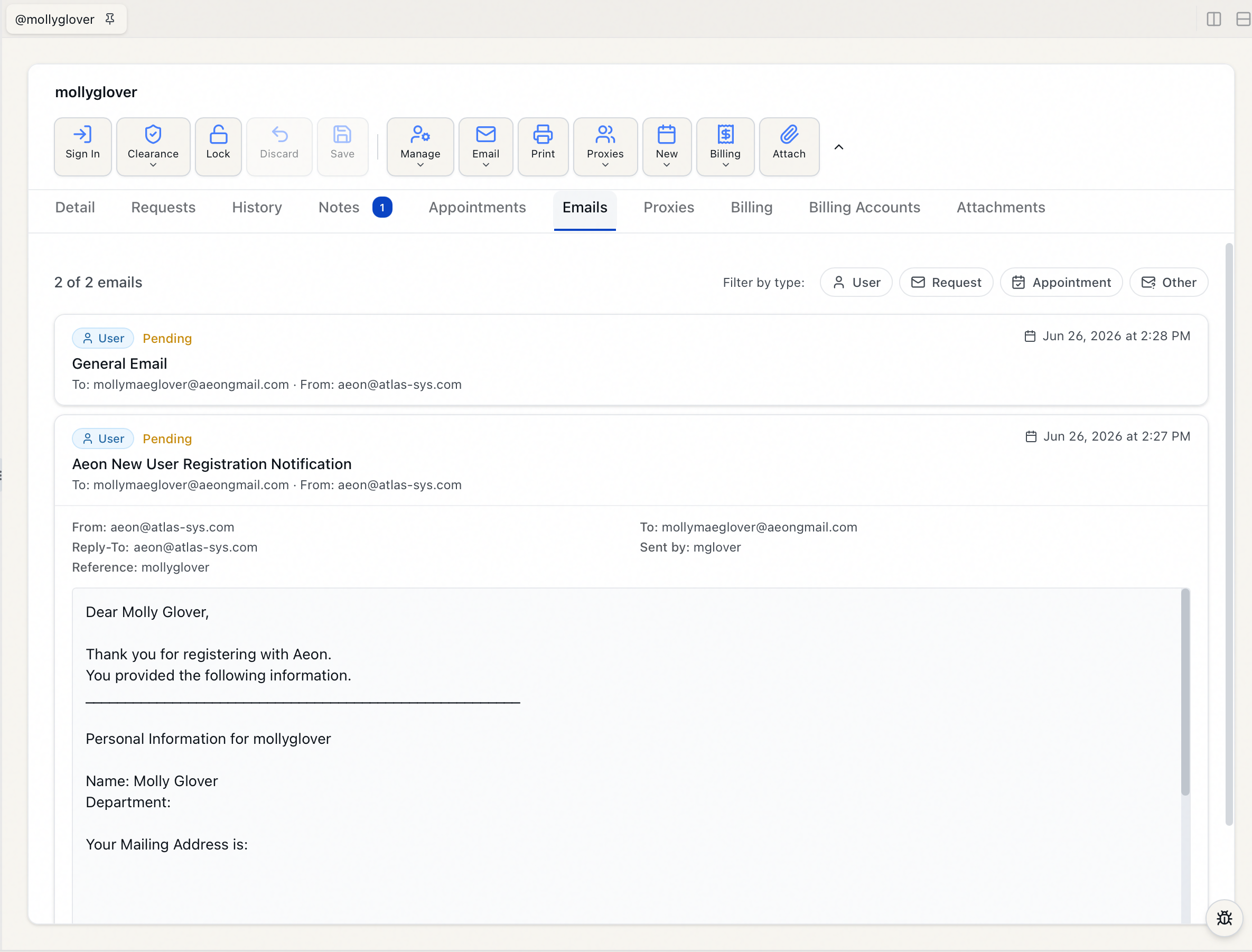
The type tells you what the email was about, not who sent it:
- User — sent about the person directly (clearance, password resets, account notices).
- Request — tied to one of their requests (status changes, item-available notices).
- Appointment — appointment confirmations, reminders, and cancellations.
- Other — anything that doesn't fall into the categories above.
Filtering by type
To narrow a long history, use the type pills on the right of the count: User, Request, Appointment, Other. Click one or more to show only those types; the count updates to match. When at least one filter is on, a Clear filters link appears — click it to go back to showing everything.
If nothing matches, you'll see "No emails match the selected filters." If the researcher has no email history at all, the tab reads "No emails have been sent to this user."
Reading a full email
The list is a summary — to see everything, click a card to expand it. The expanded view fills in the complete record:
- From, To, and (when present) CC, BCC, and Reply-To;
- Sent by — the staff member who sent it, or System for an automatic message;
- a Reference and any Note (for example, the reason a message was cancelled or why it failed);
- the full body of the email.
Click the card again to collapse it. The body loads the moment you expand a card, so the list itself stays fast even when someone has hundreds of long HTML emails on file.
Long histories load in pages
Aeon loads emails in batches rather than all at once. When more exist than are currently shown, a Load more button appears at the bottom of the list — click it to pull in the next batch. The count at the top ("50 of 312 emails") always reflects how many you've loaded against the total.
Some cards carry a dashed Address match badge. That email wasn't directly linked to this user record — Aeon matched it only because it went to the same email address. It's almost certainly relevant, but treat it as "to this address" rather than "definitely about this person," since two records can share an address.
Sending an email to a user
You can send a researcher an email straight from their record — either from a predefined template that fills in the content for you, or as a blank email you write yourself.
- Open the user record.
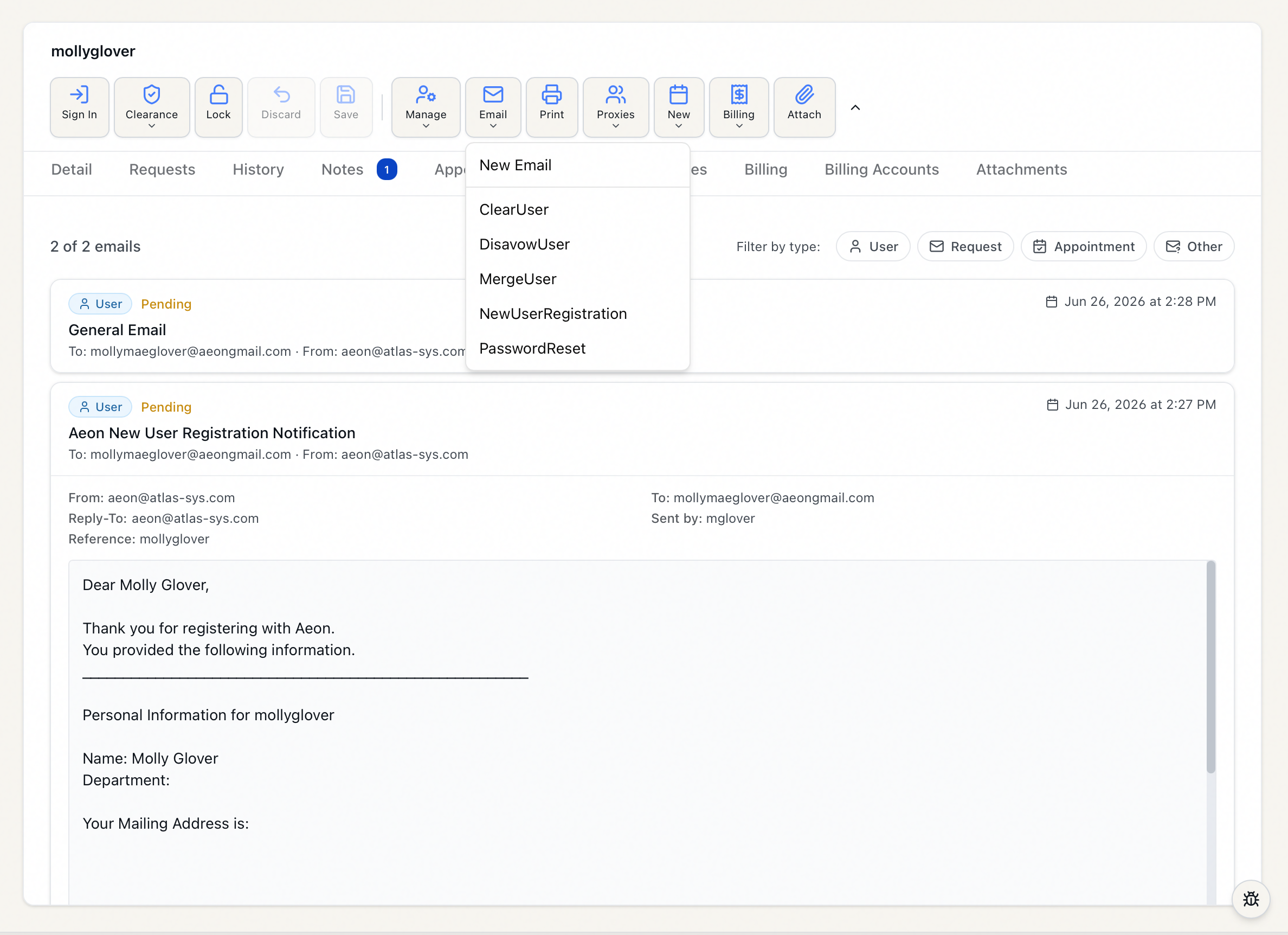
- In the toolbar, open the Email action.
- Choose how to start:
- New Email — opens a blank email addressed to the researcher.
- Or pick a template by name from the list below it — Aeon fills in the recipient, from address, subject, and body from that template.
- The compose dialog opens, titled Email username (for a blank email) or Email username - Template Name (for a template).
- Review and edit the To, CC, BCC, Subject, and Body fields. The From address is shown beneath the form.
- Click Send Email. Aeon queues the message for delivery and confirms with "Email queued for delivery."
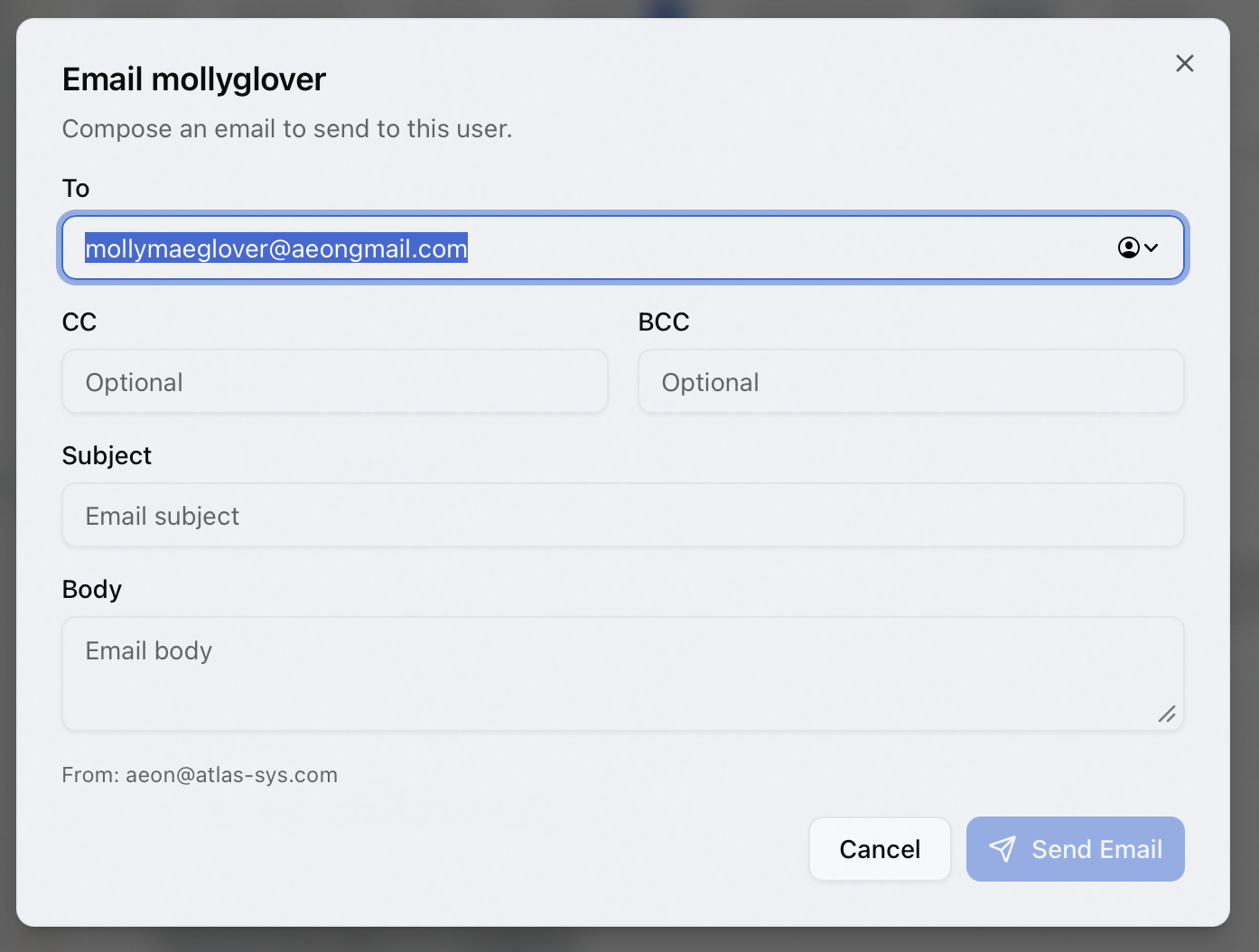
The new email appears on the Emails tab once it has been queued, so you can confirm it went out and track its status there.
The templates offered in the Email menu are your site's User-type email templates, configured in the Customization Manager. If a template you expect isn't listed, check that it exists and is set up as a User template. Picking one only pre-fills the email — you can still edit every field before sending.
The Email action is disabled when any of these is true:
- the researcher has no email address on file — there's nowhere to send it;
- the record is locked by another staff member — you can't act on it until they release it (see Opening and Locking a User Record);
- your role doesn't have permission to send email (see below).
- Viewing the Emails tab is part of viewing the user record — if you can open a user, you can read their email history.
- Sending an email requires the Edit level of the Email permission. Without it, the Email action is unavailable. (This is the same permission used when emailing about a request.)