User Clearance Workflow
Every new user starts out Not Cleared — whether they registered themselves through the web interface or a staff member created the record. Being uncleared doesn't stop a researcher from submitting requests or using the web interface; clearance is simply your chance to look the person over before their account is treated as fully vetted. Existing users can also fall back to Not Cleared automatically (for example, when an expiration date passes), so a steady trickle of accounts lands in the clearance queue as a matter of course.
The User Clearance page is where front-desk staff work through that queue. It lists everyone awaiting clearance, and — because new registrations are a common source of duplicate accounts — it pairs each person with a list of similar existing users so you can catch and merge duplicates in the same pass. From here you clear the good accounts, block or disavow the bad ones, and merge the duplicates, all without opening each record one at a time.
- A batch of new registrations has come in and you want to vet and clear them in one sitting.
- You're clearing a new user and want to check whether they already have an account before creating a duplicate.
- You need to block, disavow, or mark inactive an account that shouldn't be cleared.
- Two records clearly belong to the same person and you want to merge them.
In Aeon 6, the web client could only show the number of users waiting to be cleared — you had to open the desktop client to see the actual list and act on it. Aeon 7 brings the full workflow into the web client: the clearance queue, the similar-user matching, and every clearance action live on this page.
Opening the clearance page
There are two common ways in:
- From the dashboard. On the right-hand status panel, open the Clearance tab (alongside Signed In and Appointments to Confirm). The tab is badged with the number of users awaiting clearance, and it opens the Users Waiting to Be Cleared list ("N pending") — each person shown by name with their registration date, and email when one's on file. Click any user in that list to jump straight to the clearance page with that person already selected.
- Direct navigation. Go to the clearance page directly at
/users/clearance.
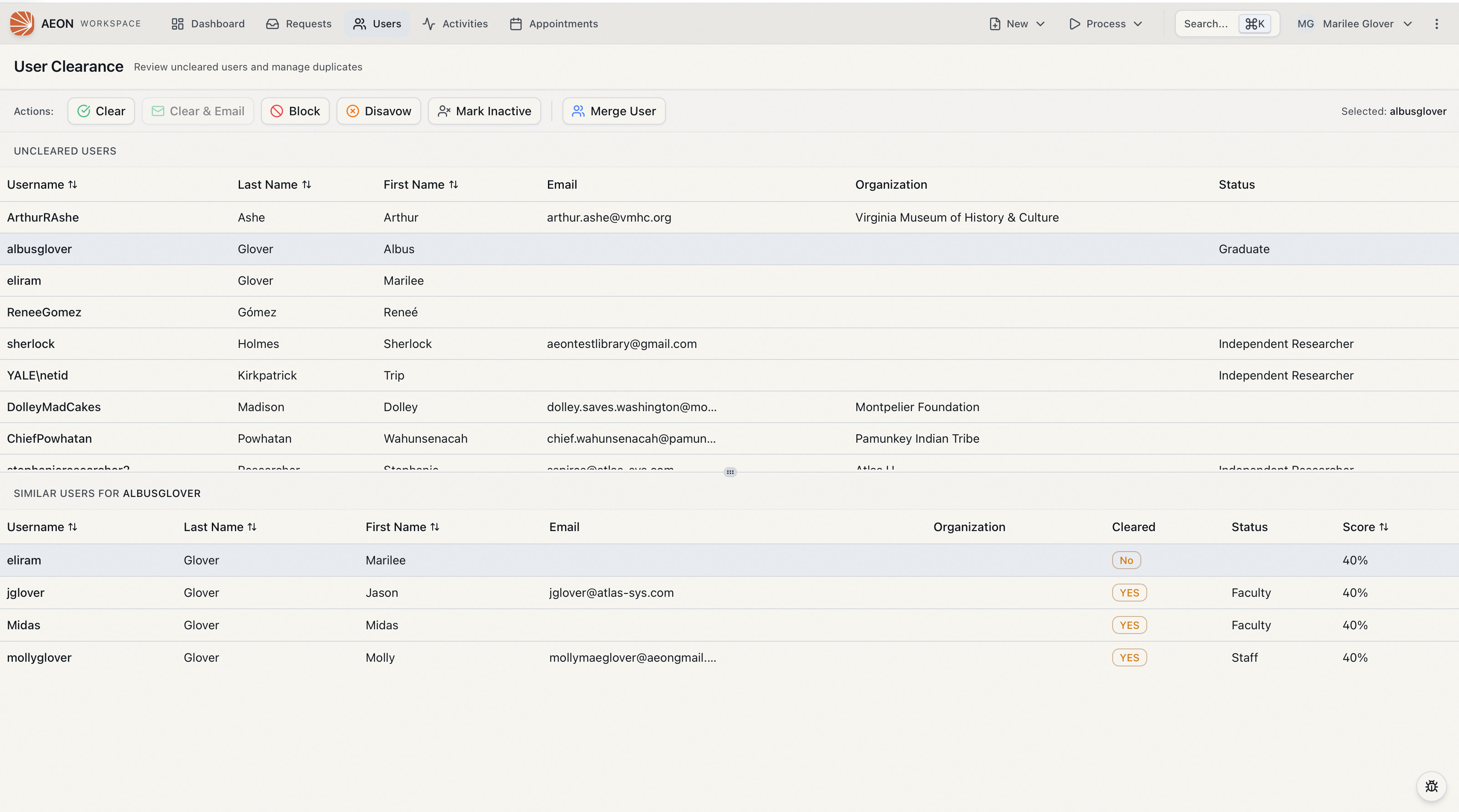
The page is laid out as two stacked grids with an action toolbar between the header and the grids:
- Uncleared Users (top) — everyone currently awaiting clearance.
- Similar Users (bottom) — possible matches for whichever uncleared user you've selected.
On a desktop screen you can drag the divider between the two grids to give more room to whichever list you're focused on.
The User Clearance page requires the Edit level of the Users permission just to open. The clearance actions themselves (Clear, Block, Disavow, Mark Inactive, and Merge) require the Full level of the Users permission. If your role has Edit but not Full, you'll be able to see the queue but the action buttons will fail — clearance is treated as a higher-trust operation than ordinary user editing.
Reviewing an uncleared user
- In the Uncleared Users grid, click the row for the person you want to review — for example, a newcomer named Jordan Avery. The columns show Username, Last Name, First Name, Email, Organization, and Status. Click any sortable column header to reorder the list; by default it's sorted by last name.
- The selected username appears in the toolbar ("Selected: javery"), and the Similar Users grid below refreshes to show possible matches for that person.
- Double-click a row at any time to open that user's full record in a new view if you need the complete details before deciding.
The selected user is reflected in the page URL, so you can copy the address to send a colleague straight to the same person you're looking at.
Checking for duplicates with Similar Users
As soon as you select an uncleared user, Aeon searches the existing user base for accounts that resemble them and lists the results in the Similar Users grid, ranked by a match Score (shown as a percentage — the best match is highlighted automatically). Alongside the usual columns, each row shows a Cleared badge so you can tell at a glance whether the look-alike is an already-cleared established account.
- If the matches are clearly different people who just happen to share a name, ignore the grid and clear your user normally.
- If one of the matches is obviously the same person — the new registration is a duplicate of an account they already have — select that row. With both an uncleared user (top) and a similar user (bottom) selected, the Merge User button becomes available (see Merging a duplicate).
If there are no look-alikes, the grid simply reads "No similar users found for" that person.
Clearing a user
Clearing is the normal, happy-path outcome: the person checks out, so you mark their account as cleared.
- Select the user in the Uncleared Users grid.
- In the toolbar, click Clear.
- A confirmation toast reports the status change (for example, "User javery: NO -> YES"), the user drops off the uncleared list, and the queue refreshes.
That's the whole flow — no email is sent.
Clearing and sending a notification email
To clear the user and let them know, use Clear & Email instead. This sends Aeon's standard ClearUser email template.
- Select the user, then click Clear & Email in the toolbar.
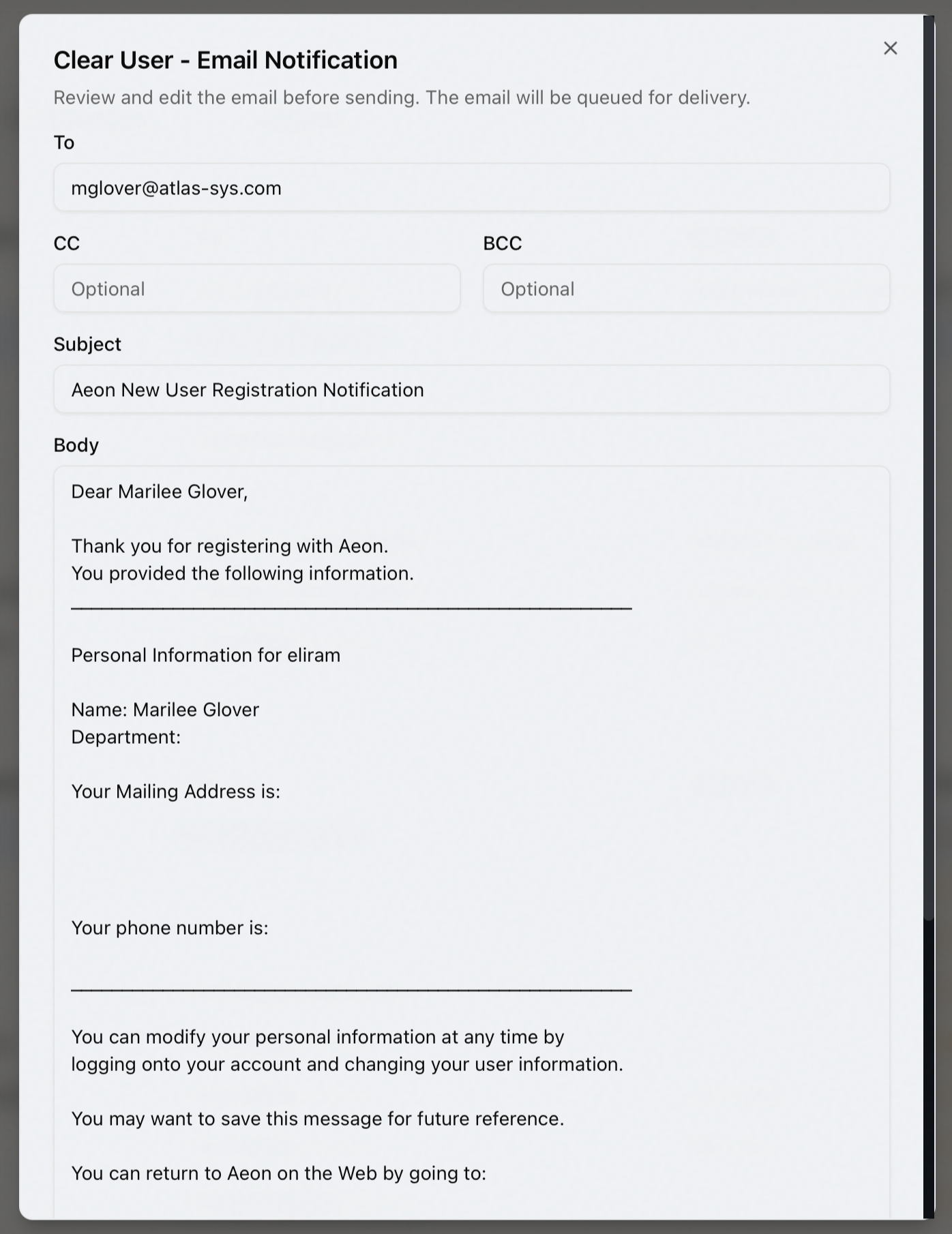
- An email window opens titled Clear User - Email Notification, pre-filled from the ClearUser template — recipient, from, subject, and body are all populated and ready to go.
- Review and edit the message if you need to, then click Clear & Send Email.
- The user is cleared and the notification is queued for delivery. The toast confirms the status change and notes "Email notification queued."
Clear & Email is only available when the selected user actually has an email address on file. If the address is blank, the button stays disabled — use plain Clear instead, or add an email address to the record first.
Blocking, disavowing, or marking a user inactive
Not every account should be cleared. The toolbar offers three ways to keep an account out of normal circulation, each setting a different clearance status:
| Toolbar button | What it does |
|---|---|
| Block | Marks the user as Blocked. Use this to stop an account from being treated as a valid researcher. |
| Disavow | Marks the user as Disavowed — the strongest action. See the warning below for its side effects. |
| Mark Inactive | Marks the user as Inactive — a soft retirement for accounts you don't want cleared but don't need to block outright. |
To use any of them, select the user and click the button. A toast confirms the new status, and the account leaves the uncleared queue.
Disavowing is not just a label change — when you disavow a user, Aeon also:
- cancels all of that user's active requests (moving them to Cancelled by Staff),
- removes the user's appointments, and
- ends the user's active web session, signing them out of the web interface.
Reach for Disavow only when you genuinely intend to shut the account down, not as a routine "not cleared" outcome. For an account you simply don't want to vet right now, Block or Mark Inactive is the gentler choice.
You can't change the clearance status of an account flagged as anonymous — Aeon will refuse the action. Likewise, applying a status the user already has (clearing an already-cleared user, blocking an already-blocked one, and so on) is rejected with a short message; pick a different action.
Merging a duplicate
When a new registration is a duplicate of an existing account, merge them instead of clearing a second record for the same person.
- Select the duplicate in the Uncleared Users grid (the new, unwanted record).
- In the Similar Users grid, select the matching existing account.
- Click Merge User in the toolbar. A comparison dialog opens so you can review both records side by side and confirm which account survives before committing the merge.
- Complete the merge in the dialog. When it finishes, the page returns to a clean clearance queue.
The clearance page is the most convenient place to catch duplicates, because it surfaces likely matches automatically. The full mechanics of the merge itself — what gets transferred, how the surviving record is chosen, and what happens to the merged-away account — are covered in Merging Duplicate Users. The same merge can also be started from an individual user's record.
After an action
Every clearance action records what happened on the user's record: Aeon adds a note (for example, "User cleared by staff." or "User disavowed by staff."), writes a matching clearance history entry, and notifies anyone else viewing that user that its status changed. The clearance queue and the similar-user list both refresh automatically, so the next person to work the queue sees an up-to-date list.