Reading Room History and Status
Two related things live on a user's record: their current reading room status (are they in the building right now, and where are they sitting?) and their past reading room activity (every time they've signed in and out, who handled it, and how long they stayed).
Most of the time you only glance at this. When you open a researcher's record, Aeon shows a status badge at the top if they're signed in, so you immediately know whether they're physically present. The full Reading Room History lives on the History tab and is there for the times you need to look back — confirming a visit happened, settling a question about who signed someone out, or reviewing how often a researcher uses the reading room.
- A researcher is at the desk and you open their record — the Signed In badge confirms they're checked in (and which room/seat), or its absence tells you they aren't.
- You need to confirm a past visit — open the user's History tab and expand Reading Room History.
- A question comes up about who signed someone in or out, or whether they were marked Away — every entry records the staff member and the away flag.
Current status: the badge at the top of the record
When you open a user record for someone who is currently signed in, a colored status badge appears in the record header (alongside the clearance badge, if one is showing):
| Badge | Meaning |
|---|---|
| Signed In: Main Reading Room (Table 4) (green) | The researcher is signed in right now. The badge names the reading room and, if a seat was assigned, the location in parentheses. |
| Away (amber) | The researcher is signed in but currently marked away (for example, stepped out for lunch). |
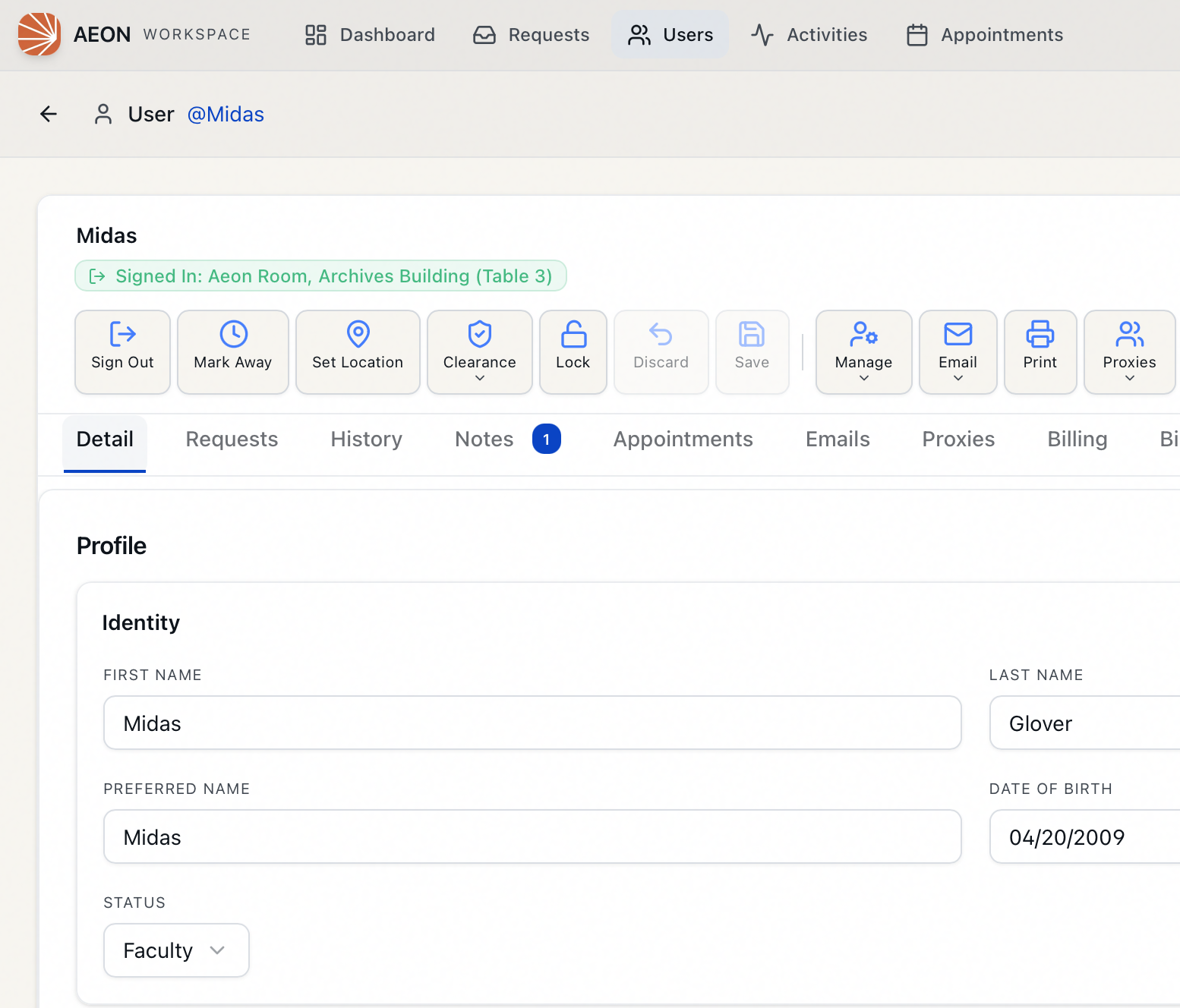
If the researcher is not signed in, no reading room badge appears at all — so the badge is a quick "are they here?" signal. The badge updates in real time: if a colleague at the front desk signs the researcher in or out, or marks them away, the badge on your screen reflects it without a refresh.
This page is about seeing status and history. The actions that change status — signing a researcher in or out, marking them away, and assigning a seat — are driven from the record's toolbar (Sign In, Sign Out, Mark Away / Clear Away, Set Location) and are documented under Reading Rooms. The current-status badge described here reflects whatever those actions have set.
Reading Room History on the History tab
Every sign-in and sign-out is permanently recorded. To review it:
- Open the researcher's record — for example, search for
jdoeand open the result. - Select the History tab.
- Expand the Reading Room History section.
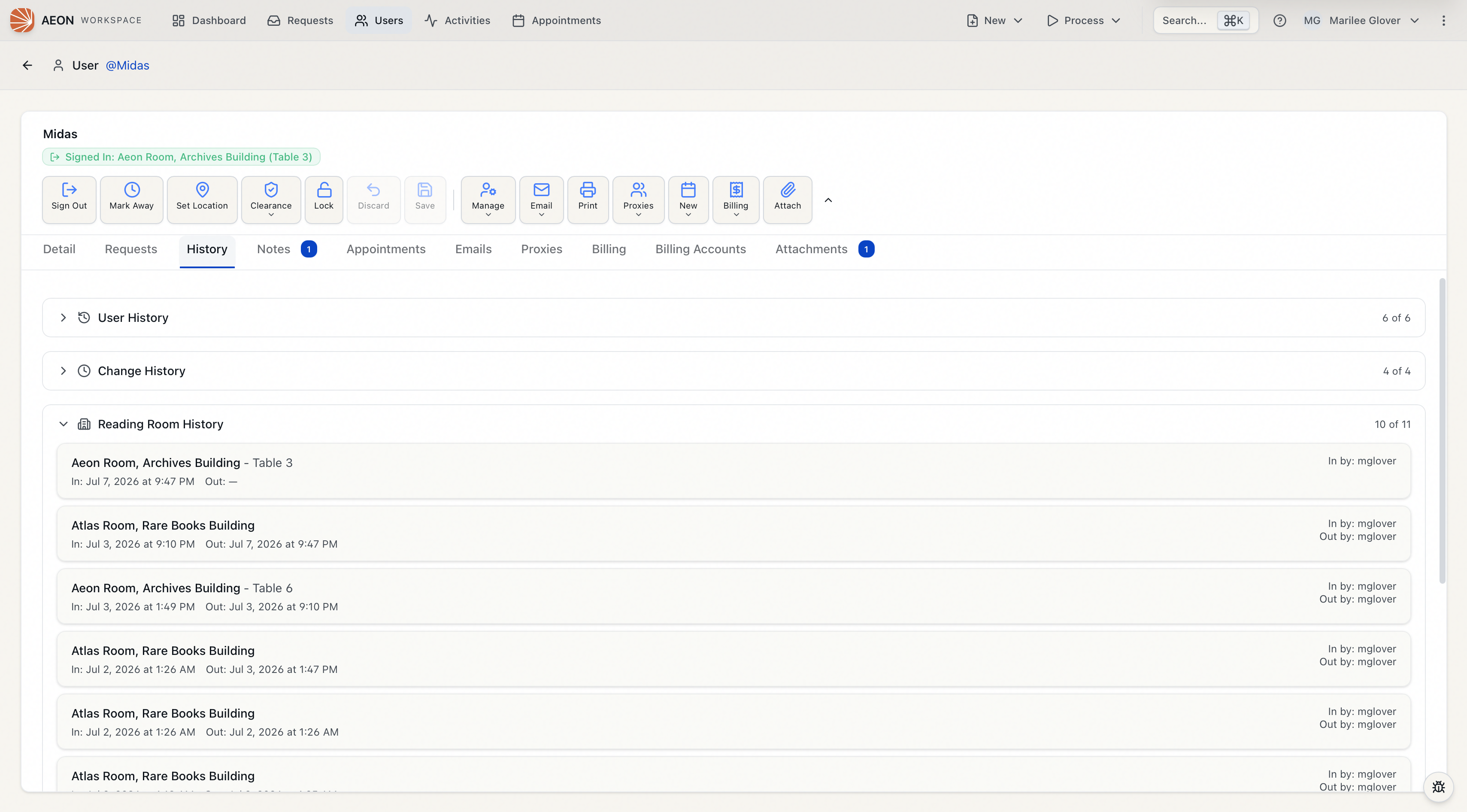
The History tab groups three logs into collapsible sections — User History, Change History, and Reading Room History. The first two are expanded by default; click the Reading Room History header to expand it. The header shows a running count such as "10 of 47" so you can see how many entries exist versus how many are currently loaded.
What each entry shows
Each entry is a single reading room visit (one sign-in and its matching sign-out), newest first. An entry shows:
- Reading room and location — for example, Main Reading Room - Table 4. If your site uses a single reading room with no seat assignments, you'll just see the room (or a generic label).
- In — the date and time the researcher was signed in.
- Out — the date and time they were signed out, or a dash (—) if they're still signed in.
- Away — an amber Away marker appears if the researcher is currently marked away on that (open) visit.
- In by / Out by — the staff member who signed them in and the staff member who signed them out. When a researcher's seat is changed mid-visit, the In by name updates to the staff member who assigned the new location.
A researcher can only have one open sign-in (a visit with no sign-out) at a time. The open visit — the one with — in the Out column — is the same one driving the status badge at the top of the record.
Loading older history
The history loads in pages of 10 entries, newest first. If there are more, a Load more button appears at the bottom of the section; click it to pull in the next page. The count in the section header ("20 of 47") updates as you load more.
If the list comes back empty, you'll see "No reading room history found" — meaning the researcher has never been signed into a reading room.
Permissions
Viewing reading room status and history requires the View level (or higher) of the Reading Room permission. Staff without any Reading Room access won't be able to load the status badge or the Reading Room History section.
The buttons that change status — Sign In, Sign Out, Mark Away / Clear Away, and Set Location — require the Edit level of the Reading Room permission, and are disabled while the record is locked by another staff member. A view-only user can see where a researcher is and review their history, but cannot sign them in or out.