User Photo Management
A user record can carry a profile photo — the portrait that appears alongside the user's name on their record. Staff most often add one when a researcher is photographed at the front desk during clearance or check-in, so future visits can be matched to a face.
In Aeon 7 you add and replace photos directly in the web staff client. There's no separate application to open: the photo sits in the user's Details section, and a click takes you straight to the upload-and-crop dialog.
- A new researcher has been photographed and you want their picture on file.
- An existing photo is out of date or was uploaded wrong (cropped badly, rotated, wrong person) and you want to replace it.
- You're reviewing a record and just want to see the photo — viewing needs no special permission.
In older versions of Aeon, profile photos could only be added or changed in the Windows desktop client; the web client could display a photo but not set one. That's no longer the case. The Aeon 7 web staff client adds, crops, and replaces photos itself — the desktop client is not required.
Where the photo lives
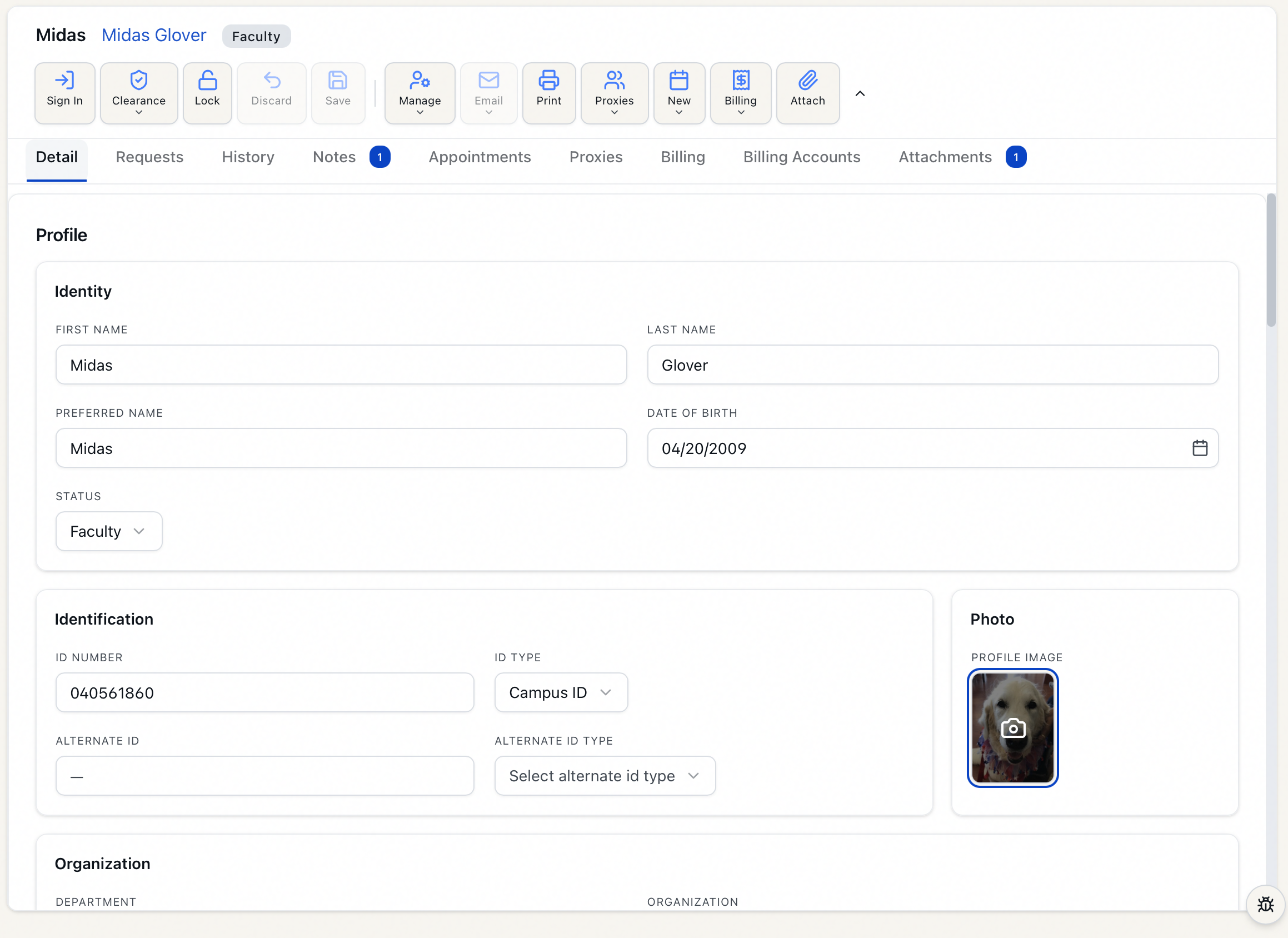
Open a user record (for example, user jdoe). In the Details section of the record you'll see the profile photo — a small portrait thumbnail. If the user has no photo yet, the thumbnail shows a generic person icon instead.
When you hover over the thumbnail (and you have permission to edit it), the image dims and a camera icon appears, signalling that it's clickable.
Adding or replacing a photo
You can open the photo dialog two ways:
- Click the photo thumbnail in the Details section, or
- Open the Manage menu in the user toolbar and choose Change Profile Image.
Either path opens the Change Profile Image dialog. From there:
-
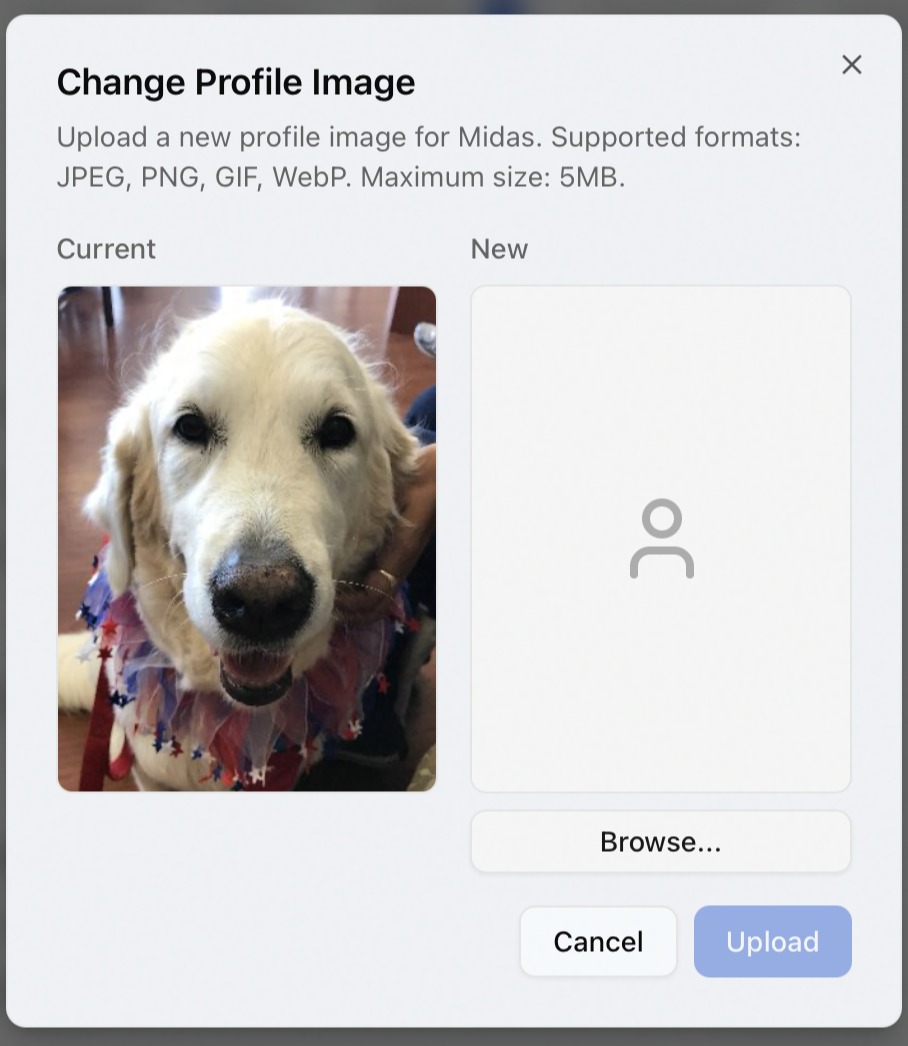
The dialog opens showing Current (the existing photo, or a person icon if there is none) next to an empty New slot.
-
Under New, click Browse... and pick an image file. Supported formats are JPEG, PNG, GIF, and WebP, up to 5MB.
-
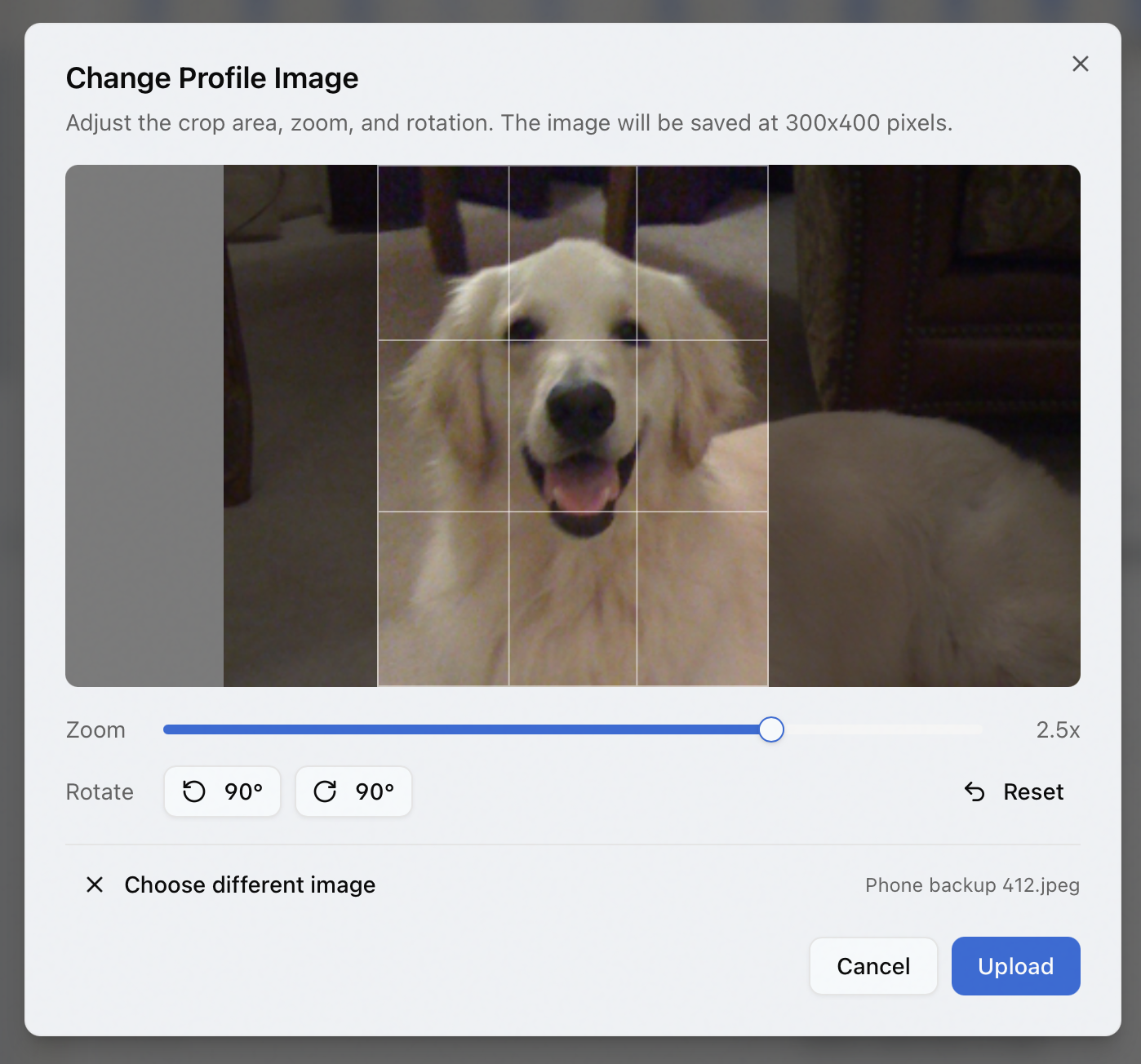
Once a file is chosen, the dialog switches to a cropping view. Adjust the image to taste:
- Drag the image to reposition it inside the crop frame.
- Use the Zoom slider (1x–3x) to zoom in.
- Use the Rotate buttons to turn the image 90° left or right.
- Reset undoes all crop, zoom, and rotation adjustments.
- Choose different image lets you swap to a different file without leaving the dialog.
-
The crop frame is a fixed portrait shape (3:4). The note in the dialog confirms "The image will be saved at 300x400 pixels."
-
Click Upload. While it processes, the button reads Uploading...; on success you'll see a "Photo uploaded successfully" confirmation and the dialog closes.
The new photo replaces any previous one and appears on the record immediately.
Uploading a photo is its own action — you do not need to click Save Changes on the user record afterward, and it doesn't depend on whether you have other unsaved edits. Pressing Upload commits the photo right away. (Aeon also records the change in the user's history as "New image created for user.")
The web client lets you replace a photo, but there is no separate action to delete one and leave the user with no picture. If a photo needs to come off entirely rather than be swapped, that's not something this dialog does.
Viewing a photo
Simply opening a user record shows the photo in the Details section. Viewing requires no special permission beyond being able to open the user record — anyone who can see the user can see the picture.
Permissions and limits
- Changing a photo requires the Edit level of the Users permission — the same level needed to edit a user record. If your role is view-only for users, the photo thumbnail is not clickable and the Change Profile Image action is unavailable; you can still see the photo.
- Viewing a photo has no separate gate — if you can open the user record, the photo displays.
A user whose clearance is Anonymous cannot have a profile photo. On an anonymous record the Change Profile Image menu item is greyed out and the photo thumbnail isn't clickable; if you do trigger the action, Aeon stops you with "Cannot change profile image for anonymous users." (And the server enforces the same rule independently — a direct upload attempt is rejected with "Cannot upload a photo for an anonymous user.") This is intentional — anonymous records aren't tied to an identifiable person.
If a file is the wrong type or too big, the dialog tells you before you upload — "File type not allowed. Please select a JPEG, PNG, GIF, or WebP image." or "File is too large. Maximum size is 5MB." — so you can pick a different file.