Merging Duplicate Users
A user sometimes ends up with two accounts: a patron who already has a record fills out the registration form again and a fresh, uncleared account is created alongside their old one. Merging is how you fix that. You pick the two accounts, choose which one to keep and which one to disavow, and Aeon moves everything attached to the disavowed account — requests, appointments, reading room history, proxy links, billing accounts — onto the account you keep. The keeper is left cleared and ready to use; the duplicate is disavowed so it can't be used again.
- A returning patron has a new, uncleared duplicate account, and you want their fresh requests to land on their established record.
- You spot two accounts for the same person while clearing users or while looking at a single record, and you want to consolidate them.
- You need to go the other direction — keep the brand-new account and roll the old one into it. Merging works either way; you choose the survivor at merge time.
In Aeon 6 merging could only be done from the desktop client. In Aeon 7 it's a built-in part of the web staff client, available both from the User Clearance workflow and directly from a user's record.
Two ways to start a merge
There are two entry points. Use whichever fits what you're doing — they open the same comparison dialog and do the same thing.
| Start from | Best for |
|---|---|
| User Clearance page | Working through uncleared duplicates in bulk; Aeon suggests likely matches for you. |
| A user's record | You're already looking at one account and want to merge a specific other account into it. |
Path A — from the User Clearance page
This is the natural place to catch duplicates as new registrations come in, because Aeon surfaces likely matches automatically.
- Open the User Clearance page (Users → User Clearance).
- In the upper Uncleared Users grid, select the new account you want to deal with — for example
jdoe2. - The lower Similar Users grid fills with existing accounts that resemble it, ranked by a match Score (last name, first name, email, and organization all contribute). The best match is selected for you automatically. If nothing relevant appears, no close match exists for that account.
- In Similar Users, select the existing account you believe is the same person — for example
jdoe. - Click Merge User in the Actions toolbar. The Merge Users comparison dialog opens.
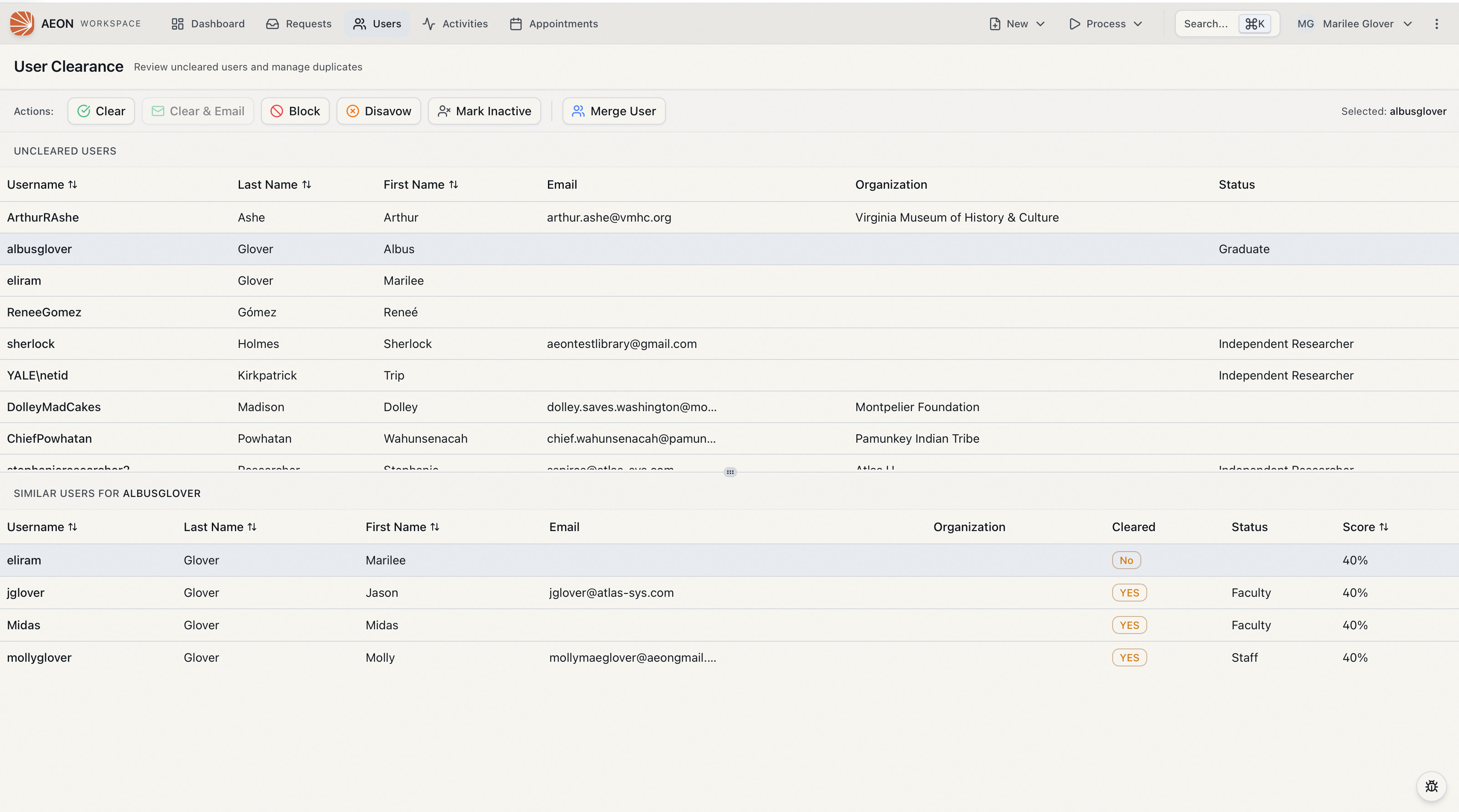
On the Clearance page, Merge User stays disabled until you've selected both an uncleared user (top grid) and a similar user (bottom grid). The other toolbar buttons there — Clear, Clear & Email, Block, Disavow, Mark Inactive — act on the uncleared user alone and are covered in the clearance and disavow/block topics.
Path B — from a user's record
Use this when you already have one account open and know the specific other account to fold in.
- Open the user record you're working with — for example
/users/jdoe. - In the toolbar, open the Clearance menu and choose Merge User.
- A Select User to Merge dialog opens. Type at least two characters into Search by username, name, or email… to find the other account, then click it in the results.
- The Merge Users comparison dialog opens for the two accounts.
Comparing and completing the merge
Both paths land in the Merge Users dialog. This is where you confirm the two accounts really are the same person and decide which one survives.
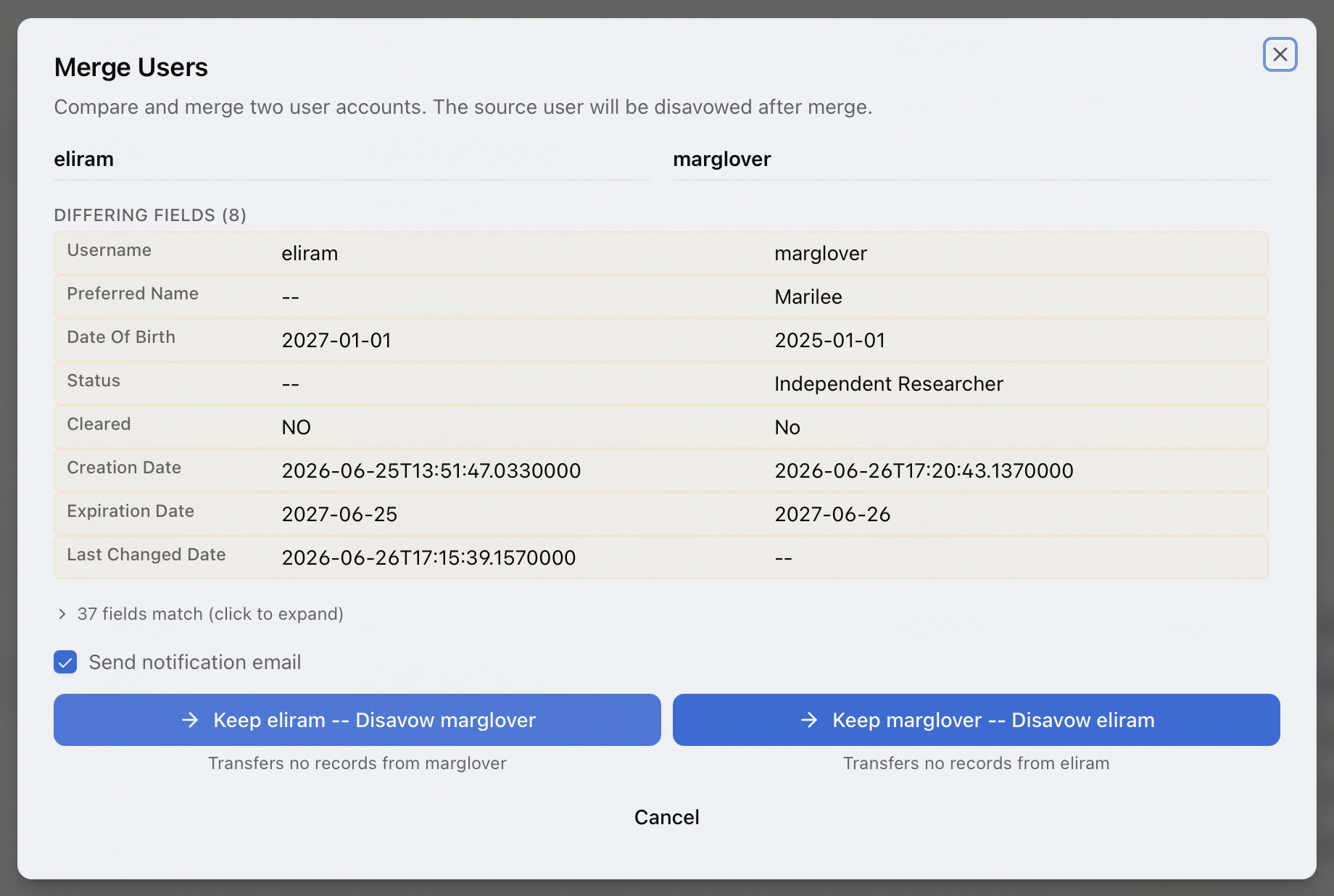
- The two accounts are shown side by side. Differing Fields are listed first and highlighted, so the values that disagree (a changed email, a new address) are easy to spot. A collapsible N fields match row hides the values that are identical — click it to expand if you want to see them.
- Under each merge button, Aeon tells you exactly what would move: for example "Transfers 3 requests, 1 appointment from jdoe2." This is your impact preview — it counts requests, researcher requests, appointments, reading room history, proxy links, activities, and billing accounts on the account that would be disavowed.
- Decide which account to keep and click the matching button:
- Keep jdoe — Disavow jdoe2 keeps the existing record and rolls the duplicate into it.
- Keep jdoe2 — Disavow jdoe does the reverse: keeps the new record and rolls the old one into it.
- Send notification email is checked by default. Note, though, that Aeon does not come with a merge-notification template out of the box — unless your site has created a
UserMergeemail template, leaving this box checked sends nothing. The merge still completes either way; Aeon simply notes that the notification email couldn't be sent. Uncheck it to merge silently. - Aeon performs the merge and confirms with a message like "User jdoe2 merged into jdoe — 3 requests, 1 appointment transferred."
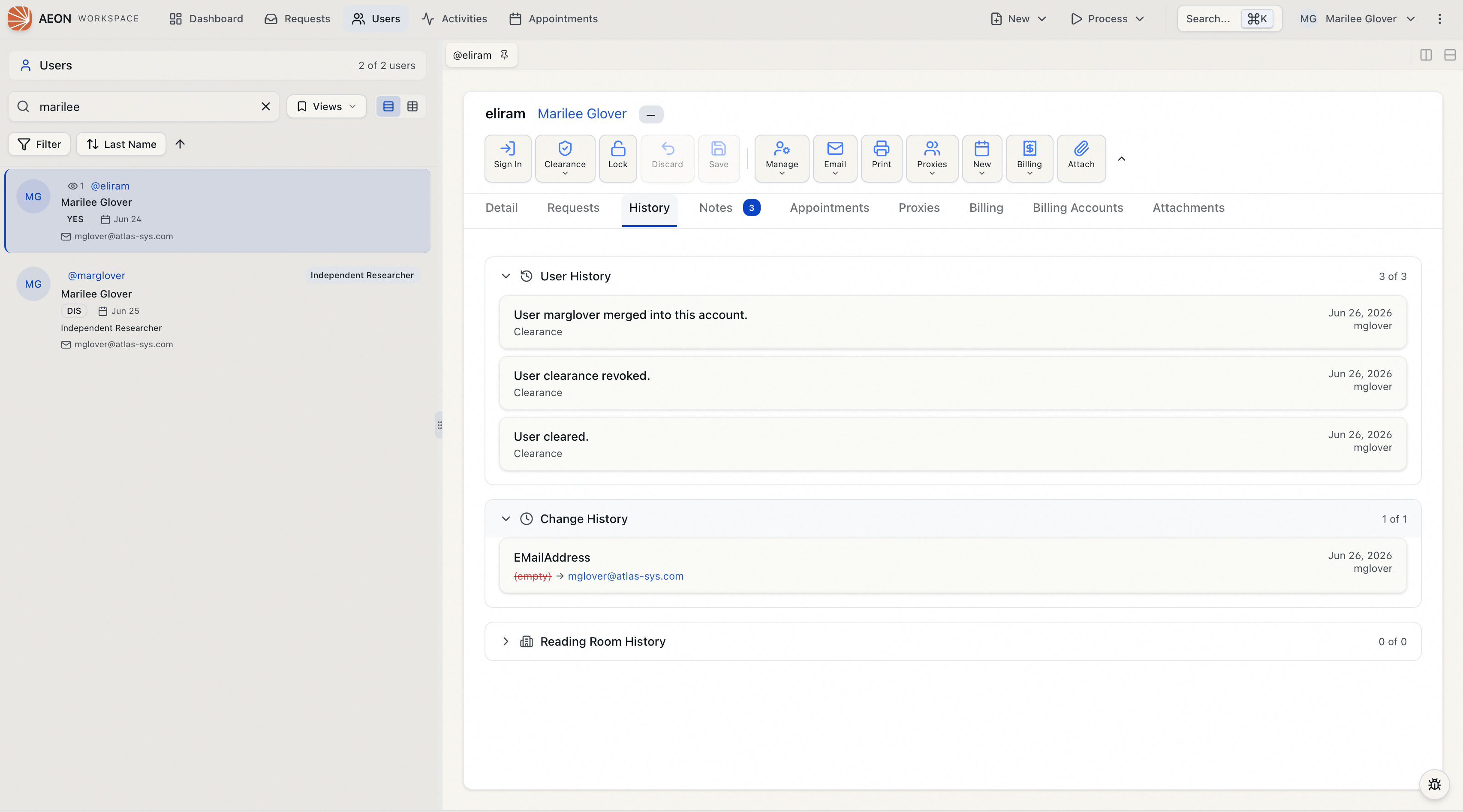
The account you keep ends up cleared and gains everything that was attached to the disavowed account: its requests (as both the requester and the researcher), appointments, reading room history, proxy relationships, activity memberships, and billing-account links. Aeon writes a history entry on each transferred request noting it was moved because the users were merged, and adds notes and history on both accounts recording the merge. The account you disavow is marked disavowed and its open web sessions are ended.
When a merge is blocked
Aeon refuses a merge in a few situations rather than risk losing or corrupting data. You'll see the reason in the dialog or as an error message.
If the account that would be disavowed is currently signed in to a reading room, the dialog shows a "… is signed in" warning and that direction's merge button is disabled. Sign the user out of the reading room first, then merge. (You can still merge in the other direction if it's the signed-in user you want to keep.)
Opening the comparison dialog locks both accounts so no one edits them mid-merge. If a coworker already holds one of them, you'll see a Cannot merge notice naming who has it — coordinate with them and try again once it's released.
- Merge an account with itself — you must pick two different accounts.
- Merge an already-disavowed account, in either role. If you need to reuse a disavowed record, restore its clearance first.
Nothing requires one side to be uncleared — you can merge two established, cleared accounts directly from either account's record (Path B). The duplicate is disavowed and the keeper stays cleared.
Merging requires the Full level of the Users permission — the same level that governs disavowing and other destructive user actions. With View or Edit only, the Merge User option won't be available to you. (The User Clearance page itself opens for anyone with Edit on Users, but the merge action on it still needs Full.)