Editing User Information
Most of the time, editing a user is exactly what it sounds like: you open someone's record, change a field — a new email address, an updated department, a corrected ID number — and save. Aeon tracks every change for you, and a real-time lock keeps two staff members from editing the same researcher at once.
You'll do this constantly at a service desk: a researcher's contact details change, you need to update their status or billing category, or you're tidying up a record someone created in a hurry. Editing happens right on the user's detail page — the same page you land on when you open a user from a search or click their name on a request. The form you see is the one your site's customizer laid out in the User Form designer, so the exact fields and their arrangement vary from site to site, but the way you edit them is always the same.
- A researcher's information has changed — new email, phone, address, department, ID — and you need to correct the record.
- You're setting a researcher's Status, Billing Category, Expiration Date, or Request Limit as part of clearing or managing their account.
- You need to change the username itself, or set a new password — both are done from the user's toolbar (see the sections below).
This page covers editing a user's record as staff, from the Aeon staff client. Researchers can also edit their own contact details through the patron-facing web pages — that's a separate interface and isn't covered here.
Editing fields
-
Open the user — run a search and click the researcher, or follow any link that carries their username (for example, the requester on request #12345). The user detail page opens on its Detail tab.
-
Click into the field you want to change and type the new value. For dropdown fields (such as Status, Department, State, Country, or Billing Category), pick from the list.
-
Each field you change is highlighted so you can see at a glance what you've edited but not yet saved.
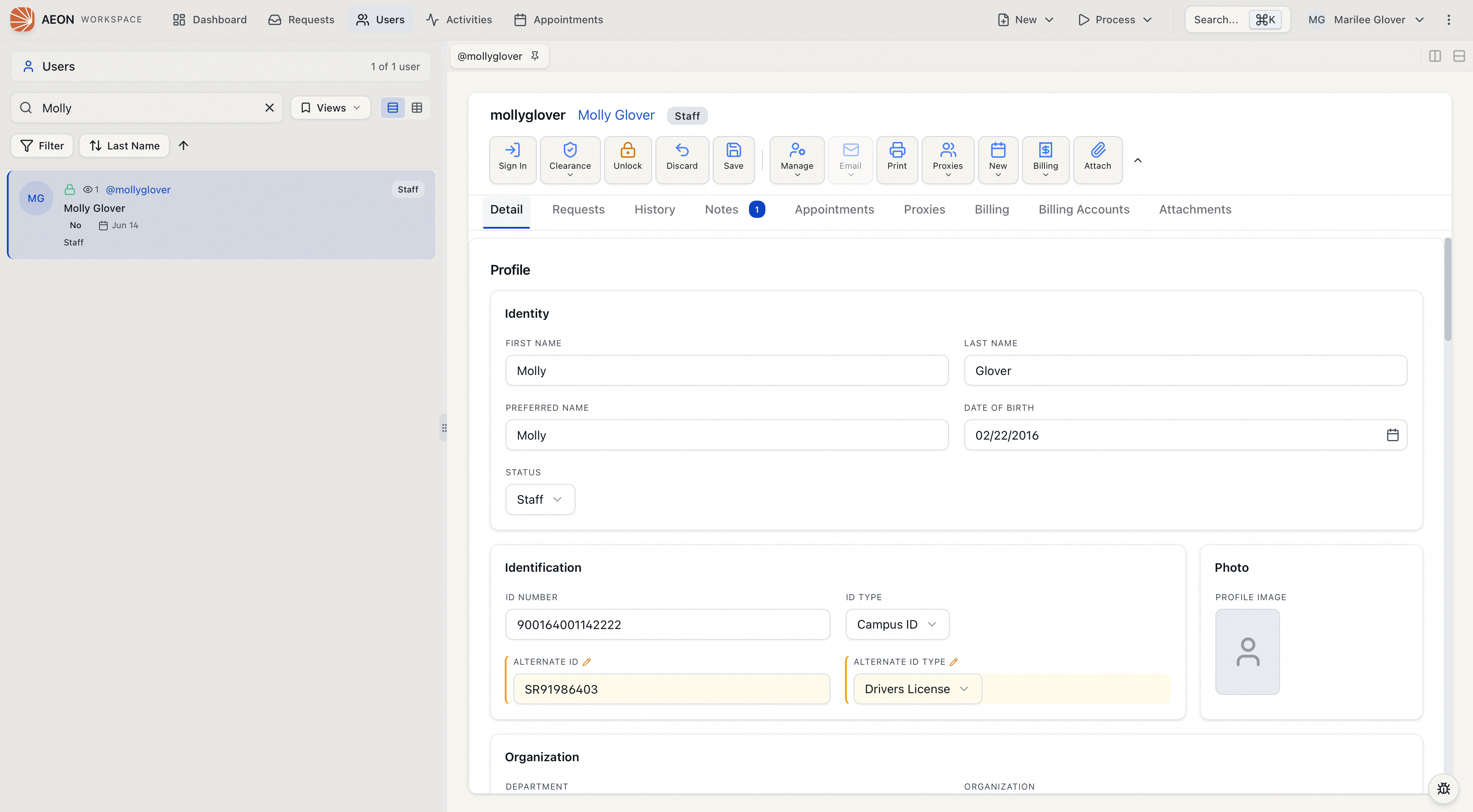
-
Repeat for any other fields. You can edit as many as you like in one pass before saving.
The browser URL reflects the user (for example, /users/jdoe), so you can copy the address to send a colleague straight to this record.
The fields available — and which tab or section they sit in — come from your site's User Form layout. If a field you expect is missing, or you want it somewhere else, that's set in the User Form designer in the Customization Manager, not here. Custom fields (your site's own UserInfo / custom-field definitions) appear and edit just like the built-in fields.
Saving your changes
Once you've made an edit, save it one of two ways:
- Press Ctrl + S (Windows) or Cmd + S (Mac), or
- Click Save in the toolbar at the top of the record.
On success, Aeon confirms with a "User <name> saved" message, and the record's change history updates to reflect what you changed.
To throw away unsaved edits instead, click Discard in the toolbar. Both Save and Discard stay disabled until you've actually changed something, so an untouched record can't be saved by accident.
If you press Save with nothing edited, Aeon simply tells you "No changes to save" — it won't create an empty history entry.
The record lock — how Aeon prevents overwrites
Editing a user is protected by the same real-time record lock used for requests. You almost never interact with it directly:
- It locks automatically. The moment you change any field, Aeon quietly locks the user record for you. From then on it's yours to edit until you save, discard, or it times out.
- Saving releases it. A successful save automatically releases your lock so a coworker can pick the record up.
- Discarding releases it too. Clicking Discard clears your edits and the lock together.
A Lock / Unlock control sits in the toolbar if you ever want to claim a record deliberately before editing — handy when you want coworkers to see it's taken. Clicking it shows "User locked for editing"; releasing it shows "User unlocked."
If another staff member is already editing the record, the form is read-only and the toolbar shows that it's locked by them. You can read everything, but editing and saving are blocked. If you somehow try to save anyway, Aeon refuses with "Cannot save - this user is locked by another user." Coordinate with the person editing rather than forcing the change — the record becomes editable again as soon as they save or release it.
If a coworker starts editing a record you have open, Aeon notifies you in the moment with a "User is now being edited by <name>" message, so you know to stop before making changes.
Changing the username
In earlier Aeon versions the username could only be changed from the desktop client. In Aeon 7 you can do it right here in the staff client.
-
Open the user — for example,
jdoe. -
In the toolbar, open the Manage menu and choose Change Username.
-
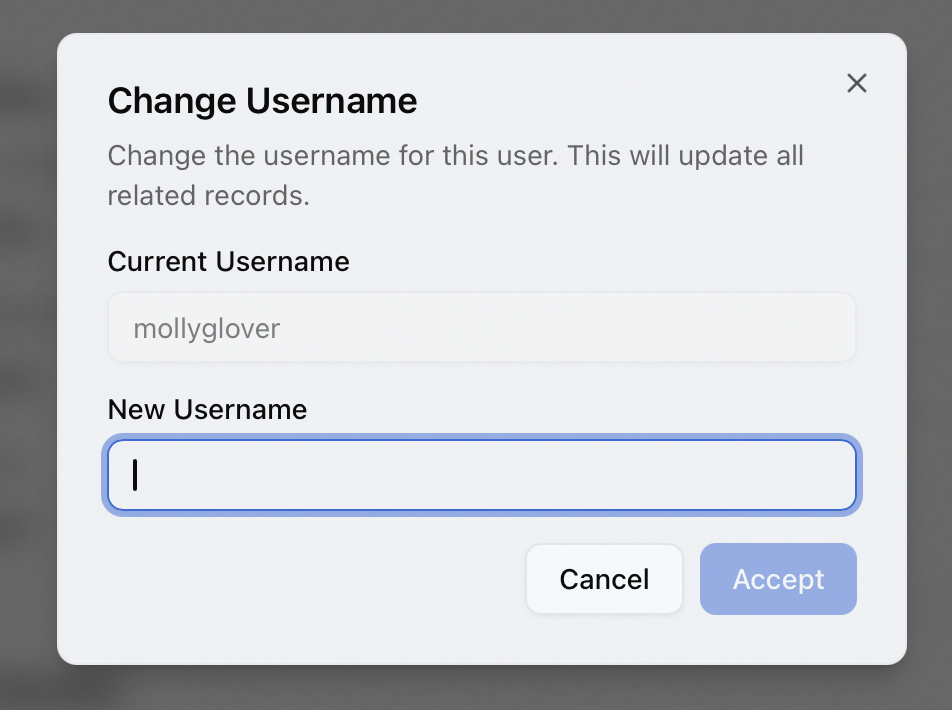
The Change Username dialog opens, showing the Current Username (read-only) and a New Username field.
-
Type the new username. Aeon checks availability as you type — if the name is already taken you'll see "Username already exists," and if it matches the current name you'll see "New username must be different from current username."
-
When the name is valid, click Accept. Aeon updates the username across all of the researcher's related records and confirms "Username changed successfully." The page reloads under the new username.
If you have unsaved field changes when you choose Change Username, Aeon warns you that continuing will discard them. Save your edits first if you want to keep them.
Changing the password
To set a new password for a researcher (for example, to issue a temporary one they'll reset themselves):
-
Open the user.
-
In the toolbar, open the Manage menu and choose Change Password.
-
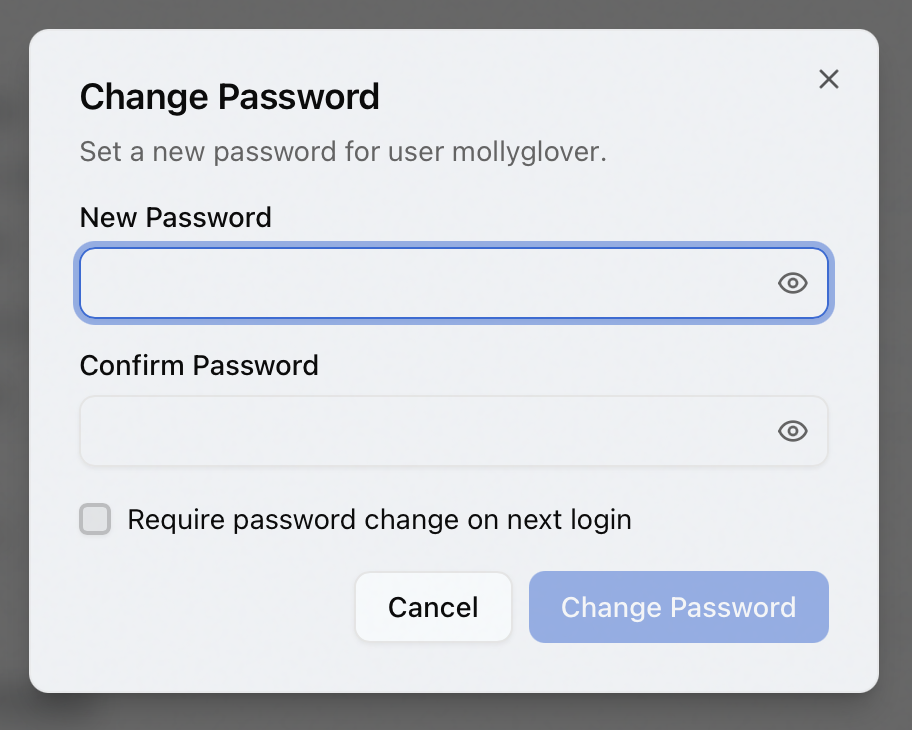
The Change Password dialog opens. Enter the new value in New Password and Confirm Password (they must match).
-
Check Require password change on next login — recommended — so the researcher is prompted to set their own password the next time they sign in. (It starts unchecked, so the password you set is permanent unless you check this box.)
-
Click Change Password. Aeon confirms "Password changed for <name>."
Setting and resetting researcher passwords — including the force-reset-on-login behavior — is covered in depth on the User Password Management page. This section is just the quick path from the user record.
Reviewing what changed
Every edit you save is recorded. To see the running log of changes to a user — old value, new value, who changed it, and when — open the History tab on the user record. Username changes, clearance changes, and field edits all show up there. See User History and Change History for the full breakdown.
- Editing fields and saving requires the Edit level of the Users permission. With view-only access to Users, the form is read-only and the Save, Discard, and Lock controls are disabled.
- Change Username and Change Password are gated more tightly in the staff client — they require the Full level of the Users permission, so Edit-level staff can update fields but not rename an account or reset a password from this menu.
- The lock relies on Aeon's real-time connection. If your session has lost that connection, the Lock control is temporarily unavailable until it reconnects.