User Appointments
Every appointment in Aeon belongs to a researcher, so the user record is the natural place to see a person's whole appointment picture at a glance. Open a user and switch to the Appointments tab to see what they have coming up, what they've already attended, and how many requests are tied to each visit — without leaving their record to dig through the calendar.
The most common reason to come here is to answer a question about this researcher: "When is Dr. Reyes next in?", "Did they show up last month?", or "They just called — can you book them for Thursday?" For the first two you read the tab; for the last you create the appointment right from the record, with the researcher already filled in.
- A researcher contacts you and you want to confirm their next visit or review their history — open their record and read the Appointments tab.
- You're on the phone with a researcher and need to book them a slot — use New ▸ New Appointment from the user toolbar; their name is pre-filled.
- You need to get to the full calendar context for one appointment (to reschedule, cancel, confirm, sign them in, or see who else is booked) — click the appointment card to jump straight to it on the calendar.
The Appointments tab is a per-user view. To browse the reading room as a whole — every researcher's bookings on a given day, drag-to-reschedule, closures, capacity — use the Appointments calendar in the main workspace instead. The card on this tab is the bridge: clicking it opens that appointment in the calendar.
Opening the Appointments tab
- Open the user — search for them, or click their name anywhere it appears (a request, the dashboard's Signed In Users, a search result).
- On the user record, select the Appointments tab.
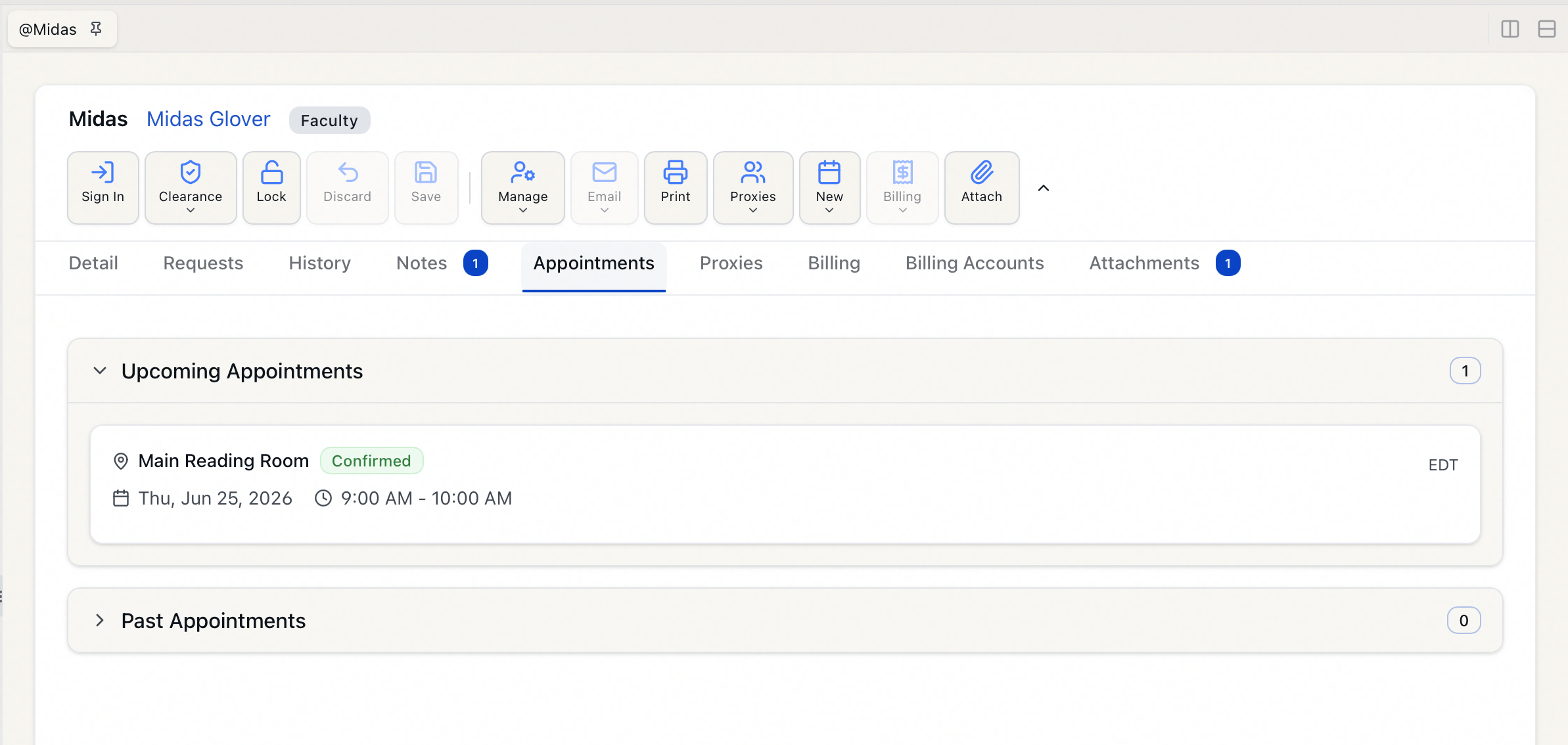
- Aeon loads the researcher's appointments, split into two collapsible sections.
The tab appears on every user record. If your site hasn't configured any reading rooms for appointments, the sections will simply be empty.
Reading the tab
Appointments are grouped into two sections, each with a count badge showing how many appointments it holds:
| Section | What's in it | Order |
|---|---|---|
| Upcoming Appointments | Today and any future date | Soonest first |
| Past Appointments | Anything before today | Most recent first |
Upcoming Appointments is expanded by default and Past Appointments is collapsed — click either header to toggle it. Each section loads more entries with a Load more button if the researcher has a long history.
What each appointment card shows
Every appointment is a card with:
- Reading room name and a status badge — Confirmed (green), Unconfirmed (yellow), or Cancelled (red).
- Date and time range, shown in the reading room's time zone with the zone abbreviation on the right (for example,
9:00 AM - 11:00 AMEST). This matters for multi-site or remote staff: the times you see are the researcher's local reading-room times, not your browser's. - The optional appointment name, if one was given (for example, "Dissertation research").
- A request count ("3 requests") when items are tied to the appointment, and an Available to proxies marker if the researcher's proxies are allowed to book against it.
Jumping to the full appointment
Click any card (or press Enter or Space when it's focused) to open that appointment on the Appointments calendar, with the correct date and reading room already in view. That's where you go to reschedule, cancel, confirm, sign the researcher in, associate requests, or see the appointment alongside everyone else's. This tab is the quick lookup; the calendar is where you act on the appointment.
If the researcher has no appointments at all, the tab shows "No appointments found" with the hint "Use the New menu to create an appointment for this user." An individual section that's empty (for example, no past visits yet) shows "No upcoming appointments" or "No past appointments."
Creating an appointment for the user
Because you're already on the researcher's record, booking them is one step shorter than starting from the calendar — Aeon skips the "who is this for?" search and uses the user you're looking at.
-
Open the researcher's record (any tab — you don't have to be on Appointments).
-
In the toolbar, open the New menu and choose New Appointment.
-
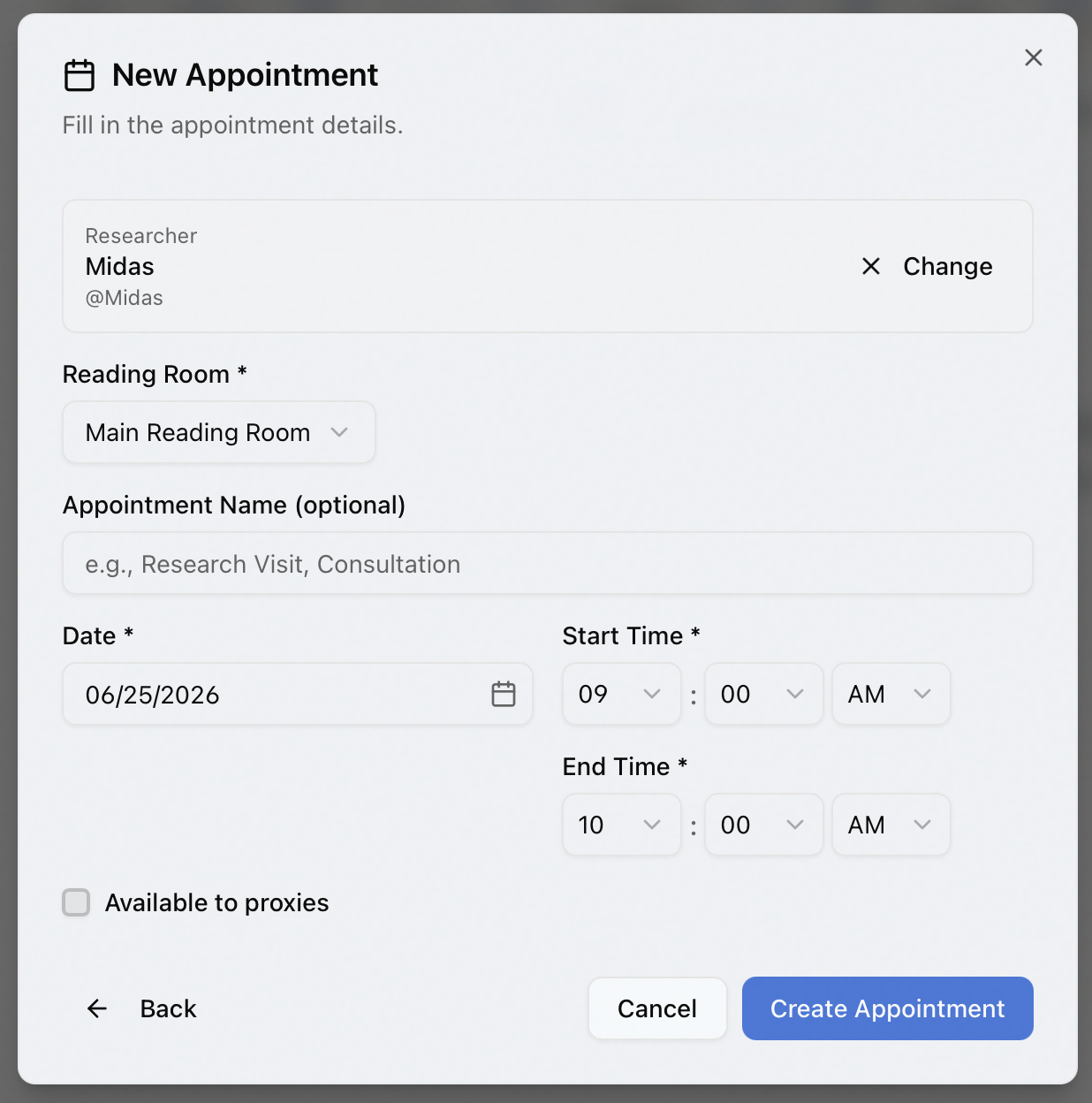
The New Appointment dialog opens with the researcher already selected, shown at the top under Researcher. (If you need a different person, click Change to search instead.)
-
Fill in the appointment:
- Reading Room (required) — choose from the rooms configured for appointments. Picking a room sets a default end time based on that room's minimum appointment length.
- Appointment Name (optional) — a short label up to 50 characters, e.g. "Research Visit" or "Consultation."
- Date, Start Time, End Time (all required) — defaults to today at 9:00 AM. Adjusting the start time shifts the end time to preserve the duration.
- Available to proxies — check this if the researcher's proxies should be allowed to submit requests against this appointment.
-
Click Create Appointment. Aeon confirms with "Appointment created" and the appointment appears in the Upcoming Appointments section.
An appointment must start and end on the same calendar date, and the end time must be after the start time. To book a researcher across several days, create a separate appointment for each day. The dialog enforces "End time must be after start time" before it will save.
Creating an appointment from a user record (like creating one from the calendar) deliberately bypasses the reading room's open-hours and maximum-length rules, so you can make exceptions when a researcher needs one. Use this judgment carefully — know the room's normal policy before you override it.
- Viewing the Appointments tab requires the View level of the Users permission — the same access needed to open any user record. If you can open the record, you can read this tab.
- Creating an appointment requires the Edit level of the Appointments permission. Without it, the New Appointment menu item is disabled.
- New Appointment only appears when your site has at least one reading room configured for appointments.
- The item is also disabled if the researcher is disavowed — you can't book a disavowed user.