Assigning Seating and Locations
A location (or seat) is the specific spot a researcher is sitting in within a reading room — Table 4, Carrel B, Map Room Seat 2, and so on. Assigning one is optional: a reading room works fine with no seats configured at all. But where seats are configured, recording who's sitting where helps staff find a researcher, pull their materials to the right place, and keep an accurate picture of the room.
There are two moments when you set a seat:
- At sign-in. When you sign a researcher into a reading room that has seats, the Sign In User window lets you pick a Location right then. (See Signing In Users.)
- Any time afterward, from the dashboard. A researcher arrives, gets settled, then moves to a quieter table — or was signed in without a seat because the front desk was busy. You reassign their seat straight from the Signed In Users panel on the dashboard, without signing them out and back in.
This page covers that second case: changing or setting a seat for someone who is already signed in.
- A researcher was signed in without a seat, and you now want to record where they sat.
- A researcher moves to a different seat partway through their visit.
- The person who signs researchers in isn't the same person who seats them — the front desk signs them in, a reading-room attendant assigns the seat later.
In the Aeon desktop client, a seat could be set only once per visit — to move someone, you had to sign them out and back in. Aeon 7 removes that restriction. As long as a researcher is signed into a reading room that has seats, you can set or change their seat as many times as you need, with no sign-out/sign-in cycle.
Assigning or changing a seat from the dashboard
The Signed In Users panel on the dashboard lists everyone currently in a reading room, grouped by room. Each person's row shows their current seat (or No seat assigned) as its own clickable element.
-
On the dashboard, find the researcher in the Signed In Users panel.
-
Click the seat area on their row. (If they don't have a seat yet, this reads No seat assigned; if they do, it shows the seat name with a chair icon.) A small seat picker opens.
- Alternatively, open the row's actions menu (the ⋯ button) and choose Set Seat (if they have no seat) or Change Seat (if they already have one). This opens the same picker.
-
In the picker, the seats for that researcher's reading room are listed under the room's name. Start typing in the Search seats… box to filter the list, or scroll to find the seat.
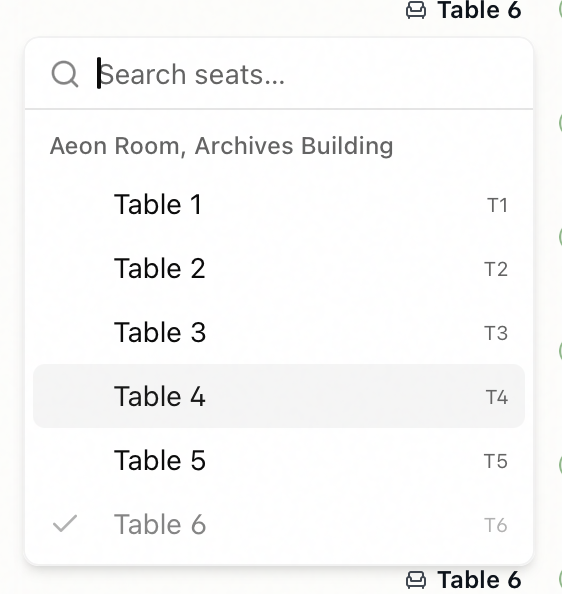
-
Click the seat you want. The picker closes and the change saves immediately — there's no separate Save step. A confirmation appears (for example, "Seat updated for Smith, Jane"), and the row updates to show the new seat.
The researcher's current seat is marked with a check in the list. Selecting the seat they're already in does nothing.
Example
Jane Smith (username jsmith) is signed into the Main Reading Room but has no seat recorded. She settles at Table 4:
- Find Smith, Jane in the Signed In Users panel.
- Click No seat assigned on her row.
- Type
Table 4in the Search seats… box and click the matching seat. - The picker closes, you see "Seat updated for Smith, Jane," and her row now shows Table 4 with a chair icon.
Later she moves to Carrel B — repeat the steps, this time clicking her current seat to reopen the picker and choosing Carrel B.
Reading the seat on a row
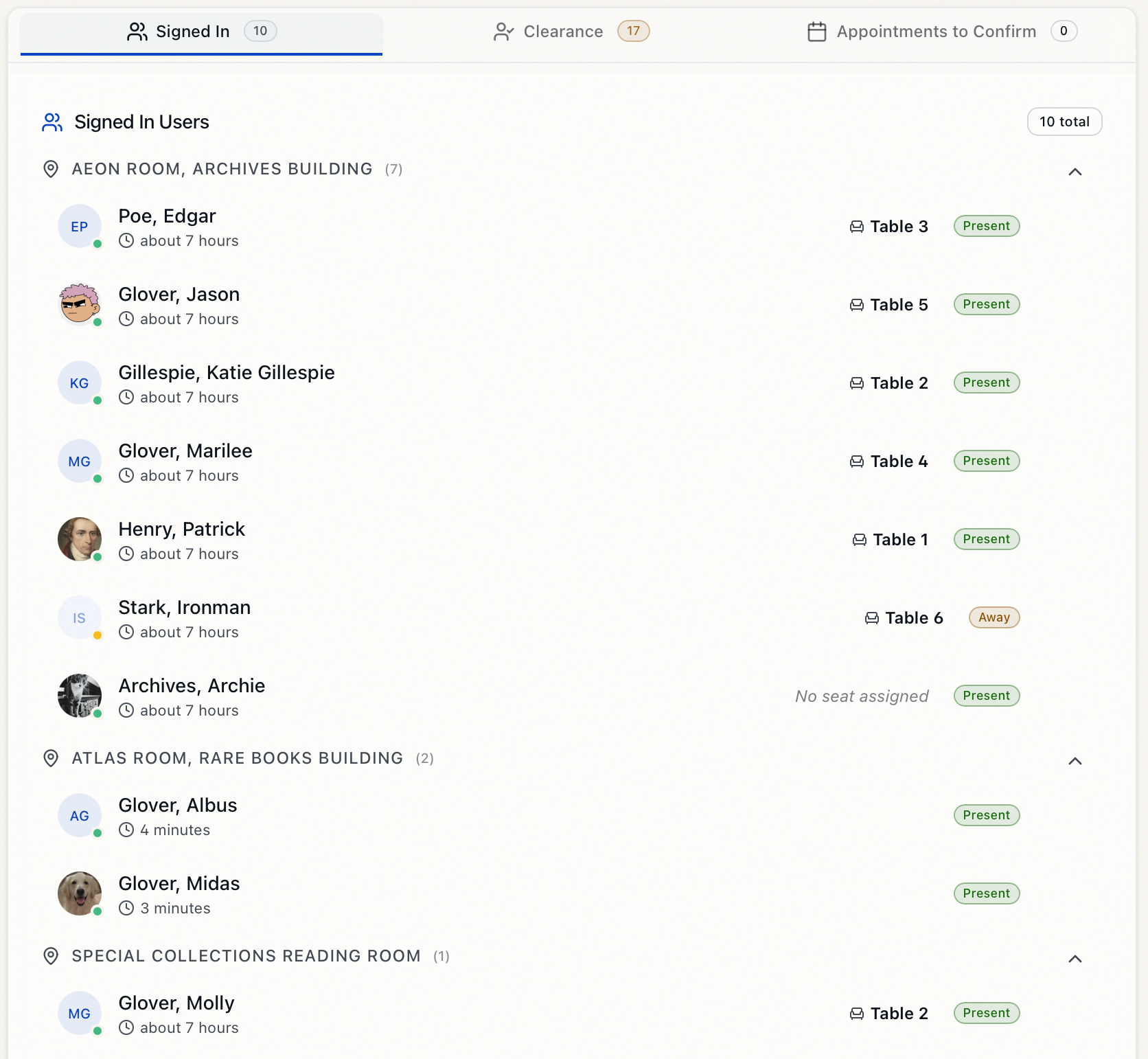
| What you see on the row | What it means |
|---|---|
| No seat assigned (muted italic) | The researcher is in a reading room that has seats, but none is recorded for them yet. |
| A seat name with a chair icon | The recorded seat. Click it to change. |
| A seat name in italics followed by (removed) | The seat that was recorded has since been removed or renamed in the reading-room configuration. The old value is still shown so you can see and fix it; pick a current seat to replace it. |
| No seat element at all | The researcher's reading room has no seats configured, so there's nothing to assign. (Rooms with no seats simply don't show a seat cell.) |
When seat assignment isn't available
The seat picker only appears when all three of these are true:
- Your role has Edit access to Reading Room.
- The researcher is signed into a specific reading room (not signed in without a room).
- That reading room has seat locations configured in the Customization Manager.
If your role has only View access to Reading Room, you'll still see each researcher's current seat, but it's read-only — you can't open the picker or change it.
- Setting or changing a seat requires the Edit level of the Reading Room permission — the same level needed to sign a researcher in or out. With only View access, seat values are visible but not editable.
- Seats themselves are defined per reading room in the Customization Manager, on the Locations tab of the reading room editor. If a room has no seats listed, there's nothing to assign and no seat control appears. See Configuring Reading Rooms.
The dashboard seat picker changes where within a room a researcher is sitting. It does not move them to a different reading room. To change the reading room itself, sign the researcher out and sign them back in to the new room (see Signing Out Users and Signing In Users).