Configuring Reading Room Open Hours
A reading room's Open Hours are the recurring weekly schedule that says when the room is available for appointments. They answer one question for every day of the week: during what times can a patron book a slot in this room? When a researcher opens the appointment scheduler on the web, the days and times offered come straight from this schedule.
Open Hours are part of a reading room's configuration. You set them once when you build a room and then revisit them whenever the room's regular schedule changes — for example, the room starts opening on Saturdays, or shifts its weekday hours from 9–5 to 10–4. They describe the room's normal week; one-off changes like a holiday closure or a class visit are handled separately as Exceptions (see Managing Appointment Exceptions and Closures), not by editing Open Hours.
- You're setting up a new reading room and need to tell Aeon which days and hours it takes appointments.
- A room's regular weekly schedule has changed — different days, different times, an added lunch break.
- A room never accepts appointments on certain days and you want to make sure those days are closed.
For a one-time closure (a holiday) or a temporary reduction in seats (a class visit), don't touch Open Hours — add an Exception instead.
Where Open Hours live
Open Hours are edited inside the reading room's configuration, in the Customization Manager.
- Open the Customization Manager and, under the Operations category, choose Reading Rooms.
- In the list on the left, click the reading room you want to edit (for example, Main Reading Room). Its configuration opens in a set of tabs. (Only appointment rooms have Open Hours — walk-in visit rooms don't take appointments, so they have no Open Hours tab.)
- Click the Open Hours tab.
The tabs across a reading room are Overview, General, Locations, Open Hours, Exceptions, Policies, and Sites. Open Hours is one piece of the room; the others cover seats and locations, status-specific booking rules, and (for multi-site sites) which sites the room belongs to.
Open Hours are not labeled with a time zone of their own — the times you enter are interpreted in the reading room's time zone, which is set by the Time Zone field on the General tab. Set the time zone there first so that "09:00" means 9 a.m. in the room's local time. If you ever move a room to a new time zone, the hours don't shift automatically — re-check them after changing the zone.
Entering hours for each day
The Open Hours tab gives you two ways to set the week, chosen with a Visual / Text toggle in the top-right. It opens on Visual. A banner at the top reminds you: "Set the weekly open hours for this reading room. Multiple ranges are allowed per day."
The visual editor (default)
The visual editor lays the week out as seven day tracks (Sunday through Saturday), each a timeline running from 6 a.m. to midnight. You build a day's hours by working directly on its track:
- Add a block — click an empty part of a day's track.
- Move a block — drag it left or right.
- Resize a block — drag its left or right edge.
- Remove a block — click the × at its top-right corner.
An on-screen hint sums up the gestures: "Drag a block to move · drag edges to resize · click an empty track to add." Blocks snap to 15-minute marks and can't be shorter than 30 minutes. Each day's hours are summarized at the right of its track (or Closed), and a running "… open / week" total shows at the top.
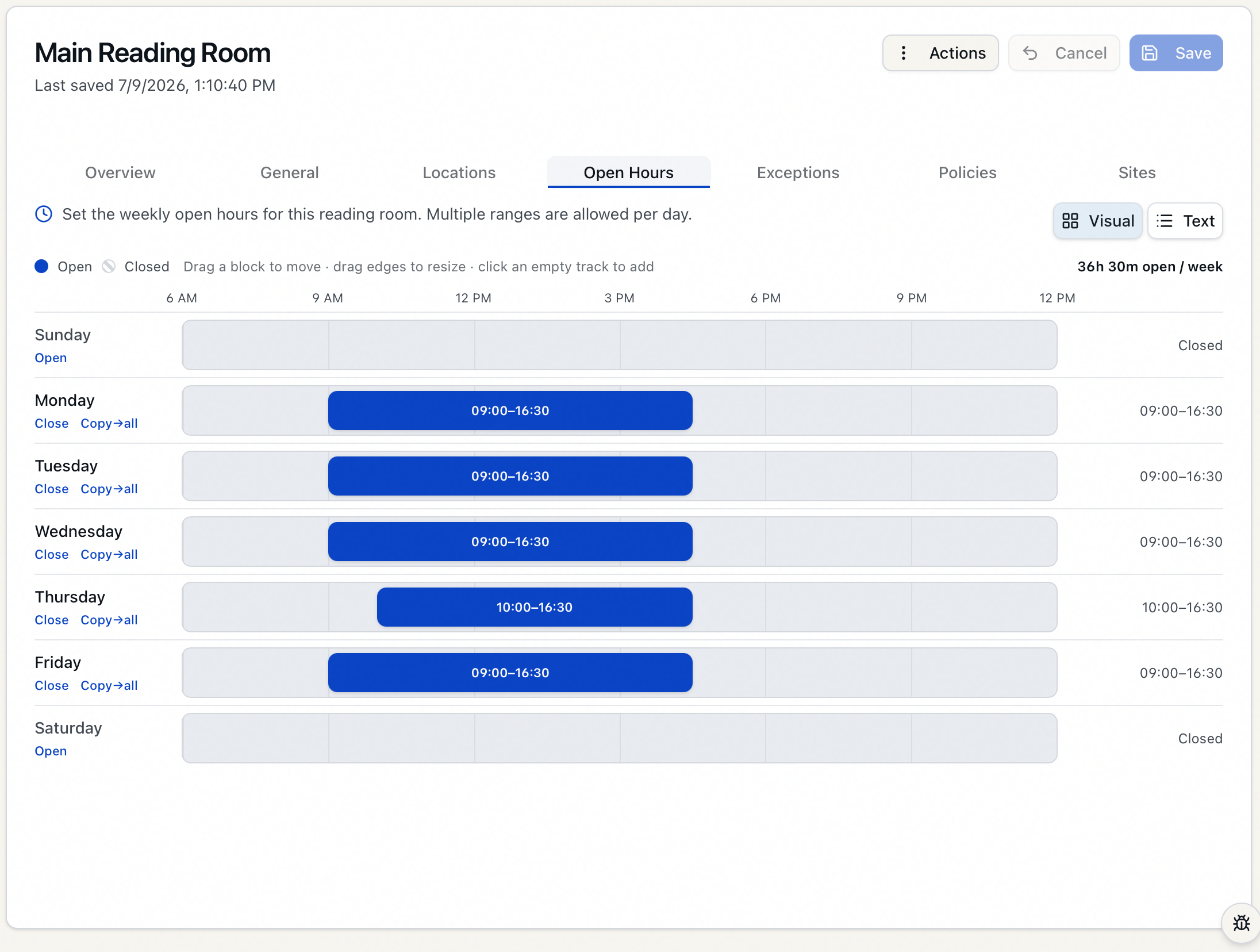
Two shortcuts sit beside each day:
- Close — marks the day closed and clears its blocks; the day then reads Closed and the button switches to Open to bring it back.
- Copy→all — copies that day's hours to every day of the week, handy when most days share one schedule.
The timeline only spans 6 a.m. to midnight, so hours that start before 6 a.m. can't be drawn there. For those, use the Text editor, which accepts any time of day. (Either way, a single range can't cross midnight — its end time has to be later than its start.)
The text editor
Flip the toggle to Text to type each day's hours instead — one field per day, Sunday through Saturday. This is the way to go for fast keyboard entry, pasting, or hours outside the visual editor's 6 a.m.–midnight window.
Type a day's open times as one or more ranges. For a room open 9 a.m. to 5 p.m., enter:
09:00-17:00
To enter more than one block — closing for lunch, say — separate the ranges with a comma:
09:00-12:00, 13:00-17:00
That makes the room available 9 a.m.–noon and 1 p.m.–5 p.m., with the noon–1 p.m. hour unavailable. Leave a day's field blank to close it — an empty field offers no slots, so a room closed on weekends simply has Sunday and Saturday empty.
Times are entered in 24-hour form. Aeon accepts:
HH:mm— for example,09:00or17:30- A bare 4-digit time — for example,
0900(treated as 09:00)
Each range is two times joined by a hyphen (open-close), and you can list several per day separated by commas. Each empty field shows the format as placeholder text: 09:00-12:00, 13:00-17:00.
A worked example (Text editor)
Say Main Reading Room is open weekdays 9–5 with a lunch break, opens for a short Saturday morning, and is closed Sundays. In the Text editor you'd enter:
| Day | What you type |
|---|---|
| Sunday | (leave blank) |
| Monday | 09:00-12:00, 13:00-17:00 |
| Tuesday | 09:00-12:00, 13:00-17:00 |
| Wednesday | 09:00-12:00, 13:00-17:00 |
| Thursday | 09:00-12:00, 13:00-17:00 |
| Friday | 09:00-12:00, 13:00-17:00 |
| Saturday | 10:00-13:00 |
Saving your changes
Open Hours are saved together with the rest of the reading room — there's no separate "save" just for this tab.
- Make your edits on the Open Hours tab (and any other tabs you need).
- Click Save at the top of the reading room (or press Ctrl+S / ⌘S). For a brand-new room the button reads Create.
- A confirmation appears once the room is saved.
To abandon edits before saving, click Cancel to discard your unsaved changes. The save and cancel controls stay disabled until you've actually changed something.
Because the whole room saves as a unit, you can adjust Open Hours, Policies, and Locations in one sitting and save them all with a single click. If the room reports an error after you click Save, Aeon jumps you to the tab that needs attention so you can fix it.
What Aeon checks before saving
When you save, Aeon validates each day's hours and won't accept entries that don't make sense. These checks matter mainly for the Text editor — the visual editor keeps blocks valid as you drag:
- The end of a range must be later than its start. A range like
17:00-09:00is rejected with "Open hours for [day] must have an end time later than the start time." - Ranges on the same day can't overlap. If you enter two blocks that cover some of the same time — say
08:00-12:00, 10:00-13:00— Aeon refuses with "The time spans listed for [day] cannot overlap." List back-to-back or fully separate blocks instead. - The format must be valid. A range Aeon can't read produces "Open hours for [day] must be in the format
HH:mm-HH:mm[, HH:mm-HH:mm]."
Open Hours define when the room can be booked at all. The actual slots a given patron sees also depend on the room's seat count and its Policies (minimum/maximum appointment length, lead-time rules, and status-specific limits), and on any Exceptions in effect. If a day looks unbookable even though its hours are set, check the room's seats, policies, and exceptions too.
Editing a reading room — including its Open Hours — requires the Operations configuration capability (the configuration group that covers reading-room setup). Without it, Reading Rooms doesn't appear in the Customization Manager, and opening the page directly shows "You don't have permission to access this customization section." — there's no view-only mode. The save is also enforced on the server against the same capability.