Configuring Reading Rooms
A reading room is the physical space where researchers consult materials — your main reading room, a closed-stacks room, a microfilm area, and so on. The reading room record is what drives everything downstream: it defines the seats and named locations staff pick from when signing a researcher in, the days and hours the room is open for appointments, and the booking rules patrons see on your public appointment scheduling pages.
In Aeon 7 every part of a reading room lives in one place: the Reading Rooms section of the Customization Manager. Open a room and you get a tabbed form — Overview, General, Locations, Open Hours, Exceptions, Policies, and Sites — and you save it all at once. (In older versions this was split apart: sign-in rooms and seats and appointment hours and policies were configured in separate places. Aeon 7 merges them into a single editor.)

- You're setting up Aeon and need to define the rooms researchers will use.
- You opened a new space to readers and want it to appear in the sign-in and appointment screens.
- You need to adjust a room — rename it, change the seat count, add a new seat, update open hours, or change how far ahead patrons can book.
- A room is closed for a holiday or a class visit — add a closure or reduced-availability exception (see Managing Appointment Exceptions and Closures).
Aeon 7 shows both kinds of rooms side by side in this section:
- Appointment rooms support the full appointment system — seats, open hours, policies, and sites.
- Visit rooms are sign-in only: they appear in the sign-in dropdowns and let you assign seats, but they carry no appointment scheduling. They're for sites that don't run appointments, or for walk-in spaces. Visit rooms are tagged with a Visit badge in the list, and you can promote one to a full appointment room at any time. See Visit Rooms (Walk-In Reading Rooms).
This page covers the full appointment room editor. Visit rooms have their own, much simpler editor — just a Name and a Locations / Seats list, with none of the tabs above — so only the room name and its locations carry over from what's here.
Opening the Reading Rooms editor
- Open the Customization Manager.
- Under the Operations category, choose Reading Rooms — or navigate directly to
/customizations/reading-rooms. - The page opens as a split view: a list of every reading room on the left, the editor for the selected room on the right.
Each room in the list shows its name and its seat count; appointment rooms also show their time zone, while sign-in-only rooms read sign-in only instead. A Visit badge marks sign-in-only rooms; an In use badge marks rooms that already have appointments booked against them (those can't be deleted — see below).
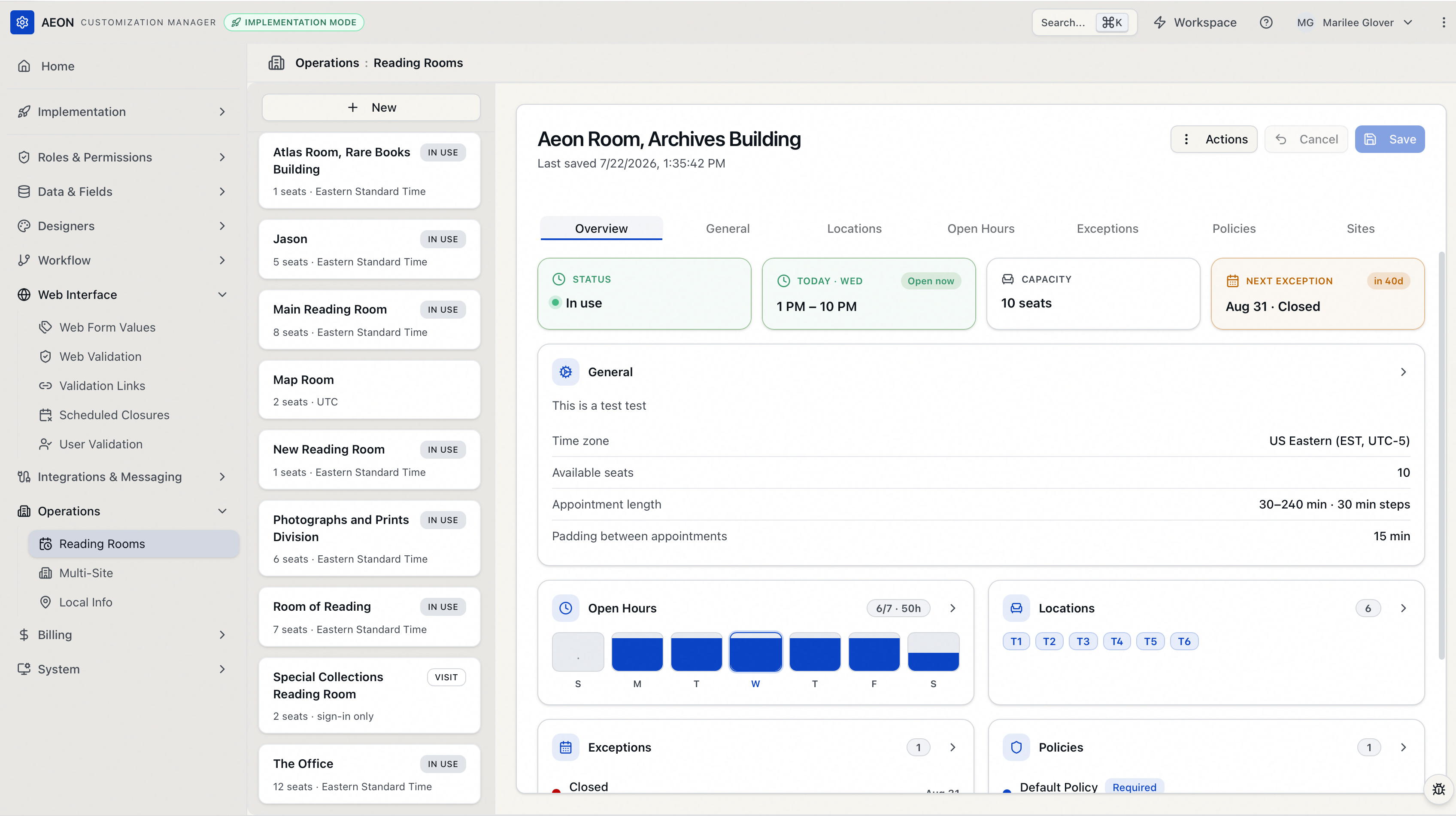
The Reading Rooms section requires the Operations configuration capability. Without it, Reading Rooms doesn't appear in the Customization Manager and the page can't be opened — there's no view-only mode. With it, you can create, edit, delete, and promote rooms (the write actions are enforced on the server against the same capability). Configuration capabilities are what control access to the Customization Manager and its sections (see User Permissions and Role-Based Access).
Creating a reading room
- Click New at the top of the list. The editor switches to a blank room titled New Reading Room.
- On the General tab, fill in at least the Name, then set the Time Zone, Available Seats, and the appointment length fields (covered below).
- Add Locations, Open Hours, and any Exceptions on their tabs as needed. A Default policy is created for you on the Policies tab — adjust it, and add status-specific policies if you want.
- Click Create. Aeon saves the room and confirms with "Reading room "Main Reading Room" created successfully."
The status line under the room name tells you where you stand: Ready to create on a new room, Unsaved changes while you're editing, and Last saved … with a timestamp once it's been saved.
A room only requires a unique name, a time zone, and valid appointment-length numbers — the values on the General tab. Locations, open hours, exceptions, and extra policies can all be added later. A room with no open hours simply offers no appointment slots until you add them.
The Overview tab
Overview is the first tab, and it's a read-only summary of the whole room — you don't edit here, you take in the current configuration at a glance and jump to whatever needs changing.
Stat tiles across the top show the room's Status (whether it's currently taking appointments), today's open hours, seat Capacity, and the next exception coming up. Below them, a card for each section — General, Open Hours, Locations, Exceptions, Policies, and Sites — summarizes that section's current settings. Click a card to jump straight to its tab and make changes.
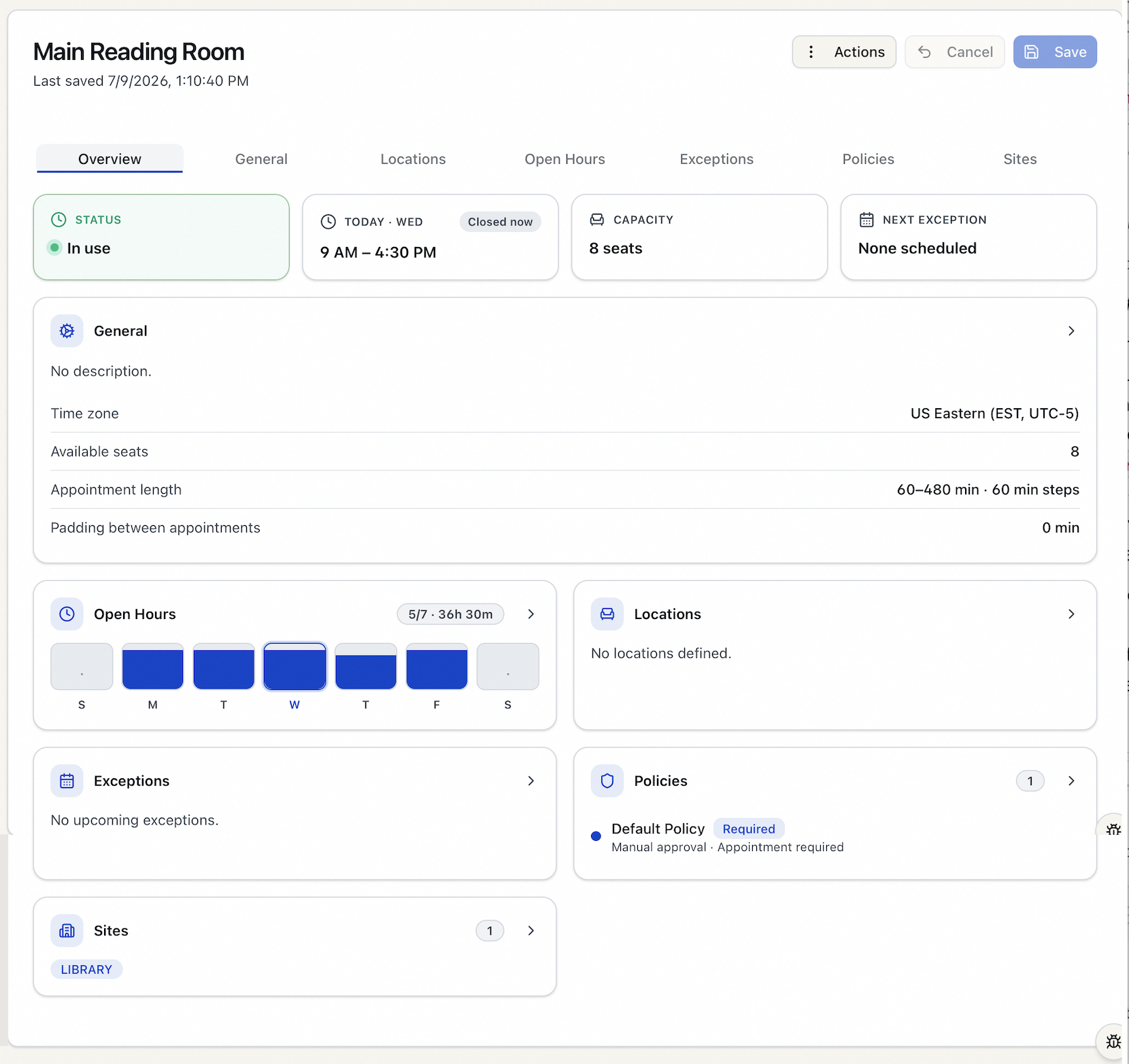
On a new room the Overview is mostly empty and fills in as you complete the other tabs.
The General tab
This is the core of the room. Fields:
| Field | What it controls |
|---|---|
| Name | The room's display name, shown in sign-in dropdowns, the appointment calendar, and (for appointment rooms) your public scheduling pages. Must be unique and 50 characters or fewer. |
| Time Zone | The time zone the room's open hours and exceptions are interpreted in. Searchable dropdown. |
| Description | Optional free-text note about the room. Up to 1000 characters. |
| Available Seats | How many appointments can run at once. Must be at least 1. |
| Appointment Padding (minutes) | Gap left between one appointment and the next in a seat — useful when a desk needs cleaning or re-shelving between researchers. Must be 0 or a multiple of 15. |
| Minimum Length (minutes) | Shortest appointment a patron can book. |
| Maximum Length (minutes) | Longest appointment a patron can book. Can't be less than the minimum. |
| Increment (minutes) | The step between bookable start times, and the amount a patron can lengthen or shorten an appointment by. Must be a multiple of 15. |
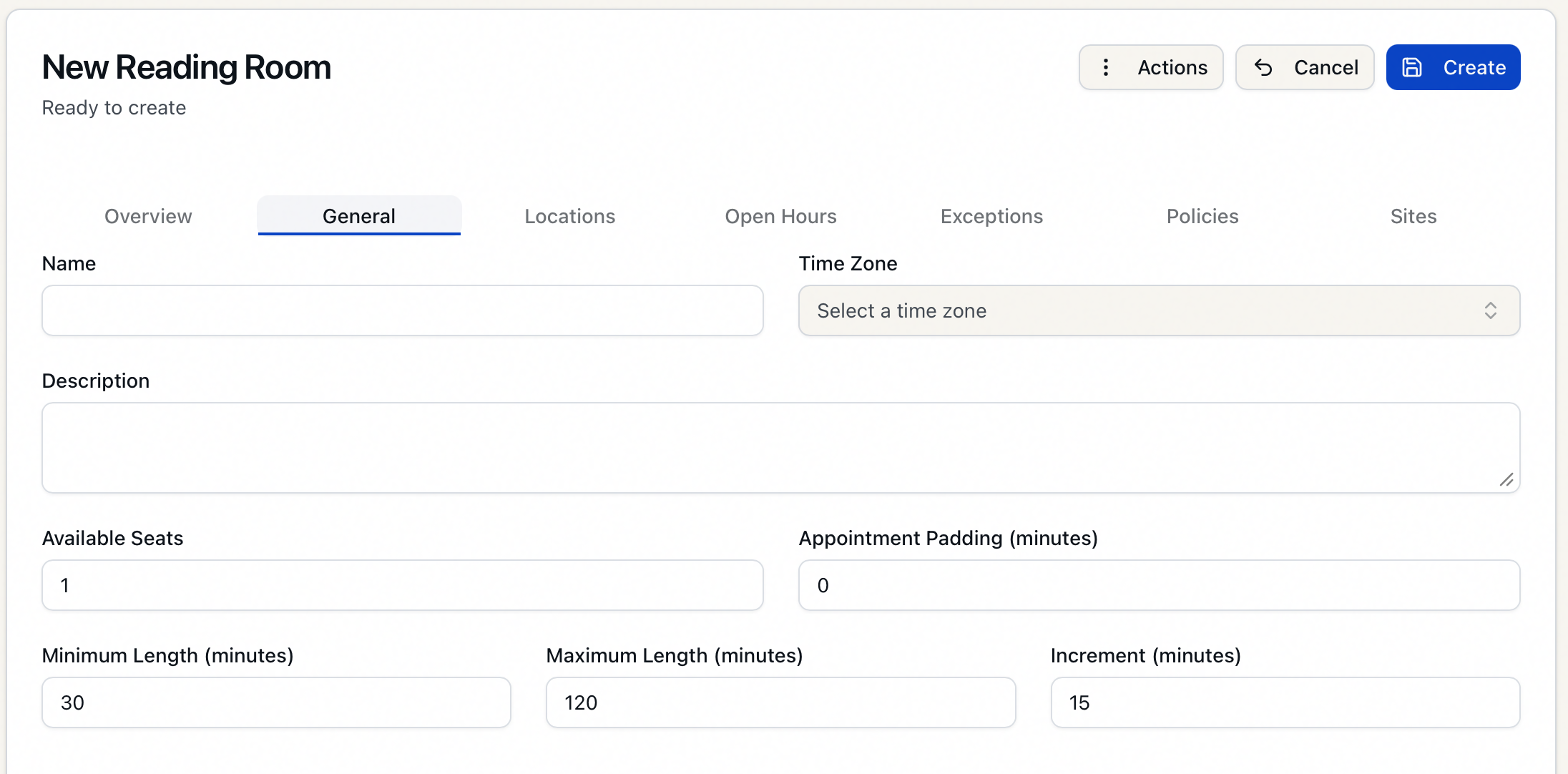
Aeon checks these against each other and flags the offending field if they don't fit:
- Minimum and Maximum Length must each be divisible by the Increment.
- Maximum must be greater than or equal to Minimum.
- Padding must be 0 or a multiple of 15; Increment must be a multiple of 15 and at least 15.
For example, with a 30-minute increment, a 45-minute minimum is rejected (45 isn't divisible by 30) — use 30, 60, 90, and so on.
The Locations tab
Locations are the individual seats or areas within the room — Table 1, Desk 3, Microfilm Station A. When a researcher signs in, staff pick the room and then a location, and that location is recorded against the visit.
- Click Add Location to add a row.
- Enter a Name (what staff see, e.g.
Table 1) and a Code (what's stored, e.g.T1). Entry is spreadsheet-style: press Enter in a cell to insert a new row below and jump to it, or Tab out of the last row's Code cell to add another row — so you can key in a whole list of seats without reaching for the mouse. - Remove a row with the trash icon beside it.
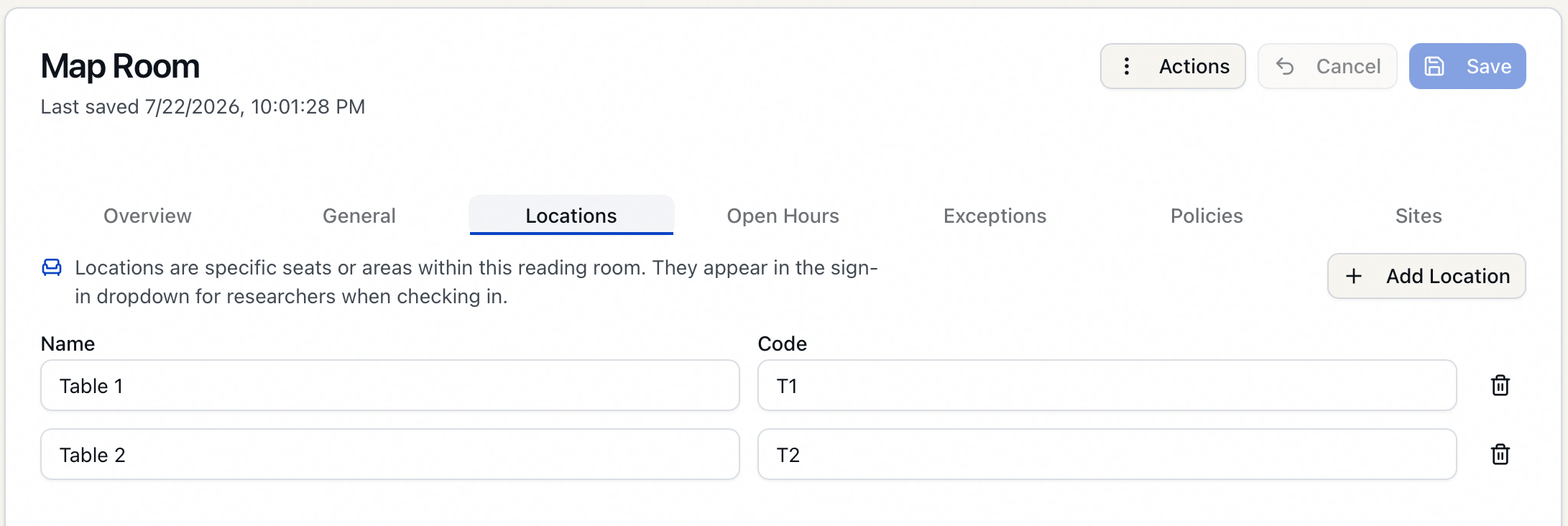
Location names must be unique within the room. A room with no locations simply won't show a location dropdown at sign-in. For the seat-assignment workflow itself, see Configuring Reading Room Locations and Assigning Seating and Locations.
The Open Hours, Exceptions, Policies, and Sites tabs
These four tabs each have a dedicated page; the short version:
- Open Hours — the days and times the room takes appointments, set on a visual weekly timeline (drag to add or resize ranges; they snap to 15-minute marks). See Configuring Reading Room Open Hours.
- Exceptions — one-off closures or reduced-seat days (holidays, class visits, training). See Managing Appointment Exceptions and Closures.
- Policies — booking rules (lead times, appointment-required, auto-confirm, reminders) that can vary by user status. Every room keeps one Default policy. See Setting Up Appointment Status Policies.
- Sites — on a multi-site instance, which sites the room belongs to. See below.
Save checks the whole form. If something on another tab is invalid — say a length value on General while you're looking at Policies — Aeon jumps you to that tab and highlights the field so you can fix it. Nothing is saved until everything passes.
A note on Sites (multi-site instances)
If your Aeon instance has more than one site configured, the Sites tab lists them and lets you tie the room to one or more. If you run a single site, the tab is disabled — there's nothing to choose.
When sites are arranged in a parent/child hierarchy, selecting a child site automatically selects its parent, and clearing a parent clears its children. Children appear indented under their parent in the list, so the relationship is visible as you pick.
Editing a reading room
- Click the room in the list. Its details load into the tabs.
- Make changes on any tab. The status line switches to Unsaved changes.
- Click Save (or press Ctrl+S / ⌘S). Aeon confirms with "Reading room "…" saved successfully."
To back out before saving, click Cancel — it reverts the form to the last saved values. The Actions menu (top right, Alt+A / ⌥A) holds the Delete option.
If you try to switch to a different room — or start a new one — while you have unsaved edits, Aeon stops you with a Discard unsaved changes? prompt. Choose Discard changes to abandon them and move on, or Cancel to stay and save first.
Deleting a reading room
- Select the room, open the Actions menu, and choose Delete (or right-click the room in the list and choose Delete).
- Confirm in the Delete reading room? dialog.
If any appointments are booked against the room (the In use badge), deletion is blocked — the dialog reads "This reading room has appointments and cannot be deleted," and Aeon refuses with "Cannot delete reading room with existing appointments." Cancel or reschedule the appointments first, then delete the room.
Deleting a room also removes it (and its seats) from the sign-in dropdowns. Past sign-in history is preserved — historical records that reference the room stay intact and accurate.
ON HOLD — ISSUE #269. New → Cancel doesn't exit a new reading room — it leaves you on the blank "New Reading Room" editor (reading-room-manager.tsx:420 only resets the form, never clears isCreating). Don't finalize until #269 resolves: once Cancel behaves, the page may need a line on how to back out of the create flow. Everything below is otherwise re-verified and the screenshots are embedded.
The CM-rework hold (the original reason this page was parked) is lifted — re-verified against the redesigned Reading Rooms Customization Manager (post-#98) on 2026-07-22. A few points for an SME:
- Permission wording (now source-confirmed): the whole Reading Rooms section is gated on the Operations configuration capability — the frontend route guard hides/blocks it without that capability (
customizations-layout-shell.tsx:206, inherited from the Operations category'sconfigGroup), and the write endpoints are server-gated on Operations too (ReadingRoomsController). There is no view-only mode. SME: confirm "Operations" is the label customers see for this group. - Description field: now documented as a plain optional note (≤1000 chars). The field has no in-app hint, and the old V6 "email-template merge field / not shown to patrons" use is unconfirmed in V7 source — confirm whether the room Description actually surfaces anywhere (an email merge field, the public pages, etc.).
- Scope check: this page is the overview/orientation for the Reading Rooms editor and hands off Open Hours / Exceptions / Policies / Locations / Sites / Visit Rooms to their own pages. Confirm that division of labor matches the intended sidebar structure, and that the cross-link slugs resolve once those pages exist.
- Screenshots: embedded — the split view (list with Visit + In use badges) with the Overview tab open, the seven-tab strip, the General tab, the Overview close-up, and the Locations tab.
The full generation metadata — sources, files read, and verifications — is in the HTML comment directly below this callout. When this page has been reviewed and approved, delete both this callout and that comment; a page with no Editor-review callout is one that's done.