Cancelling Appointments
Most appointments simply happen: a researcher books a time, comes in, and the appointment runs its course. Cancelling is the exception path — you use it when a researcher won't be coming after all, when a booking was made in error, or when a closure means an appointment can no longer be honored. Cancelling marks the appointment Cancelled so it drops off the working calendar, and it gives you two decisions to make along the way: whether to also cancel the requests tied to that appointment, and whether to email the researcher to let them know.
You cancel an appointment from its Appointment Details panel — open the appointment from the Calendar or from the user's Appointments tab, then use the Cancel action. Everything happens in one confirmation dialog.
- A researcher cancels or no-shows and you're clearing their slot.
- An appointment was booked by mistake (wrong day, wrong reading room, duplicate).
- A closure or staffing change means the appointment can't go ahead, and you're cancelling affected bookings.
A cancelled appointment isn't removed from Aeon — its status changes to Cancelled and it stays on the record for history and reporting. Cancelled appointments drop off the appointment calendar (the calendar leaves them out, and there's no toggle to show cancelled appointments there), but they remain in the system and still appear in the researcher's appointment history — on their user record's Appointments tab, listed with a Cancelled badge.
Before you start
- You need Full access to Appointments. The Cancel action is only enabled for staff whose role has the Full level of the Appointments permission. If your role is View or Edit for appointments, you can open and even edit an appointment, but the Cancel button is disabled. (This is a higher bar than editing — cancelling is treated as a more consequential action.)
- You can't cancel an appointment twice. If an appointment is already Cancelled, the Cancel action no longer appears, and the system will refuse a repeat cancellation.
Cancelling an appointment
-
Open the appointment. Click it on the Calendar page, or open the researcher's record and select the appointment from their Appointments tab. The Appointment Details panel slides in from the right.
-
In the action bar at the top of the panel, click Cancel (the red action with the ✕ icon).
-
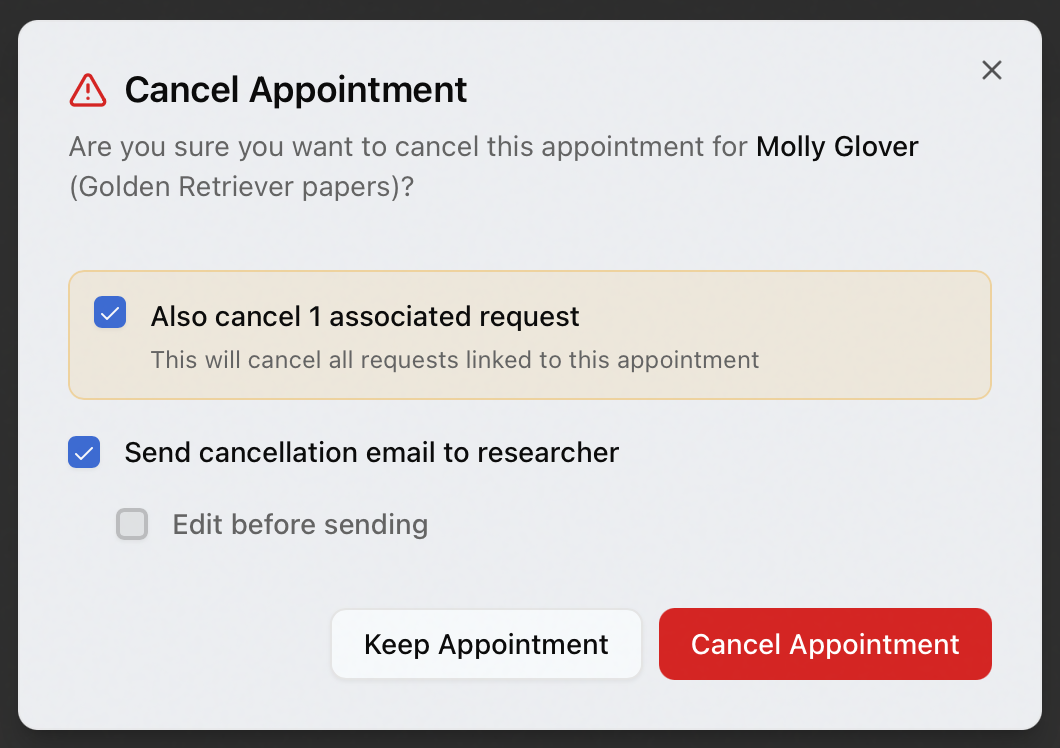
The Cancel Appointment dialog opens and asks you to confirm — for example, "Are you sure you want to cancel this appointment for Jane Doe?" (the appointment's name is shown in parentheses if it has one).
-
Choose what to do with the appointment's requests and email (see below).
-
Click Cancel Appointment to confirm. To back out without cancelling, click Keep Appointment or close the dialog.
When the cancellation succeeds, Aeon shows an "Appointment cancelled" confirmation, the appointment's status becomes Cancelled, and the panel closes.
Deciding what gets cancelled with it
The dialog gives you up to two decisions — whether to cancel the linked requests, and whether to email the researcher. Each remembers your last setting, so the dialog opens with the options you used most recently.
Also cancel the linked requests
If the appointment has any requests attached to it, the dialog shows a highlighted checkbox:
Also cancel N associated request(s) — This will cancel all requests linked to this appointment.
- Leave it checked to cancel those requests along with the appointment. This is the common case — if the researcher isn't coming, the items they pulled for that visit usually shouldn't be processed either.
- Uncheck it to cancel only the appointment and leave its requests in place (for example, when the requests will be reused for a rescheduled visit).
When requests are cancelled this way, Aeon reports how many went with it — for example, "3 associated request(s) also cancelled."
If the appointment has no requests attached, this checkbox doesn't appear at all — there's nothing to cancel alongside it, so you go straight to the email choice.
Notify the researcher by email
Below that is the email option:
Send cancellation email to researcher
- Leave it checked to send the researcher the Appointment Cancelled email.
- Uncheck it to cancel quietly with no notification.
When Send cancellation email is checked, a second option appears beneath it:
Edit before sending
- Leave Edit before sending unchecked to queue the cancellation email as-is, using the template.
- Check it to review the message first. After you confirm the cancellation, the Appointment Cancelled – Edit Email editor opens with the filled-in message so you can adjust the recipient, subject, or body before sending. The appointment is already cancelled at that point — sending (or closing) the editor just decides what, if anything, the researcher receives.
The three settings — cancel requests, send email, and edit before sending — are remembered between cancellations. If you usually cancel requests and email the researcher, you'll only need to set that once; the dialog will default to it next time.
What happens to the researcher's requests
Cancelling the appointment with Also cancel … associated request(s) checked cancels those linked requests as part of the same action. If you leave the box unchecked, the requests keep their current status and simply lose nothing else — but note that elsewhere in Aeon, cancelling a request clears that request's appointment link. Cancelling the appointment itself does not delete or reassign requests beyond the optional batch cancellation above.
In reading rooms configured to require an appointment for every request, a request can't sensibly outlive its appointment. If your rooms use that policy, cancelling the appointment is expected to take its requests with it. Confirm with your administrator how your reading rooms are configured before leaving requests behind on a cancelled appointment.
- Cancelling an appointment requires the Full level of the Appointments permission. View and Edit roles can open and edit appointments but cannot cancel them — the Cancel action stays disabled.
- The same Full level governs confirming and un-confirming appointments. Creating and editing appointments only requires the Edit level.