Visit Rooms (Walk-In Reading Rooms)
A visit room is a lightweight reading room for sites that don't schedule appointments. It exists only so staff have something to pick from the Reading Room dropdown when they sign a walk-in patron in — it carries a display name and an optional list of seats, and nothing more. It has no open hours, no policies, no site associations, and no calendar. If your site runs the Appointments feature, you'll mostly use the richer appointment reading rooms instead; visit rooms are the "just let me sign people in" option.
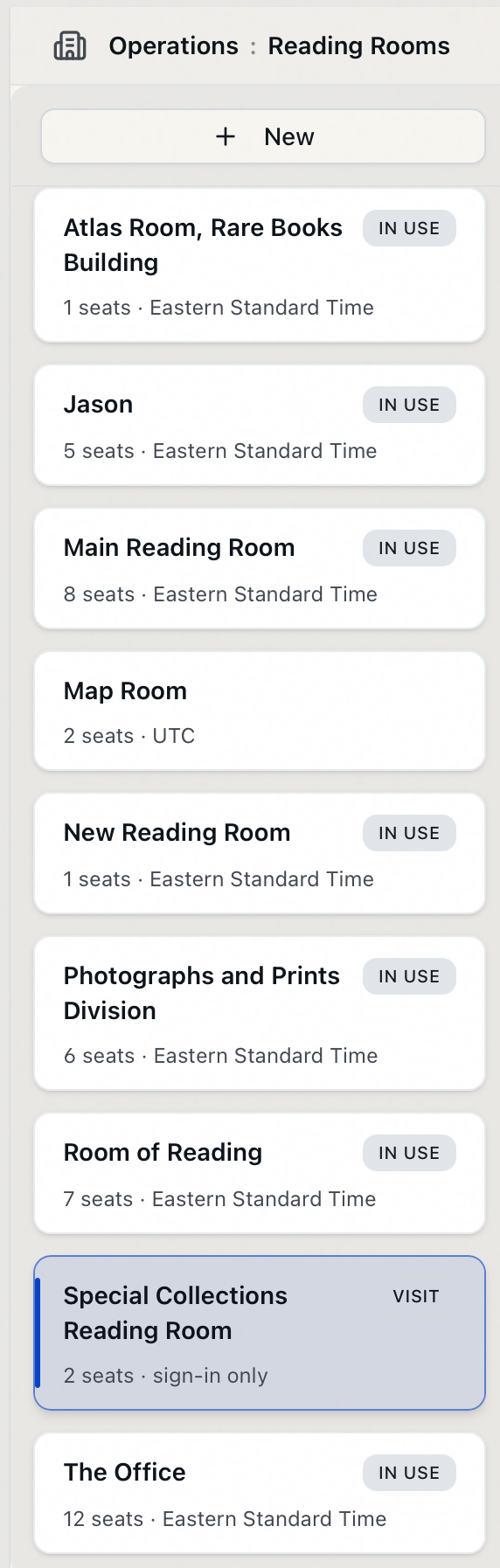
Both kinds of room live side by side in the same place. Open the Customization Manager and go to Reading Rooms. The list on the left shows every reading room; visit rooms are marked with a small Visit badge and read "sign-in only" under the name, while appointment rooms show their seat count and time zone.
- A walk-in-only site needs to clean up the rooms that appear in the sign-in Reading Room dropdown — rename one, or add and label its seats.
- You want to remove a room patrons are no longer signed into, without losing the historical record of who used it.
- Your site is starting to take appointments and you want to turn an existing walk-in room into a full appointment room — use Promote to Appointment.
Visit rooms aren't created on this page. They're rows in the Custom Dropdowns table under the group ReadingRoom — the same place reading-room and seat options have always been configured. Any ReadingRoom entry that doesn't have a matching appointment room shows up here automatically as a visit room. To add a brand-new visit room, create the ReadingRoom entry (and any Locations… seat entries) in Customization Manager → Custom Dropdowns; it will then appear in this list, ready to edit.
Opening a visit room
- In the Customization Manager, open Reading Rooms.
- In the left-hand list, click a room with the Visit badge — for example, Special Collections Reading Room.
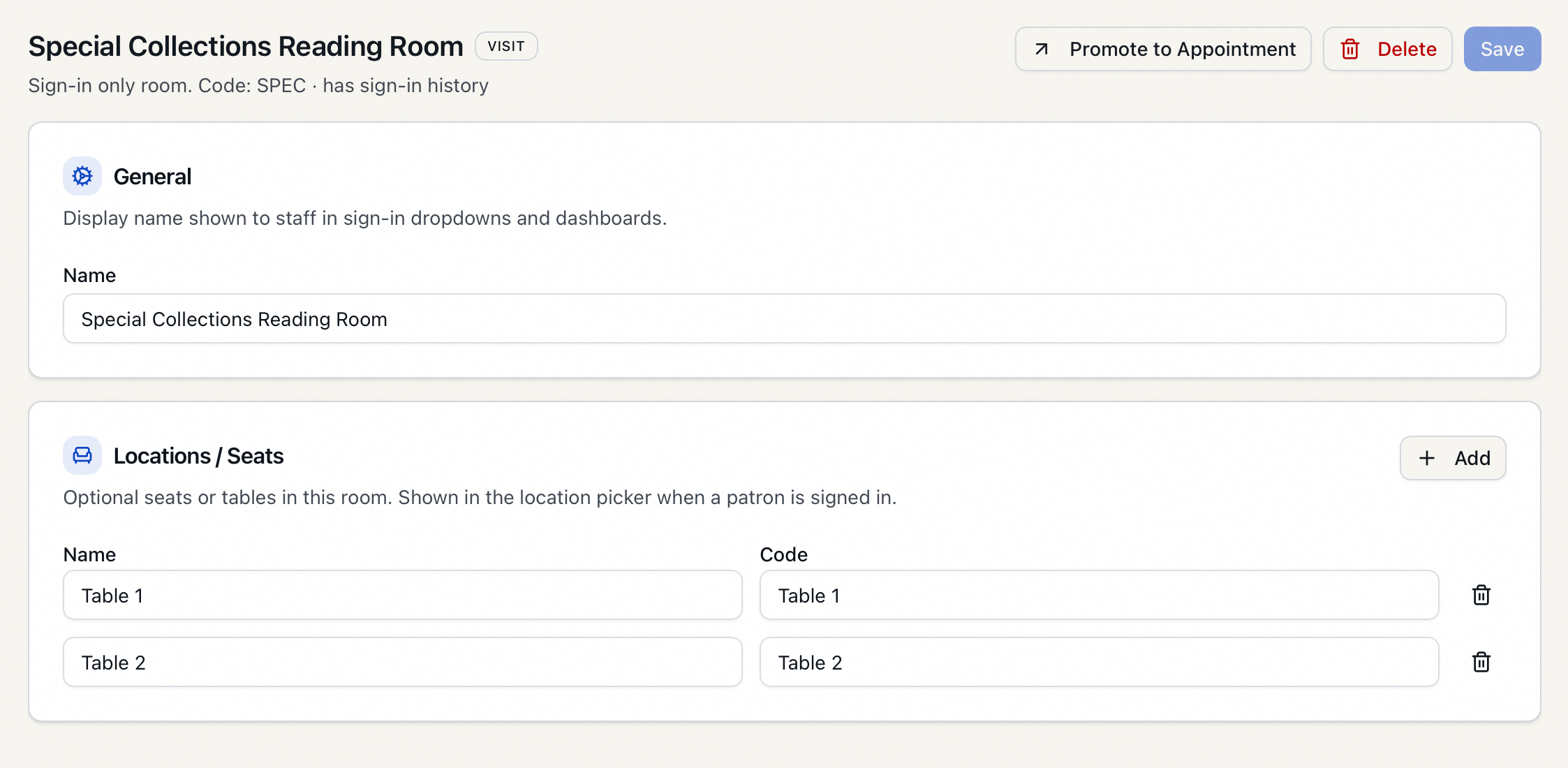
- The detail panel opens on the right with the Visit badge, the room's display name, its immutable Code, and a note if it already has sign-in history.
The detail panel for a visit room is deliberately simple: a General card with the name, and a Locations / Seats card. There are no tabs for open hours, policies, or sites — those belong to appointment rooms.
Editing the name and seats
Renaming the room
- Open the visit room (for example, Special Collections Reading Room).
- In the General card, edit the Name field. This is the label staff see in the sign-in Reading Room dropdown.
- Click Save.
On success you'll see Reading room "Special Collections Reading Room" saved. The Save button stays disabled until you've actually changed something and the name isn't blank.
A visit room's Code is the value Aeon records every time a patron is signed into the room, so it's locked once the room exists — changing it would orphan that history. The panel shows the Code as read-only text. If you genuinely need a different code, delete the room and recreate it in Custom Dropdowns with the code you want. (Renaming the display name is always fine — only the underlying code is fixed.)
If you try to save a visit room with a name that an existing appointment room already uses, Aeon refuses with An Appointment reading room named '…' already exists. Choose a different name. Manage that room through its appointment editor instead.
Adding and removing seats
Seats (the code calls them Locations / Seats) are optional. When a room has them, staff can pick a specific seat or table while signing a patron in; when it has none, staff sign patrons in without choosing a seat.
-
Open the visit room and find the Locations / Seats card.
-
Click Add to append a new seat row.
-
Fill in the two columns:
- Name — what staff see in the seat picker (for example,
Table 1). - Code — the value stored in sign-in history (for example,
T1).
Entry is spreadsheet-style: press Enter in a cell to add a row below and jump to it, or Tab out of the last row's Code cell to add another.
- Name — what staff see in the seat picker (for example,
-
To delete a seat, click the trash icon at the end of its row.
-
Click Save when you're done.
A completely blank row is ignored when you save, so a stray empty row won't block you.
If a room has no seats defined, the card shows No locations defined. Staff will sign patrons in without choosing a seat. Plenty of walk-in rooms work this way.
Promoting a visit room to an appointment room
When a site starts scheduling visits, you don't have to rebuild the room from scratch. Promote to Appointment converts a visit room into a full appointment reading room in place, keeping its name and seats.
- Open the visit room (for example, Special Collections Reading Room).
- If you have unsaved edits, Save or discard them first — the Promote to Appointment button is disabled while there are pending changes, and hovering it explains why.
- Click Promote to Appointment (the up-right arrow icon in the top-right actions).
- Aeon creates the appointment room, carries the room's seats over, applies starter scheduling values, and switches the panel to the new appointment room's editor. You'll see "Special Collections Reading Room" promoted to an Appointment reading room. Finish appointment setup below.
After promotion the room is no longer a visit room — it now has the full set of appointment tabs (Overview, General, Locations, Open Hours, Exceptions, Policies, Sites). Promotion only seeds sensible defaults; you still need to fill in the scheduling details. See Configuring Reading Rooms.
- Name and seats are carried over as-is. The new room's seat count starts equal to the number of seats the visit room had.
- Scheduling values are defaults you'll want to review: the server's local time zone, a 60-minute minimum and 240-minute maximum appointment length, 30-minute increments, and no padding.
- If an appointment room with the same name already exists, promoting is treated as a no-op — Aeon simply opens that existing room rather than creating a duplicate.
Deleting a visit room
- Open the visit room, or right-click it in the left-hand list.
- Click Delete (in the detail panel's actions, or Delete from the right-click menu).
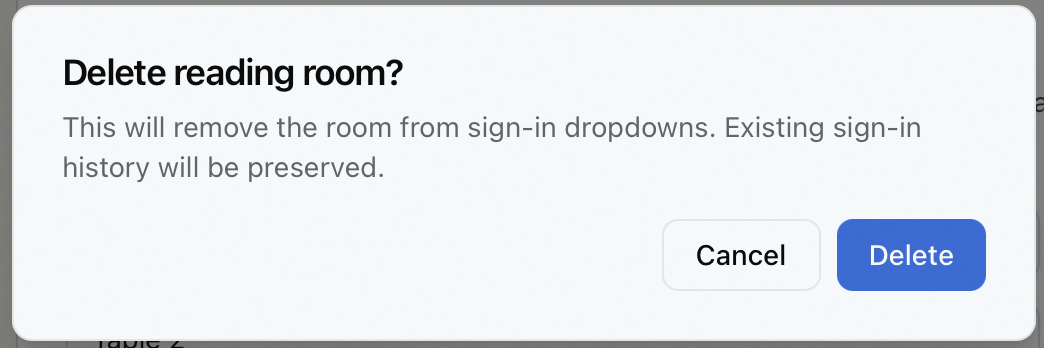
- Confirm in the Delete reading room? dialog. For a visit room it reads This will remove the room from sign-in dropdowns. Existing sign-in history will be preserved.
Deleting removes the room and its seats from the sign-in dropdowns. It does not touch sign-in history — past records of who was signed into the room stay intact and historically accurate, which is why you can safely retire a room that's no longer in use.
The Reading Rooms section — including viewing visit rooms — requires the Operations configuration capability, the same one that governs the rest of reading-room configuration. Without it, Reading Rooms doesn't appear in the Customization Manager, and opening the page directly shows "You don't have permission to access this customization section." With the capability, you can edit, delete, and promote visit rooms; those actions are also enforced on the server against the same capability.