Marking Users as Away
When a researcher is signed in to a reading room and steps out for a short while — a coffee break, a phone call, lunch — you don't need to sign them out and sign them back in. Mark them Away instead. The researcher keeps their seat, their sign-in session, and any items checked out to them; the only thing that changes is a visible status that tells the rest of the desk this person is temporarily not at their seat. When they come back, you clear the status and they're shown as present again.
Away is a toggle on top of an active sign-in. It is not a way to sign someone in or out — it only applies to a researcher who is already signed in to a reading room.
- A signed-in researcher steps away briefly and you want the desk to know their seat is held but currently empty — mark them Away.
- That researcher returns to their seat — Clear Away to show them present again.
- Reach for sign-out instead only when the researcher is actually leaving for the day.
Marking a researcher away from the dashboard
The fastest place to do this is the Signed In Users panel on the dashboard, which lists everyone currently in the reading rooms.
-
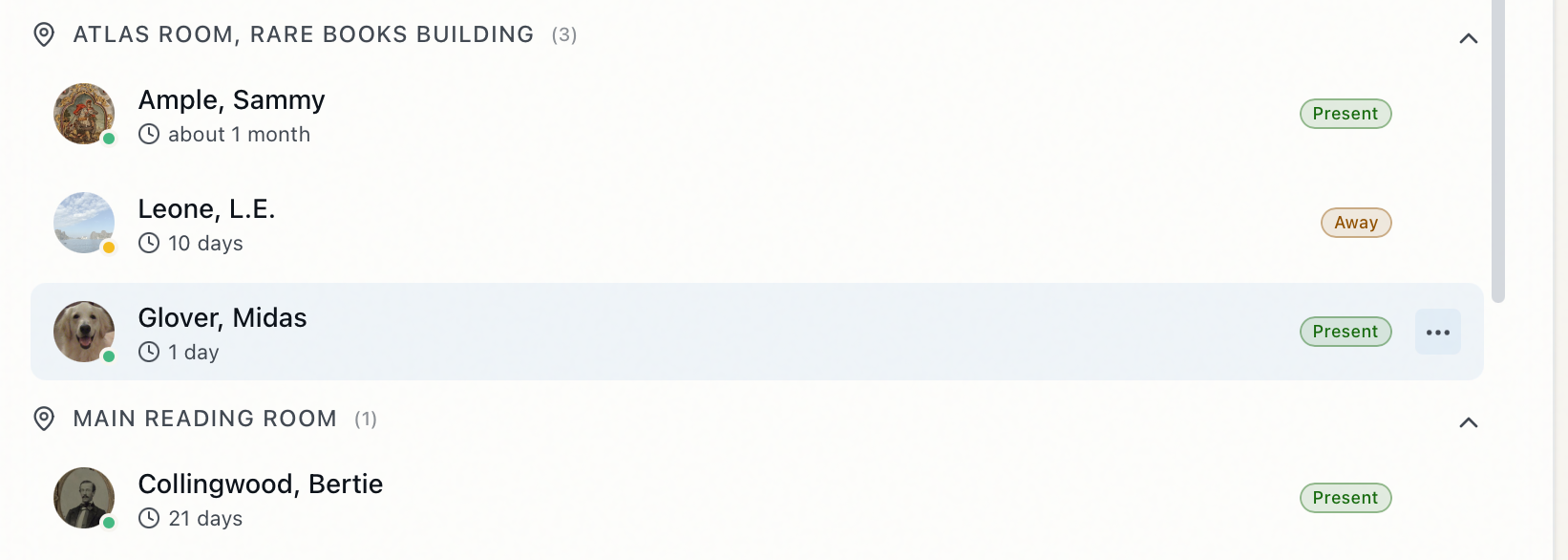
On the dashboard, find the researcher in the Signed In Users panel. Researchers are grouped under their reading room (for example, Main Reading Room); expand a room if its group is collapsed.
-
Hover over the researcher's row and click the actions button (the ⋯ icon at the end of the row).
-
Choose Mark Away.
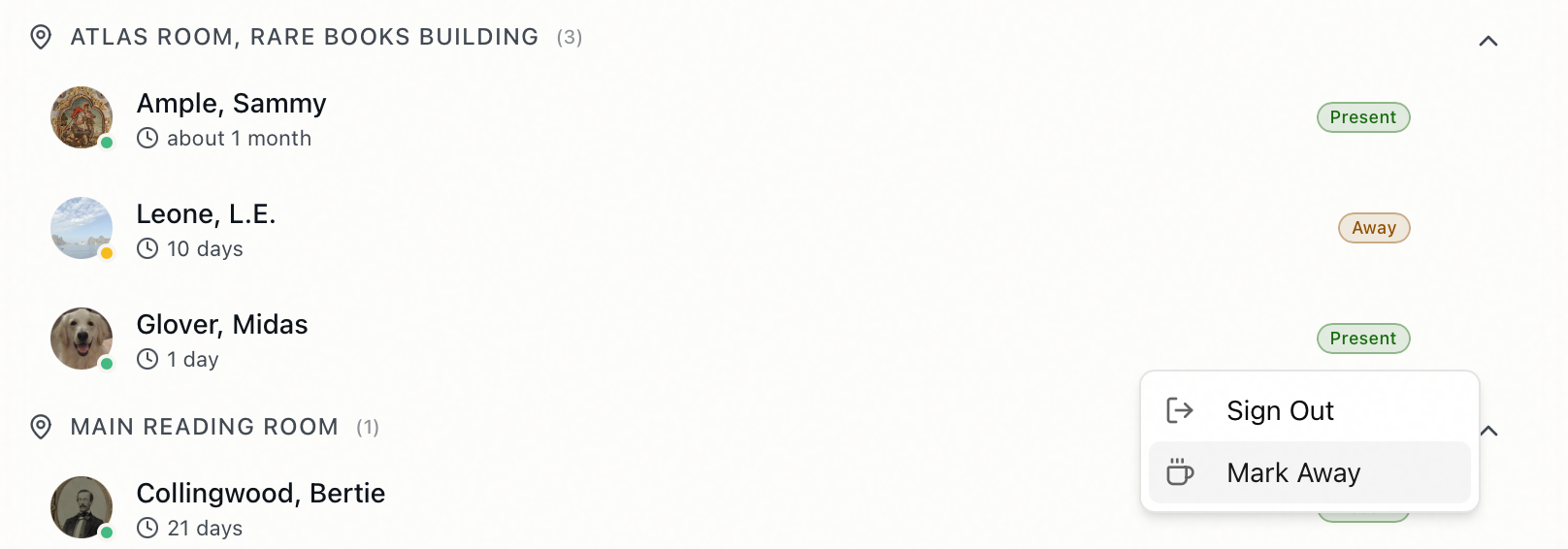
That's it — there's no confirmation step. The row updates in place immediately:
- The status badge changes to read Away (amber).
- The researcher's avatar dims and its status dot turns amber.
Clearing away status
When the researcher returns:
- Open the same actions menu (⋯) on their row in Signed In Users.
- Choose Clear Away — this is the same menu item, which flips its label once the researcher is marked away.
The badge returns to the signed-in (green) state.
There's a single menu item that reads Mark Away when the researcher is present and Clear Away when they're already away. You won't find separate "set" and "clear" commands — the same item flips back and forth, so you can mark and clear from exactly the same spot.
Other places you can mark a researcher away
The away toggle isn't limited to the dashboard. The same Mark Away / Clear Away command appears wherever you're already looking at a signed-in researcher, so you can set it in the flow of whatever you're doing:
- On the user record. Open the researcher's record; while they're signed in, the reading-room buttons in the record toolbar include Mark Away (or Clear Away) alongside Sign Out and Set Location.
- On a request. While processing one of the researcher's requests, open the User action menu in the request toolbar. It carries the same Mark Away / Clear Away option next to Sign In, Sign Out, and Set Location.
From the user record or a request, a brief confirmation toast appears — "User marked as away" or "User no longer marked as away" — and the reading-room status badge on that screen updates to match. (The dashboard panel skips the toast and just updates the row.) All three surfaces drive the same status, so it doesn't matter which one you use — marking a researcher away from a request shows them as away on the dashboard too, and vice versa.
Mark Away only works for a researcher who is currently signed in to a reading room. On the user record and request toolbar, the option is disabled until the researcher is signed in. If you try to mark away someone who isn't signed in, Aeon declines with "User is not currently signed into any reading room." — sign them in first.
What away status does and doesn't do
- Holds the session, not just a flag. The researcher stays signed in, keeps their assigned seat or location, and keeps any checked-out items. Away is purely a presence indicator.
- Clears automatically on sign-out. When you eventually sign the researcher out for the day, their away status is cleared as part of the sign-out — you don't need to clear it first.
- Is shared across the desk. Away is stored on the researcher's sign-in record, not on your screen, so every surface that shows the researcher reflects the current state the next time it loads. Your own dashboard updates the moment you make the change; a colleague's dashboard picks it up on its next refresh rather than the same instant.
Marking a researcher away keeps them counted as present in the reading room and does not return their items. If a researcher is leaving for the day, sign them out instead — see Signing Out Users. Use Away only for temporary absences.
Marking a researcher away (and clearing it) requires the Edit level of the Reading Room permission — the same access needed to sign researchers in and out. If your role has only View access to reading rooms, the away option is disabled.