Processing Requests from Signed-In Users
Most of the time, processing a request placed by a signed-in researcher is no different from processing any other request: it lands in a queue, you open it, retrieve the item, and route it through your normal workflow. What's different is context. When a researcher sits at a reading-room table and submits a request from a workstation, that request is for someone who is in the building right now — and that usually means it's higher priority and may follow a slightly different path (for example, a faster retrieval, or a check-out that skips the usual "user not signed in" prompt).
Aeon makes this easy in two ways. First, requests from signed-in researchers are typically routed into their own queue by a routing rule, so they don't get lost among requests from people who will pick up later. Second, when you open one of those requests, Aeon shows you the researcher's live reading-room status right on the request, so you always know whether the person is still present.
- A researcher is working in your reading room and submits a request for material — you process it knowing they're waiting for it now.
- You're working a queue of in-person requests and need to retrieve, check out, or hold items for researchers who are physically present.
- You want to confirm a requester is still signed in (and where they're seated) before you carry an item out to them.
How requests from signed-in users reach you
When a researcher who is signed in to a reading room submits a request, Aeon doesn't leave it in the general processing queue. A default routing rule moves it out of the standard "Awaiting Request Processing" path and into a dedicated reading-room queue named New Reading Room Request, so staff can tell at a glance that the material is for someone present in the building.
A fresh Aeon install seeds both pieces: the New Reading Room Request queue and the routing rule that fills it (it fires when the submitter is signed in and not marked away). You don't have to set anything up to get this behavior on a new install.
There's nothing special you have to switch on per request. The routing rule fires automatically when a signed-in researcher submits, sending the request to your in-person queue. You process that queue exactly like any other.
Both the queue and the rule are ordinary Customization Manager data, so they're configurable. Your site may have renamed the queue, pointed the rule at a different one, or turned the rule off. Sites upgraded from a much older Aeon version may also lack the default rule (it predates them). See Configuring Reading Rooms and your site's routing rules in the Customization Manager.
Opening and working a reading-room request
- Open the Requests area and select the in-person queue — New Reading Room Request by default (your site may have renamed it). The queue dropdown at the top of the request list lets you switch between queues; pick the one that holds requests from signed-in researchers.
- Click a request — say request #12345 — to open it in the detail pane.
- Process it the way you would any request: review the citation, retrieve the item, and route it forward (Check Out, Place On Hold, and so on). Because the requester is present, you'll often go straight to retrieval and check-out.
Viewing requests and queues is available to anyone with the View level of the Requests permission. To actually process a request — lock it, edit fields, check it out, or route it — you need the Edit level. If your role is view-only for requests, you'll be able to read the queue but not act on the requests in it.
Seeing the researcher's live reading-room status
When you open a request, Aeon checks whether that request's user is currently signed in to a reading room and surfaces it on the request. This tells you whether the person is still present, whether they've stepped out (marked Away), and where they're seated — without leaving the request to look them up.
That status also drives the reading-room actions available from the request's User menu in the toolbar:
| Toolbar action (User menu) | What it does | Available when |
|---|---|---|
| View User | Opens the requester's full user record. | Always (when the request has a user). |
| Sign In | Signs the requester in to a reading room and assigns a location. | The user is not currently signed in. |
| Sign Out | Signs the requester out of the reading room. | The user is currently signed in. |
| Mark Away / Clear Away | Marks a present researcher as temporarily away, or clears that flag. | The user is currently signed in. |
| Set Location | Reassigns the researcher's seat/location within their current reading room. | The user is signed in and their location can be changed. |
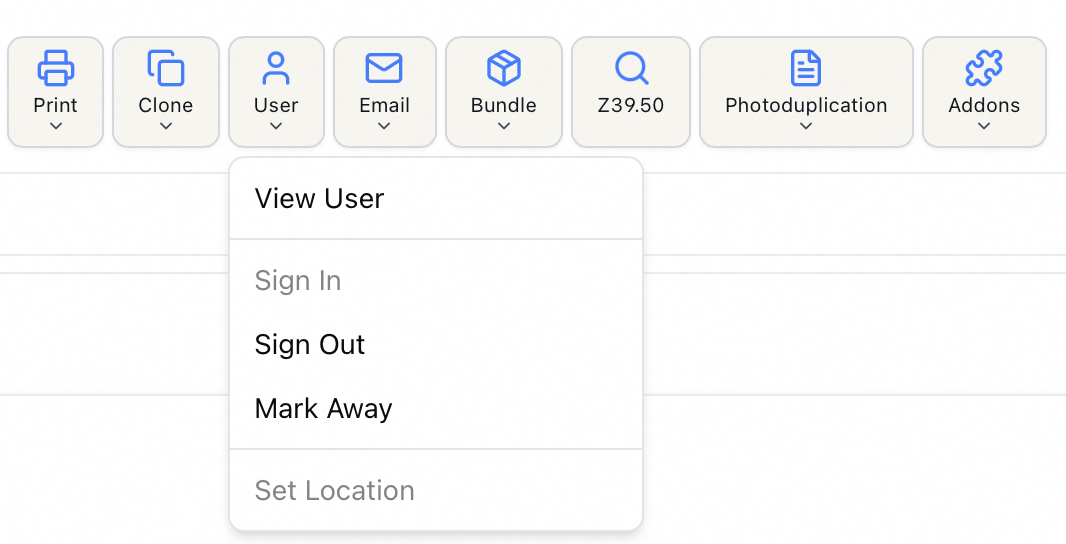
Sign In, Sign Out, Mark Away / Clear Away, and Set Location are gated by the Edit level of the Reading Room permission. If your role can't edit reading-room status, those items appear disabled even though you can still process the request itself. The relevant items are also disabled when they don't apply — for example, Sign In is greyed out for a user who's already signed in.
Check-out and reading-room sign-in
Sign-in status changes one small thing about check-out, and on this queue it works in your favor. When you check an item out to a researcher who is signed in to the reading room, Aeon already has their sign-in on record, so check-out goes straight through — no extra prompt. That's what you want when you're working in-person requests.
The one time Aeon stops you is when the researcher isn't signed in to a reading room — and that's about the sign-in record, not whether they're physically there. You can have the researcher standing right at the desk, but if they were never signed in (or have since signed out), checking an item out to them raises a User Not Signed In dialog — "This item is being checked out to a user who is not currently signed in to a reading room. Do you want to continue?" It's a reminder to sign them in first — so their visit and materials are recorded against a reading-room session — not a claim that they aren't there.
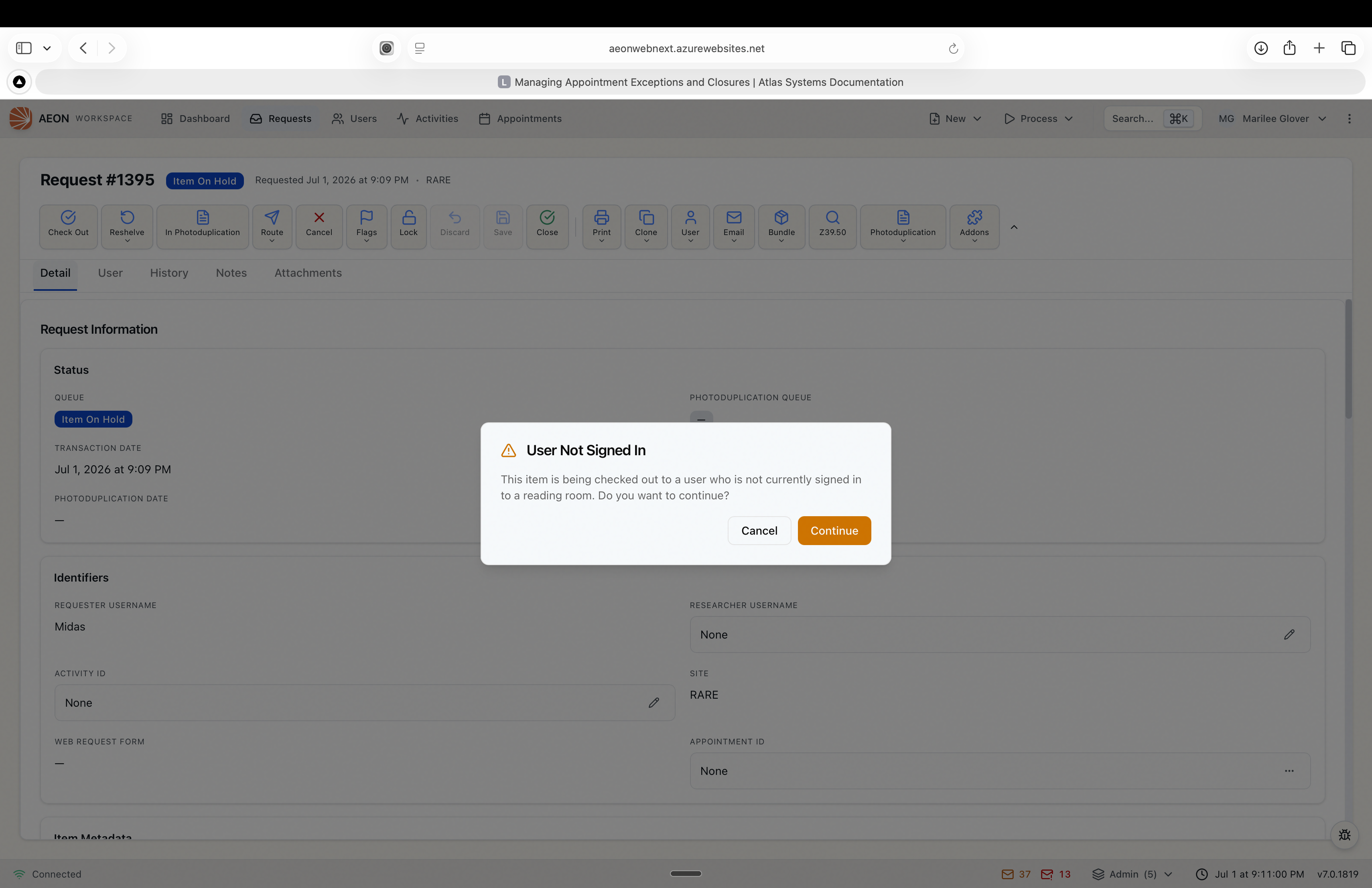
The User Not Signed In prompt only appears for standard item check-outs to a researcher with no active reading-room sign-in; it doesn't block photoduplication requests or activity check-outs, and a site setting can turn it off. If you see it while processing what you thought was an in-person request, it's a signal worth pausing on — the researcher may never have been signed in, or has since signed out. The usual fix is to sign them in, then continue.
If a request isn't where you expect it
If requests from signed-in researchers aren't landing in a separate reading-room queue, the most likely reason is that the routing rule was changed, turned off, or never added — for example, sites upgraded from a much older Aeon version may not have the default rule. In that case, in-person requests follow the same path as everyone else's and simply appear in your normal processing queue. You can still process them; you just won't get the visual separation. Adjusting that behavior is a Customization Manager task (routing rules and queues), not something changed per request.