Signing In Users
Signing a user in records that a researcher has physically arrived and is now in a reading room. It opens a reading-room visit (a row in their reading-room history) and lists them as Present so the rest of your staff can see who is in the room, which seat they're using, and how long they've been there. The visit stays open until someone signs them out.
This is everyday front-desk work: a researcher walks up to the desk, you confirm who they are, and you sign them in — usually picking the reading room and, if your site uses assigned seating, a seat. Aeon then knows requests can be pulled and handed to them, and the dashboard shows them as present.
- A researcher arrives at the reading room and you need to mark them as present.
- A researcher with a confirmed appointment for today arrives — sign them in straight from the appointment.
- You're at the dashboard watching who's in the room and need to get someone checked in before handing over materials.
Before you start
A user can only be signed in once at a time. If they're already signed in to a reading room, the sign-in actions are unavailable until they're signed out — Aeon won't open a second open visit for the same person.
Which reading rooms and seating Locations appear in the sign-in dialog is set up in the Customization Manager. If your site hasn't configured any reading rooms, Aeon still signs the user in — just without a specific room.
Signing a user in (and out, marking away, or setting a location) requires the Edit level of the Reading Room permission. With only View, you can see who's signed in and read reading-room history, but the sign-in controls are disabled. The controls are also disabled while the user record is locked by another staff member.
Signing a user in from their record
This is the most direct path and works for any cleared researcher whether or not they have an appointment.
-
Open the user's record — search for them and open the result, for example user jdoe.
-
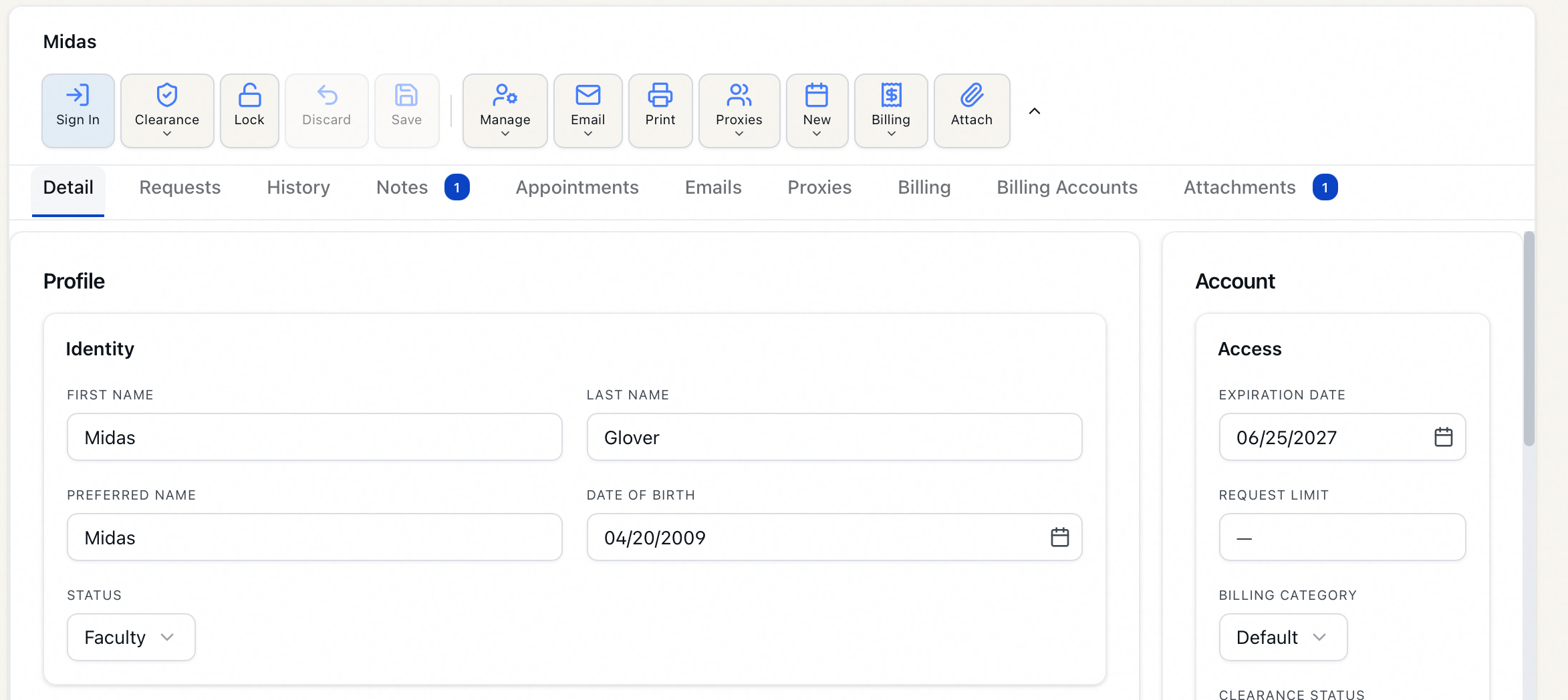
In the toolbar at the top of the record, click Sign In.
-
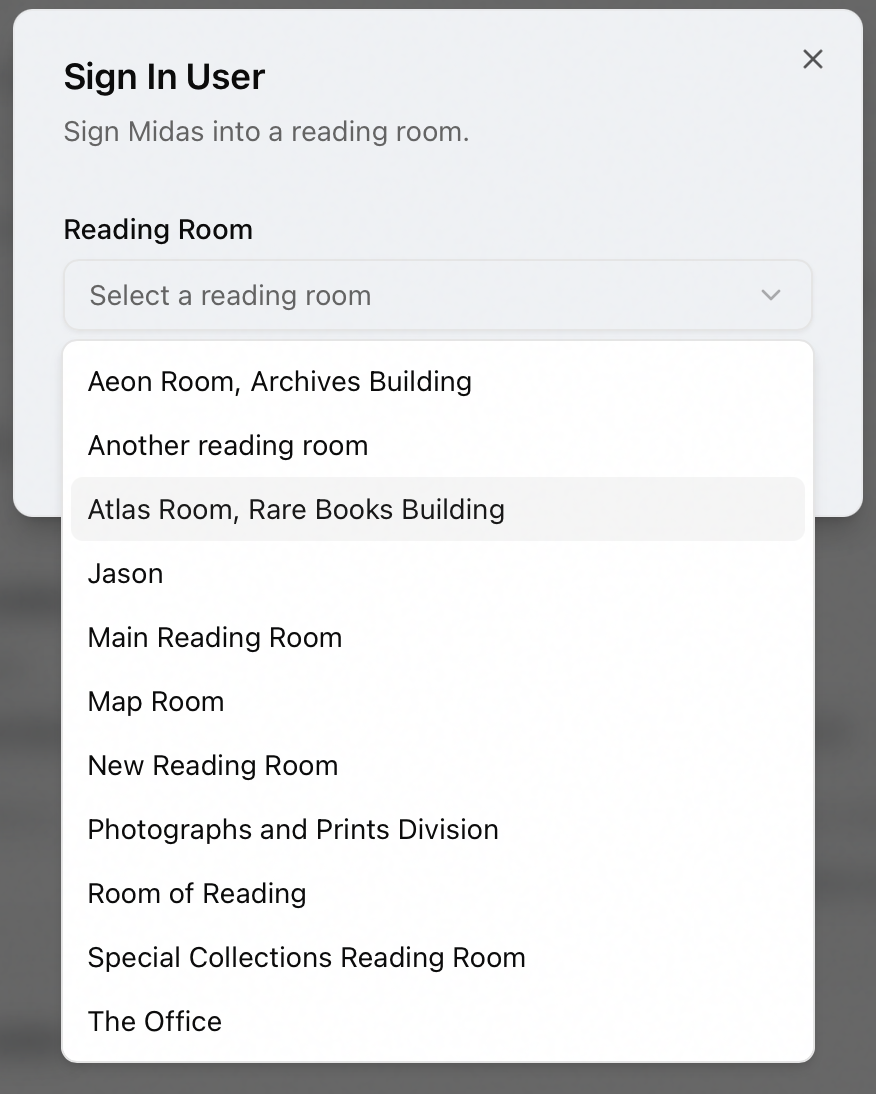
The Sign In User dialog opens ("Sign jdoe into a reading room").
-
If your site has reading rooms configured, choose one from the Reading Room dropdown (the placeholder reads Select a reading room). You must pick a room before the Sign In button becomes available.
-
If the chosen room has seats configured, a Location (optional) dropdown appears. Pick a seat now, or leave it and assign one later.
-
Click Sign In. Aeon confirms with a message such as "User signed into Main Reading Room at Table 4," and the researcher now shows as Present.
Once signed in, the toolbar swaps Sign In for Sign Out and Mark Away, and a Set Location button appears if the room has seats. The user's status badge updates to show, for example, Signed In: Atlas Room, Rare Books Building.
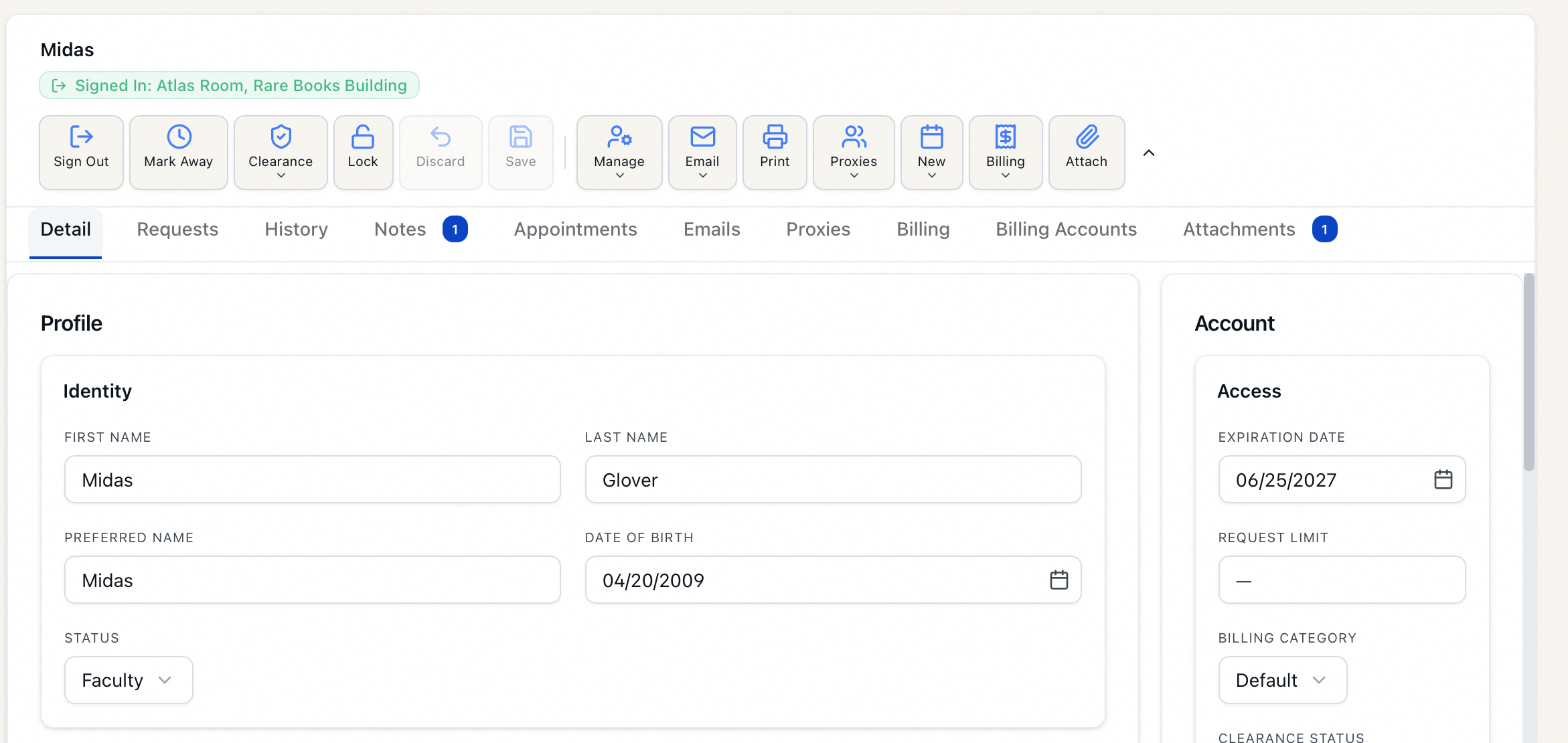
You don't have to assign a seat at sign-in. Aeon lets you set or change a user's Location any time while they're signed in, using the Set Location button in the record toolbar, so you never have to sign someone out and back in just to move them. (This is a change from the legacy desktop client, where the seat could only be set once per visit.) See Assigning Seating and Locations.
Signing a user in from a confirmed appointment
If the researcher has an appointment, you can sign them in directly from it — and Aeon pre-fills the reading room their appointment is booked in, so you usually just confirm and go.
- Open the appointment calendar and click the researcher's appointment to open the Appointment Details panel.
- In the action bar, click Sign In.
- The Sign In User dialog opens ("Sign jdoe into a reading room from this appointment"). The Reading Room matching the appointment is already selected.
- Choose a Location if your site uses assigned seating, then click Sign In.
The Sign In action shows in the appointment action bar only when the appointment's status is Confirmed. If it's still Unconfirmed, confirm it first (see Confirming Appointments) — or sign the researcher in from their user record instead, which doesn't depend on appointment status.
Signing in a user who isn't cleared
Aeon expects researchers to be cleared before they use a reading room, but it won't hard-stop you — a supervisor may have a reason to admit someone whose clearance is still pending, blocked, or disavowed.
If you start a sign-in for a user whose clearance status is anything other than Yes, the dialog first shows a warning headed User is not cleared, reading "jdoe has clearance status "No". Do you want to continue signing in this user?"
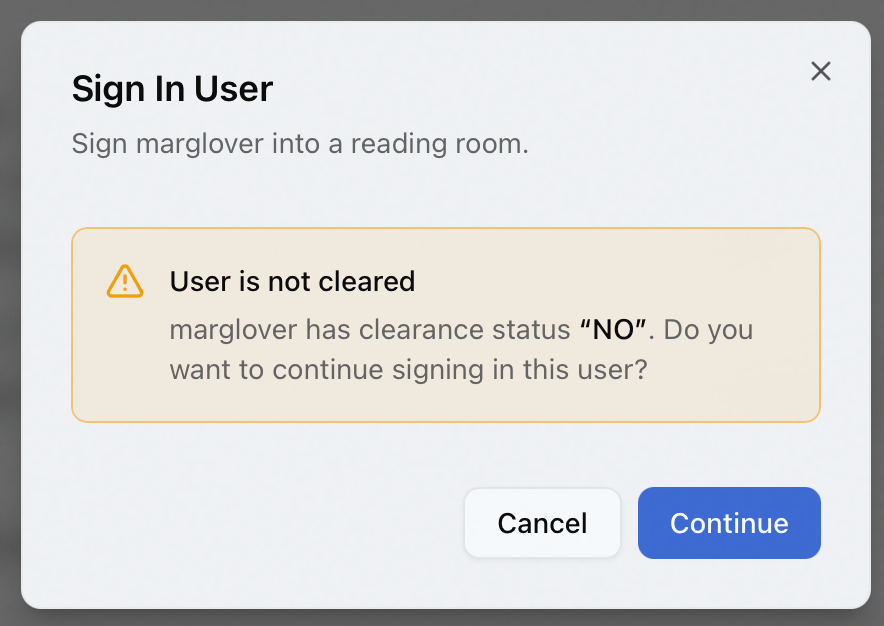
- Click Cancel to stop and sort out clearance first.
- Click Continue to proceed; the dialog then shows the normal Reading Room and Location selectors so you can finish the sign-in.
For the full clearance process — clearing, blocking, and disavowing researchers — see User Clearance Workflow.
What other staff see
Sign-in is broadcast in real time. The moment you sign someone in, they appear in the Signed In Users section of the dashboard for everyone, showing their name, reading room, seat, and how long they've been present. From that dashboard panel, staff can sign the user out, mark them away, or change their seat — there's no need to reopen the user's record for those everyday actions. The visit is also written to the user's Reading Room History.
Common messages
| Message | What it means |
|---|---|
| User signed into <room> at <seat> | Sign-in succeeded; the researcher is now Present. |
| User is already signed into a reading room. | They have an open visit already. Sign them out first, or just update their seat with Set Location. |
| Reading room … does not exist / Location … does not exist | The selected room or seat is no longer configured. Refresh and reselect, or check the reading-room setup in the Customization Manager. |