Confirming Appointments
When a reading room is set to require manual confirmation, every appointment a patron books on the web arrives Unconfirmed and waits for a staff member to look it over and approve it. Confirming is the step that turns that pending request into a real, Confirmed appointment — and it's the point where you decide whether the patron gets an "Appointment Confirmed" email.
Most reading rooms that don't need a review step are set to confirm appointments automatically, so those never reach you. Appointments staff create directly in Aeon are also already Confirmed the moment they're made. Confirmation is specifically about the patron-booked appointments that a room's policy holds back for review.
- A patron booked an appointment in a room that requires confirmation — it shows up Unconfirmed and you review and confirm it.
- You're working the front desk and want to clear the day's pending appointment requests in one place — open the Appointments to Confirm queue.
- You confirmed something prematurely and need to put it back into review — use Unconfirm.
Where pending appointments show up
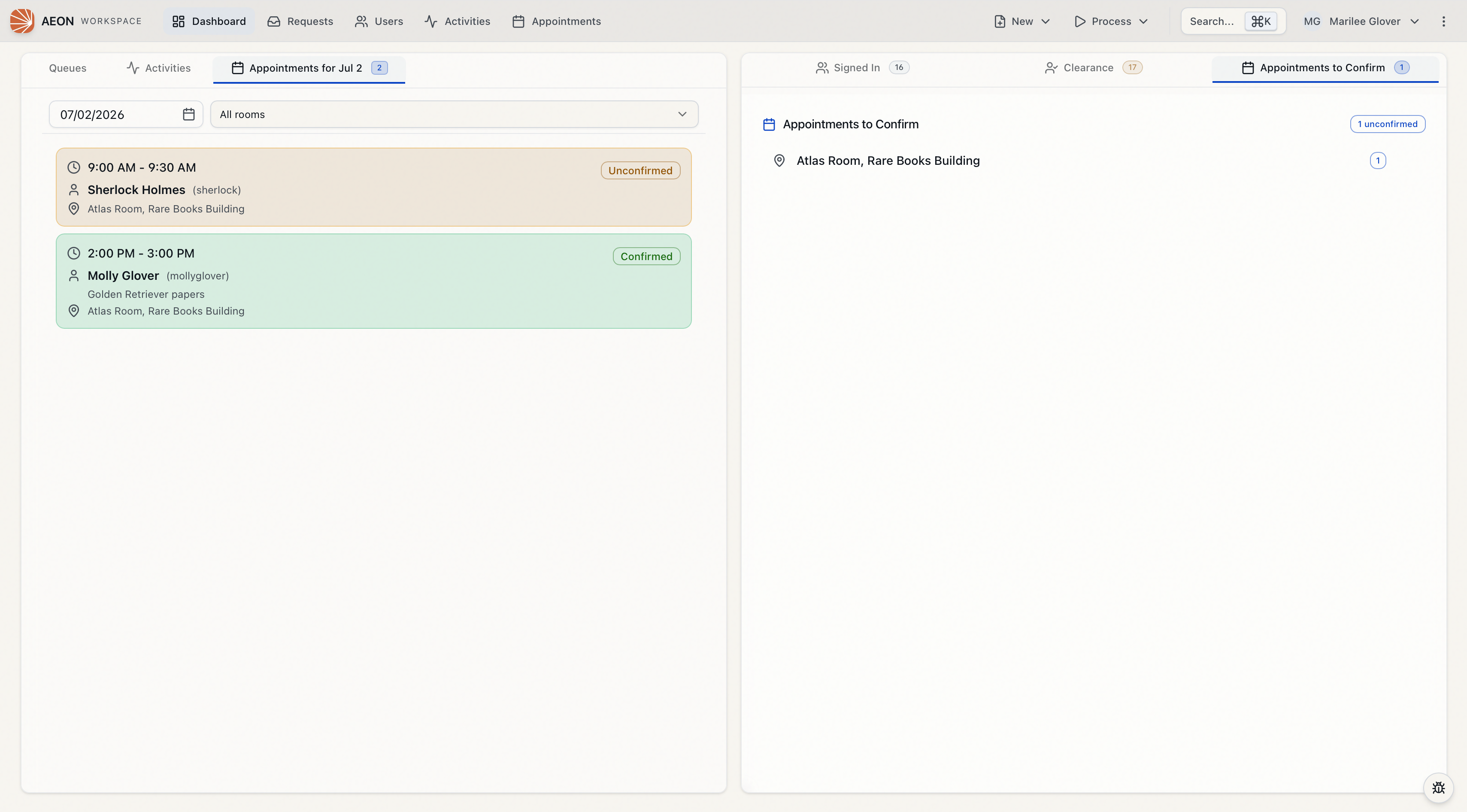
Unconfirmed appointments surface in two places, and both lead to the same confirmation step:
-
The dashboard. The Appointments to Confirm panel on your dashboard lists each reading room that has pending appointments, with a count badge next to it. Click a reading room to jump straight to that room's pending list.
-
The Appointments to Confirm queue. A dedicated page at Appointments → Confirm that gathers every unconfirmed appointment across all reading rooms, grouped by room.
An unconfirmed appointment is not a tentative hold you can ignore — Aeon counts both confirmed and unconfirmed appointments as occupied seats when it calculates room availability for other patrons booking online. Leaving appointments unconfirmed keeps those seats blocked, so it's worth clearing the queue promptly.
Working the confirmation queue
- Open Appointments to Confirm — either click a reading room in the dashboard panel, or go to the Appointments area and choose Confirm.
- The page opens in a split view. On the left, the Appointments to Confirm list shows every unconfirmed appointment, grouped under its reading room. A badge at the top reports the total (for example, 7 unconfirmed), and each room shows its own count.
- Expand a reading room (rooms expand automatically when the list loads) and click an appointment. Each row shows the researcher's name, the appointment's start time, the username, and a badge for any associated requests (for example, 2 reqs).
- The selected appointment opens in the Appointment Details panel on the right, where you can review the date and time, researcher, reading room, and any requests tied to the appointment before deciding.
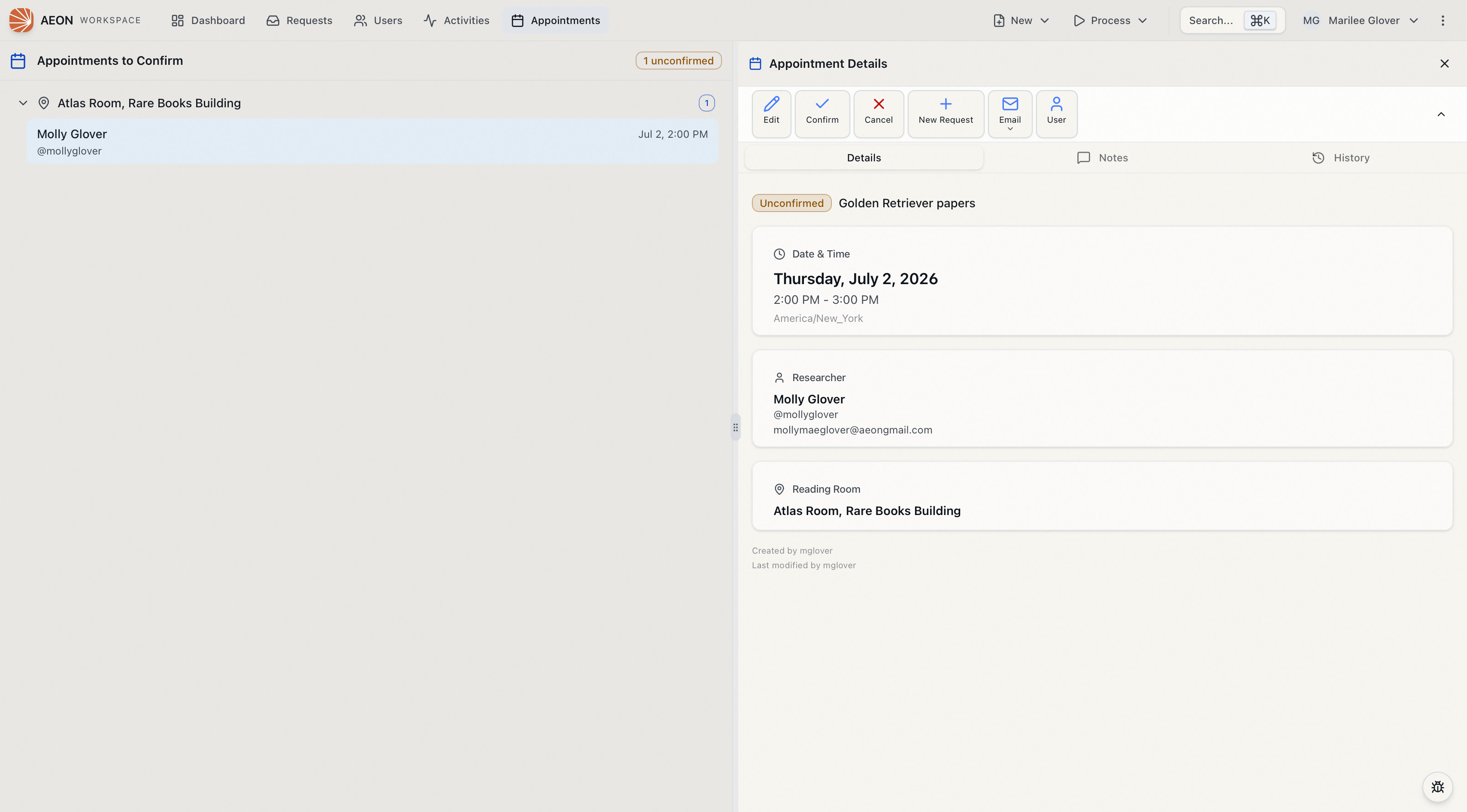
The detail panel is built for exactly this decision. Use the Researcher card to open the user's record, the Associated Requests list to open or add requests, and the Notes and History tabs to see prior context. Confirming is rarely a snap judgment — check that the researcher and their requests look right first.
Confirming an appointment
From the appointment's detail panel:
-
Select the unconfirmed appointment so its details load on the right.
-
In the action bar at the top of the detail panel, click Confirm. (This button appears only while the appointment is Unconfirmed.)
-
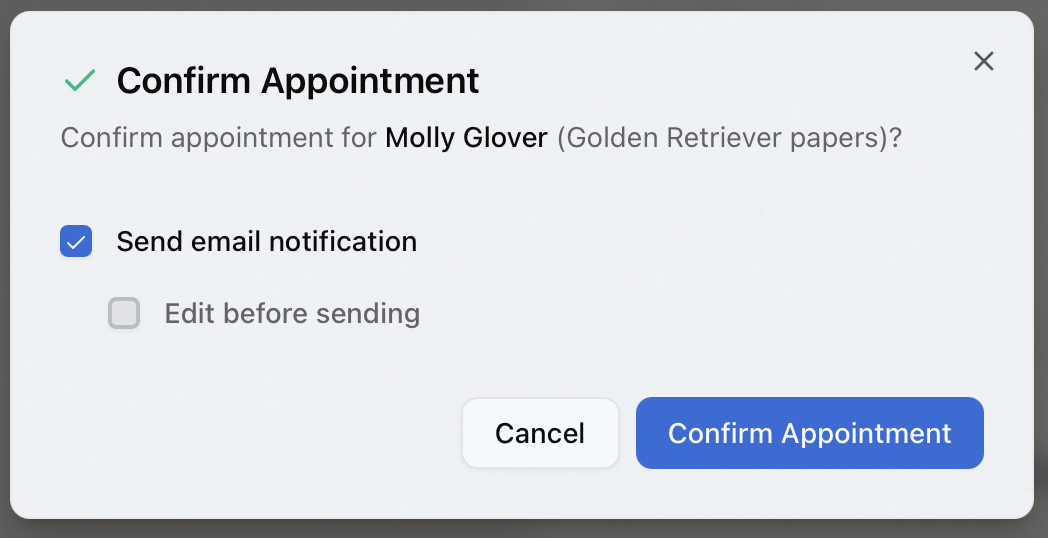
The Confirm Appointment dialog opens, asking you to confirm the appointment for the named researcher. It offers two checkboxes:
- Send email notification — sends the patron the Appointment Confirmed email when you confirm. This is on by default.
- Edit before sending — appears only when Send email notification is checked. Tick it to review and adjust the email before it goes out.
-
Click Confirm Appointment.
What happens next depends on your email choices:
- No email — the appointment flips to Confirmed and you see "Appointment confirmed." Nothing is sent to the patron.
- Send, don't edit — the appointment is confirmed and the Appointment Confirmed email is queued straight away. You'll see "Appointment confirmed" followed by "Confirmation email sent."
- Send and edit — the appointment is confirmed immediately, then an Appointment Confirmed - Edit Email window opens with the message pre-filled so you can adjust it before clicking Send Confirmation Email.
The two checkboxes remember their last state on your device, so once you settle on a routine — say, always send but never edit — the dialog comes up that way every time. You can override them on any individual appointment.
Once confirmed, the appointment leaves the Appointments to Confirm list. Its status badge turns to Confirmed (green), and the action bar now offers Sign In so you can sign the researcher into the reading room when they arrive.
Putting an appointment back into review (Unconfirm)
If you need to reverse a confirmation — for example, you confirmed the wrong appointment, or a policy question came up — open the appointment and click Unconfirm in the action bar. (This button appears only while the appointment is Confirmed.) The status returns to Unconfirmed and it reappears in the confirmation queue.
There's no email when you move an appointment from confirmed back to unconfirmed — the patron won't know unless you tell them. If the change affects whether their appointment will happen, contact them directly. (You can send a message from the appointment's Email menu.)
Confirmation only applies to unconfirmed appointments. If an appointment has been cancelled, it can't be confirmed or unconfirmed — Aeon rejects the attempt with "Cannot confirm a cancelled appointment." Trying to confirm one that's already confirmed returns "Appointment is already confirmed."
- The Appointments to Confirm queue and the appointment detail panel are visible to anyone with View access to Appointments.
- Confirming and unconfirming an appointment require the Full level of the Appointments permission — the server enforces this. (The Confirm / Unconfirm buttons currently also appear for staff with just Edit access, but the server refuses the action below Full — so if the button is there yet confirming fails, your role needs Full.)