Keyboard Shortcuts & Navigation Keys
Most of your day in Aeon is the same handful of moves: jump to a section, find a request or user, walk down a list, open the one you want. Every one of those has a keyboard shortcut, so once a queue or search result is on screen you rarely need to reach for the mouse.
There are three things to learn, and they cover almost everything:
- Command palette — press
Cmd/Ctrl+Kfrom anywhere to search and jump to any request, user, activity, queue, or action. - Section jumps — single letters (
D,R,U,C,A) move you between the top-level areas of the workspace. - List keys — the arrow keys (and
j/k) move the selection through any list, opening each row in the detail view as you land on it.
- You know what you're looking for — a transaction number, a username, an action — and want to get to it in one step: open the command palette (
Cmd/Ctrl+K). - You're moving between the big areas of the app all day (dashboard, queues, users): use the section jump keys instead of clicking the top nav.
- You're working a queue or a list of search results: use the arrow keys to step through rows — each row opens in the detail view as you land on it — so your hands never leave the keyboard.
The command palette (Cmd/Ctrl + K)
The command palette is the fastest way to get anywhere in Aeon. Press Cmd + K (Mac) or Ctrl + K (Windows) from any screen and a search box opens over the page. The same shortcut closes it again, or press Esc.
You can also open it from the Search… button in the top bar — it shows the ⌘K hint so you don't have to remember the shortcut.
Start typing and Aeon searches your active requests, users, and activities at once, showing the best matches grouped by type. Pick one with the arrow keys and Enter, or click it. That's the whole flow for the common case: open the palette, type a few characters, press Enter.
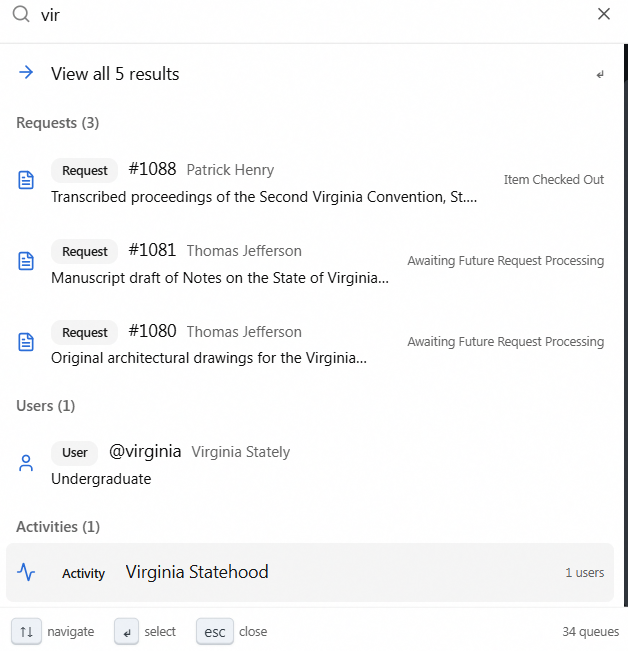
This page covers the palette as a keyboard shortcut; for the full reference — every prefix, running actions on a request, recent items, and bulk operations — see Command Palette.
Prefix keys for a focused search
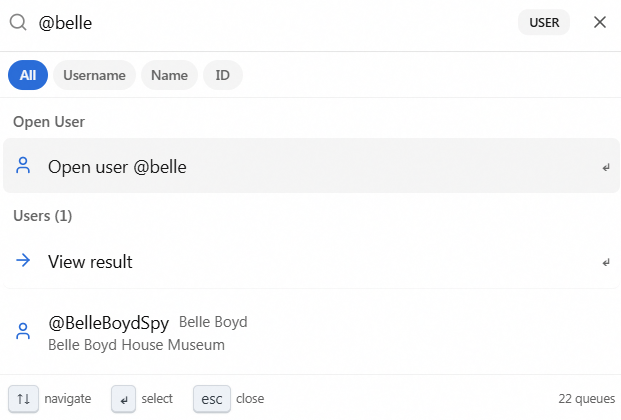
If you already know what kind of item you're after, start your search with a prefix character to narrow it down. The palette shows a small badge (REQUEST, USER, and so on) so you can see which mode you're in:
| Type this first | What it does |
|---|---|
> | Actions — run a workflow or create action (Check Out, Route, New Request, and so on). |
# | Requests — type a transaction number to open it directly, or text to search requests. |
@ | Users — search for a researcher by name or username. |
! | Activities — search activities. |
* | Everything, including closed — the same cross-type search as the default, but it also includes completed/cancelled requests. |
/ | Navigate — jump to Home Dashboard, Appointments, Custom Search, or the Customization Manager. |
? | Help — opens the Atlas documentation in a new tab. |
The #, @, and ! prefixes only appear if your role can view requests, users, and activities respectively — if you don't have access to that area, the prefix is simply ignored. The default (no-prefix) search and * are always available.
A quick reference line for these prefixes is shown right inside the palette whenever the search box is empty, so you don't have to memorize the table above.
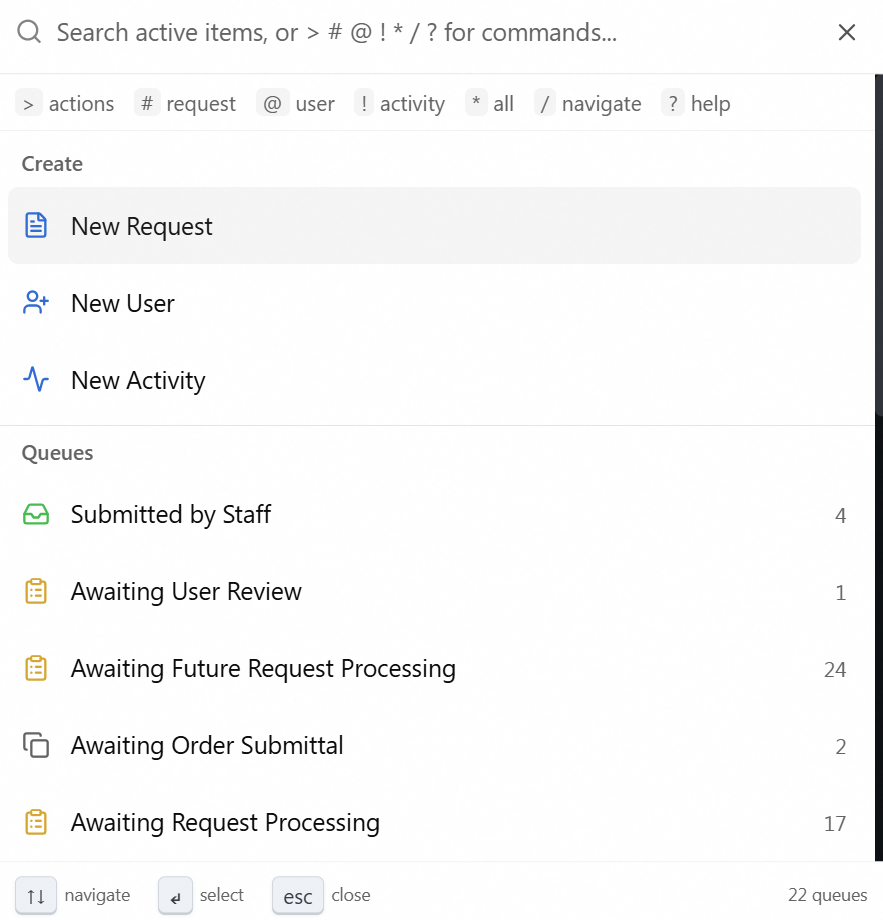
Moving inside the palette
While the palette is open:
| Key | What it does |
|---|---|
↑ / ↓ | Move the highlight up and down through results. |
Enter | Open the highlighted result, or run the highlighted action. |
Esc | Close the palette. |
When you've typed a plain transaction number and Aeon has confirmed that request exists, Enter opens it straight away. For a text search, Enter takes you to the full search-results page for what you typed.
Section jump keys
When your focus isn't in a text box, a single keypress moves you between the main areas of the workspace — the same destinations as the buttons in the top navigation bar:
| Key | Goes to |
|---|---|
D | Dashboard |
R | Requests (queues) |
U | Users |
C | Activities |
A | Appointments |
D (Dashboard) always works. The other four follow your permissions: R, U, C, and A only do anything if your role can see Requests, Users, Activities, and Appointments respectively. Each top-nav button also shows its letter in its tooltip, so you can discover these by hovering.

These keys are deliberately ignored while you're typing — in a text field, a dropdown, a menu, or any search box — so they never interrupt data entry. They also do nothing while a modifier (Cmd, Ctrl, or Alt) is held, which leaves your browser's own shortcuts untouched.
List navigation keys
Every list in Aeon — a queue, search results, the users list, activities — is driven by the same keys. Click a row once (or open a list) and then:
| Key | What it does |
|---|---|
↓ or j | Move selection to the next row (wraps to the top at the end). |
↑ or k | Move selection to the previous row (wraps to the bottom at the top). |
Home | Jump to the first row. |
End | Jump to the last row. |
Esc | Clear the current selection. |
Cmd/Ctrl + A | Select all rows — on lists that support bulk actions (see Bulk Operations). |
The selected row scrolls into view automatically as you move, so you can hold ↓ and run down a long queue without losing your place. Moving the selection opens that row in the detail view at the same time — there's no separate Enter step in a list; the highlighted record is already showing. (Enter is for the command palette and search boxes, not list rows.)
These list keys stand down when you're not actually working the list — when your cursor is in a search or filter box, a dropdown, or a menu, and when your focus is in an open request's detail pane or a dialog. That last part is what lets you arrow through a queue on the left, click into the request detail on the right, and type there without the arrow keys jumping the queue selection underneath you.
D, R, U, C, A, j, and k are plain letters with no modifier, so they only act as shortcuts when you're not typing. The moment your cursor is in any text field, search box, or dropdown, those same keys type normally. You never have to think about it — just click out of the field (or press Esc) before using a jump key.
- The command palette itself is open to every signed-in staff member. What it can find and do follows your role: the
#/@/!search prefixes and the actions under>are gated by your Requests, Users, Activities, and Email permissions, so you only ever see what you're allowed to open or run. - The section jump keys mirror the top-nav buttons:
D(Dashboard) is always available;R,U,C, andAappear only when your role grants access to Requests, Users, Activities, and Appointments respectively. - The list keys work in any list you can already see; there is no separate permission for keyboard navigation.