Dark Mode and Personal Preferences
A few settings in Aeon are yours, not your library's: whether the interface is dark or light, which new-work alerts pop up on your desktop, and a couple of small conveniences Aeon remembers for you. These are personal preferences — changing them affects only your own screen and never anyone else's. They all live in the same place: the account menu in the top-right corner of every page.
The most visible of these is dark mode. Aeon includes a single dark/light toggle so you can match the interface to your room lighting or your own preference, and it remembers your choice the next time you open Aeon in the same browser.
- You want the screen darker for a dim reading room, or lighter for a bright desk — flip Dark Mode / Light Mode.
- You'd like Aeon to alert you on your desktop when new requests or users to clear come in — open Notifications.
- You're setting up Aeon on a new computer and want it to look and behave the way you're used to — these preferences are per-browser, so you may need to set them again.
Finding your personal settings
Every page in Aeon has your account menu in the top-right corner: a round avatar with your initials, your name, and a small chevron.
- Click your avatar (or name) in the top-right corner.
- The menu opens, listing your name and username at the top, followed by your personal options:
- Dark Mode / Light Mode — switches the interface theme.
- Change Password — updates your own staff password.
- Notifications — controls desktop alerts for new work.
- Sites — switches which site or site group you're working in (only shown if your account spans more than one site).
- Sign Out.
This menu is the same whether you're in the main workspace (requests, users, the dashboard) or in the Customization Manager — your personal settings travel with you.

Switching between dark and light mode
Aeon uses a single switch that always shows the opposite of your current mode, so the menu item is the action it will take:
| What the menu shows | What it does |
|---|---|
| Dark Mode (moon icon) | You're currently in light mode. Click to switch to dark. |
| Light Mode (sun icon) | You're currently in dark mode. Click to switch back to light. |
To change it:
- Open your account menu in the top-right corner.
- Click Dark Mode (if you're in light mode) or Light Mode (if you're in dark mode).
- The whole interface re-colors immediately. The menu item flips to show the other option, ready for next time.
There's nothing to save — the change takes effect the moment you click, and it stays in place as you move between requests, users, the dashboard, and the Customization Manager.
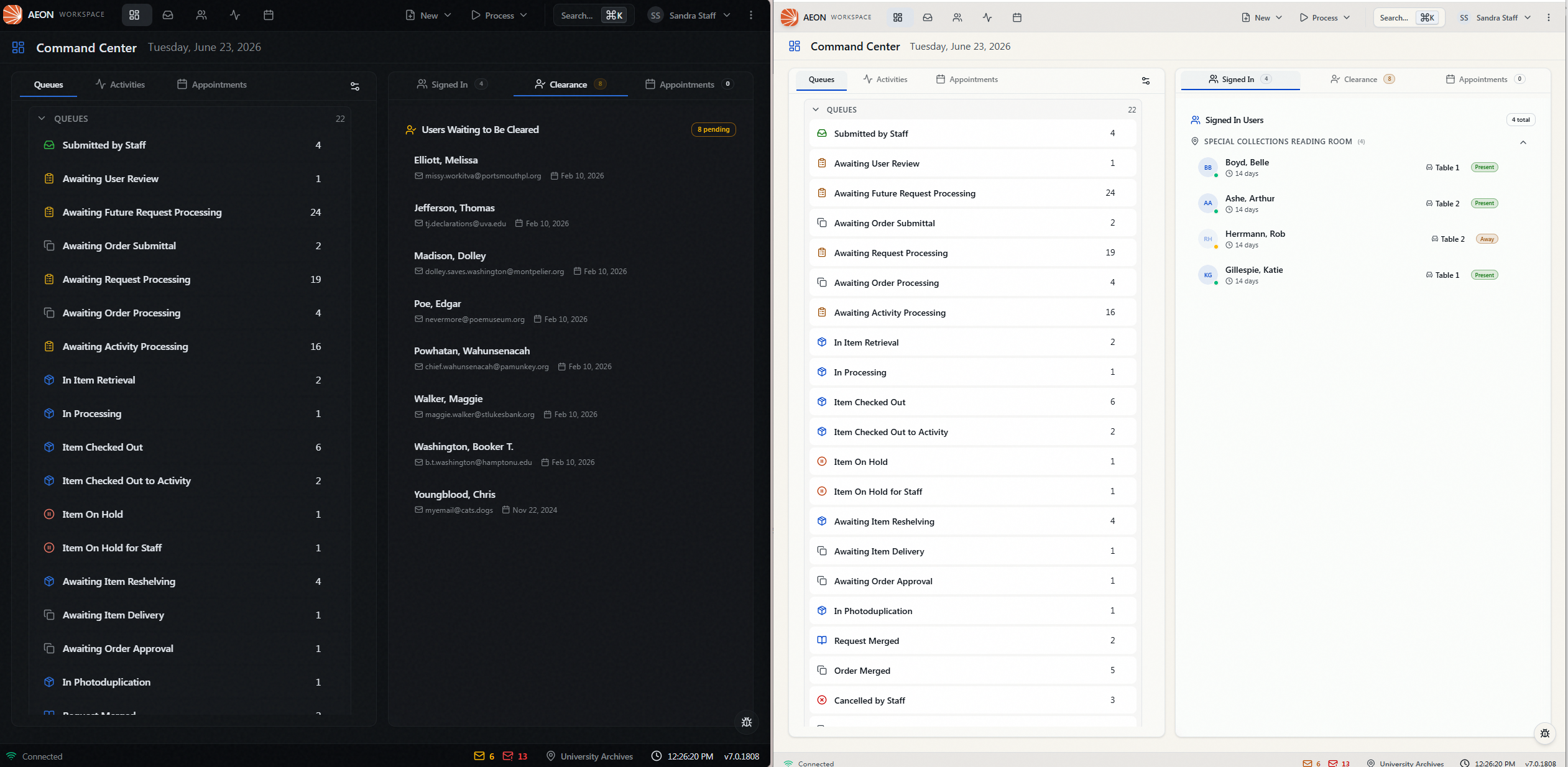
Your dark/light preference is stored in the browser you're using, so the next time you open Aeon on the same computer and browser it comes up the way you left it. It is not tied to your Aeon account, which means:
- If you log in from a different computer or a different browser, Aeon starts in its default appearance and you set your preference again there.
- If you use your browser's private/incognito mode or clear its site data, the preference resets to default.
Aeon does not follow your operating system's automatic light/dark schedule — you choose the mode explicitly with this switch.
Desktop notifications for new work
The Notifications item in your account menu lets Aeon raise a desktop notification — the kind your operating system shows in the corner of your screen — when new work arrives, so you don't have to keep refreshing a queue to notice it.
- Open your account menu and click Notifications.
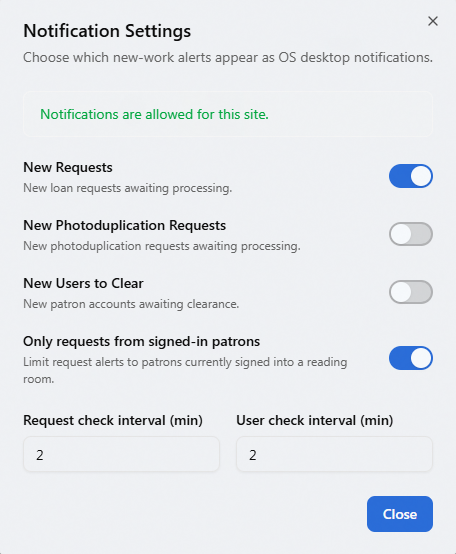
- The Notification Settings dialog opens. Turn on the alerts you want:
- New Requests — new loan requests awaiting processing.
- New Photoduplication Requests — new photoduplication requests awaiting processing.
- New Users to Clear — new patron accounts awaiting clearance.
- Optionally narrow request alerts with Only requests from signed-in patrons, which limits the request notifications to patrons currently signed into a reading room.
- Adjust how often Aeon checks for new work with Request check interval (min) and User check interval (min). Each takes a whole number of minutes from 1 to 60. If you type a value outside that range, Aeon quietly adjusts it to the nearest allowed value when you click out of the field —
100becomes60,0becomes1— without showing a message, so check the number after you type it. - Click Close.
The first time you switch on any alert, your browser asks for permission to show notifications. You have to allow it for the alerts to appear.
Desktop notifications depend on your browser's permission, not just Aeon's switches:
- If you block notifications (or blocked them earlier), the toggles stay off and the dialog shows "Notifications are blocked. To enable them, open your browser's site settings and allow notifications for this site, then refresh the page." You have to re-allow them in the browser, not in Aeon.
- If your browser doesn't support desktop notifications at all, the dialog says so and the switches are disabled.
When permission is granted, the dialog confirms with "Notifications are allowed for this site." Like the theme, these notification choices are remembered per browser, so set them again on each computer you use.
Small things Aeon remembers for you
Beyond the menu, Aeon quietly remembers a few choices tied to your account so you don't re-pick them every time. The main one today is your print template: when you print from a request, Aeon remembers the template you chose and pre-selects it the next time you open the print dialog. This one is tied to your Aeon account, so it follows you to any computer you log in from.
This account-level memory is where Aeon's personal preferences are headed over time; for now, the theme and notification choices above live in the browser, while the print-template choice travels with your account.
- Dark/light mode, Notifications, and Change Password are available to every staff member — there's no special permission, and switching them never affects anyone else.
- The Sites option appears only if your account is assigned to more than one site or site group. (See Logging In for how site selection works.)
- The remembered print-template preference applies wherever you already have permission to print.