Custom Search and Saved Views
Most of the time you find a request the quick way — open a queue, run a keyword search, or jump straight to a transaction number. Custom Search is the tool you reach for when "the quick way" can't express what you need: "every request in the Photoduplication queue with a rush flag," "all users from the History department cleared this year," "activities ending next month." You build the conditions, Aeon runs them against the database, and the matches come back in a table you can sort, narrow, export, and hand off.
You reach Custom Search from the ⋯ (more) menu in the top navigation bar — open it and choose Custom Search under the Search heading — or from the command palette (Ctrl+K / Cmd+K): type / and pick Custom Search. Either way it opens at /search/custom. It searches one record type at a time — Requests, Users, or Activities — and a query can combine as many conditions as you need with AND/OR logic and nested groups.
- You need a list that ordinary filters and keyword search can't produce — multiple conditions across different fields, or compound AND/OR logic.
- You run the same report regularly (a weekly digitization pull, a monthly billing sweep) — build it once, save it as a view, and reopen it with one click.
- You want to hand a colleague the exact same result set — share the saved view, or copy the page URL.
- You need the results outside Aeon — export them to CSV, Excel, or JSON.
Building a query
- Open Custom Search.
- Choose what you're searching with the type selector at the top right — Requests, Users, or Activities. The available fields change to match the type.
- In the Query Builder panel, click + Condition to create your first condition. A condition has three parts: a field, an operator, and a value — for example, Request: Status = Awaiting Request Processing.
- Pick the field from the dropdown. Fields are grouped by source (for a Request search you'll see groups such as Request, User, and Queue), shown as Group: Field — for example, User: Last Name or Request: Document Type.
- Choose an operator. Aeon only offers the operators that make sense for the field's type:
- Text fields:
=,≠, contains, begins with, ends with, does not contain, does not begin with, does not end with, is empty, is not empty. - Number and date fields:
=,≠,<,≤,>,≥, between, not between, is empty, is not empty. - Yes/No fields (such as flags):
=,≠. - Pick-list fields (such as Status or Queue):
=,≠, is empty, is not empty — you choose an exact value from the list.
- Text fields:
- Enter or pick the value. Some fields (Status, Queue, and similar) give you a dropdown of valid values; others (Document Type, Format, Flag) let you either type a value or pick a suggested one.
- Add more conditions with + Condition, and use the AND / OR combinator to control how they join. Use + Group to nest conditions — for example, Status = Awaiting Request Processing AND (Flag contains Rush OR Service Level = Expedited).
- Click Search.
While you're in the Query Builder, pressing Enter runs the search — you don't have to reach for the button.
Results appear in a table below the builder, and the builder collapses to make room. When collapsed, it shows a one-line summary of your conditions (for example, User: Last Name contains Smith AND Request: Status = Awaiting Request Processing) so you can see at a glance what produced the results. Click the Query Builder header to expand it again and refine.
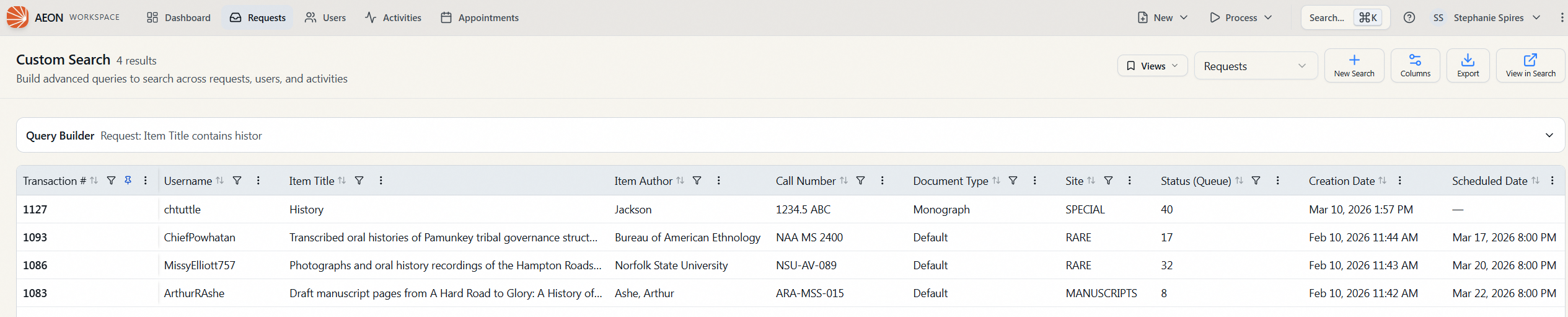
You don't have to add any conditions. With an empty query, clicking Search returns all records of the chosen type — a useful starting point you can then narrow with the column filters described below.
Working with the results
The results table is built for triage, not just display:
- Open a record — click any row to open that request, user, or activity. Hold Ctrl/Cmd (or middle-click) to open it in a new browser tab instead.
- Sort — click a column header to sort by it; click again to reverse.
- Filter within results — click the filter icon in a column header to narrow the loaded rows by that column without re-running the whole search.
- Reorder columns — drag a column header, or use the column's menu (Move Left / Move Right).
- Pin, hide, and resize columns — the column menu lets you Pin to Left / Pin to Right, Hide Column, and drag the column edge to resize. By default the identifier column — the Transaction Number for requests, Username for users, or ID for activities — is pinned to the left, so it stays visible as you scroll the other columns sideways.
- Manage columns in bulk — the Columns button opens the Column Settings dialog, where you turn columns on and off and set their order in bulk, Show all columns, or Reset to defaults. A column's own header menu can only hide it (Hide Column) — since a hidden column has no header left to click, the Column Settings dialog is where you bring it back.
Aeon loads results as you scroll (there are no page buttons); the total match count is shown next to the Custom Search title. Your column layout — which columns show, their order, pinning, and widths — is remembered per record type in your browser, so the next Request search you run looks the way you left the last one.
For a Request search, the View in Search button takes the requests you found and opens them together in the standard requests workspace, where the full request toolbar and bulk actions are available. This is the bridge from "I found the right set here" to "now let me act on them" — Custom Search itself is for finding; routing, flagging, and other bulk operations happen in the requests view. (For a User search the button opens the first matching user's record; it isn't shown for Activity searches.)
Exporting results
To pull your results out of Aeon:
- Run your search.
- Click Export.
- Choose one or more Formats — CSV, Excel (.xlsx), or JSON. You can select several at once.
- Choose the Columns scope — Visible columns only (what you've left showing) or All available columns.
- Click Export N rows.
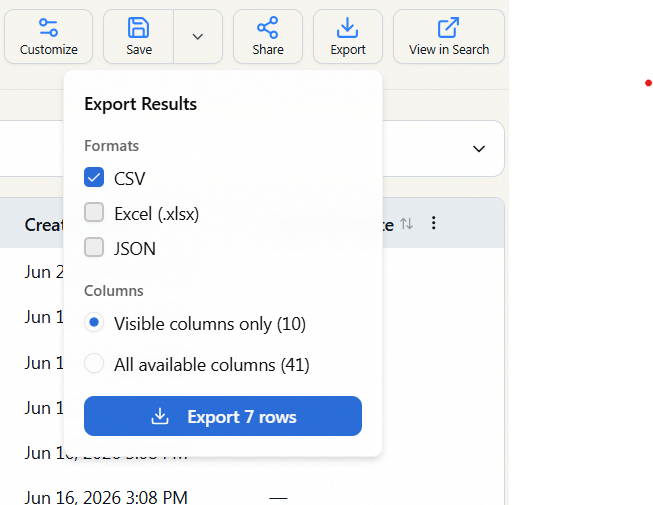
Export covers the entire result set, not just the rows currently loaded on screen, and it re-applies any in-grid column filters and sort you've set. For a very large export, Aeon estimates the file size first and asks you to confirm before it downloads.
The Export button is only enabled if your role has at least View access to the Reports / Export capability. If it's greyed out, your role can run searches but can't export their results — ask an administrator if you need it.
Saving a view
A saved view captures everything about a search — the record type, all conditions, your column layout, and your sort — under a name, so you never have to rebuild it. The view lives in Aeon, not on one machine, so it follows you to any browser you sign in from.
To save the search you've built:
- Run the search so the results (and your chosen columns/sort) are in place.
- Click Save View.
- Enter a Name (for example, Digitization Export to Jira).
- (Optional) Tick Save for everyone (share a copy with all staff) to push a copy to every staff member at the same time.
- Click Save.
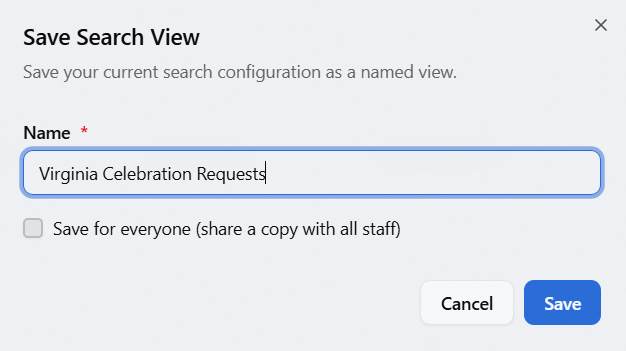
Once a view is active, its name shows in the Saved Views selector and the Save View button becomes a split Save button:
- Save — quietly updates the active view with your latest changes (no dialog).
- Save As... — saves the current state as a brand-new view, leaving the original untouched.
- Rename... — changes only the name (your saved query, columns, and sort are preserved).
- Delete — removes the view after a confirmation.
Reopening and managing saved views
- Open the Saved Views selector (top of the page). Views are grouped under Request Views, User Views, and Activity Views. Pick one and Aeon loads its query, runs it, and restores its columns and sort.
- Choose New Search from the same menu to clear everything and start fresh.
- Hover a view in the list and click the X to delete it (with confirmation).
Saved views are personal — you see and manage your views. Sharing (below) doesn't give other people access to your view; it sends each recipient their own copy they can rename or delete without affecting yours.
Sharing a view
When you want colleagues to have the same search:
- With a saved view active, click Share.
- Choose who gets a copy:
- Everyone — all staff.
- Specific site(s) — choose one or more sites (shown only on multi-site systems).
- Specific people — search the staff list and tick the individuals you want.
- Click Share.
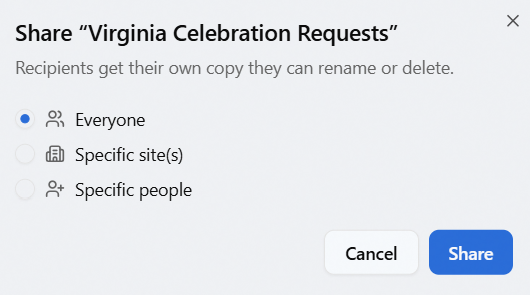
Each recipient receives an independent copy under the same name. Aeon confirms how many copies were sent and skips anyone who already has it.
- Share a view when you want colleagues to keep and rerun the search themselves.
- Copy the page URL when you just need to point someone at these exact results right now — the URL carries the search type and query, so the link reproduces the search when they open it. (A shared link still respects the other person's permissions and site access — they only see records they're allowed to see.)
Custom Search doesn't cover pinning a view to a queue or setting team default layouts — those apply to the request, user, and activity queues rather than to Custom Search. See Using the Grid and Saved Views for more on pinning views and administering team defaults.
- Custom Search requires at least View access to the Requests capability. Without it, the page isn't available.
- Results are always scoped to the records you are allowed to see — your site access and any field restrictions on your role apply to custom searches exactly as they do everywhere else in Aeon. Two staff members running the same saved view may see different rows, or different columns, if their access differs.
- Export additionally requires View on the Reports / Export capability (see above).