Logging In
Signing in is the first thing you do each day. The Aeon staff client runs in your web browser, so there's nothing to install — open the staff URL your library gave you and you land on the Sign in screen. Enter your staff username and password, and Aeon drops you on your dashboard, ready to work.
The one part that's specific to multi-site libraries is choosing which site (or site group) you're working in. If your library runs a single site, you'll never see that step — Aeon signs you straight in. If you have access to more than one site, Aeon asks you to pick, and then remembers your choice so the next sign-in is faster.
- Every day, to start working. Open the staff URL and sign in.
- When you work across multiple sites. Pick the site or site group for the session; Aeon remembers your last choice.
- When sign-in won't go through. The screen tells you why (wrong password, locked account, an expired password that needs changing, or no site assigned) — this page covers each case.
Signing in
- Open your library's Aeon staff URL in a browser. You'll see the Sign in card with the AEON / Staff logo and the heading Welcome back.
- In Username, type your staff username (for example,
jdoe). - In Password, type your password.
- Click Sign in. The button reads Signing in... while Aeon checks your credentials.
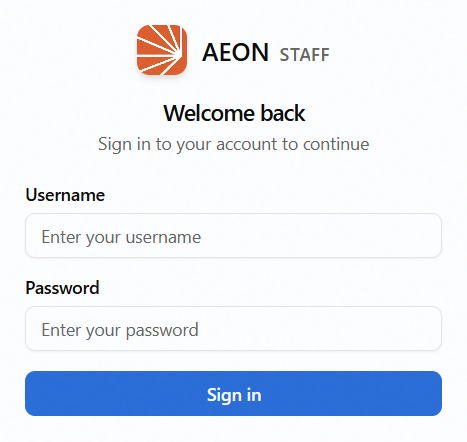
If your account belongs to a single site — or your library only runs one site — that's it: Aeon signs you in and opens your dashboard.
Normally you land on the dashboard. But if you arrived at the sign-in screen by following a link to a specific page (say a coworker sent you a request URL while you were signed out), Aeon sends you on to that page once you're signed in, instead of the dashboard.
Choosing a site or site group
If your account has access to more than one site, a third field appears after your first sign-in attempt: Site / Site Group. Aeon needs to know which one you're working in before it finishes signing you in.
- Enter your Username and Password and click Sign in as usual.
- The Site / Site Group dropdown appears. Open it and pick one. The list is split into two headings:
- Site Groups — a named bundle of several sites. Each entry shows how many sites it covers, for example Main Campus (3 sites).
- Individual Sites — a single site, listed by its code and description, for example MAIN - Main Library.
- Click Sign in again to finish.
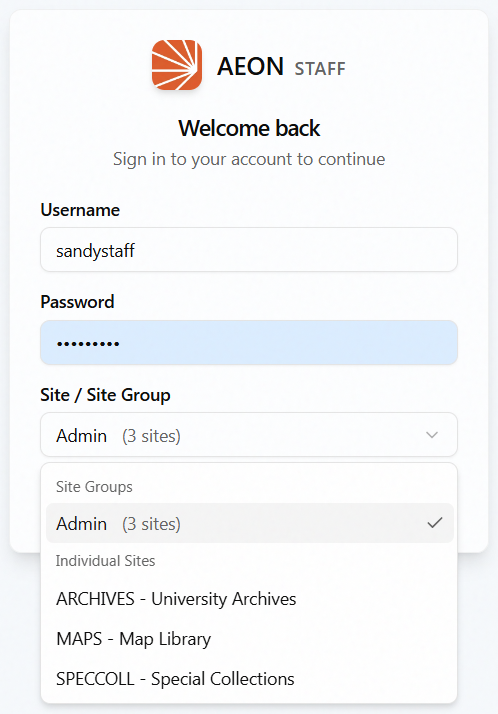
The site or site group you choose scopes the session: the queues, requests, reading rooms, and appointments you see are the ones for that site. User (patron) records aren't restricted by site, though — searching for and opening users works the same no matter which site or group you picked. You're not locked in for the day — sign out and back in (or switch from the workspace) to work in a different site.
Aeon remembers your last choice
After you sign in, Aeon saves the site or site group you picked in your browser. The next time the selector appears, that choice is pre-selected for you — so most days you just enter your password and click Sign in twice without touching the dropdown.
If your access changes and a remembered choice is no longer valid (for example, an administrator removed you from that site), Aeon quietly drops the stale selection and pre-selects the first available option instead. Because the choice is stored per browser, a different computer — or a different browser on the same computer — starts fresh.
If your library runs only one site, or your account is assigned to exactly one site or one site group, Aeon picks it automatically and signs you straight in. The Site / Site Group field only appears when you genuinely have a choice to make.
When sign-in is blocked
If something's wrong, Aeon shows a message at the top of the card and leaves you on the sign-in screen. The common cases:
| What you see | What it means | What to do |
|---|---|---|
| Invalid username or password. | The username or password didn't match. | Re-type carefully (both are case-sensitive). Aeon won't tell you which one was wrong — that's deliberate. |
| Account is locked. | Your staff account is locked. | Reach out to an Aeon administrator; a locked account can't be unlocked from the sign-in screen. |
| Your account has no site assignment. Contact an administrator. | Your library runs multiple sites but your account isn't assigned to any of them. | An administrator needs to assign you a site before you can sign in. |
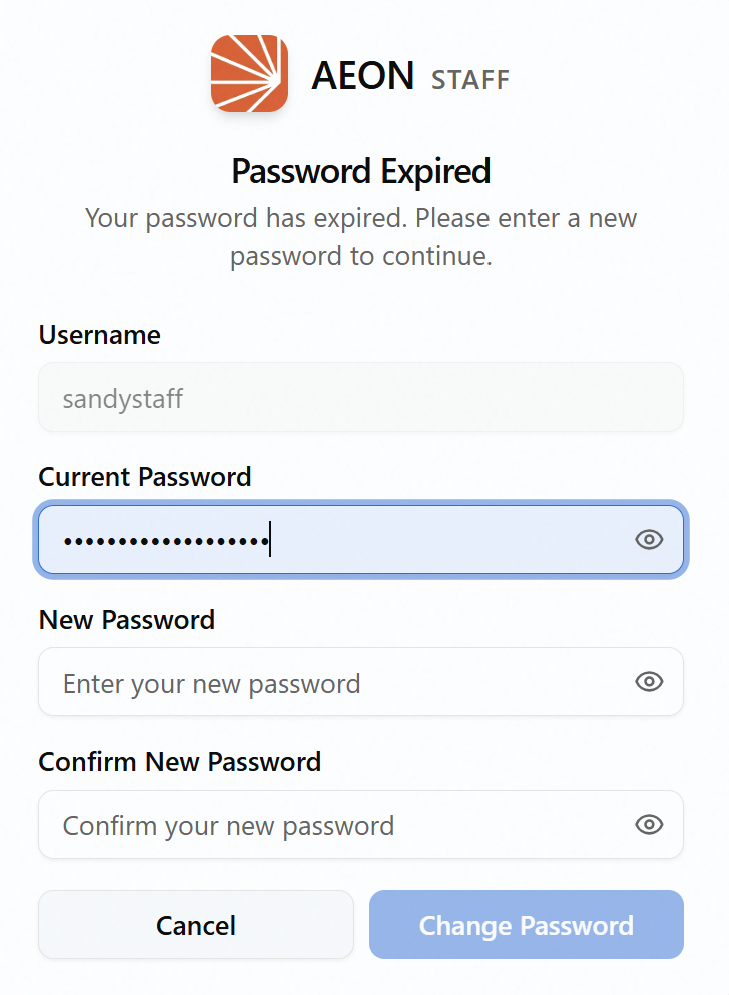
If your password has expired, or an administrator has flagged your account to require a password change, Aeon doesn't show an error — it sends you to a Password Expired screen instead. Enter your current (expired) password, then a new password twice, and click Change Password. Aeon confirms with Password Changed and returns you to the sign-in screen to log in with the new password. The new password must meet your library's complexity rules and can't repeat a recent one; if it doesn't, the screen tells you why.
This is different from changing your password whenever you like once you're already signed in — that's done from the user menu and is covered in Logging In and Changing Your Password.
Staying signed in
Once you're in, Aeon keeps your session alive in the background so you're not asked to sign in again mid-shift. If you leave Aeon idle for about an hour, though, the session lapses and Aeon returns you to the sign-in screen — just sign in again to pick up where you left off. To end your session yourself, use Sign out from the user menu.