Batch Processing
Batch processing is how you move a stack of requests through the same workflow step in one pass — check out a tray of pulled items, place a batch on hold, or mark a run of photoduplication items as delivered. Instead of opening each request and routing it by hand, you pick the process once, then scan or type the transaction numbers and let Aeon advance each one to the next queue.
This is the everyday tool for the physical side of request handling: you're standing at the desk or the shelves with items (and their call slips or barcodes) in hand, and you want to update all of them quickly.
If you've used Aeon's desktop client, batch processing will feel familiar — it was a desktop-only feature there. In Aeon 7 it lives entirely in the web staff client, so there's nothing to install and you can run it from any browser.
Reach for batch processing when you have a list of transaction numbers (from scanned barcodes, a pick list, or a clipboard copy) and you want to push them all through one workflow step.
If instead you've got requests already selected in a queue or search result and want to do something to them — route to an arbitrary queue, add a flag, clone, print — use the bulk selection bar that appears at the bottom of the screen. See Bulk Operations. Batch processing is the barcode-and-scan workflow; the selection bar is the point-and-click one.
Before you start
- Running a batch process requires the Edit level of the Batch Processing permission. Without it, the form won't process anything. (The Process menu itself appears for anyone with View on Batch Processing, but a view-only user is stopped at the form.)
- You'll need the transaction numbers of the requests you want to process — typically by scanning item barcodes, but you can also type them or paste a copied list.
The built-in processes
Aeon includes five standard batch processes, each of which routes requests to a specific next queue:
| Process | What it does |
|---|---|
| Check Out | Routes items to Item Checked Out (researcher receives the material). |
| Place On Hold | Routes items to Item On Hold. |
| Reshelve Item | Routes items to Awaiting Item Reshelving. |
| Item Reshelved | Marks items as Item Reshelved. |
| Item Delivered | Marks photoduplication items as Item Delivered. |
Your site can also define custom batch processes that move requests from one or more starting statuses to an end status of your choosing. These appear in the Process menu below the built-in ones, listed by name. Custom processes are created and edited in the Customization Manager.
If a request is linked to an activity, Check Out and Place On Hold route it to the activity-specific queues — Item Checked Out to Activity and Item On Hold for Activity — instead of the standard Item Checked Out and Item On Hold. The other processes are unaffected.
Run a batch process
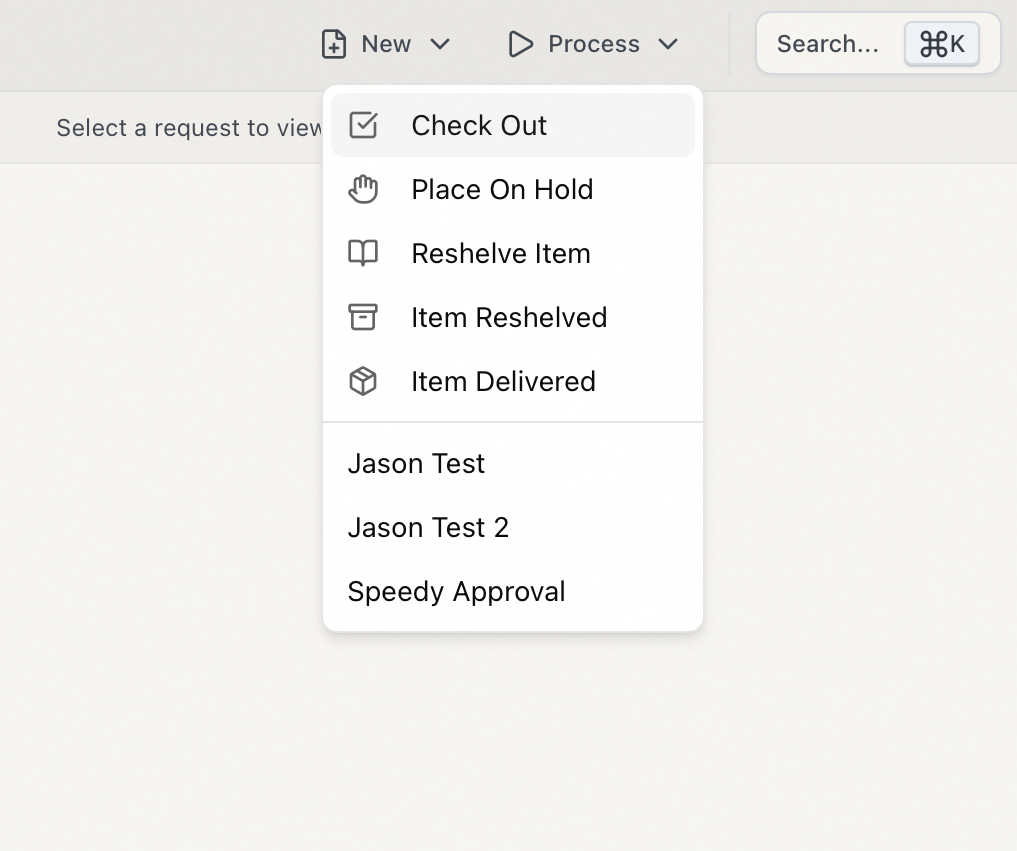
- In the top navigation bar, click Process (the play-button menu).
- Choose a process — for example Check Out. The batch processing form opens, with the process name as its heading.
- Click into the transaction-number field (it's focused automatically) and scan a barcode or type a transaction number, then press Enter.
- Aeon processes that request immediately and adds a row to the results table below, showing its Previous Status and New Status so you can confirm it moved to the right queue.
- Keep scanning or typing the next number. The cursor stays in the field after each one, so you can work through a stack without touching the mouse.
You can enter several numbers at once, too: type or paste them separated by any non-digit characters (commas, spaces, semicolons, new lines — 12345, 12346 12347 all work) and press Enter to process the whole set in one go. Duplicate numbers are ignored.
If you've copied a list of transaction numbers from somewhere else (a spreadsheet, an email, a report), click the Process from Clipboard button — the clipboard icon next to the input. Aeon reads the clipboard, pulls out every number it finds, and processes them all at once. The list can include surrounding text; only the numbers are used.
Reading the results
Each processed request appears in the results table, newest at the top, with four columns:
- Time — when it was processed.
- Transaction # — the request number. Click any row to open that request.
- Previous Status — the queue it came from.
- New Status — the queue it moved to, or, if it failed, the error in red.
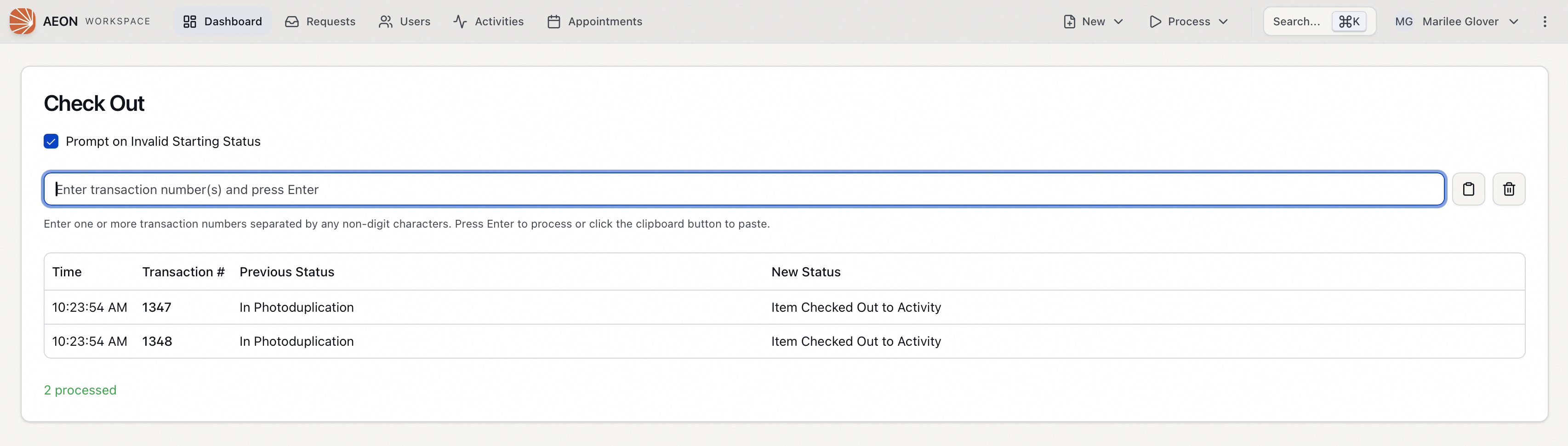
A running summary under the table shows how many succeeded and how many failed. Click Clear History (the trash icon) to empty the table — this only clears the on-screen list; it doesn't change any requests.
When Aeon asks you to confirm
By default, batch processing checks each request before moving it and stops to ask if something looks off. If any request in the set raises an issue, Aeon shows a single Confirm Processing dialog listing every flagged request (grouped by request number) with the reason. Choose Process Anyway to override and continue, or Cancel to back out.
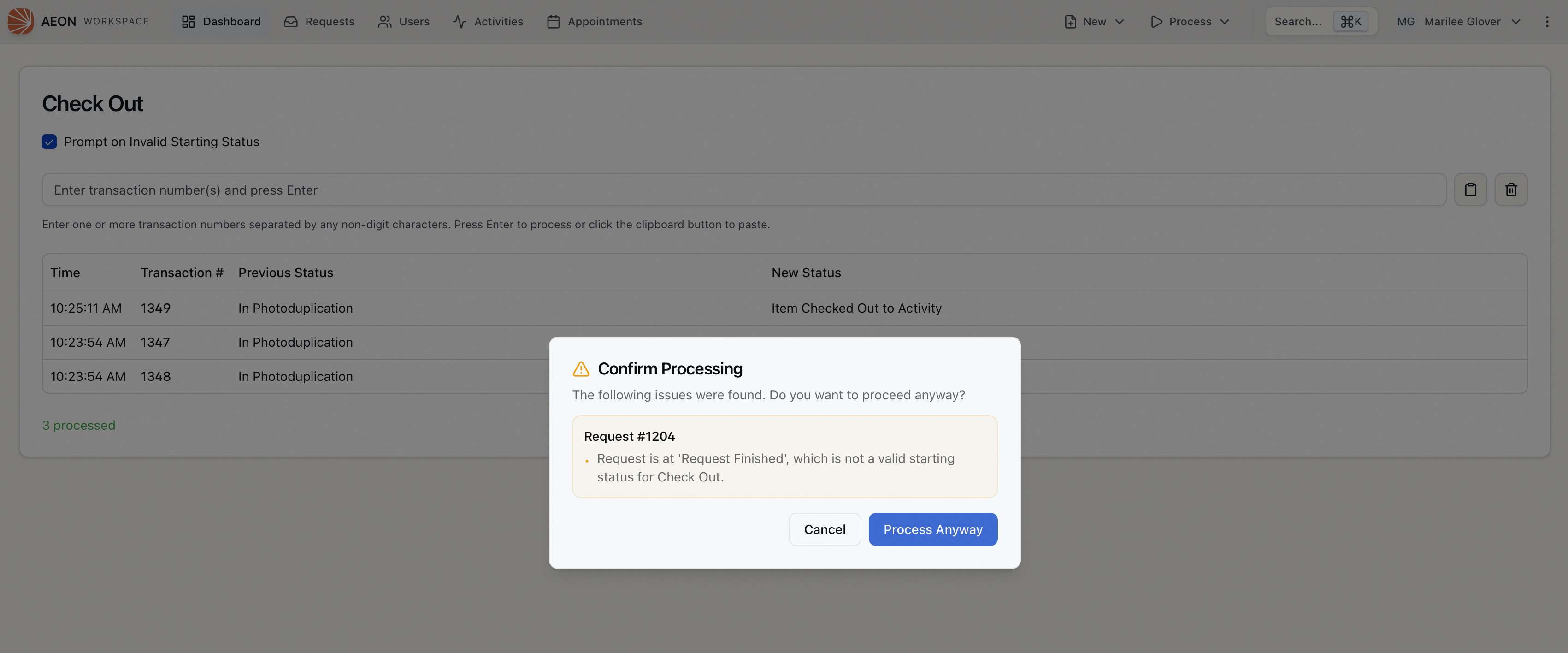
You'll see this for two situations:
- Invalid starting status — a request isn't in a queue that this process normally moves from. For example, sending a request straight to Item Delivered without it passing through the expected steps.
- User not signed in — on Check Out, if the researcher isn't currently signed in to a reading room (this check is controlled by the
ItemCheckoutSecurityPromptsetting).
If you're deliberately processing requests out of their usual order and don't want to confirm each batch, uncheck Prompt on Invalid Starting Status at the top of the form before you scan. With it off, Aeon skips the starting-status confirmation and processes everything. The reading-room sign-in confirmation on Check Out is separate and still applies.
The Item Delivered process shows a Send Email checkbox, on by default, which sends the delivery notification to researchers as their photoduplication items are marked delivered. Uncheck it to mark items delivered without notifying anyone. The other built-in processes don't show this option.
What happens behind the scenes
Each request you process is routed to the process's destination queue and any custom routing your site has configured for that move is applied — exactly as if you'd routed the request by hand. Batch processing only ever touches the requests you scan or enter; it never changes any others.