Editing a Request
Editing a request is part of everyday processing: you open a request, correct or fill in its details, and save. In the Aeon 7 staff web client this happens right on the request's Detail tab — no separate edit mode and no desktop client required.
The normal path is short:
- Open the request (from a queue, search, or a link).
- Click into a field on the Detail tab and make your change.
- Click Save in the toolbar.
That's it for most edits. The sections below cover when you'd edit, how locking protects your changes, and the less common cases.
In Aeon 7, editing and processing requests happens in the web staff client. This replaces the desktop-client workflow described in older (v6) documentation — you no longer need the Windows desktop client to change request details.
When you'll edit a request
Reach for editing when you need to:
- correct or complete item details (title, author, call number, location, container, and so on),
- add notes a researcher or another staff member needs,
- adjust service fields (format, service level, shipping option) before processing, or
- update custom fields your site has defined (the Item Info fields and any added fields).
Routing a request to its next queue is a separate action — see Routing a Request. You don't have to route just because you edited; saving a field change leaves the request in its current queue.
Before you start
- Editing requires the Edit level (or higher) of the Requests permission. If your role is below that, the fields display as read-only and the Save button stays disabled.
- You don't have to lock the request yourself first. Aeon acquires the lock for you automatically the moment you change a field (see Locking below).
Edit and save
-
Open the request. The Detail tab is shown first, with the request's fields laid out according to your site's form design.
-
Change a field. Type into a text field, pick from a dropdown, or choose a date. As soon as you make the first change, Aeon locks the request to you.
-
Watch the highlights. Fields you've changed are highlighted so you can see at a glance what's unsaved.
-
Save. Click Save in the toolbar (or press Ctrl+S / Cmd+S). On success you'll see a confirmation that the request was saved, and the highlights clear.
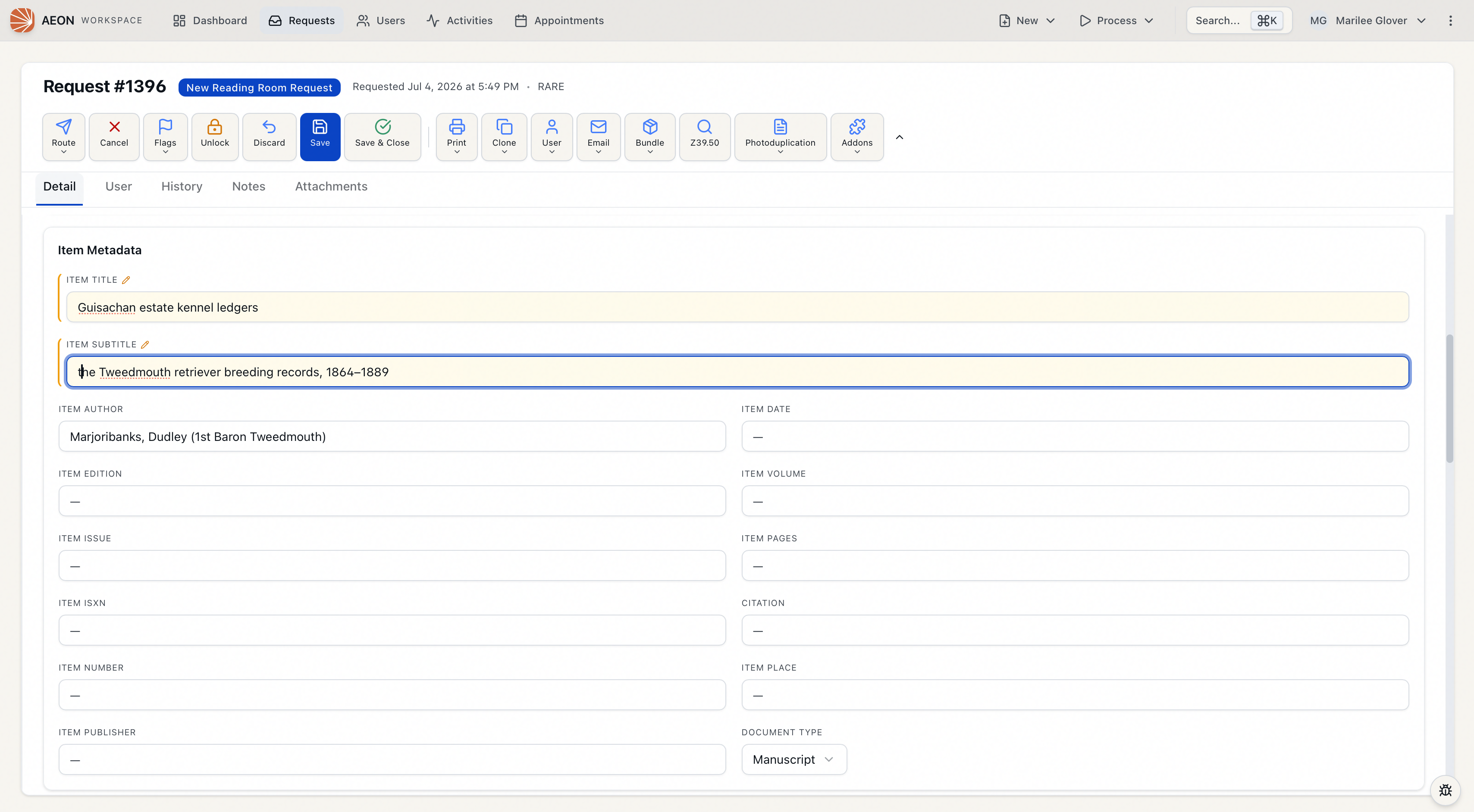
To throw away unsaved changes, click Discard in the toolbar. This reverts the fields to their last-saved values and releases your lock.
Ctrl+S (Windows) or Cmd+S (Mac) saves the request from anywhere on the page. If there's nothing to save, Aeon tells you "No changes to save."
Which fields you can edit
The Detail tab shows the item, location, and service fields for the request, plus any custom fields your site has added. The exact set of fields and their arrangement is controlled by the Request Form layout, which an administrator configures in the form designer — so what you see may differ from another site.
A few fields on the form aren't free-text and have their own controls:
- User — shown read-only with a button to open the user's record.
- Researcher — set or clear with the picker button (for proxy requests).
- Activity and Appointment — assigned through their picker / actions menus rather than typed. (A request can have an activity or an appointment, not both.)
Locking keeps your edits safe
Aeon 7 uses real-time record locking so two people don't overwrite each other.
- When you start editing, Aeon automatically locks the request to you. You can also lock it deliberately with the Lock button in the toolbar before you begin.
- While you hold the lock, the toolbar shows an Unlock button. Saving or discarding your changes releases the lock automatically; clicking Unlock releases it manually.
- If someone else already has the request open for editing, the lock button shows Locked (red, disabled — the status bar names who has it) and the fields are read-only for you. If you try to save anyway, Aeon refuses with "Cannot save - this request is locked by another user."
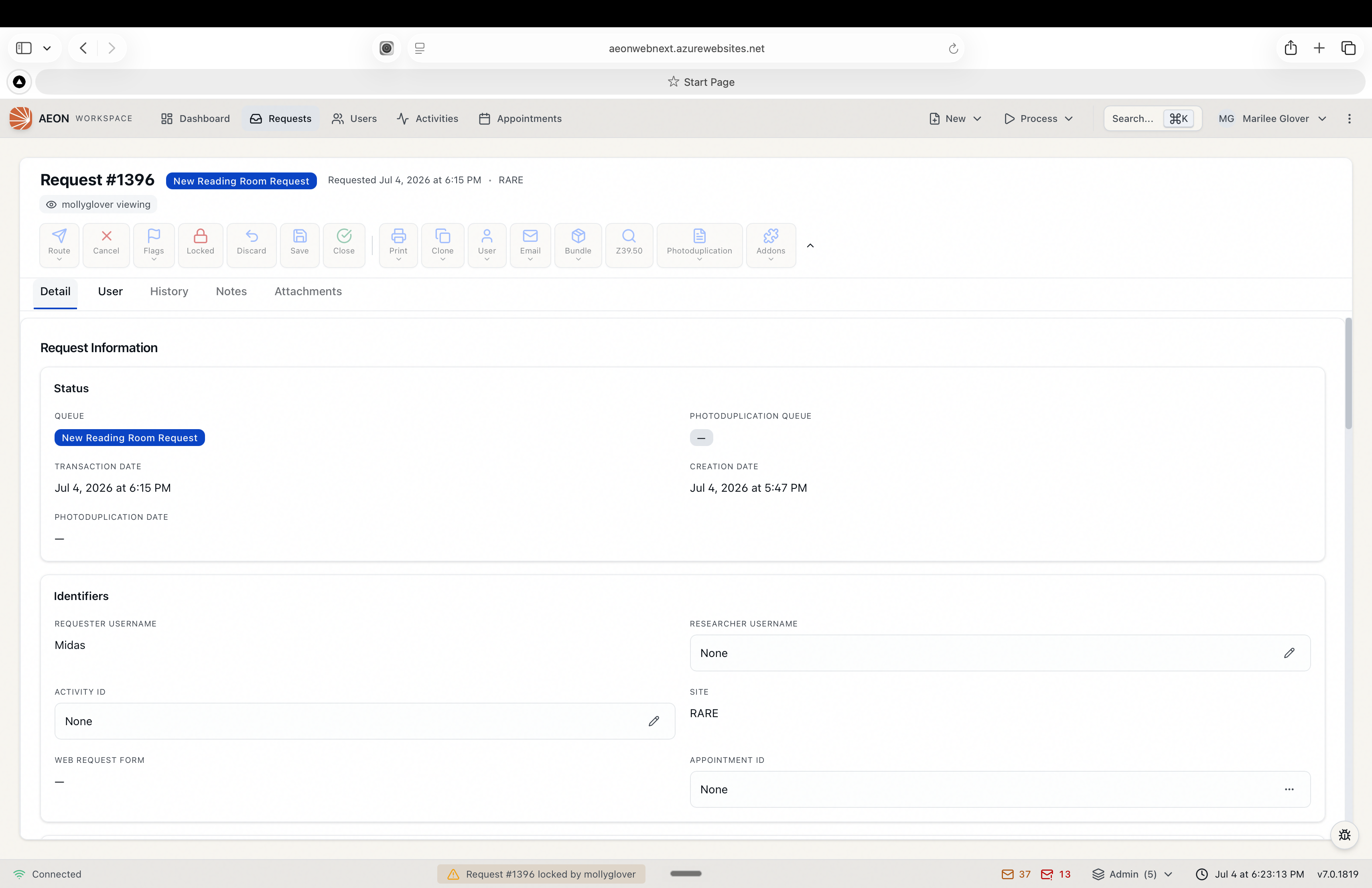
A lock is released automatically after a period of inactivity. Before that happens you'll get a warning ("Lock expiring…") with a chance to keep working. If the lock does expire, save again to re-acquire it — but check first that no one else has picked up the request in the meantime.
If another staff member edits the request while you're viewing it, Aeon refreshes the data and shows a chip noting what changed and who changed it, so you're never silently looking at stale information.
Editing billing details
For requests with a photoduplication (copying) workflow, billing is edited on the Billing tab of the request rather than the Detail tab. The Billing tab only appears when the request has a photoduplication status and your role has at least View access to Billing. See the Billing section for charges, payments, and invoices.
Custom fields
Custom fields defined for your site (including the Item Info fields) appear inline on the Detail tab wherever the form designer places them. You edit and save them the same way as built-in fields. They're saved together with the rest of your changes when you click Save.
If Aeon can't load a request's custom-field values, it disables those fields and warns you. Refresh the page before editing them again — saving while they're disabled would risk overwriting good data, so Aeon skips them.
How changes are recorded
Every saved edit is written to the request's History tab as "Request information modified." Open the History tab to see the running log of changes, who made them, and when, alongside the request's routing history. See Request History for details.