Cloning a Request
Cloning makes a new request from an existing one, copying the citation so you don't have to retype it. The most common reason to clone is that a researcher submitted one request that really covers several pieces — different volumes, boxes, or folders that each need their own call slip and their own trip through the workflow. You clone the original once per additional piece, then edit each copy's item details.
You can also clone to a different researcher — handy when one person finishes with material and another wants the same item, or when you're setting up a request on someone else's behalf from an existing one.
- One request, multiple physical items → clone it so each item gets its own slip and status.
- Hand an item off to the next researcher who wants it → clone to that user (optionally finishing the original in one step).
- Reuse a detailed citation instead of re-keying it.
A cloned request always starts fresh at the beginning of the workflow with a brand-new transaction number, no matter where the original was. It lands in Awaiting Request Processing — or, if the clone keeps an activity association, in Awaiting Activity Processing. The two requests are linked, so you can trace the clone history from either one's History tab.
Before you start
- Cloning requires the Edit level of the Requests permission — the same level you use for everyday processing. (This is a lower bar than manual routing, which needs Full.) If you can edit requests, you can clone them; if the Clone controls are greyed out, your role doesn't have Edit on Requests.
- You don't need to lock the request first. Cloning reads the original and writes a new record; it doesn't change the original (unless you choose Clone and Finish — see below).
What carries over — and what doesn't
When Aeon clones a request, the new copy keeps the descriptive and item information but starts clean on anything tied to the original's place in the workflow.
Copied to the clone:
- All citation and item fields (title, author, call number, location, volume, issue, pages, and so on).
- Item Detail notes.
- Custom field values.
- Billing account links — but only accounts that the target user is allowed to use. If the original had an account the new user can't use, that link is skipped and the clone confirmation adds "Note: Billing account was not copied." (the notice is worded in the singular no matter how many accounts were skipped).
Not copied (the clone starts fresh):
- Status and tracking history — the clone begins at the front of the workflow (see above).
- Photoduplication status and dates.
- Appointment, bundle, and invoice associations.
- Cancellation reason or note.
- The scheduled date — unless your site turns on the
CloneScheduledDateInClientcustomization, in which case it copies to the clone.
If you clone to the same researcher, the clone keeps the original's activity association. If you clone to a different researcher, Aeon clears the activity link on the copy — the new request stands on its own.
Clone a single request
You clone from the request's toolbar. Open the request you want to copy, then:
-
In the toolbar, open the Clone menu (the copy-icon button).

-
Choose Clone to Current User to make a copy for the same researcher who owns the original.
-
Aeon creates the new request and opens it. It has a new transaction number and starts at the front of the workflow (Awaiting Request Processing, or Awaiting Activity Processing if it kept an activity). A toast confirms the clone and shows the new request number.
-
Edit the clone's item details (volume, box, folder, page range…) so it describes the specific piece this copy is for.
That's the everyday case — one researcher, multiple pieces.
On a normal-width screen, Clone to Current User and Clone to Another User live in the toolbar's Clone menu. On a narrow screen, the toolbar collapses its secondary actions into a More (⋯) menu — the two clone options move there.
Clone a request to another researcher
When the copy should belong to someone else:
- In the request toolbar, open Clone and choose Clone to Another User.
- The Clone to Another User dialog opens. In the Search Users box, type at least two characters of the username, first name, or last name.
- Pick the researcher from the results list. Their row highlights and the selected user is shown beneath the list.
- Click Clone.
- Aeon creates the request for that researcher (new number, Awaiting Request Processing) and opens it. A "Request cloned successfully" toast confirms the new request number; if any billing account from the original wasn't valid for the new user, it adds "Note: Billing account was not copied."
Clone and Finish (checked-out items)
When the original request is at Item Checked Out (or a custom queue based on that state), the dialog shows an extra Clone and Finish button. Use it to hand material from one researcher to the next in a single step:
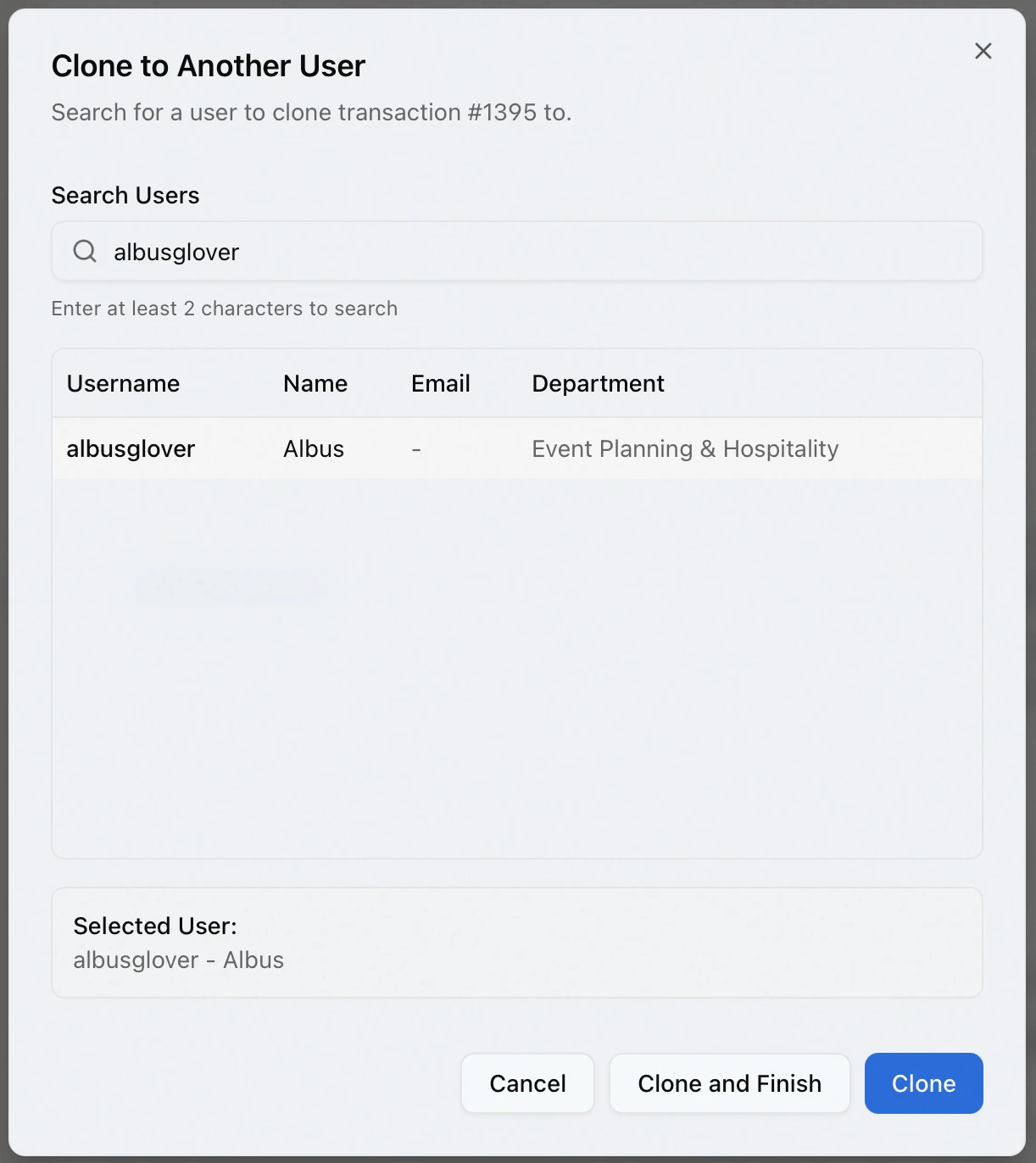
- Clone and Finish — makes the copy for the new researcher and routes the original request to Request Finished, closing it out.
- Clone — makes the copy and leaves the original right where it is, at Item Checked Out.
The Clone and Finish button only appears when the request is actually checked out; for requests in any other status you'll just see Clone.
Clone several requests at once
You can clone a whole selection in one pass from a queue or search results.
-
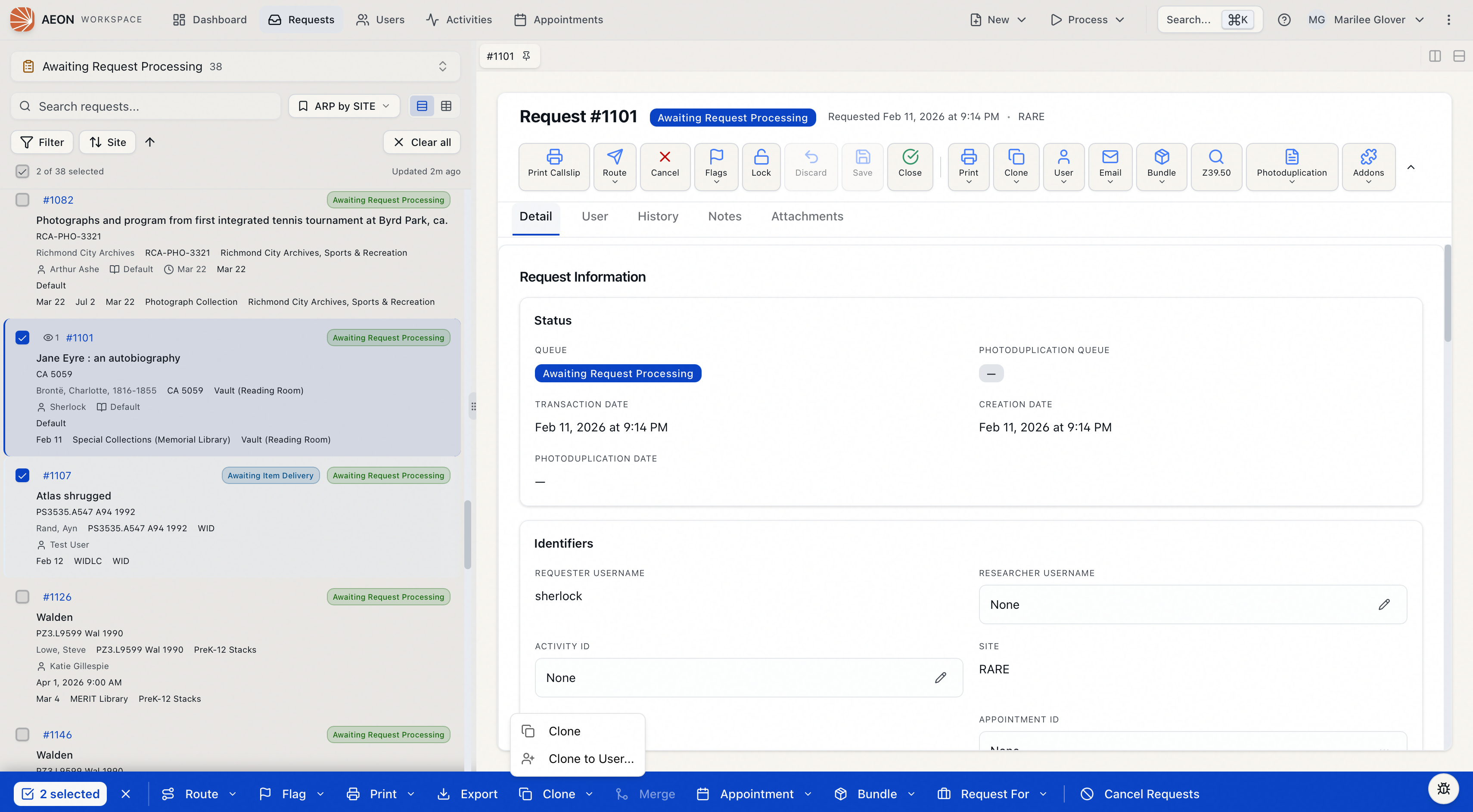
In a list, select requests with the checkboxes. The bulk-action bar appears at the bottom of the screen.
-
In the bar, open the Clone menu and choose one of:
- Clone — clones each selected request for its own owner. If your selection spans several researchers, each copy goes to the researcher who owns that original.
- Clone to User… — opens the Clone to Another User dialog so you can send every copy to one researcher you pick.
-
If you chose Clone to User…, search for and select the researcher, then click Clone N Requests.
-
When it finishes, the Clone Complete dialog summarizes the run: how many cloned successfully (each shown as original → new request, with the new numbers clickable) and any that failed, listed with the reason. Click a number to jump to that request.
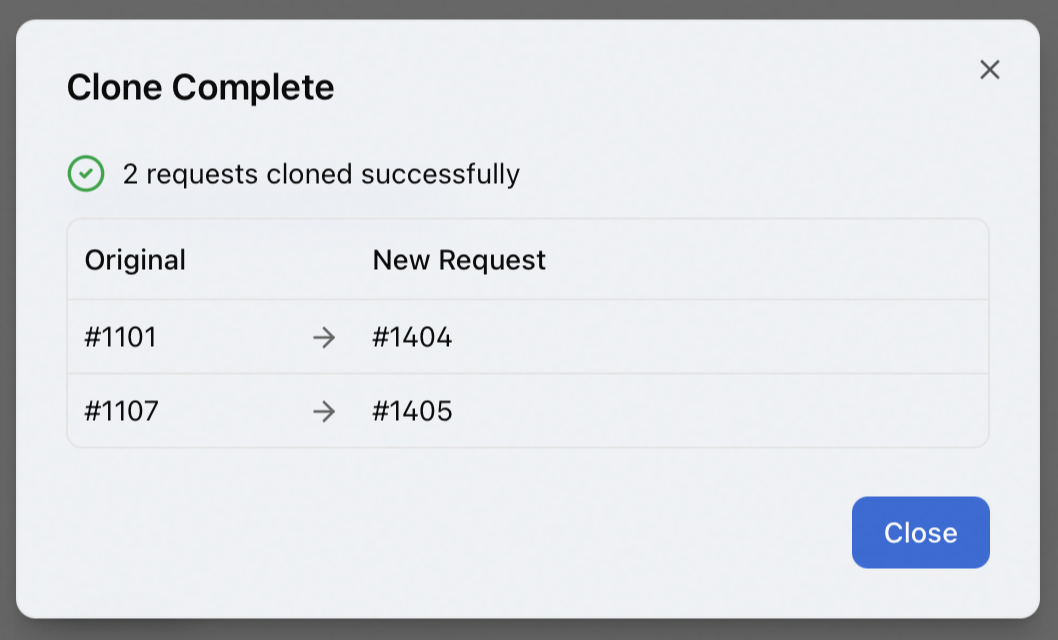
The "finish the original" option is only available when cloning a single checked-out request. Bulk clone always leaves the originals untouched.
Bulk cloning is best-effort: Aeon processes each request on its own and keeps going if one fails. A request can be skipped because it no longer exists or because it belongs to a site you don't have access to. Check the failure list in the Clone Complete dialog and follow up on anything that didn't go through.
What happens behind the scenes
Each clone is a brand-new transaction routed to the front of the workflow — Awaiting Request Processing, or Awaiting Activity Processing when it keeps an activity — with any custom routing your site configured for that queue applied. Aeon records a History entry on both requests ("Cloned to request #…" on the original, "Cloned from request #…" on the clone) and links them, so the relationship is visible from either request's History tab afterward.
For copying an entire activity along with its requests, see Cloning an Activity. To combine duplicate requests into one rather than split one into many, see Merging Requests.