Cancelling a Request
Cancelling is how you end a request that won't be fulfilled — the item can't be located, the researcher withdrew it, it duplicates another request, and so on. Unlike the everyday workflow buttons (Check Out, Place On Hold, Reshelve…), which move a request forward, cancelling closes it out with a recorded reason and, optionally, an email letting the researcher know.
You always cancel with a reason drawn from your site's list, and the reason can carry a default note that you're free to edit. The status lands on a cancelled state (typically Cancelled by Staff), the request drops out of its active queue, and the cancellation is written to the request's history.
If a request just needs to go somewhere else for more work, route it instead (see Routing a Request). Cancel only when the request is genuinely done and won't be filled.
Before you start
- Cancelling requires the Full level of the Requests permission — the same level as manual routing, and a step above the Edit level used for normal processing. If you can see the workflow buttons but the Cancel button is greyed out, your role has Edit but not Full.
- Your Reason for Cancellation choices come from the cancellation reasons configured in the Customization Manager. If the list is empty or wrong, that's a configuration task, not a per-request one.
- You don't have to send an email. Whether the email option even appears depends on whether the researcher has an email address on file.
Cancel a single request
- Open the request — for example, request #12345.
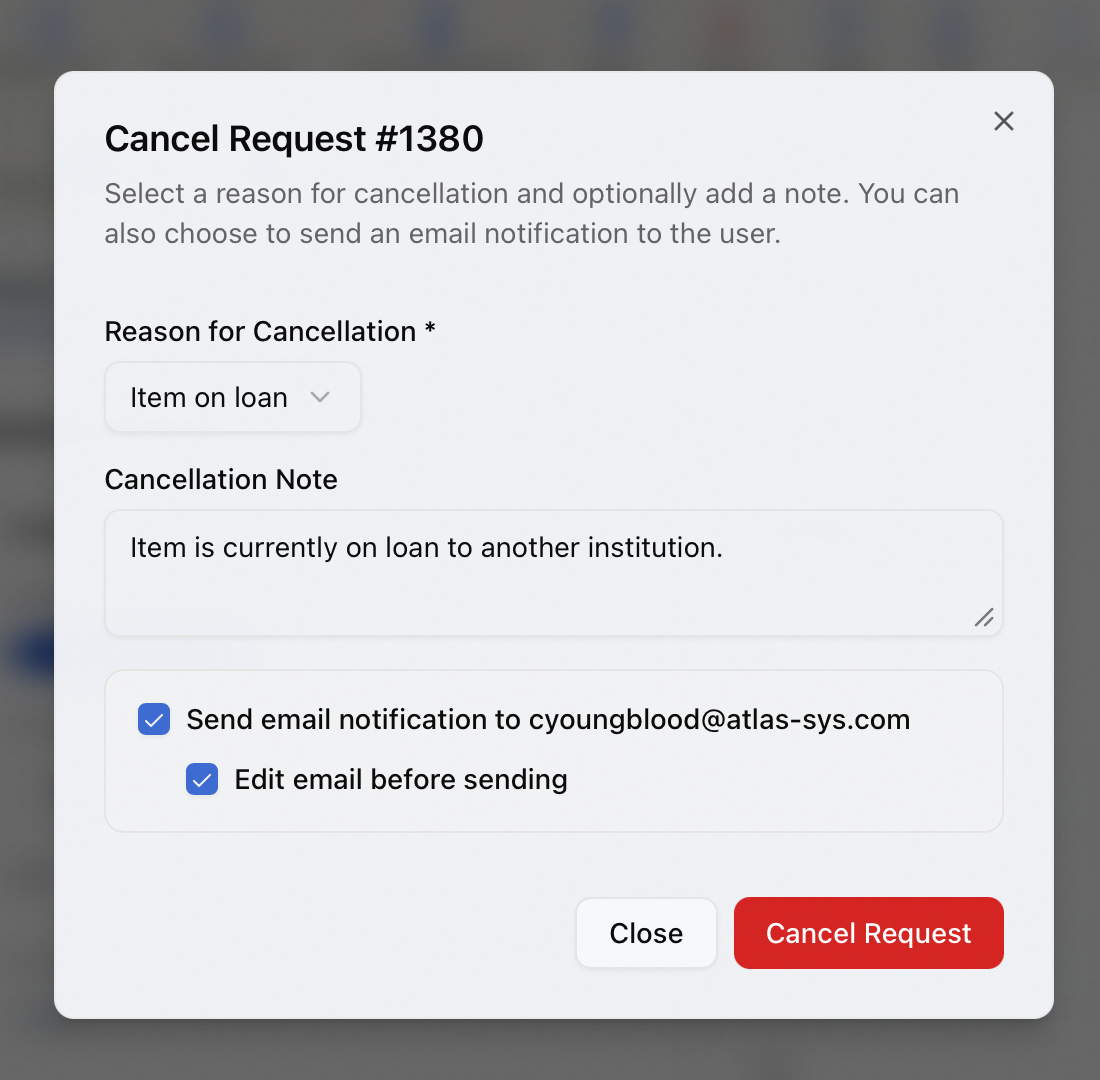
- In the toolbar, click Cancel (the destructive red button). The Cancel Request #12345 dialog opens.
- Choose a Reason for Cancellation. This field is required.
- The Cancellation Note fills in with the reason's default note, if it has one. Edit it, add your own, or leave it — the note is optional.
- Decide about email (see Emailing the researcher below), then click Cancel Request.
- Aeon cancels the request, the status changes to its cancelled state, and your lists refresh. A confirmation appears showing the new status.
Aeon saves the cancellation first, then handles the email. Because of that, the email template reads the reason and note straight from the now-cancelled request — what the researcher sees matches what you just recorded.
Emailing the researcher
When the researcher has an email address, the dialog shows an email panel:
- Send email notification to (address) — checked by default. Leave it on to notify the researcher; turn it off to cancel silently.
- Edit email before sending — also on by default. With it checked, the email composer opens after you click Cancel Request, so you can review and adjust the message before it goes out. Unchecked, Aeon sends the standard cancellation email automatically using the ItemCancellation template.
If the researcher has no email on file, the panel is replaced with a note that email notification isn't available, and the request is simply cancelled without one.
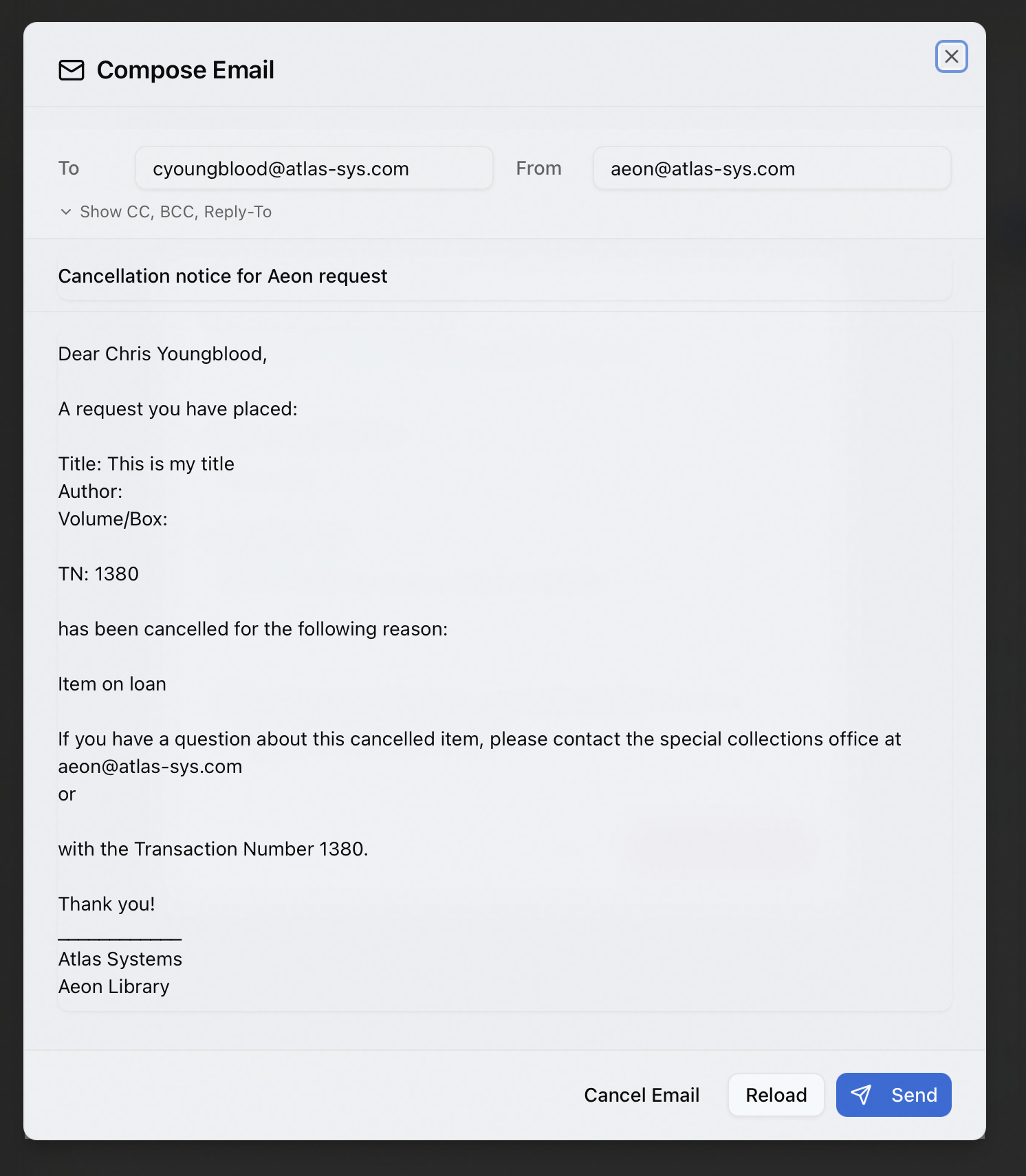
The Send email and Edit email before sending settings carry over the next time you open the Cancel dialog, so you don't have to reset them on every cancellation.
Cancelling a photoduplication request does not issue a refund on its own. If money needs to come back, record it on the request's Billing tab — a refund is entered as a negative-amount payment, and card payments are refunded through your payment processor. See Payments and Refunds for the steps.
Cancel several requests at once
When you need to clear out a batch — a stale queue, a withdrawn activity's items — cancel them together instead of one at a time.
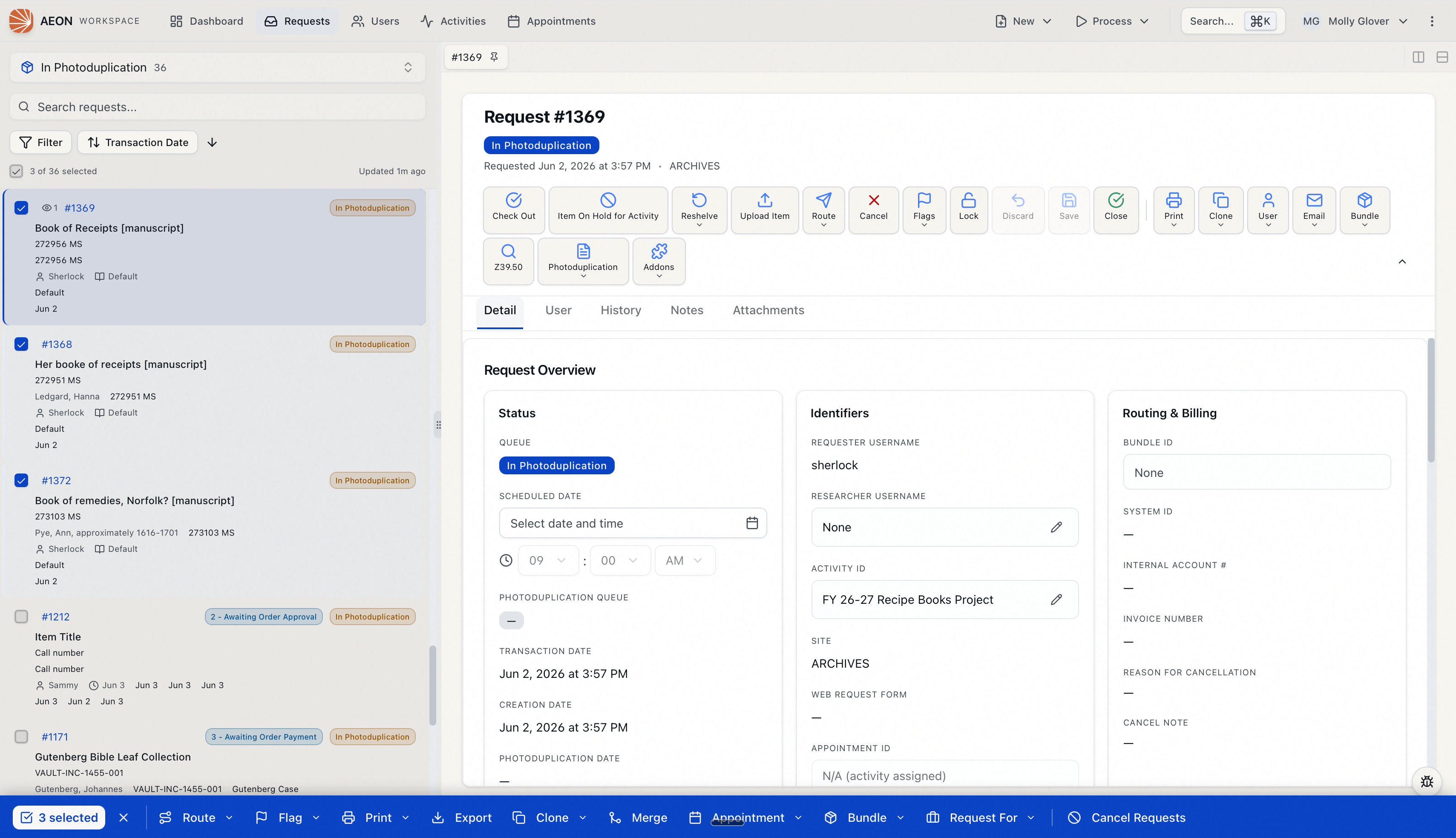
- In a queue or search results, select requests with the checkboxes. A selection bar appears at the bottom of the screen.
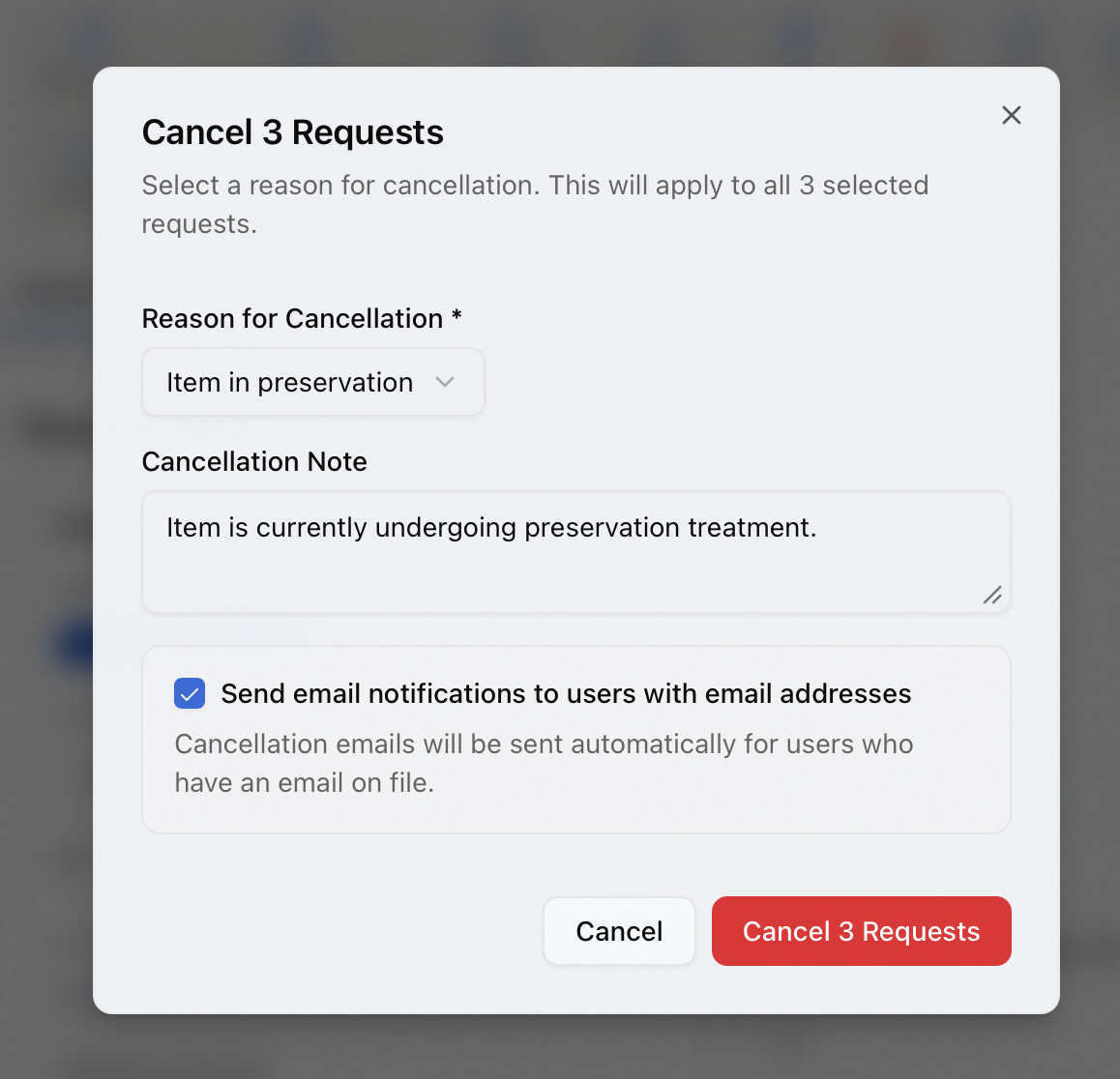
- In the selection bar, click Cancel Requests on the right. The Cancel N Requests dialog opens.
- Choose a Reason for Cancellation (required) and edit the Cancellation Note if you'd like. Both apply to every selected request.
- Optionally check Send email notifications to users with email addresses — off by default. When on, Aeon sends a cancellation email for each request whose researcher has an email on file. There's no per-message editing step in bulk; emails go out using the standard template.
- Click Cancel N Requests.
Aeon processes the batch and reports back:
- If everything succeeds, you get a confirmation showing how many requests were cancelled (and how many emails were sent).
- If some couldn't be cancelled — for instance, a request in a site you don't have access to — a results dialog lists each failure with its reason, so you can follow up on the stragglers. The ones that succeeded are already cancelled.
Like the single-request path, bulk cancel requires the Full level of the Requests permission. Without it, the Cancel Requests action is disabled in the selection bar.
What happens behind the scenes
Cancelling sets the request to a cancelled status (commonly Cancelled by Staff), stores your reason and note on the request, and records the change in its history. It doesn't touch billing — refunds, if any, are a separate step — and it doesn't affect any other request. If you chose to email the researcher, that message is generated from the cancelled request and sent (or queued) after the cancellation is saved.