Printing Call Slips
When a new request is valid and ready to pull from the stacks, you print a call slip — the paper slip a page carries to the shelf to retrieve the item. Printing the call slip is also the workflow step that moves the request out of its waiting queue and into In Item Retrieval, so this is part of everyday request processing, not a side task.
Aeon also prints two related documents from the same place: a request slip (a summary of the request that can be printed at any time and does not change the request's status) and, for photoduplication work, a digitization request slip for the copy staff.
In Aeon 7 printing happens entirely in your browser. Aeon renders the slip to a PDF using a template from the Print Designer, shows you a preview, and prints through your browser's normal print dialog. There is no Word mail merge, no .xlsx data file to associate, and no per-machine printer template setup. (If you used the Aeon desktop client, this replaces the old Word-template workflow — older documentation that says printing "can only be done in the desktop client" no longer applies.)
Print a call slip for one request
Use this when you're processing a single new request and need to send the item to retrieval.
-
Open the request (for example, request #12345) from the Awaiting Request Processing or Awaiting Activity Processing queue.
-
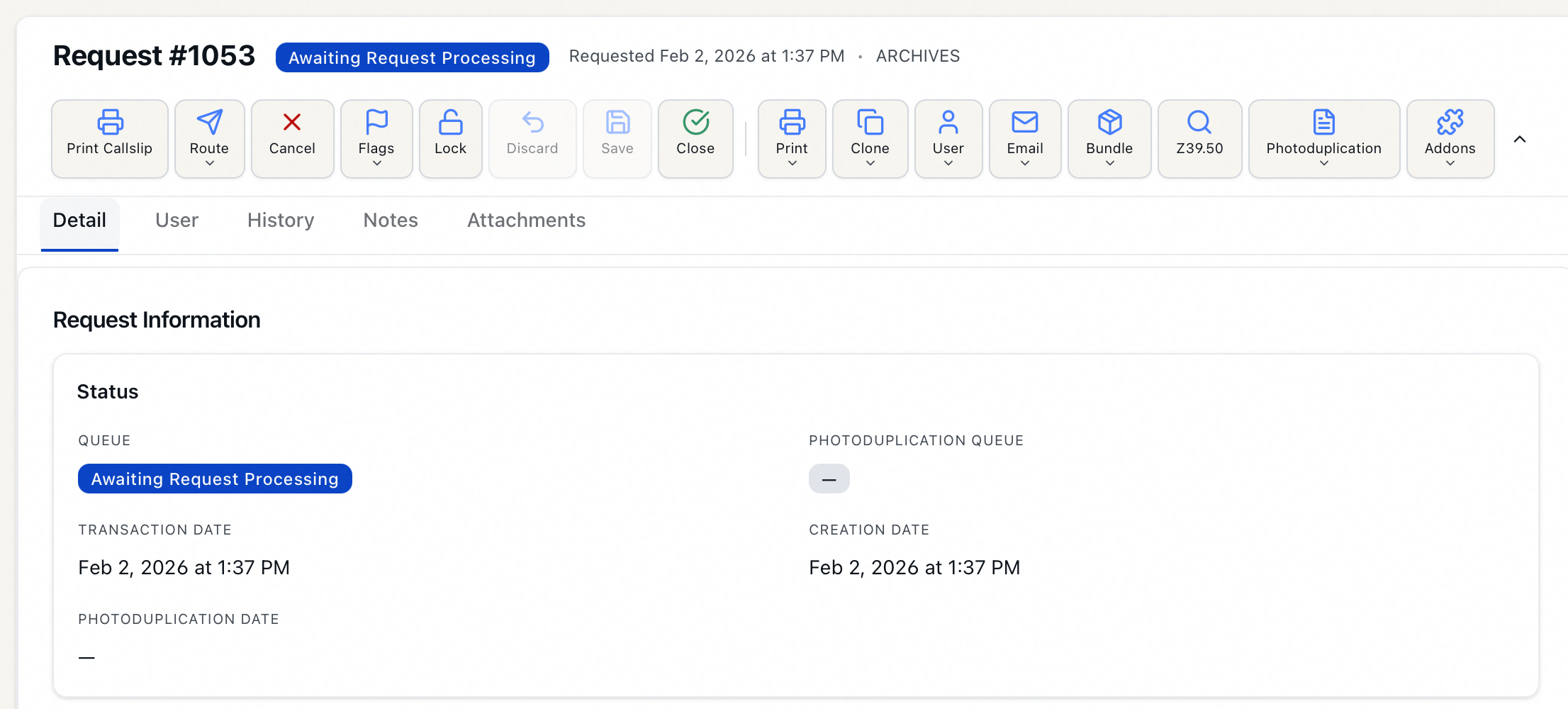
In the request toolbar, click Print Callslip. This button appears whenever routing to In Item Retrieval is a valid next step for the request — the pre-retrieval states such as Awaiting Request Processing and Awaiting Activity Processing, including custom queues built on those states (renaming a queue doesn't hide it).
-
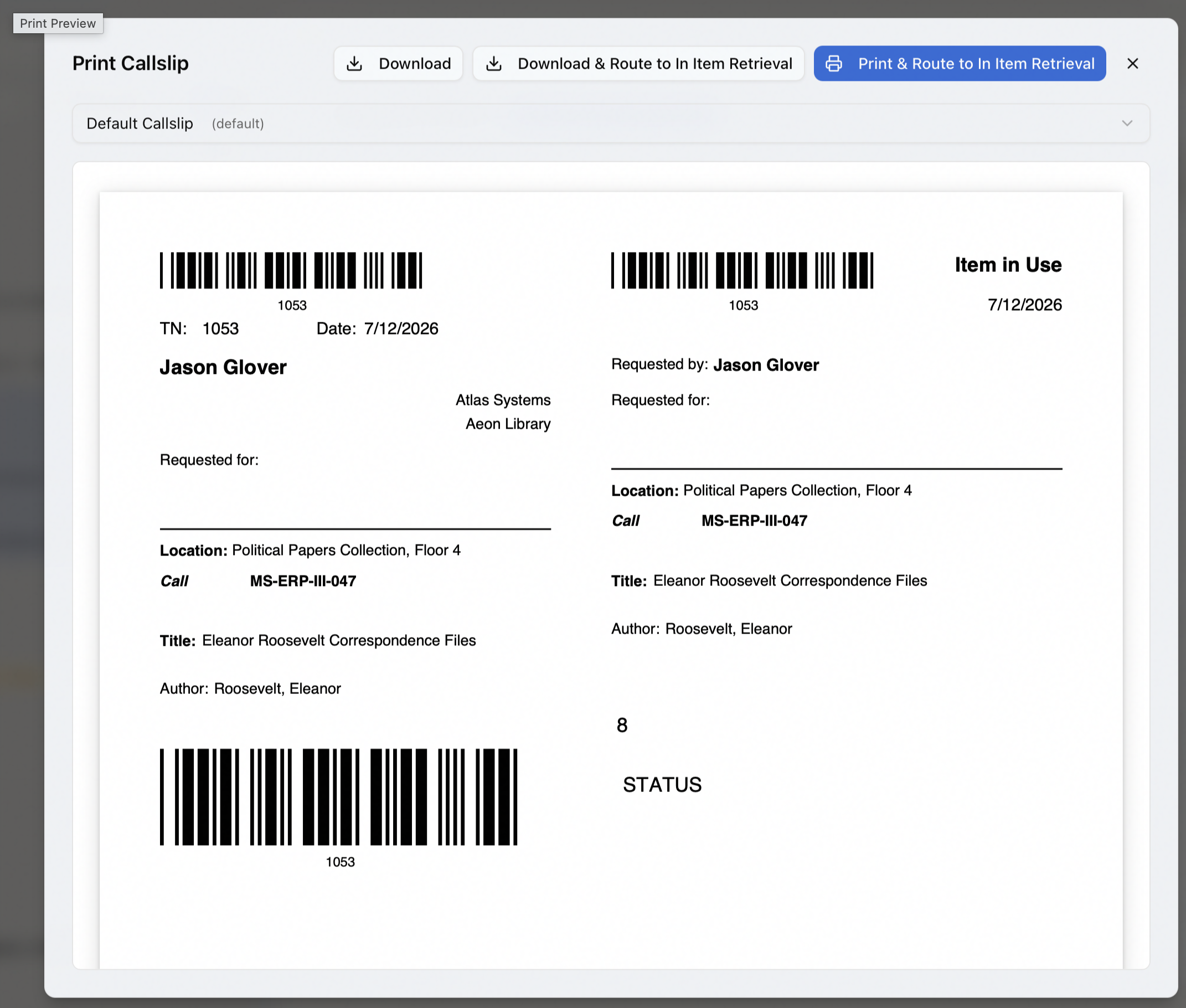
The Print Callslip dialog opens and shows a preview of the slip. If your site has more than one call slip template, pick one from the template dropdown at the top; the template marked (default) is selected for you.
-
Click Print & Route to In Item Retrieval. Your browser's print dialog opens; choose your printer and print.
-
Aeon prints the slip, records a Callslip Printed entry in the request's history, and moves the request to In Item Retrieval.
Every print dialog also has a Download button if you'd rather save the PDF than send it straight to a printer. When printing a call slip, use Download & Route to In Item Retrieval — it saves the PDF and advances the request, exactly like the Print button does. Plain Download saves the PDF without changing the request's status.
Reprint a call slip (without changing status)
Once a request has moved past its waiting queue, the Print Callslip button is gone — but you can still produce another copy of the slip. Reprinting is outside the normal workflow, so it never changes the request's status and is not logged as a workflow step.
- Open the request.
- In the toolbar, open the Print menu and choose Reprint Callslip.
- Select a template if prompted, then click Print (or Download).
Reprinting opens the same Print Callslip dialog with the (default) call slip template preselected; pick another from the dropdown if your site has more than one.
Print a request slip
A request slip is a printable summary of the request. Printing it does not advance the request, so you can print one at any point in the request's life.
- Open the request.
- In the toolbar, open the Print menu and choose Print Request.
- Select a template if prompted, then click Print (or Download).
A Request Printed entry is added to the request's history.
Print a digitization request slip
For photoduplication requests, you can print a slip for the copy staff that includes the item's page range and page count.
- Open the request and make sure photoduplication has been initialized (the request shows a photoduplication status). The Print Digitization Request option only appears for requests in photoduplication.
- In the toolbar, open the Print menu and choose Print Digitization Request.
- Select a template if prompted, then click Print (or Download).
Print slips for several requests at once
You can print for a whole batch from a queue or search results, which is handy for printing a stack of call slips after triaging a queue.
-
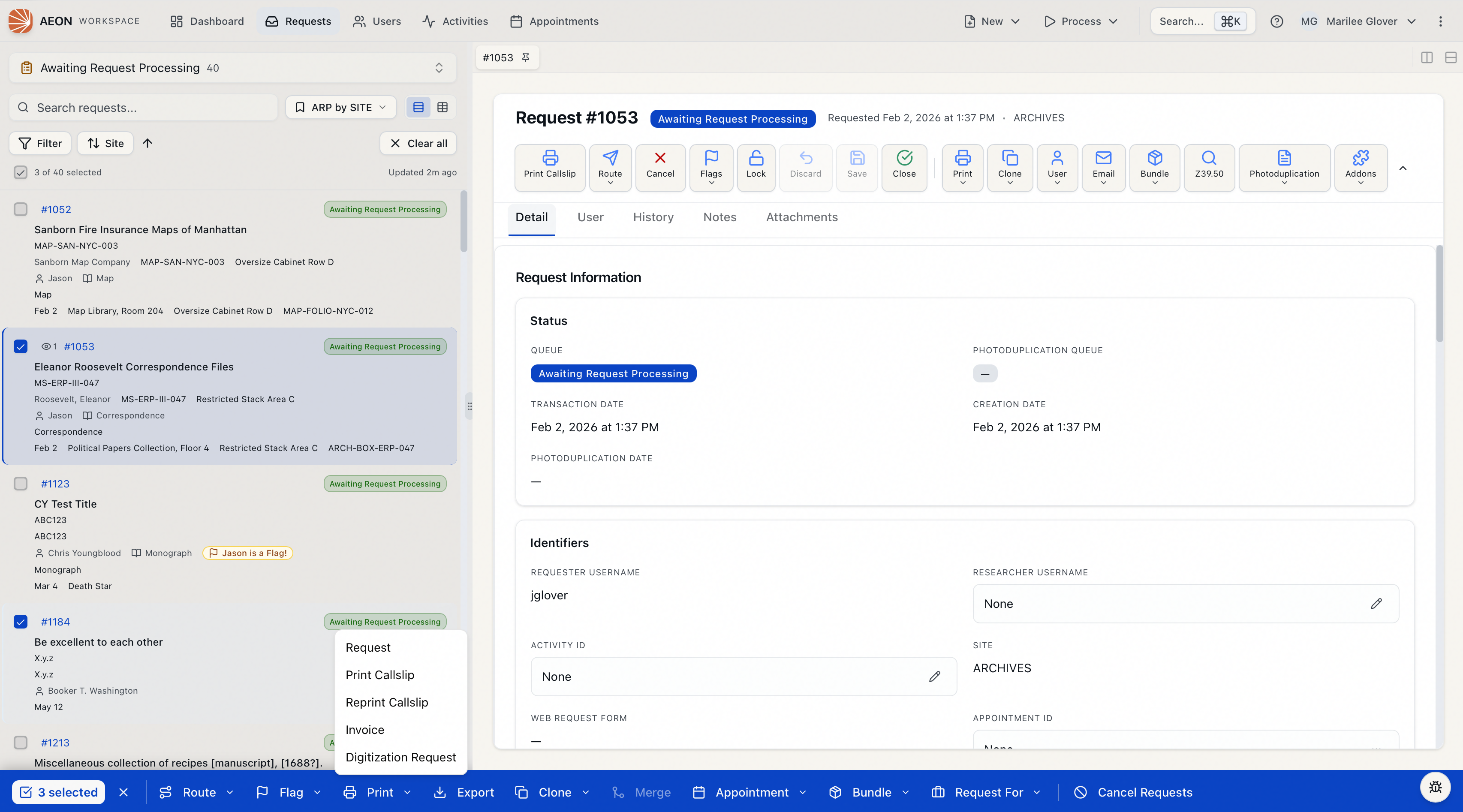
In a queue or search results, select requests with the checkboxes. The bulk action bar appears at the bottom of the screen.
-
Click Print in the bulk bar and choose what to print:
- Request — a request slip for each selected request.
- Print Callslip — call slips that also route the awaiting-processing requests to In Item Retrieval after printing, matching the single-request button. This option appears only when at least one selected request is awaiting processing and your role can route requests.
- Reprint Callslip — call slips without changing status; use this to reproduce slips for requests that have already moved past their waiting queue.
- Invoice — an invoice for each selected request.
- Digitization Request — a digitization slip for photoduplication requests.
-
The print dialog opens with a combined preview of all selected records — the title reads, for example, Print 8 Callslips. Pick a template if there's more than one, then click Print (or Download).
The bulk menu splits the two behaviors that the single-request toolbar combines. Print Callslip advances the awaiting-processing requests to In Item Retrieval after printing (only the pre-retrieval ones in your selection are routed), while Reprint Callslip just prints and leaves every request's status untouched. Print Callslip shows only when at least one selected request is awaiting processing and your role can route requests; when you just need extra copies, use Reprint Callslip.
Permissions
- Printing or downloading any slip requires at least View access to Requests. This is the gate Aeon actually enforces — the server refuses to render the PDF without it.
- The everyday Print menu actions — Print Request, Reprint Callslip, and Print Digitization Request — need only that View access. They are not restricted to staff who can edit requests.
- The one exception is the Print Callslip button, which advances the request. Because it changes status, it sits among the request's workflow actions and is disabled unless your role has the Edit level on Requests, the same level normal processing requires.
- The bulk Print Callslip action (the one that routes to In Item Retrieval) appears only for roles that can route requests. Any role with View can still use the bulk Reprint Callslip and the other Print-menu items, which don't change status.
- The templates themselves are created and edited in the Print Designer, which requires the Designers configuration permission. Day-to-day printing does not.
If the print dialog shows "No [type] templates found. Create a template in the Print Designer first," it means no template of that kind exists. Installing or upgrading to Aeon 7 seeds a default template for each type (call slip, request, digitization request, invoice, invoice statement, and user card), so you normally have at least one to print. An administrator can add or edit templates in the Print Designer (Customization Manager); whichever template is marked (default) is selected automatically when you print.
If your role has field restrictions (for example, hidden patron contact details), those fields are blanked out on the printed slip too — the restriction is applied when the PDF is generated, not just on screen.