Merging Requests
Sometimes the same researcher ends up with two or more requests for the same item — a duplicate submission, the same citation pulled from two finding aids, or a request you cloned and no longer need separately. Rather than cancel the extras by hand, you can merge them: Aeon creates one new request that combines the citation details, then files the originals away under a Request Merged status so the history is preserved.
Merging is a deliberate, multi-step action with a preview, so you always see exactly what the combined request will look like before anything is created. You start it by selecting the requests you want to combine, and Aeon walks you through resolving any fields that differ.
Reach for merge when one researcher has two or more requests that should really be one — duplicates, or pieces of the same item that were requested separately. If the requests belong to different researchers, merge isn't the right tool; that's a sign the requests should stay separate (or that you have a duplicate-user problem instead — see Merging Duplicate Users).
Before you start
- Merging requires the Full level of the Requests permission. This is a step above the Edit level used for everyday processing. If you can select requests but the Merge button stays greyed out, your role has Edit but not Full.
- All the requests must belong to the same user, and to the same researcher (for requests placed on someone's behalf). Aeon will not let you merge across different users or researchers.
- You can merge between 2 and 10 requests at once.
- The requests should not be open for editing by another staff member. While you work on the merge, Aeon tries to lock each source request; if one is already being edited by someone else, it tells you who has it and the merge can't go ahead until they're done.
Select the requests to merge
Merging always begins from a list — a queue or a set of search results — where you can pick more than one request.
-
Open a queue (or run a search) that contains the requests you want to combine.
-
Use the checkboxes to select two or more requests. As soon as you select more than one, the selection bar appears at the bottom of the screen.
-
Click Merge in the selection bar.
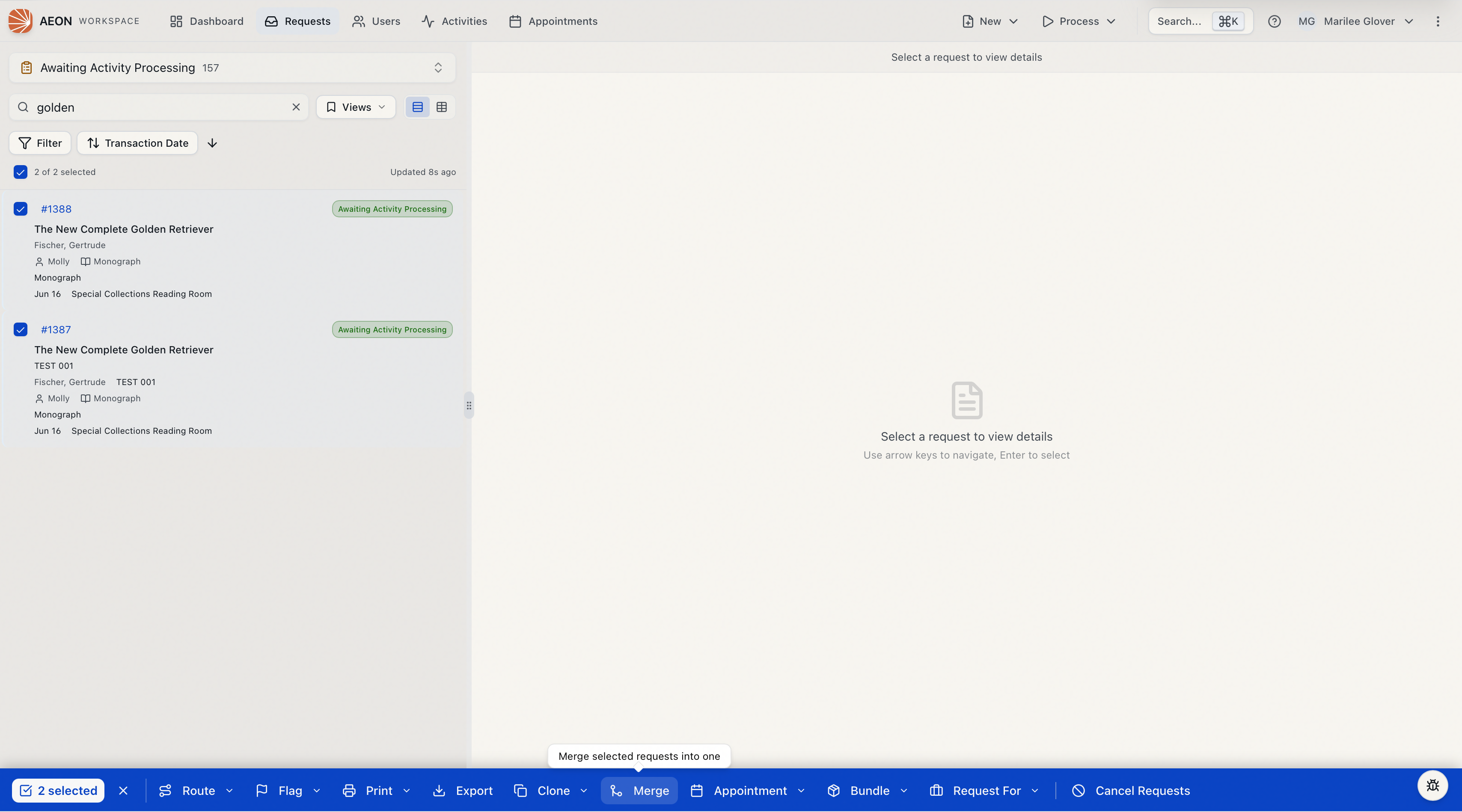
The Merge button only becomes active when your selection makes sense to merge. Hover over it and Aeon tells you what's missing:
- "Select at least 2 requests to merge" — you've only selected one.
- "All selected requests must belong to the same user" — your selection spans more than one user.
It also stays disabled if your role doesn't have the Full Requests permission.
When you click Merge, Aeon first checks the selection (same user, same researcher, all found) and then opens the dedicated Merge Requests page. If the selection fails that check — for example, the requests turn out to belong to different researchers — you'll see the reason and stay on the list.
Review the merge on the Merge Requests page
The Merge Requests page is where you confirm everything before the merge happens. It has three parts.
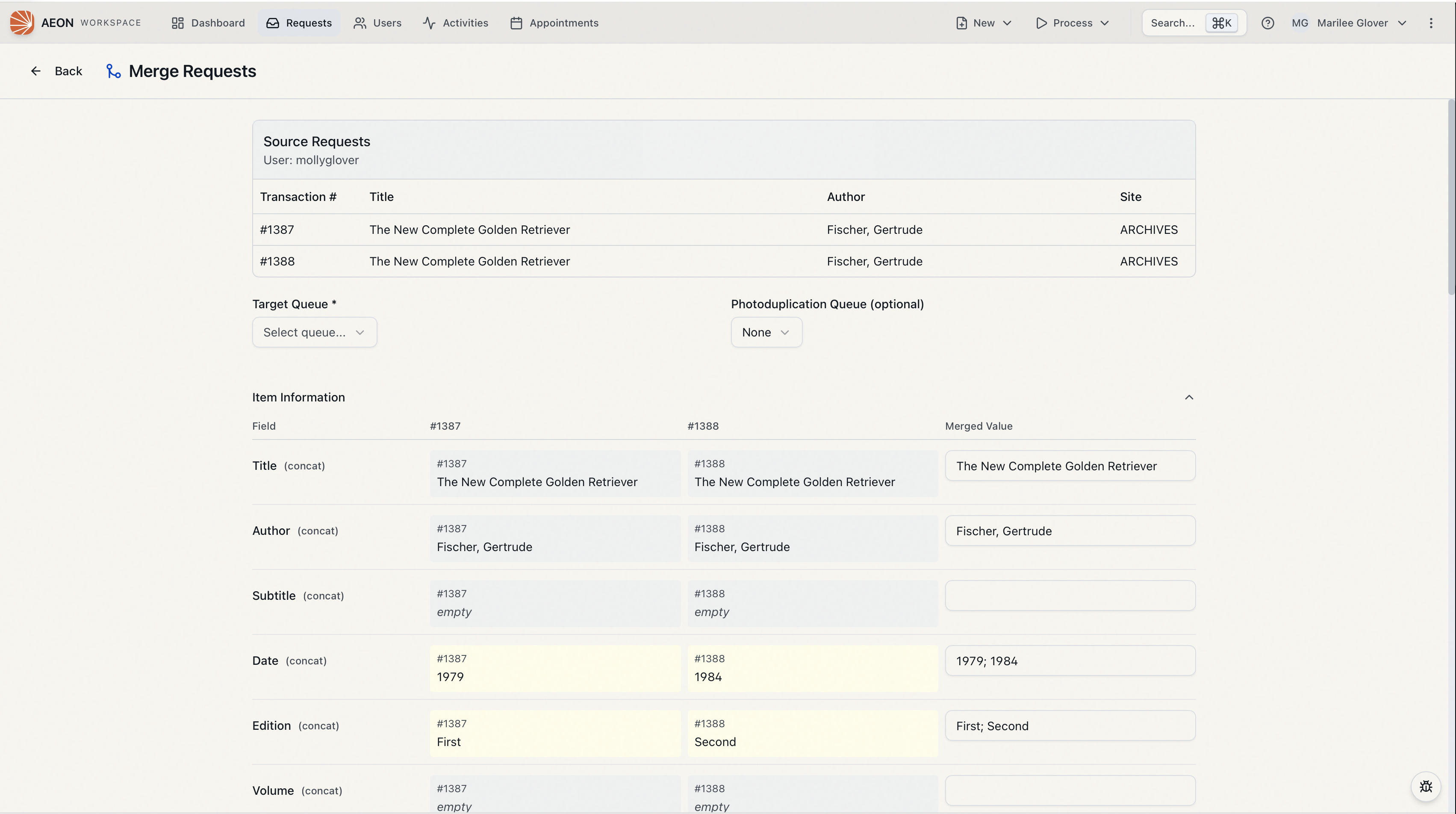
Source Requests
At the top, the Source Requests panel lists every request going into the merge — transaction number, title, author, and site — along with the user (and researcher, if different). Use this to sanity-check that you grabbed the right requests. If something looks wrong, click Back to return without merging.
Choose where the merged request lands
- Target Queue (required) — the status the new merged request will start in. You must pick one before you can finish. The list shows the queues your site allows requests to be routed to.
- Photoduplication Queue (optional) — appears when photoduplication is involved (see the photoduplication note below). Leave it on None to create a standard request, or pick a photoduplication queue to carry the copy workflow forward.
Resolve the field values
Below the queue selection, the citation and item fields are laid out in two collapsible sections — Item Information and Billing & Options — plus a Custom Fields section if any of the source requests have custom field data.
In the Item Information and Billing & Options sections, each row shows the value from every source request side by side, and a Merged Value box you can edit. Where the sources disagree, the differing values are highlighted so they're easy to spot. Aeon pre-fills the Merged Value for you using these rules:
- Most citation and item fields are combined. Distinct values from each source are joined together (separated by
;) so nothing is lost — for example, two different call numbers both end up in the merged request. - Site, Format, Service Level, and Shipping Option must match. If every source agrees, the shared value is used; if they differ, the field is left blank for you to choose.
- Page Count is added up across the sources.
- Document Type, For Publication, and Scheduled Date take the value from the first request.
You can override any of these. To copy a value straight from one of the sources, click that source's cell and it drops into the Merged Value box. Or just type the value you want.
The Custom Fields section is laid out a little differently: each custom field lists its source values stacked together, with a single Merged Value text box (pre-filled with the combined values) you edit by hand.
You don't have to retype anything. When two requests have different titles (or call numbers, or notes), click whichever source value is correct and Aeon copies it into the merged field for you.
Finish the merge
- Make sure a Target Queue is selected and the merged values read the way you want.
- Click Merge Requests.
- Aeon creates the new request, files the originals, and returns you to the queue you started from with the new merged request open. A status message confirms it, for example "Merged 3 requests into #12345."
That's it — there's no separate confirmation dialog beyond the preview page itself. The preview is your chance to review, so look it over before clicking Merge Requests.
If the Site on the merged request is one your role can't access, Aeon blocks the merge and shows "You do not have access to site '…'." Choose a site you have access to. This usually only comes up when the source requests span more than one site.
What happens to the original requests
Merging never deletes anything. When the merge completes:
- A new request is created with the merged field values, in the Target Queue you chose.
- Each original request is routed to the Request Merged queue (and, if it had a photoduplication workflow, its photoduplication status moves to Order Merged).
- Aeon links the new request back to each original, with the comment "Items merged by user," and records a history entry on the new request noting which requests it came from.
- Item Detail notes and custom field values from the originals are copied onto the new request.
You can trace the relationship later from the new request's History — the linked originals are recorded there.
Merging requests that use photoduplication
Photoduplication (copy/digitization) requests follow a few extra rules during a merge:
-
If all the source requests have a photoduplication status, the merged request can carry photoduplication forward too. Choose a Photoduplication Queue on the merge page.
-
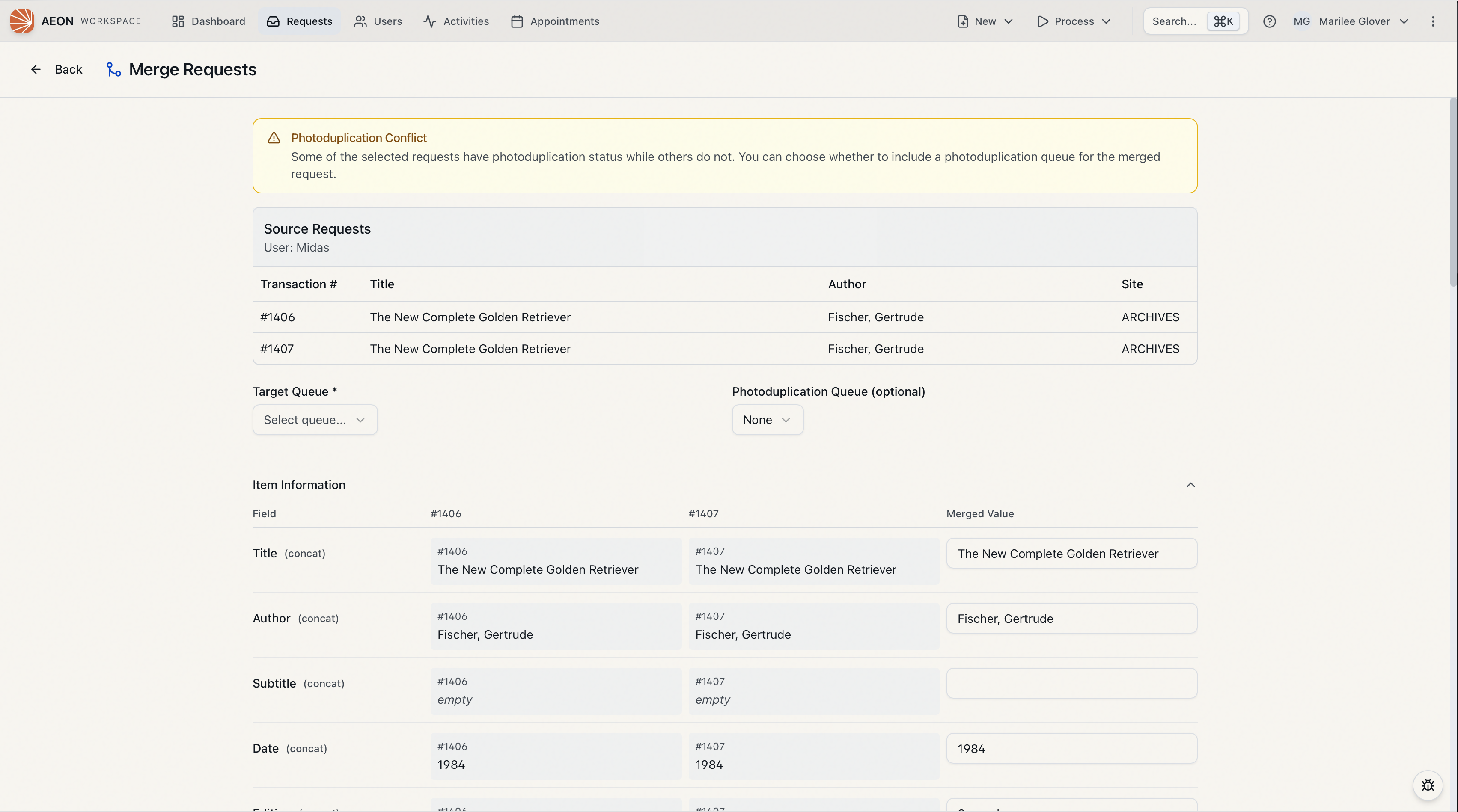
If only some of the sources have photoduplication, Aeon shows a Photoduplication Conflict warning at the top of the page. You then decide whether to include a photoduplication queue for the merged request — if you leave it as None, the photoduplication workflow is not carried over.
-
The photoduplication-specific fields — Format, Service Level, and Shipping Option — are carried into the merged request only when every source request agrees on them (they're "must match" fields). Where they differ, you select the value yourself.
If you merge a request that has a photoduplication workflow with one that doesn't, and you leave the Photoduplication Queue set to None, the photoduplication status is not carried into the merged request. Set the Photoduplication Queue if you need to keep the copy workflow.
If a request is locked by someone else
Because a merge rewrites several requests at once, Aeon tries to lock each source request while you work on the merge. If one of them is already open for editing by another staff member, the merge page tells you which request is locked and who has it, and the merge can't proceed until they're done. You can click Retry once they've finished, or go Back and try again later.
This page covers merging requests. To combine two user records for the same researcher, see Merging Duplicate Users — that's a separate workflow.