Request History
Every request keeps its own record of what has happened to it: each time it moved to a new queue, each action staff or the system took on it, every email sent about it, and any other requests it's tied to through cloning or merging. You read that record on the request's History tab.
You'll reach for it when you need to answer "what happened here?" — why a request is in the queue it's in, who checked an item out and when, whether a researcher was emailed, or which other transaction this one was cloned from. It's read-only: the History tab doesn't change anything, it just shows you the trail.
Open the History tab when a request's current state doesn't tell the whole story — a researcher asks why their copy order stalled, a colleague wants to know who reshelved an item, or you're untangling a duplicate and need to see what it was merged with.
Opening the History tab
- Open the request — for example, request #12345 — from a queue, from search, or from a user's request list.
- In the request, select the History tab.
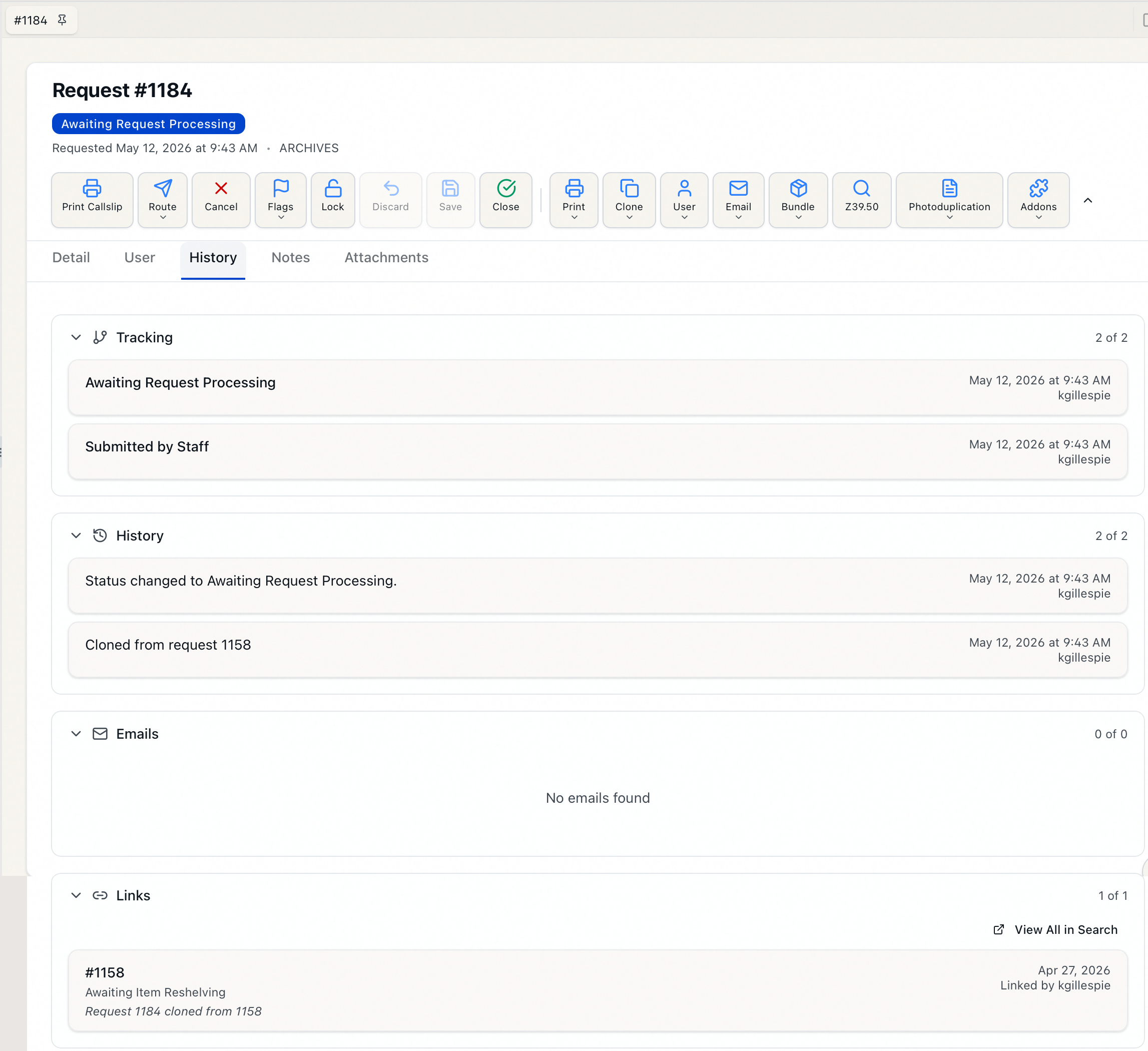
The tab loads four sections. Tracking and History are expanded when you open the tab; Emails and Links start collapsed. Click any section header to expand or collapse it. Each header shows a running count — for example, "10 of 37" — so you can see how much has loaded versus how much exists.
Anyone who can open a request can read its History tab. There's no separate permission for viewing the trail — if your role lets you open request #12345 (the View level of the Requests permission), you can see its history.
The four sections
Tracking
The Tracking section is the queue trail. Every time the request moved from one queue to another, a row records the queue it moved to, the date and time of the move, and who made it.
Most rows show the username of the staff member who made the change. A change made through a researcher's own web account is attributed to Researcher, and an automated change with no staff member behind it is attributed to System.
History
The History section is the action log — the broadest of the four. It records not just queue changes but everything done to the request: advancing it through the workflow, cloning it to or from another request, generating an invoice, printing a call slip or request slip, and edits to the request's information. Each row shows the date and time, a description of what happened, and who did it.
The two overlap by design. Tracking is the focused queue-movement trail — quick to scan when you only care about where the request has been. History is the complete log, including actions that don't move the request between queues (printing, invoicing, edits). When in doubt, History has the fuller picture.
Emails
The Emails section lists every email sent about this request, newest first. Each row shows the subject, the recipient, the date sent, and a status — Sent, Pending, or Failed.
Click a row to expand it and read the full message: the from, to, and CC addresses, the staff member who sent it, and the complete body. Click again to collapse it.
This section is for reading what was sent. To compose a new email about the request, use the email action on the request itself. To deal with a message that shows Failed, use the Outgoing Emails queue, where failed emails can be edited and resent.
Links
The Links section shows other requests connected to this one through cloning or merging. Each entry lists the linked request's transaction number, its current status, its original request date, and who created the link — for example, "Linked by jdoe." If the link carries a comment, it appears in italics beneath.
- Click a linked entry to jump straight to that request.
- If there are linked requests, a View All in Search button sits at the top of the section, on the right. Click it to open the search page filtered to everything linked to this transaction — useful when a request is part of a large clone batch and you want the whole set in one list.
Links only appear here when a request was cloned or merged. A request created on its own has an empty Links section — that's normal, not a problem.
Each section loads as you go
The sections page their contents rather than loading everything at once. When a section has more entries than are currently shown, a Load more button appears at the bottom — click it to pull in the next batch. The running count in the header ("20 of 37") updates as you load.
If a section can't load, it shows a short error with a Retry button. If a section has no entries at all, it simply reads "No tracking found," "No history found," and so on.
A note on live changes
The History tab is the permanent, after-the-fact record. While you have a request open, Aeon also tells you about edits happening right now: if another staff member changes the request while you're viewing it, a small notice appears near the top of the form — for example, "Status updated by alice" — and the request's fields refresh to match. That notice is a heads-up about a change in progress, not part of the History tab; the change itself is written into the Tracking and History sections like any other.