Routing a Request
Most of the time, you don't route requests by hand. As you process a request, Aeon moves it along for you: the toolbar shows the workflow actions that are valid for the request's current status — Check Out, Place On Hold, Reshelve, In Photoduplication, and so on — and choosing one advances the request to its next queue. Your site can also define routing rules that move requests between queues automatically in the background, with nothing for staff to do.
The Route menu described here is the manual override. Reach for it only when a request needs to step outside that normal flow.
When to route manually
Use the Route menu when a request needs to:
- go to a custom queue for specialized processing,
- skip ahead past a step, or catch up on one it missed, or
- move to another site (on a multi-site server).
If the request is simply moving to its normal next step, use the workflow buttons in the toolbar instead — that's the everyday path.
Before you start
- Manual routing requires the Full level of the Requests permission — a step above the Edit level needed for normal processing. If you see the workflow buttons (Check Out, Place On Hold…) but no Route menu, your role has Edit but not Full.
- You don't need to lock or "process" the request first — routing works whether or not the request is open for editing.
Route a request to another queue
-
Open the request.
-
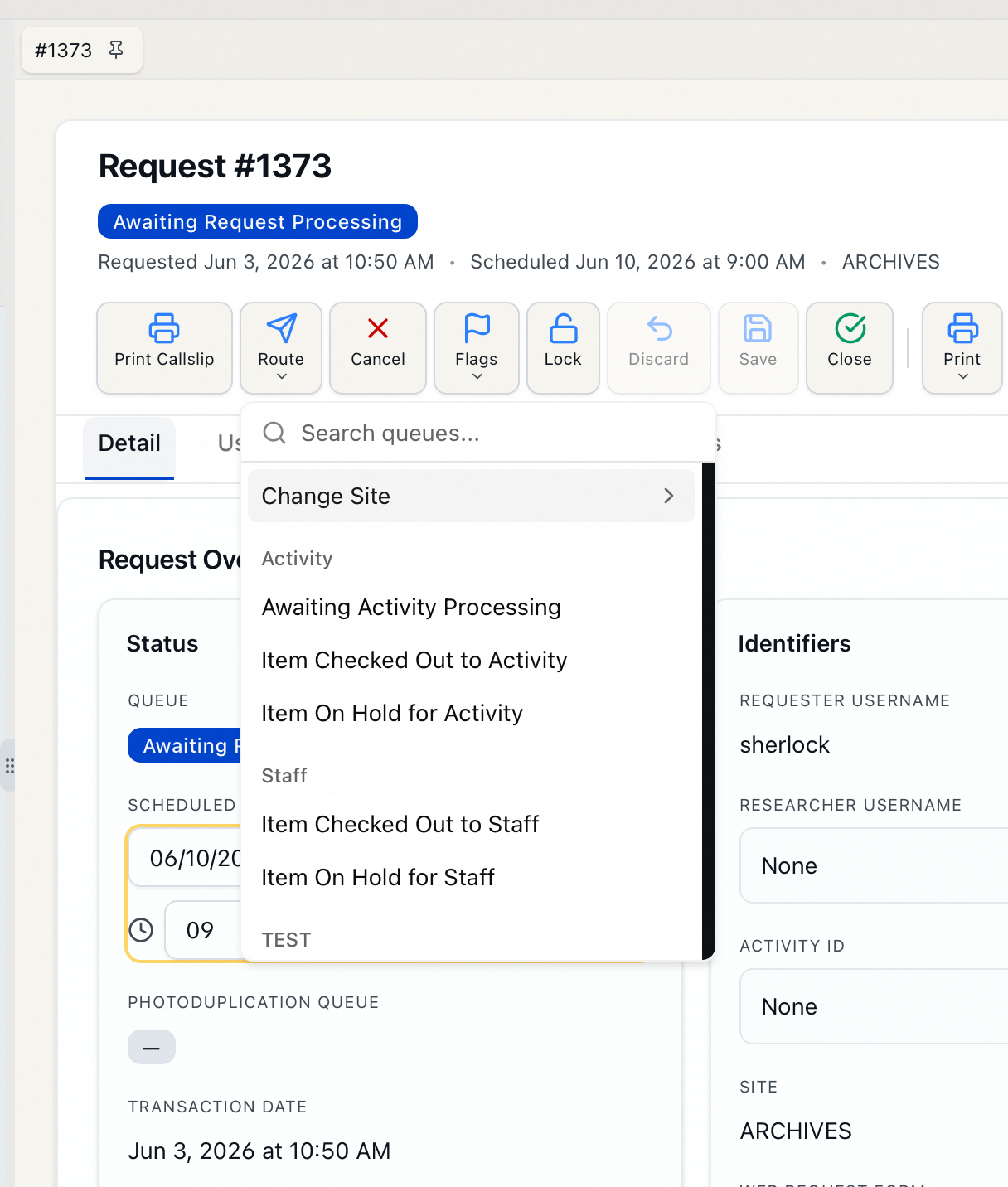
In the toolbar, click Route (the paper-plane button).
-
Choose a destination. The menu lists only the queues that are valid for this request, grouped under any menu groups your site has set up.
-
In the Confirm Status Change dialog — "Are you sure you want to route request #12345 to …?" — click Continue.
-
The request moves to the chosen queue, and your lists refresh.
Route a request to another site
On a multi-site server, the Route menu can also move a request to a different site.
- Open the request and click Route.
- Choose Change Site, then pick the destination site. (Your current site is marked (current) and can't be selected.)
- If you have unsaved edits, Aeon asks Save Changes Before Routing? — choose Save & Route, Discard & Route, or Cancel.
- In the Confirm Site Change dialog, click Continue.
- The request moves to the other site and leaves your current site's queues. If it's a site you don't have access to, you won't be able to reopen it.
Route several requests at once
- In a queue, select requests with the checkboxes. A selection bar appears at the bottom of the screen.
- Click Route in the selection bar and choose a destination queue.
- In the Route Requests dialog — "Are you sure you want to route 8 requests to …?" — click Route.
- Aeon routes the batch and tells you how many succeeded. Any that couldn't be routed are listed with the reason, so you can follow up.
What happens behind the scenes
Manual routing sets the request's status to the destination queue and applies any custom routing your site has configured for that move. It never changes another request. Your site's automatic routing rules keep applying to the request afterward as it continues through the workflow.