Assigning Roles to Staff
In Aeon 7, what a staff member can do in the web client is controlled entirely by the role assigned to their account. A role bundles together three things:
- Operational capabilities — what they can do day to day, like editing requests or managing billing.
- Configuration access — whether they can open the Customization Manager and edit roles.
- Field restrictions — any sensitive fields hidden from them.
Assigning the right role is how you turn a brand-new account into someone who can actually work — and re-assigning a role is how you promote, restrict, or repurpose an existing account.
This is the everyday companion to creating an account: you create the staff member, then you pick their role. A new account with No Role can sign in but has no web-client permissions at all, so assigning a role is almost always the very next step.
- A new staff member was just created and shows No Role — assign one so they can use the web client.
- Someone's responsibilities changed (a student worker becomes a supervisor, a processor moves to the front desk) — switch them to a different role.
- You built a custom role and now want to put people in it.
The role you assign here governs the Aeon 7 web client only. The separate Legacy Desktop Client checkboxes lower on the same page (Client Access, Customization Manager Access, and so on) control the old Windows desktop client and have no effect on web permissions. If a staff member only uses the web client, the role is the only thing that matters.
Where roles are assigned
Roles are assigned on an individual staff member's detail page, inside the Customization Manager.
- Open the Customization Manager and expand the Roles & Permissions category in the navigation.
- Click Staff.
- In the staff list on the left, click the staff member you want — for example,
jsmith. Their details open on the right.
Each staff member in the list carries a badge showing their current role, or an amber No Role badge if none is assigned yet, so you can spot unassigned accounts at a glance.
The Staff page lives under the Roles & Permissions category, so it only appears in the navigation for staff whose role has the Roles & Permissions configuration capability. If you can open this page, you already have the access needed to assign roles.
Assigning or changing a role
On the staff detail page, find the Role Assignment card. Its description reads "Assign a role to control this user's web interface permissions."
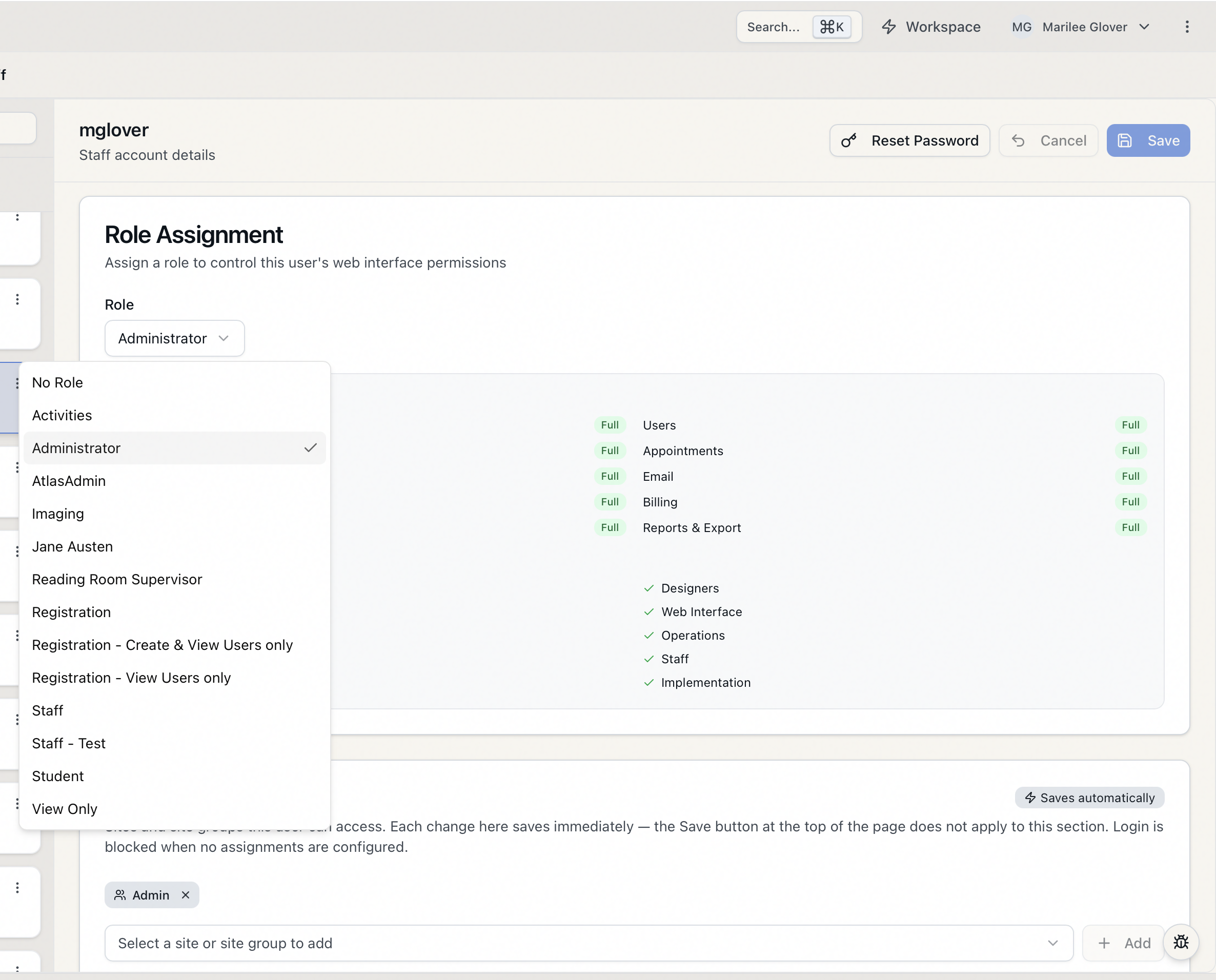
- Open the Role dropdown (it shows "Select a role" when nothing is chosen).
- Pick the role you want from the list — every role you've defined appears here (for example, Administrator, Staff, or a custom role like Front Desk). To remove a role entirely, choose No Role.
- As soon as you select a role, a capability summary appears directly below the dropdown so you can confirm you picked the right one (see the next section).
- Click Save in the top-right of the page. A confirmation appears: "Staff member "jsmith" updated successfully."
Selecting a role marks the page as having unsaved changes but does not apply it. You must click Save (or press Ctrl+S / Cmd+S). If you try to leave or switch to a different staff member first, Aeon stops you with a "Discard unsaved changes?" dialog — choose Stay here and save, or Discard changes to abandon the role change.
To undo an edit before saving, click Cancel, which resets the form to how it was.
Reading the capability summary
Once a role is selected, the summary panel shows exactly what that role grants, broken into up to three sections. This is the same information whether you're assigning a brand-new role or just reviewing what someone already has.
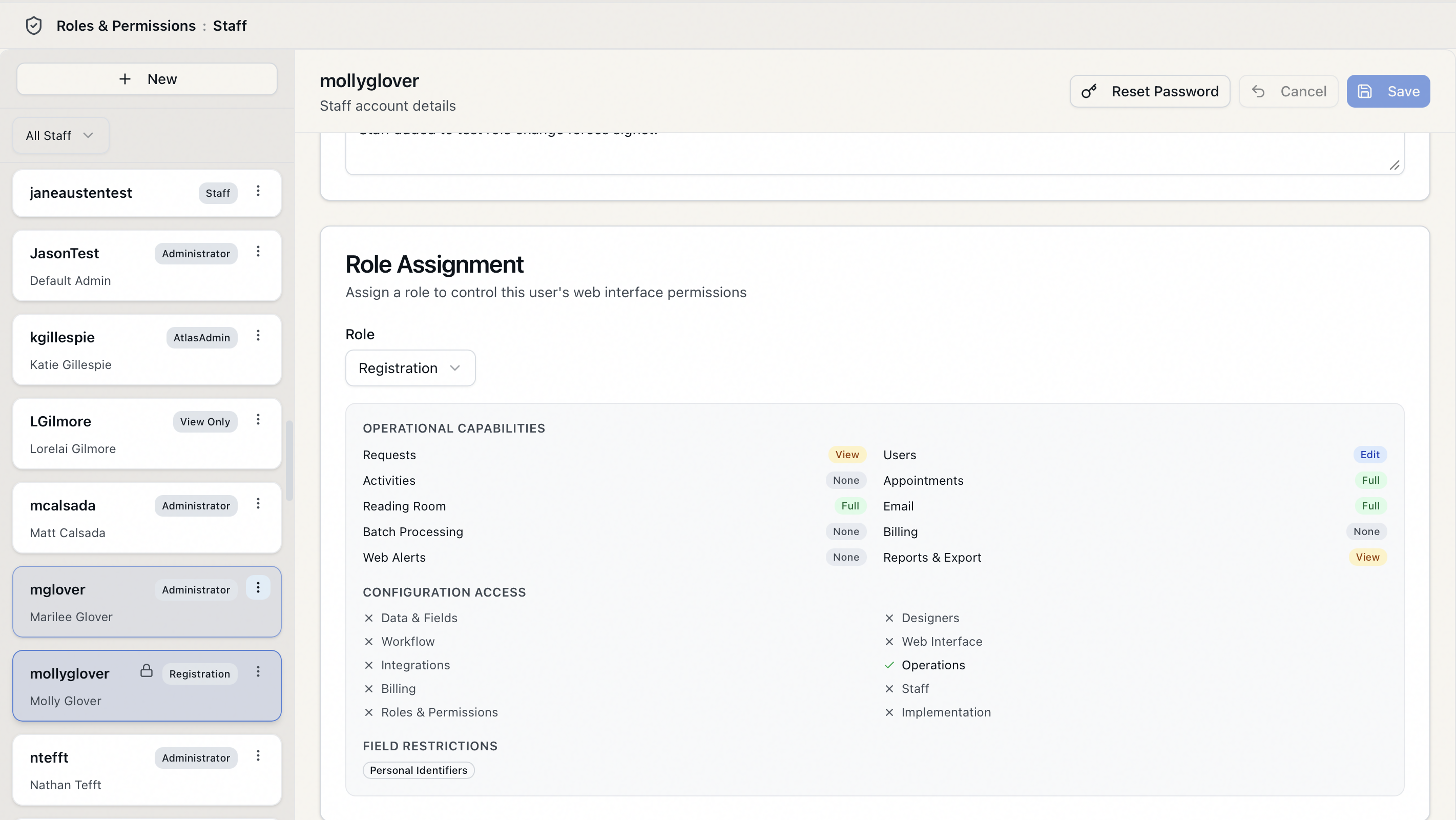
- Operational Capabilities — the ten operational areas (Requests, Users, Activities, Appointments, Reading Room, Email, Batch Processing, Billing, Web Alerts, Reports & Export), each with a colored badge showing the access level: None, View, Edit, or Full.
- Configuration Access — the ten configuration groups (Data & Fields, Designers, Workflow, Web Interface, Integrations, Operations, Billing, Staff, Roles & Permissions, Implementation), each marked with a green check if the role can access it or a gray X if it can't.
- Field Restrictions — listed only if the role restricts any field groups (for example, Personal Identifiers or Financial). If a role has no field restrictions, this section doesn't appear.
Because the summary updates the instant you change the dropdown selection, you can flip between two candidate roles and watch the badges change to decide which one fits — all before saving.
When the dropdown is set to No Role, the summary is replaced by the message "No role assigned — this user has no permissions in the web interface." That's your signal that the account can log in but can't do anything until you assign a role.
What happens when you save a role change
Assigning or changing a role takes effect immediately and forcibly. When you save:
- The staff member's permissions are recalculated right away.
- Any active sessions that person has are invalidated, so they'll be working with their new permissions the next time the app makes a request — they don't have to wait for a token to expire or sign out and back in. A staff member who is actively logged in when you change their role will be prompted to sign in again.
This is intentional: it means a role change you make for security reasons (revoking access) actually takes hold without delay.
Web-client permissions live entirely in roles. If you move the only person with Roles & Permissions configuration access into a role that lacks it, no one will be able to manage roles anymore. Aeon has guards against removing the last administrator, but the simplest safeguard is to always keep at least one account in an administrator-capable role. See Protecting Against Lockout: One-Admin Minimum.
- The Staff page sits under the Roles & Permissions category, so reaching it in the Customization Manager requires the Roles & Permissions configuration capability. In practice, anyone who can open this page can assign a role.
- The bulk role-assignment action — assigning one role to many staff members at once — is protected by a last-admin guard that blocks any change which would leave no staff member with administrator (Roles & Permissions) access.
Related tasks
- Creating a New Staff Account — set up the account first, then assign its role.
- Roles & Capabilities: The Permissions Model — understand what operational levels and configuration groups mean.
- Creating a Custom Role — build a role tailored to a job before assigning it.