Cloning a Role
Cloning makes a full copy of an existing role under a new name. The copy starts out identical to the original in everything that defines what the role can do — its operational capabilities, configuration access, field restrictions, and layout assignments — so you can take a role that's almost what you want and tweak the copy instead of building a new role from a blank slate.
The most common reason to clone is to spin off a variation. You have a Reading Room Supervisor role that's exactly right except it grants billing access you don't want a junior version to have. Rather than recreate it field by field, you clone it, then open the copy and turn off the one thing that differs. The original is untouched.
- An existing role is close to the permission set you need — clone it and adjust, instead of starting from scratch.
- You want a "scratch" copy to experiment with before committing changes, leaving the original in place.
- You're standing up several similar roles (e.g. per-department supervisors) and want them all to share the same starting point.
Before you start
Cloning lives in the Roles & Permissions configuration area, alongside the rest of role management. You can only get here if your own role has Roles & Permissions configuration access.
The entire Roles & Permissions area, including cloning, requires the Roles & Permissions configuration capability on your role. If your role doesn't have it, this section won't appear in the Customization Manager. (The built-in Administrator role has it; the built-in Staff role does not.)
Opening the Roles area
- Open the Customization Manager.
- In the left navigation, expand Roles & Permissions.
- Choose Roles (alongside Overview, Staff, and Field Groups).
You'll see the list of existing roles down the left side. Built-in roles (Administrator, Staff) show a small lock icon, and every role shows a badge with the number of staff currently assigned to it.
Cloning a role
There are two equivalent ways to clone. Both produce the same result: a new role, named <original> (Copy), that immediately opens in the role editor.
From the role list (right-click)
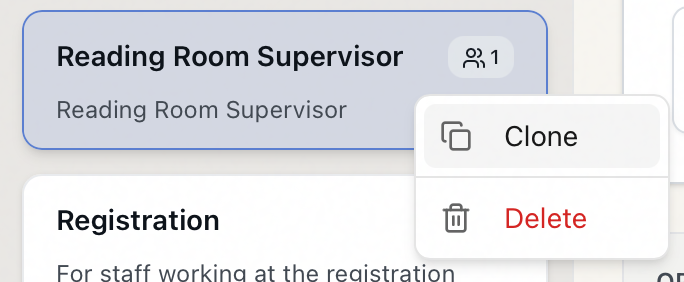
- In the role list on the left, right-click the role you want to copy — for example, Reading Room Supervisor.
- From the context menu, choose Clone.
- Aeon creates the copy and confirms with "Role "Reading Room Supervisor (Copy)" cloned." The new role is selected and opens in the editor on the right.
From the role editor
If you already have a role open:
- Select the role to open it in the editor.
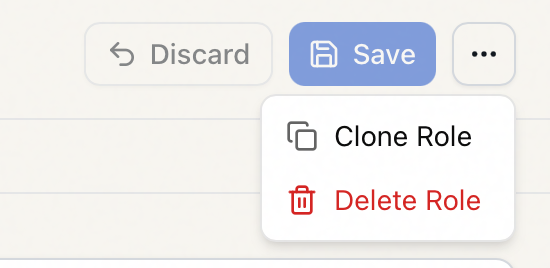
- At the top right of the editor, click the ⋯ (more) button.
- Choose Clone Role.
- The copy is created and opened the same way, with the same "Role "…(Copy)" cloned." confirmation.
That's the whole operation — there's no dialog to fill in. The clone is named automatically and you rename it afterward (see below).
Unlike deleting, Clone works on every role, including Administrator and Staff. Cloning the built-in Staff role, for instance, is a quick way to get a role with full day-to-day access that you can then lock down. The copy you create is an ordinary, fully editable role — it is not itself a built-in role.
What gets copied — and what doesn't
The clone is a faithful copy of the role's permissions and presentation, but not of who is in it.
Copied from the original:
- Operational capabilities — the None / View / Edit / Full level for each area (Requests, Users, Activities, Appointments, and so on).
- Configuration capabilities — which admin / Customization Manager areas the role can reach.
- Field restrictions — every field group the role is restricted from seeing.
- Layout assignments — the custom form and card layouts assigned to the role.
Not copied:
- Members. The clone starts with no staff assigned — its user count is zero. Cloning a role never moves or copies people; you assign staff to the new role afterward (see Assigning Roles to Staff).
- "System default" status. Even if you clone Administrator or Staff, the copy is a normal, deletable role — only the two originals are protected. See System Default Roles: Administrator and Staff.
After you clone
The clone opens in the role editor, ready to change. Typically you'll:
- Go to the General tab and rename it from "…(Copy)" to something meaningful, and update the description.
- Adjust whatever differs from the original across the Operational, Configuration, Field Restrictions, and Layouts tabs.
- Click Save (or Discard to throw away unsaved edits).
- Assign staff to the new role from the Members tab.
The automatic "…(Copy)" name keeps the first clone unique, but if a role by that exact name already exists — for example, you clone the same role twice — Aeon rejects the second one with "A role with this name already exists." The check ignores capitalization. If that happens, the first clone was still created; just rename it, or rename the existing copy before cloning again.
Cloning vs. "Clone from" in the Create dialog
There are two routes that both end up copying a role's settings, and it's worth knowing the difference:
| Clone action (this page) | Create Role → "Clone from" | |
|---|---|---|
| Where | Right-click a role, or the editor's ⋯ menu | The Create Role dialog (New button) |
| Naming | Automatic — <role> (Copy) | You type the name up front |
| Steps | One click | Fill in the dialog, then Create |
| Result | Identical copy, opened for editing | Identical copy, opened for editing |
Use Clone when you just want a fast duplicate to adjust. Use Create Role → Clone from when you'd rather name the new role and set it up deliberately from the start. Both copy the same four capability sets. See Creating a Custom Role for the dialog approach.