Field Restriction Groups
A field restriction group is a named bundle of database fields — for example, government IDs, home addresses, or payment amounts — that you can hide from staff who don't need to see them. The group itself just defines which fields travel together. The actual hiding happens on a role: once a role restricts a group, everyone in that role sees those fields blanked out (and can't edit them) everywhere they'd normally appear.
So there are two halves to the feature, and this page is about the first one:
- Field restriction groups (this page) — the reusable lists of sensitive fields. Aeon includes three; you can add your own.
- Restricting a group on a role — done on the role itself, on its Field Restrictions tab. See Editing a Role: Field Restrictions.
Defining a group does nothing on its own. A group only affects what staff see once a role restricts it. That separation is deliberate: you describe the sensitive data once, then reuse the same group across as many roles as you like.
- You want to keep front-desk or student staff from seeing patron government IDs and dates of birth — the built-in Personal Identifiers group already covers that; just restrict it on their role.
- Your institution treats a particular set of fields as sensitive (say, donor or grant fields) and there's no built-in group for it — create a custom group listing exactly those fields.
- You're auditing who can see PII or financial data and want to confirm which fields each group covers and which roles restrict them.
Where field restriction groups live
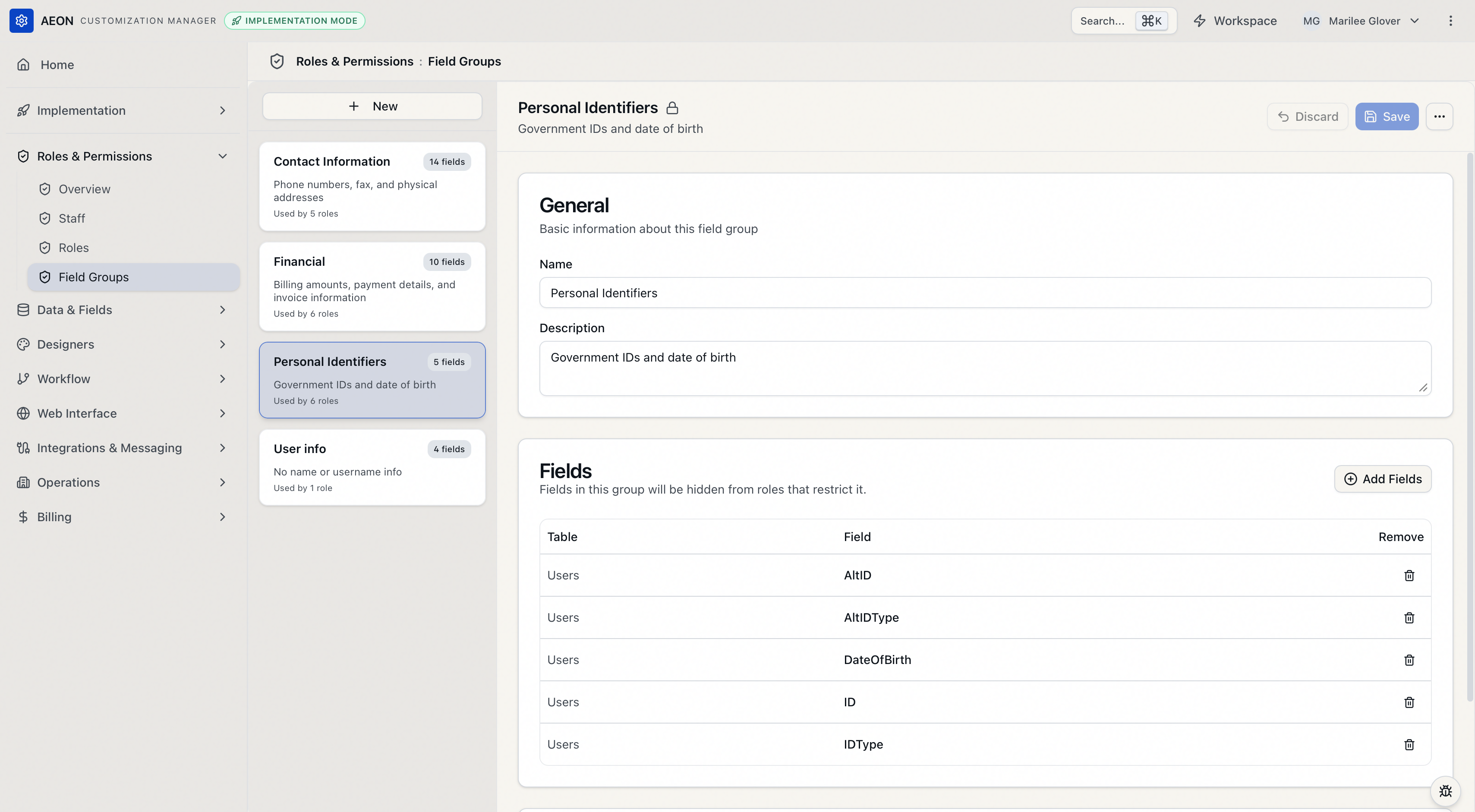
Field restriction groups are managed in the Customization Manager. In the left navigation, open the Roles & Permissions category and choose Field Groups (alongside Overview, Staff, and Roles in the same category).
The page is a two-pane editor:
- The left pane lists every field group. Each card shows the group's name, a field count badge (for example, 5 fields), its description, and — if any roles restrict it — a Used by N roles line.
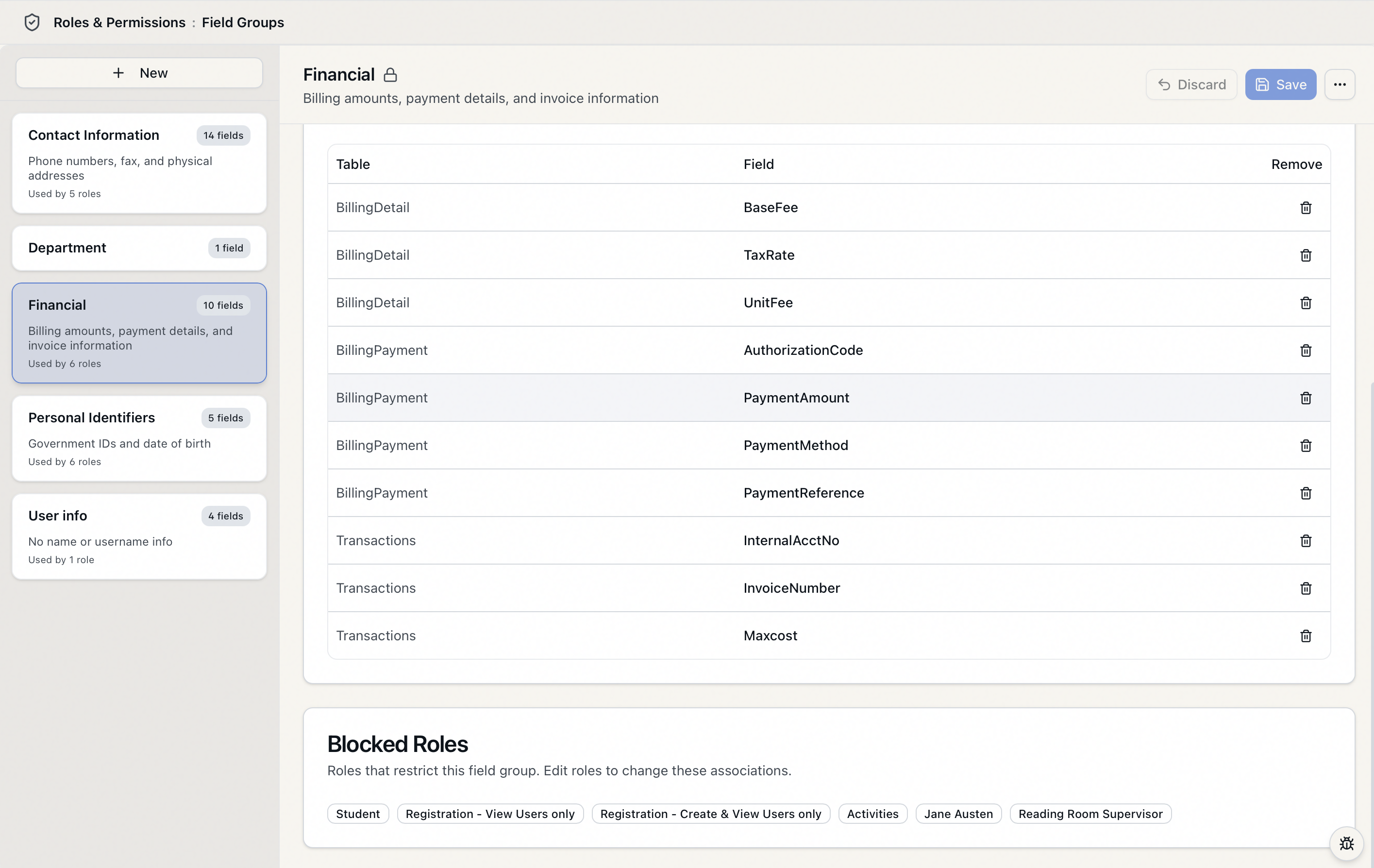
- The right pane is the editor for whichever group you select. It opens with the group's name and description, the list of Fields in the group, and a read-only Blocked Roles card showing which roles currently restrict it.
Field Groups sits behind the Roles & Permissions configuration capability. If your role doesn't grant that capability, the Roles & Permissions section — including this page — won't be available to you. This is the same capability that governs editing roles and managing staff.
The three built-in groups
Aeon includes three system default groups, ready to restrict on any role without any setup. They're marked with a small lock icon next to the name in the editor.
| Group | What it covers | Example fields |
|---|---|---|
| Personal Identifiers | Government IDs and date of birth | ID, ID Type, Alternate ID, Alternate ID Type, Date of Birth |
| Contact Information | Phone numbers, fax, and physical addresses | Phone, Fax, and the full mailing and shipping address fields (street, city, state, ZIP, country) |
| Financial | Billing amounts, payment details, and invoice information | Max cost, invoice number, base/unit fees, tax rate, payment method, payment reference, payment amount, authorization code |
These three cover the most common sensitive-data needs, so for many institutions you'll never need to create your own group — you'll just restrict the relevant built-in group on the roles that should be limited.
The three system default groups are permanent. If you try to delete one, Aeon refuses with "System default field groups cannot be deleted." You can still restrict (or stop restricting) them on any role at any time — the groups simply can't be removed from the system.
What a group can contain
A group is a flat list of fields, where each entry is a table plus a field on that table (for example, Users / DateOfBirth). When you add fields, Aeon presents only the fields it's able to restrict, organized by their table. As the built-in groups show, that includes patron fields from the Users table and billing-related fields, and any custom fields you've defined are offered too, grouped under the table they belong to.
A single group can mix fields from more than one table — the built-in Financial group, for instance, draws from several billing-related tables at once. The fields don't have to be related on screen; what they have in common is simply that you want the same roles restricted from all of them.
The list of restrictable fields isn't arbitrary — it's the set of fields Aeon knows how to reliably blank out across the request, user, and activity screens, plus the custom fields you've defined. That's why the field picker shows specific tables and fields rather than every column in the database. If a field you expect isn't offered, it isn't currently restrictable through this mechanism.
How a group behaves once it's restricted
When a role restricts a group, staff in that role experience the grouped fields as hidden and non-editable wherever those fields would normally show — on the request form, the user record, search results, and so on. The data still exists; those staff just can't read or change it.
Changes propagate quickly: editing a group's field list, or changing which roles restrict it, takes effect for affected staff without anyone needing to sign out and back in.
The editor makes the relationship visible from both directions:
- On a group, the Blocked Roles card lists every role that currently restricts it. This card is read-only here — to change those associations you edit the role, not the group.
- On a role, its Field Restrictions tab is where you actually turn a group's restriction on or off. See Editing a Role: Field Restrictions.
Common tasks
This page is the overview. The step-by-step tasks each have their own page:
- Creating a Custom Field Restriction Group — make a new group and choose its fields.
- Editing a Field Restriction Group — add or remove fields, rename, or update the description.
- Deleting a Field Restriction Group — remove a custom group you no longer need.
Aeon won't let you delete a group while any role still restricts it. In the list, the Delete option is disabled for such a group, with the explanation "In use by N roles — remove from all roles before deleting." Remove the restriction from each role first (on the role's Field Restrictions tab), then delete the group. (System default groups can never be deleted, in use or not.)
A worked example
Say your reading-room desk is staffed partly by students, and you don't want them seeing patron government IDs or dates of birth.
- Open Customization Manager → Roles & Permissions → Field Groups.
- In the list, click Personal Identifiers. The editor confirms it covers the ID, alternate ID, and date-of-birth fields — exactly what you want hidden.
- You don't change anything here, because the built-in group already lists the right fields. Defining the group isn't what hides the data — restricting it on a role is.
- Go to Roles & Permissions → Roles, open the Front Desk role (or whichever role your students hold), and on its Field Restrictions tab turn on the Personal Identifiers group. See Editing a Role: Field Restrictions.
- From then on, anyone in that role sees those fields blanked out on the user record and elsewhere. Staff in other roles are unaffected.
If instead you needed to hide a set of fields with no matching built-in group, the only difference would be step 2–3: you'd create a custom group first (see Creating a Custom Field Restriction Group) and then restrict it on the role.