Editing a Role: Field Restrictions
Operational and configuration capabilities decide what a role can do. Field restrictions decide what a role can see — they let you hide specific sensitive fields from everyone assigned to a role, even when those people can otherwise open the record.
A common example: a student worker who clears users and processes requests legitimately needs to open user records, but you may not want them seeing a researcher's government ID number or date of birth. Field restrictions let the role keep its day-to-day access while blanking out those particular fields. Where a restricted field would normally show a value, the person sees a Restricted placeholder instead of the real data.
Restrictions are applied through field groups — named bundles of fields, such as Personal Identifiers or Financial. You don't pick individual fields on the role; you check the groups you want hidden. The groups themselves are built and edited elsewhere (see Field Restriction Groups); this page covers turning them on or off for one role.
- A role needs to work with records but must not see particular sensitive fields (patron PII, billing figures, ID numbers).
- You're tightening privacy for a lower-trust role — front desk, students, temporary staff — without taking away the access they need to do their jobs.
- A new field group has been created and you want certain roles to start hiding it.
Most roles restrict nothing — staff see every field on the records they can open. Field restrictions are the exception you reach for when a specific role should be blind to specific data. A brand-new role starts with no groups checked.
Where to find it
- Open the Customization Manager and choose Roles & Permissions from the left navigation.
- Click Roles, then select the role you want to edit from the list — for example, Front Desk.
- In the role editor, open the Field Restrictions tab. (The editor's tabs are General, Operational, Configuration, Field Restrictions, Layouts, and Members.)
You'll see the heading Field Restrictions with the note "Check field groups to block this role from viewing those fields. Checked groups are restricted."
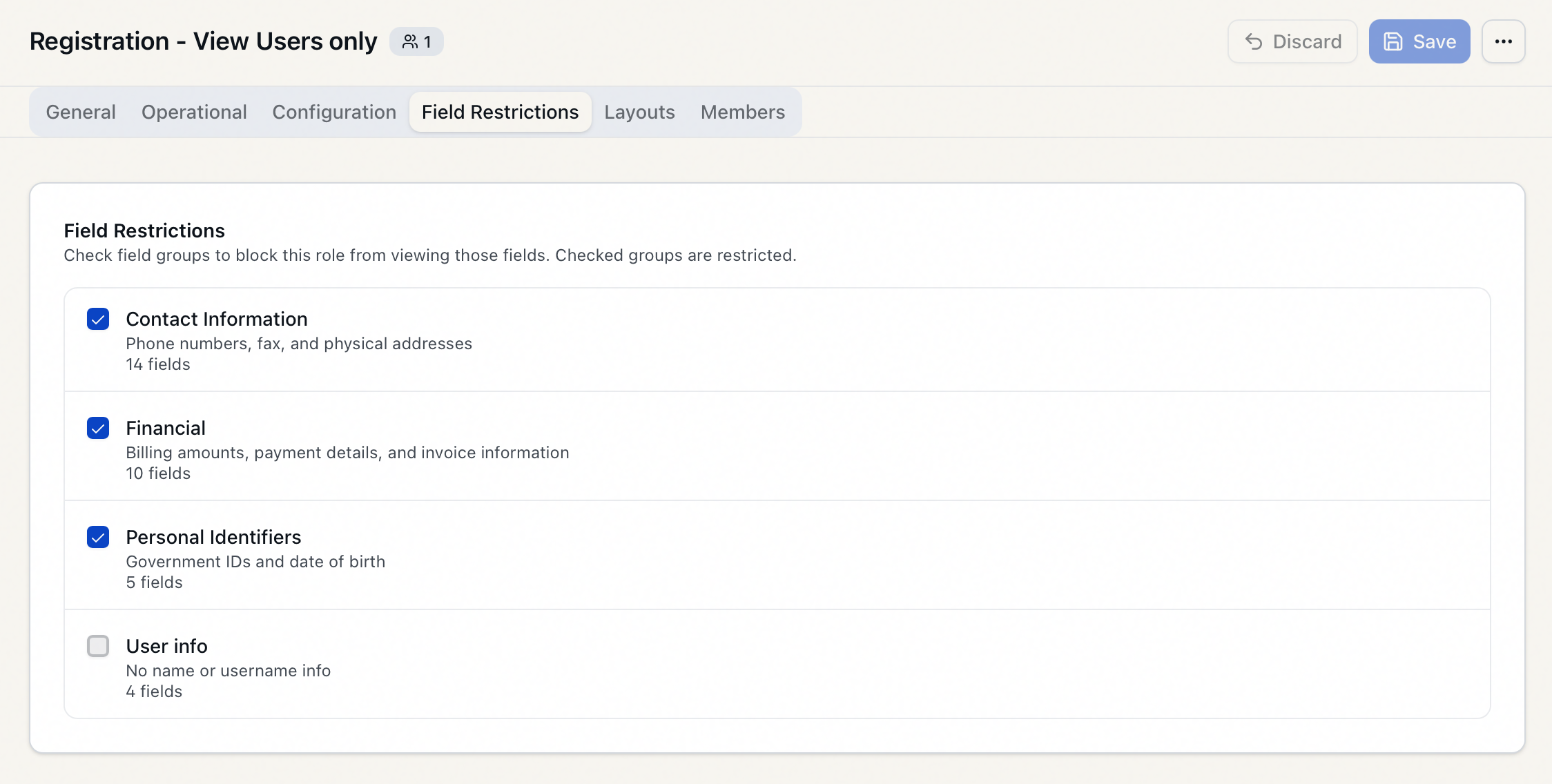
Restricting a field group
Each available field group is listed as a checkbox row showing the group's name, its description, and how many fields it contains (for example, Personal Identifiers — Government IDs and date of birth — 5 fields).
- Find the group you want to hide from this role.
- Check its box. A checked group is restricted; everyone in this role will have those fields blanked out.
- Repeat for any other groups the role should not see.
- To stop restricting a group, uncheck it — the fields become visible to the role again.
The checkbox is a block switch, not an allow switch. Checking Financial hides the financial fields from this role. Leaving it unchecked means the role can see them. This is the opposite direction from the capability tabs, so read the box as "block this group."
Saving your changes
Field restriction changes are part of the role's overall edit. Nothing takes effect until you commit it:
- After checking or unchecking groups, click Save in the role editor's header (top right). You'll see a confirmation that the role was saved.
- To throw away your changes since the last save, click Discard instead.
Both buttons stay disabled until you've actually made a change, and the editor warns you if you try to leave with unsaved edits.
A field restriction is enforced as records are sent to the people in the role. When you save the role, Aeon immediately clears the cached permissions for everyone assigned to it, so the new restriction applies on their next action — no need to reassign anyone or have them sign out and back in. Saving a role also ends affected users' current sessions, so they'll re-authenticate the next time they act.
What "restricted" looks like to the affected staff
When a role restricts a group, the people in that role still open the record normally — the difference is in the individual fields:
- On forms and in lists, a restricted field shows a Restricted indicator in place of the value instead of the real data.
- The restriction is read-only protection on viewing: it blanks the value out so it never reaches the browser. It is not a separate "edit but don't view" mode.
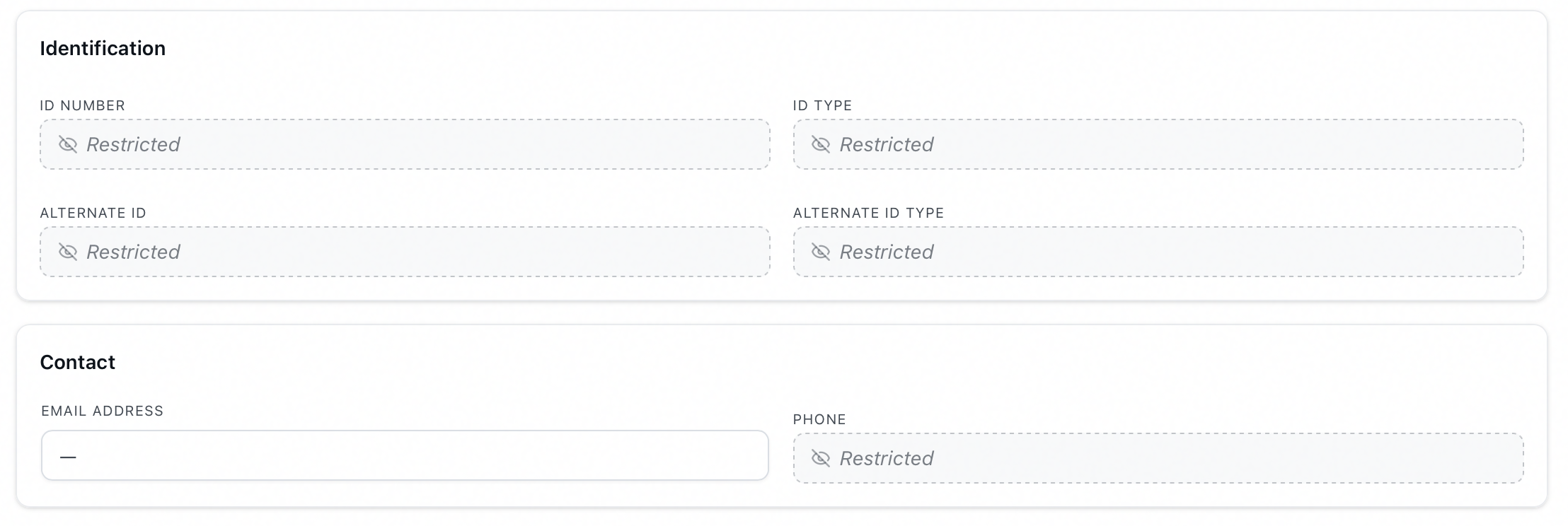
Field restrictions stack on top of capabilities. A role that has no access to Users at all won't reach those records in the first place; field restrictions matter for roles that can open a record but shouldn't see certain parts of it.
The built-in field groups
Aeon includes three system-default groups you can restrict right away, so you don't have to build anything before you start:
| Field group | Covers |
|---|---|
| Personal Identifiers | Government IDs and date of birth |
| Contact Information | Phone numbers, fax, and physical addresses |
| Financial | Billing amounts, payment details, and invoice information |
You can also create your own groups for other fields you want to protect. Building and editing groups — including which exact fields belong to each — is covered in Field Restriction Groups. If no groups exist yet, the Field Restrictions tab tells you so and there's nothing to check until one is created.
A field group can only be deleted once no role restricts it. If you need to retire a group, uncheck it on each role that uses it first; the group editor shows which roles currently restrict it.
Editing roles — including field restrictions — requires the Roles & Permissions configuration access. Staff without it can't open the Roles area of the Customization Manager. Be deliberate about who holds this access: it governs what every other role can see and do.