Editing a Role: Members & Assigned Staff
A role only matters once staff are in it. The Members tab of the role editor is where you see who currently holds a role and change that list directly — assign staff into the role, or take them out. It answers the everyday question "who actually has this permission set?" and lets you act on the answer without leaving the page.
Most of the time you assign a staff member's role one person at a time, from that person's record on the Staff tab (see Assigning Roles to Staff). The Members tab is the other direction: you start from the role and manage its whole roster at once. Use it when you're thinking about a role rather than a person — auditing who can do something, onboarding several people into the same role together, or clearing a role out before you delete it.
- You want to see, at a glance, exactly which staff are assigned to a role.
- You're setting up a new role and need to move several people into it in one pass.
- You're about to delete or repurpose a role and need to move its members somewhere else first.
- An audit asks "who has admin access?" — open the Administrator role's Members tab.
Getting to the Members tab
- Open Customization Manager and go to the Roles & Permissions area.
- Select the role you want — for example, Reading Room Supervisor.
- In the role editor, click the Members tab (the last tab, alongside General, Operational, Configuration, Field Restrictions, and Layouts).
The tab opens to a Members heading with the subtitle "Staff assigned to this role," a count badge showing how many staff hold the role, and an Assign Staff button. Below that is a table of the current members.
The badge on the Members tab reflects the live list as you edit it. The role editor's header also shows a people-icon badge with the role's assigned-user count, so you can see how heavily a role is used without opening the tab.
Reading the members list
Each assigned staff member appears as a row with three columns:
| Column | What it shows |
|---|---|
| Username | The staff member's login name (for example, jdoe). |
| Name | Their first and last name, or a dash if no name is on file. |
| Remove | A remove button (minus-person icon) for taking that person out of the role. |
If no one holds the role yet, the table is replaced by "No staff assigned to this role yet."
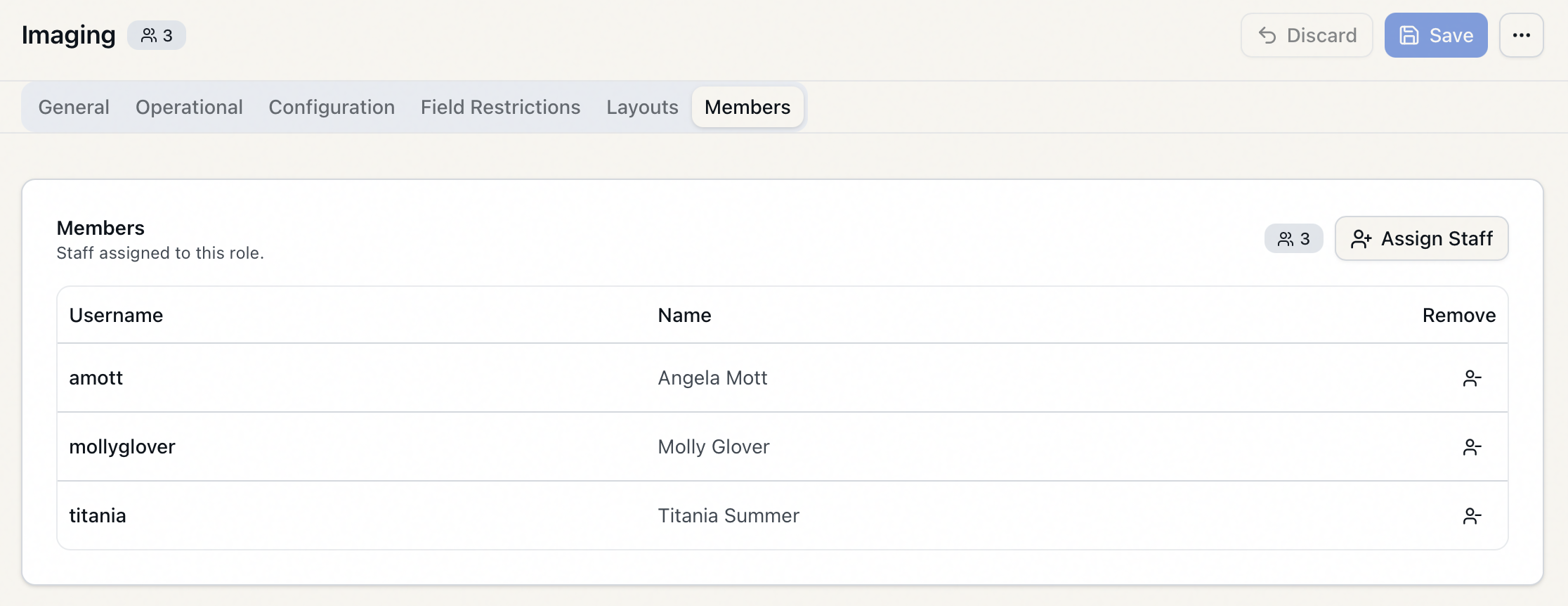
A staff member shows up here because their account is set to this role. The Members tab is a view onto the same assignment you'd set on the Staff tab — change it in one place and it's reflected in the other.
Assigning staff to the role
- On the Members tab, click Assign Staff.
- The Assign staff to (role name) dialog opens — for example, Assign staff to Reading Room Supervisor — with the note "Select staff members to assign to this role. Staff with other roles will be reassigned."
- Use the Search staff… box to narrow the list by username or name. Staff who already hold this role are not shown — only those you can still add.
- Tick the checkbox next to each staff member you want to add. You can select as many as you like.
- Click Assign — the button shows the running count, e.g. Assign (3).
Aeon assigns the role to everyone you selected and confirms with a message such as "3 staff assigned to Reading Room Supervisor." The dialog closes and the members table updates.
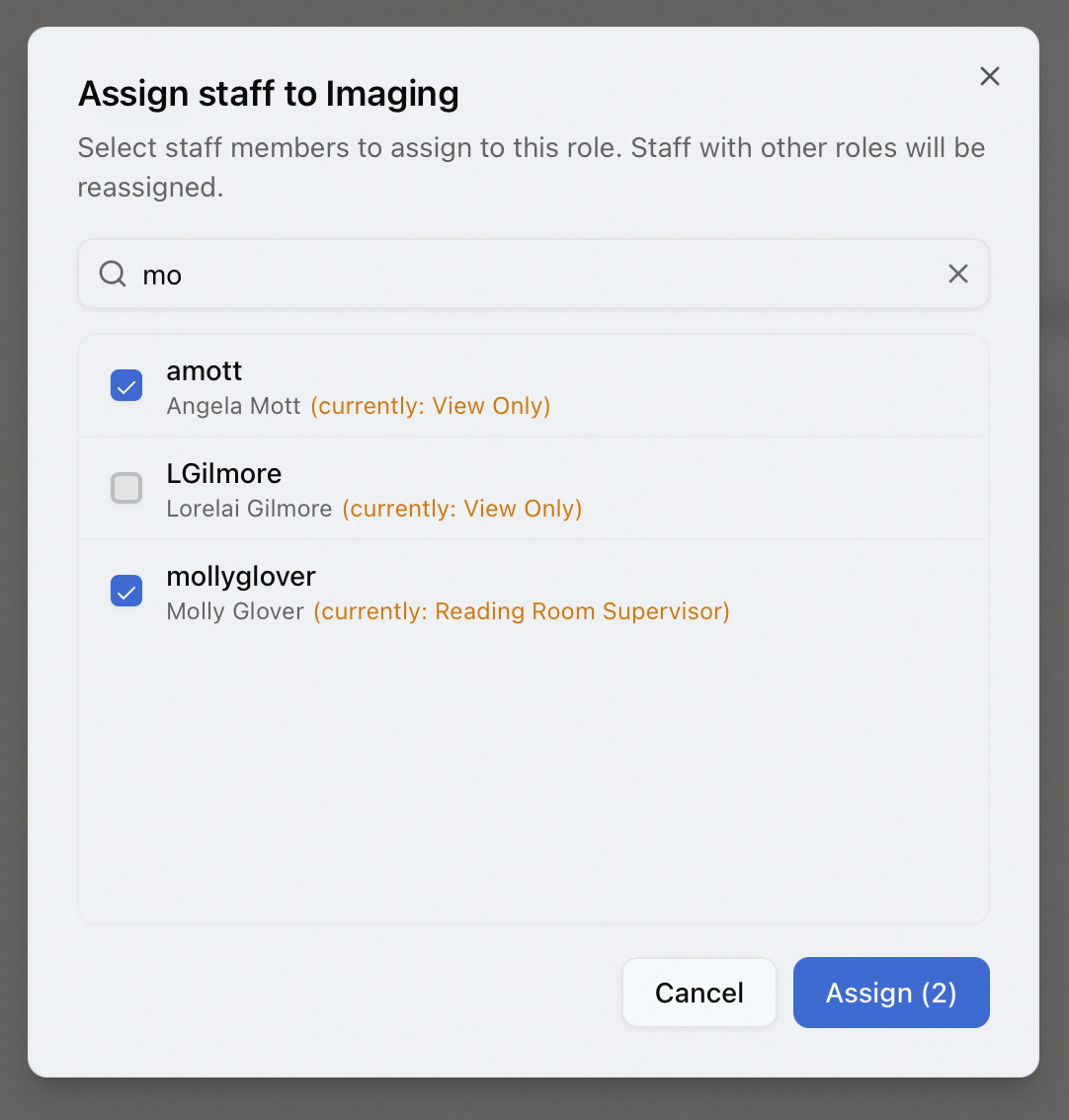
A staff member has exactly one role at a time. If someone you select already belongs to another role, the dialog flags it inline — "(currently: Staff)" in amber next to their name — and assigning will move them out of that role and into this one. It does not add a second role. Check the inline note before you confirm so you don't accidentally pull someone out of a role they need.
Removing staff from the role
- In the members table, find the staff member and click the Remove button (minus-person icon) in their row.
- A confirmation dialog appears: Remove from role — naming the person and the role, e.g. "Remove 'jdoe' from the Reading Room Supervisor role? They will have no role assigned and may lose permissions."
- Click Remove to confirm, or Cancel to back out.
On confirmation Aeon removes the assignment and shows a message such as "'jdoe' removed from Reading Room Supervisor." The person drops off the list immediately.
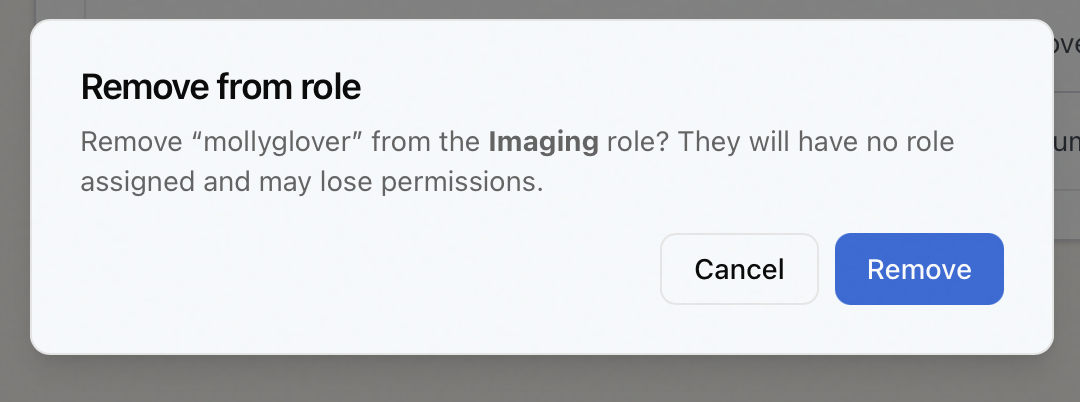
Removing someone here does not move them to another role — it leaves their account with no role assigned, which means they lose the permissions that role granted. If they still need access, assign them a different role afterward (here, or on their Staff record). This is the right tool when you're emptying a role before deleting it (see Deleting a Role); if you just want to change someone's role, assigning them to the new role directly is cleaner, since it moves them in one step.
When a role can't be emptied: the last-admin guard
You can't strip the last administrator out of Aeon. If removing someone here — or assigning staff in a way that moves them off their current role — would leave no staff member holding a role with Roles & Permissions configuration access, Aeon refuses the change with:
"This operation would remove Roles & Permissions access from all staff members. At least one staff member must retain admin access."
Aeon also won't let you remove your own admin access this way — taking yourself out of the last admin role is blocked with "Cannot remove Roles & Permissions access from your own account. This would lock you out of the admin UI."
If you hit either, leave one admin in place — or assign someone else to an admin-capable role first — and then make your change.
- The whole Roles & Permissions area, including the role editor and its Members tab, requires Roles & Permissions configuration access. Staff without it don't see this section.
- Both assigning and removing staff on this tab are role-assignment changes, so both require Roles & Permissions access — the same capability that gets you to this tab. (Removing updates the staff record behind the scenes, but the role change itself is still gated by Roles & Permissions, not the Staff capability.)