Copying a Staff Account
When you hire someone who needs the same access as an existing staff member, you don't have to build their account from scratch. Copying a staff account duplicates an existing account — its role, access settings, and site assignments — into a brand-new account with a username and password you choose. It's the fastest way to onboard staff onto a team where everyone has the same permissions.
The new account is a real, independent staff member from the moment it's created. The copy only seeds its starting configuration from the source; nothing stays linked afterward, so editing one later never affects the other.
- A new reading-room attendant should have the same role and the same site access as an existing attendant — copy that person's account instead of re-selecting everything by hand.
- You're standing up several similar accounts at once — copy one good "model" account repeatedly, changing only the username and password each time.
- You keep a deliberately configured template account around and want a fresh working account that matches it.
What gets copied
Copying carries over everything that defines what the account can do, but always gives the new account its own fresh credentials:
| Copied from the source account | Set fresh on the new account |
|---|---|
| Role (and therefore all of that role's capabilities, field restrictions, and layout assignments) | Username and password — you supply these |
| First name, last name, and description | Locked/disabled status — the new account is always created unlocked and ready to use |
| Access flags (client access, Customization Manager access, data export, web logon, and so on) | Failed-login count — reset to zero |
| Web client profile | — |
| Site and site-group assignments | — |
A staff member's real permissions live on their role, not on the account itself. Because copying carries the role over, the new staff member inherits that role's exact operational capabilities, configuration access, field restrictions, and layout assignments automatically. If you need the copy to have different permissions, change its role after creating it (see Assigning Roles to Staff) or assign it a role you've tailored.
The copy includes the source account's site-group assignments. This is deliberate: a staff account with no site access can't log in. So a copied account is immediately usable in the same sites as the original, with no extra setup.
Copying an account
-
Open the Customization Manager and go to Roles & Permissions → Staff. This shows the list of staff accounts.
-
Find the account you want to duplicate — for example, an existing attendant named
jsmith. -
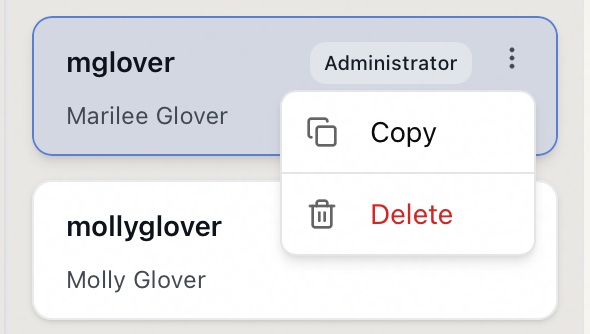
Open that account's action menu — click the three-dot button ("Actions for jsmith") on the account's card, or right-click the card — and choose Copy.
-
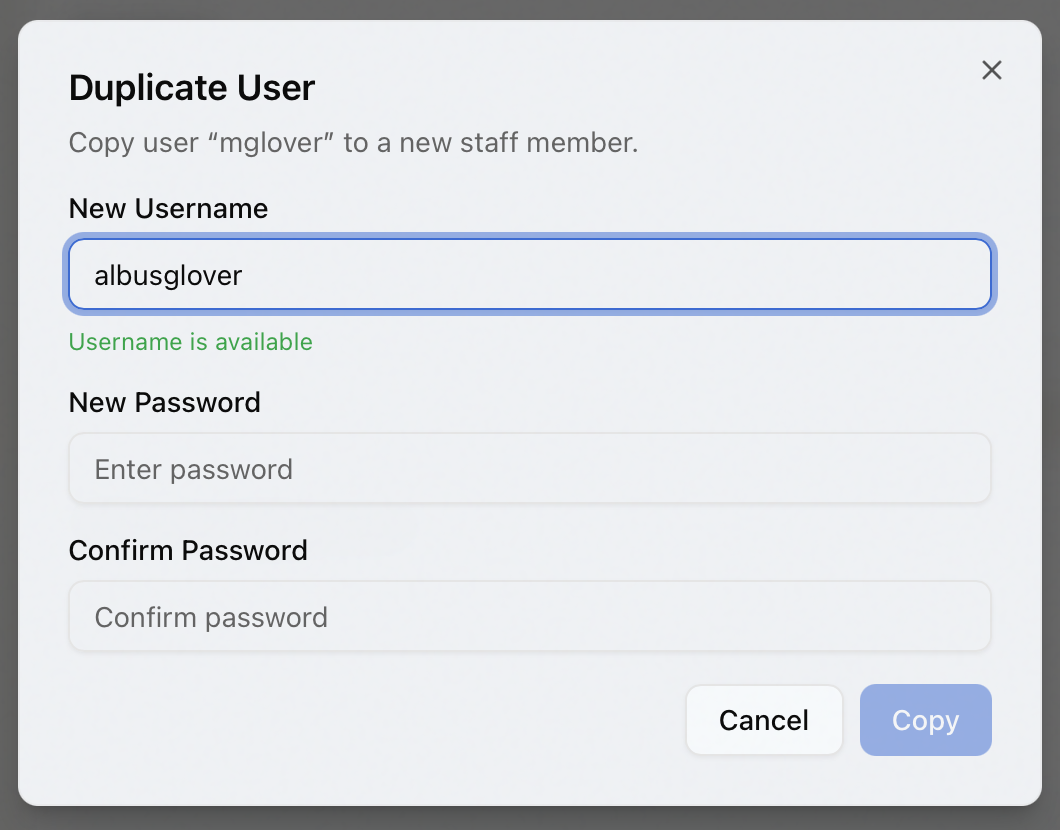
The Duplicate User dialog opens, headed "Copy user "jsmith" to a new staff member."
-
In New Username, type the username for the new account (for example,
mjones). Aeon checks the name as you type:- "Checking availability..." while it looks,
- "Username already exists" in red if the name is taken,
- "Username is available" in green when it's free.
-
Enter a starting password in New Password, then re-enter it in Confirm Password. Aeon confirms the two match ("Passwords match") or warns you if they don't ("Passwords do not match").
-
Click Copy. The button stays disabled until the username is available and the two passwords match.
-
Aeon creates the account, confirms with "Staff member "mjones" copied successfully," and selects the new account so you can review or adjust it right away.
The password you set here is just a starting credential so the account can log in. Hand it to the new staff member and have them sign in; you can also reset it later from the account's detail panel (see Resetting a Staff Member's Password).
If you have unsaved changes
If you were editing another staff account and have unsaved changes when you click Copy, Aeon stops first with a Discard unsaved changes? prompt — choose Stay here to go back and save, or Discard changes to drop the edits and continue to the copy. This keeps a half-finished edit from being lost when you start a new account.
After copying
The copy is now a normal staff account. From here you'll typically:
- Change its role if it shouldn't match the source — see Assigning Roles to Staff.
- Adjust its site assignments if it needs access to different sites than the original.
- Reset its password at any time from the account detail panel.
Because the copy is fully independent, none of these changes affect the account you copied from.
- Copying a staff account is part of staff administration. You reach the Staff area only if your role grants the Roles & Permissions configuration access, and the copy action itself requires the Staff configuration capability. If your role doesn't include staff administration, you won't see the Staff list or the Copy action.
- The username you choose must be unique. If it's already in use, Aeon blocks the copy and tells you the name already exists — pick a different one.